

Double Driver
About Double Driver
Most Windows utilities have a lifecycle. They get bought by larger companies, rebranded, monetized, eventually abandoned, and at some point a new fork picks up the pieces. Double Driver broke that pattern by quietly refusing to participate. The last meaningful update landed in 2010, the developer (Boozet) effectively stopped maintaining it, and yet the tool still runs on current versions of Windows and still does the one job it was built for.
That job is narrow. Double Driver scans your system for installed drivers, lists them in a panel, and lets you back up some or all of them to a folder, then restore them later on the same machine or a different one.
There’s no auto-update feature, no driver database lookup, no online component of any kind. For a category that has been overrun with subscription-based driver updaters and bundled installers full of optional toolbars, the absence of any of that is the reason this tool still has users.
What the scan actually finds
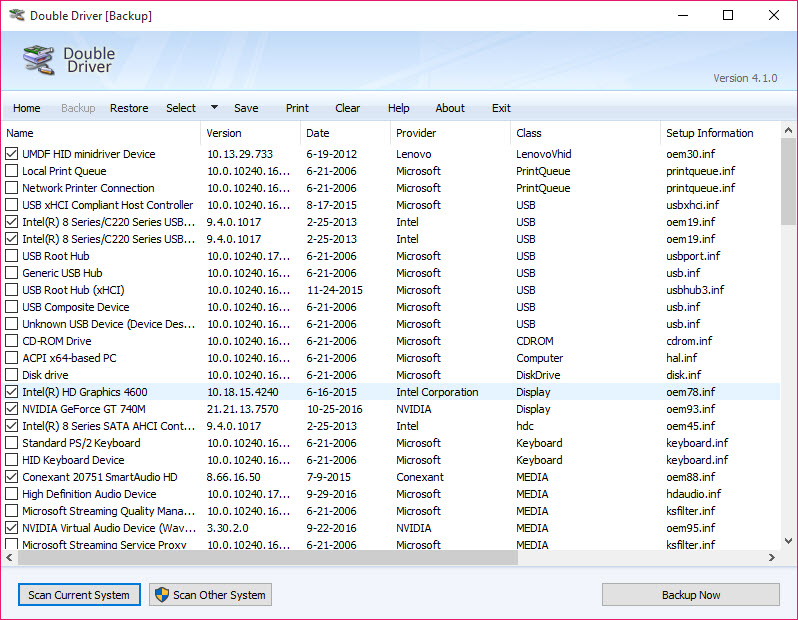
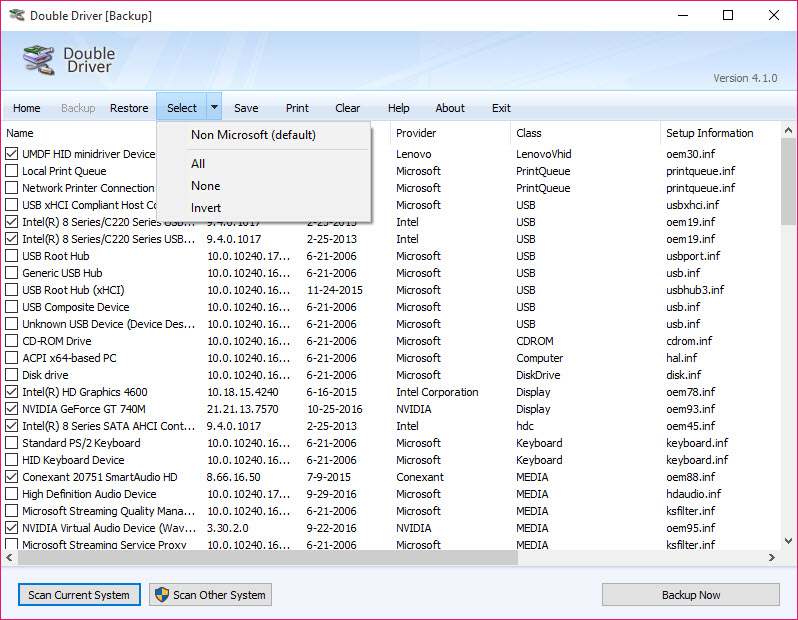
When you open Double Driver and click Scan Current System, it queries Windows for the list of currently installed drivers, including third-party drivers (printers, GPUs, network cards, peripherals, motherboard chipsets) and the modified or non-Microsoft system drivers. Microsoft’s own bundled drivers are filtered out by default, you can toggle them on if you want a complete picture, but for backup purposes the default selection is what matters.
Each driver entry shows the device name, provider, version, date, and the location of the driver files on disk. You can sort, filter, and check individual entries before backing them up. The scan itself takes a few seconds on a typical system, longer on machines with many installed peripherals or virtual devices.
The accuracy is what makes the tool useful. It picks up drivers that Windows’ own Device Manager export sometimes misses, and it correctly identifies the manufacturer for OEM-modified drivers (where the same chipset has been customized by HP, Dell, or Lenovo). That precision matters when you’re restoring to a machine where finding the exact original driver online would take an hour.
Backup format and what gets saved
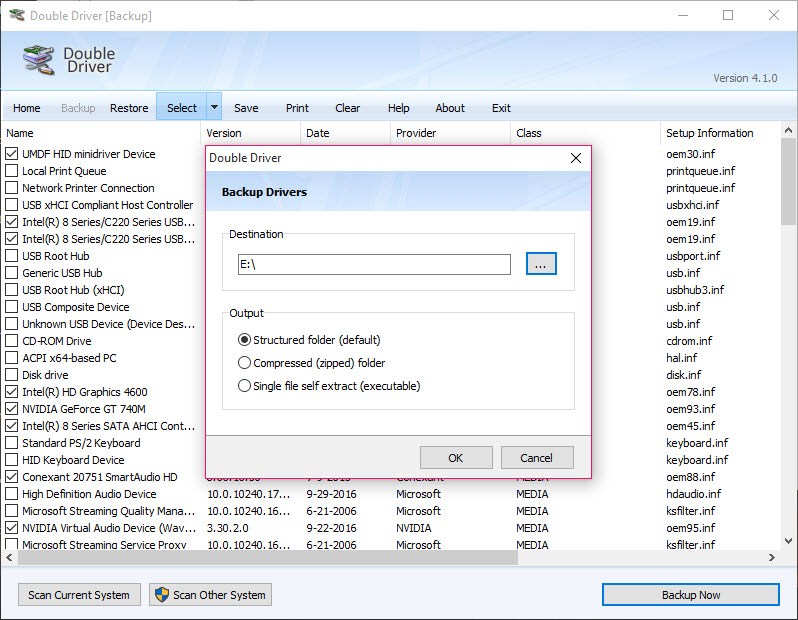
The backup process copies the actual driver files (INF, SYS, CAT, and supporting files) into a folder of your choosing. The output is a flat structure with subfolders per driver, plus an XML manifest that records the original installation paths and versions.
You have three output formats. Structured folder is the default, with each driver in its own subdirectory. Compressed creates a single ZIP archive. Self-executable produces an EXE that includes the driver files and a small launcher, so you can run it on a fresh Windows install without needing Double Driver installed there too. The self-extracting option is the one that gets actual use, it’s the closest the tool gets to one-click recovery.
What doesn’t get backed up is the driver’s registry configuration. The tool saves the files but not the settings the driver wrote to the registry during its original installation. For most drivers this is fine, the installer rebuilds the registry entries on restore.
For complex software with custom services or kernel-mode components (some virtualization tools, certain antivirus drivers), you may need to reconfigure after restoring.
The restore workflow
Restoring works in reverse. Point Double Driver at a previous backup folder or archive, check the drivers you want to reinstall, click Restore, and it walks through each one, calling the standard Windows driver installation API. The process is mostly non-interactive, but Windows will sometimes prompt for confirmation on unsigned drivers, especially on newer Windows builds where driver signing enforcement is stricter.
For a system migration scenario (old machine to new machine, fresh Windows install), the restore covers maybe 80% of what you need. Standard drivers go back cleanly. Niche or legacy drivers that depended on specific OEM software might need their original installers anyway. It’s a head-start, not a full recovery.
The dual-purpose nature (backup and restore in the same tool, with no separate utility needed for either direction) is the reason it kept its place against fancier alternatives like Driver Genius and DriverHub, which split functionality across paid tiers.
Portable, single executable, no installation needed
Double Driver ships as a portable package. You download a ZIP, extract it, run the executable, and that’s the entire installation process. Nothing gets written to the Windows registry, no services get registered, no scheduled tasks get created. Drop the folder on a USB drive and the tool runs from there on any machine you plug it into.
This is the format that makes it survive across Windows generations. Because it doesn’t depend on installer behavior or registry hooks, the version that worked on Windows 7 still works on Windows 10 and 11 without modification.
Driver backup APIs in Windows have remained backward-compatible at the level this tool uses, which is why a 15-year-old utility keeps functioning when most of its contemporaries broke years ago.
How it sits next to modern driver utilities
The category around it has changed dramatically. Driver Booster and Driver Talent handle automatic detection and downloads of new driver versions from online databases. Snappy Driver Installer does the same thing through a massive offline driver pack model. Driver Automation Tool targets enterprise driver deployment for Dell, HP, and Lenovo systems.
Double Driver doesn’t compete with any of these on their terms. It doesn’t update anything, doesn’t connect to a database, doesn’t know which drivers are outdated. It just captures the current state of your driver collection and gives you a way to put it back. That narrow scope is exactly why people still use it, sometimes you don’t want a tool to make decisions for you, you just want a snapshot you can rely on.
For a broader backup strategy that includes drivers alongside system files and full disk images, AOMEI Backupper or EaseUS Todo Backup cover that ground. But for driver-specific work, this small portable utility still gets the job done with less overhead than any full backup suite.
The abandonware question
Version 4.1.0 has been the current release for around 15 years. The developer’s site has not been actively maintained, and there’s no formal channel for bug reports or feature requests. Whether you consider this a problem depends on what you expect from a tool.
The pragmatic view is that the software works, has worked across multiple Windows generations, has no security-critical attack surface (it doesn’t connect to the internet, doesn’t accept input from untrusted sources, doesn’t run with persistent elevated privileges), and the job it does hasn’t changed since 2010. A driver is a driver. Backup means copying files. Restore means reinstalling them through Windows APIs. There’s nothing about that workflow that needed continuous updates.
The cautious view is that any abandoned software is a risk on a long enough timeline. When Microsoft changes how driver installation works at the kernel level (which has happened with the move to driver signing and HVCI on Windows 11), tools like this could stop working overnight. Right now they still function, but that’s not a guarantee for the future.
Conclusion
Double Driver is one of those small, single-purpose utilities that survived the era of consolidation by doing exactly one thing well and refusing to change. It’s the right answer when you’re about to reinstall Windows on a machine with peripherals whose original driver disks are long gone, or when you’re migrating to similar hardware and want to capture the current driver state before anything changes.
For continuous driver maintenance, modern alternatives with active databases do more, but for the snapshot-and-restore workflow this utility was designed for, it remains hard to beat on simplicity and zero overhead.
The honest assessment is that you install it when you need it, run it once, archive the backup somewhere safe, and forget about it until the next reinstall. That kind of utility doesn’t need yearly updates to stay relevant, and the developer’s decision to stop touching working code has, paradoxically, kept the tool useful longer than most actively maintained competitors.
Pros & Cons
- Portable single-executable design with no installation or registry writes
- Backs up drivers as self-extracting executables for one-click restore on fresh systems
- Reliable detection of OEM-modified and third-party drivers that Device Manager export misses
- Free with no premium tier, no ads, no bundled offers
- Works across Windows 7 through 11 without code modification despite being from 2010
- No online driver database, no update functionality, no version comparison
- Registry entries created by original driver installations are not preserved
- Last meaningful update was around 2010, no active development
- Interface is dated and lacks modern UI conventions
- Unsigned driver restore prompts can interrupt automated workflows on newer Windows builds
Frequently asked questions
The application scans the installed drivers on a Windows system, lets you back them up to a folder or archive, and provides a restore function to reinstall those drivers later on the same or a different machine.
Yes. The tool runs on Windows 10 and 11 despite not receiving updates since around 2010, because it uses standard Windows driver APIs that have remained backward-compatible.
No. The application only backs up and restores drivers, it does not connect to any online database or compare installed versions against newer releases.
The application supports three output formats. A structured folder layout with one subdirectory per driver, a compressed ZIP archive, or a self-extracting executable that can restore drivers without needing the application installed on the target machine.
The driver files are restored, but registry configuration is not. Most drivers rebuild their settings during reinstall, but complex drivers with custom services may require manual reconfiguration.
Yes. The application runs from any folder without installation, does not write to the registry, and can be run directly from a USB drive.


