

Driver Automation Tool
 (3 votes, average: 5.00 out of 5)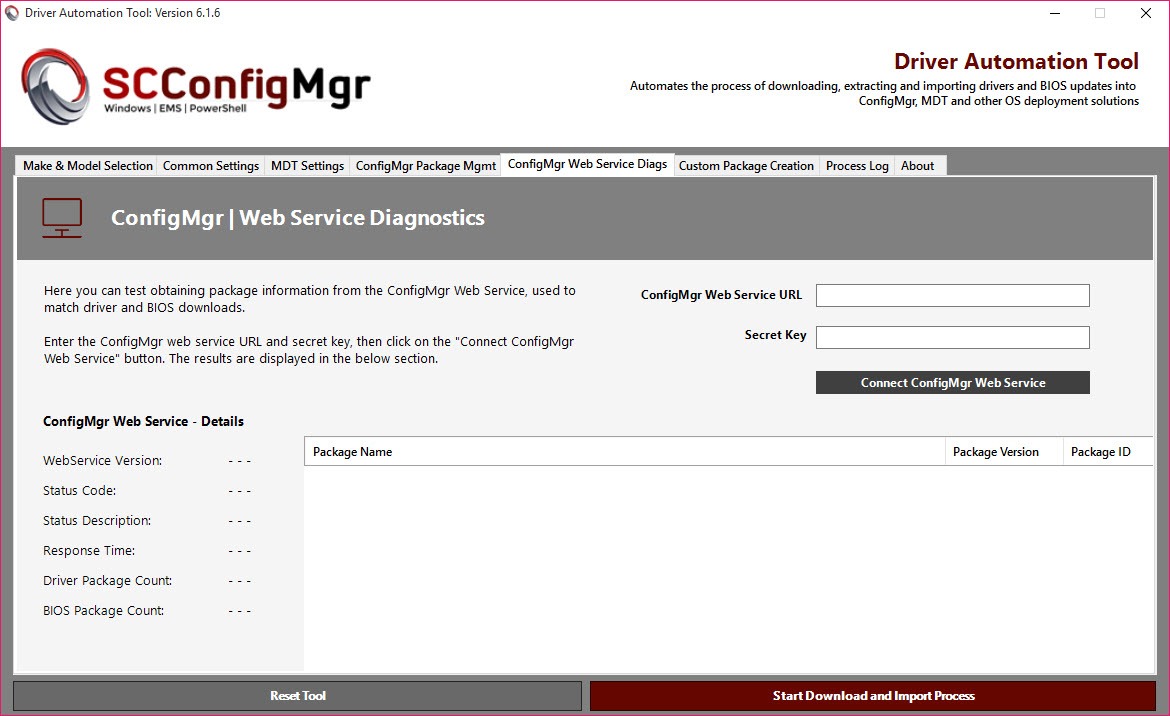
About Driver Automation Tool
Anyone managing OS deployments across a fleet of hardware models knows the painful loop. Dell ships a new driver pack for the Latitude 7450. HP releases a BIOS update for the EliteBook 845 G11. Lenovo pushes a chipset driver for the ThinkPad T16 Gen 3.
Microsoft drops a Surface Pro 11 firmware bundle. Each vendor has its own catalog format, its own download URLs, its own package naming convention, and each one needs to be wrapped into a deployment-ready bundle, dropped onto a distribution point, and wired into a task sequence.
Driver Automation Tool is the PowerShell-driven GUI utility that handles that loop for SCCM, MEMCM, MDT, Intune, and offline deployment scenarios. It connects to each vendor’s catalog, lets you pick the models and operating system targets you care about, downloads the matching driver and BIOS packages, extracts them into the correct structure, and creates the configuration items in your deployment platform of choice. What used to be a manual afternoon of clicking through OEM support sites becomes a queue you let run overnight.
This is enterprise admin territory. The audience is sysadmins, deployment engineers, and Configuration Manager pros, not home users looking to update a graphics card driver.
What vendors and platforms it covers
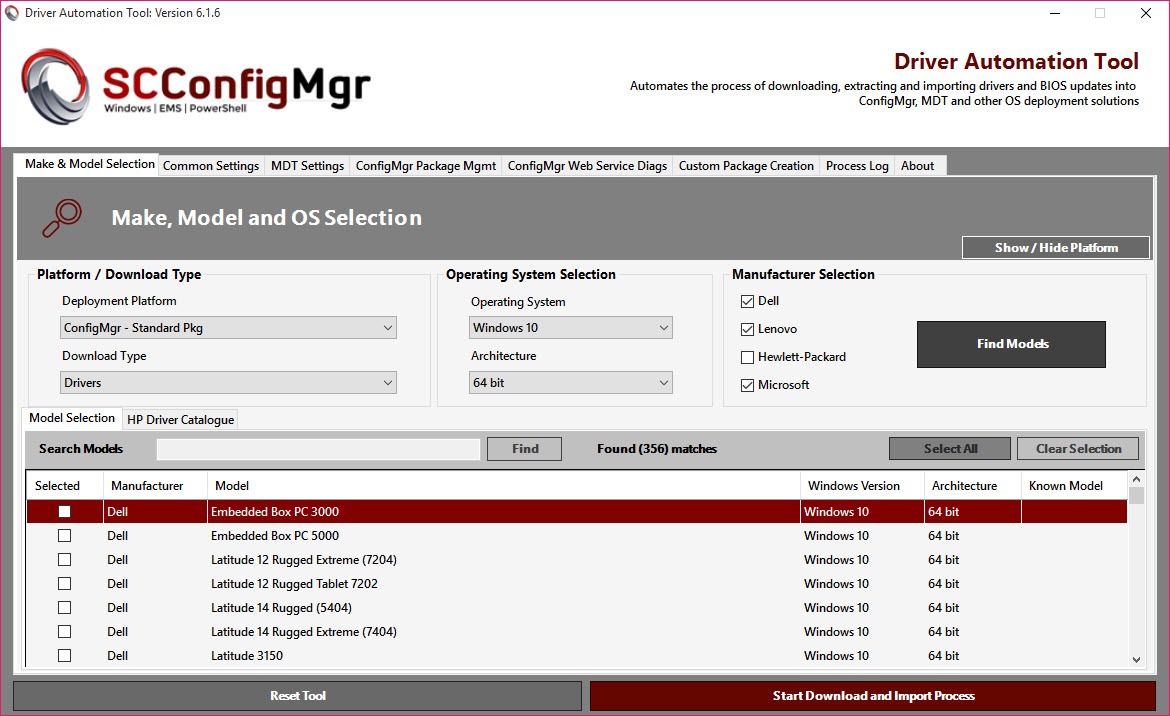
Dell, HP, Lenovo, Microsoft (Surface), Acer, Fujitsu, Panasonic, and Toshiba are all in scope. Each vendor exposes their driver catalog differently, and the application abstracts those differences behind a unified interface. You select a vendor, pick the models from a dropdown populated by the live catalog, choose your target OS builds (Windows 10 22H2, Windows 11 23H2, 24H2, etc.), and the application figures out the URLs and package structures behind the scenes.
The deployment targets supported include MEMCM (formerly SCCM) packages, MEMCM driver packages, MDT, Intune Win32 apps, and a generic offline download mode for environments running something custom.
Each target produces output in the format that platform expects. MEMCM packages get a proper INI structure with the right detection logic. Intune output is wrapped as a .intunewin file ready to upload. MDT output drops into the deployment share with the right folder hierarchy.
The catalog and download pipeline
When the application starts, it pulls the latest vendor catalogs over HTTPS. Dell uses their CAB-based catalog, HP exposes XML-based platform lists, Lenovo has its own JSON feeds, Microsoft hosts a structured directory of Surface MSI bundles. The fetch is reasonably fast and the parsed catalog is what populates the model dropdowns in the interface.
After you’ve selected your models and OS targets, the application queues each driver package for download. Larger packages (several gigabytes for some Dell or HP machines with full peripheral coverage) take time, and the application surfaces a progress bar per file. Resume support handles network interruptions, which matters when you’re queuing dozens of packages overnight.
A practical detail. The download pipeline is throttled per vendor to avoid hammering their support sites, and the application stores hashes of previously-downloaded packages so a re-run doesn’t redownload identical files. The cache lives wherever you point it at startup.
Package extraction and content layering
Vendors don’t ship driver packages in a consistent format. Dell ships self-extracting executables that need command-line flags to unpack silently. HP ships SoftPaq exe bundles with their own extraction protocol. Lenovo ships tar.gz files containing structured driver trees. Microsoft Surface MSIs contain firmware components alongside drivers.
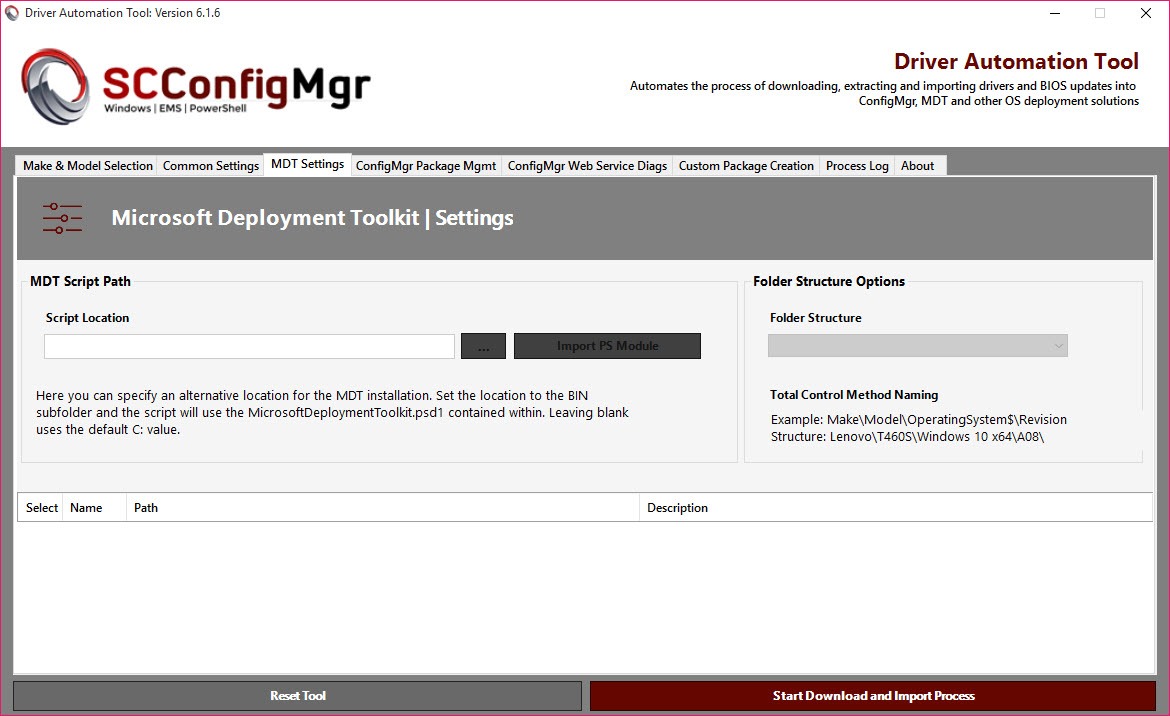
The application handles each one with the vendor-specific extraction logic baked in. The output is a normalized folder structure ready to be consumed by the target deployment platform. For MEMCM, that means a folder of INF-based drivers ready to import as a driver package. For MDT, the same structure drops into the Out-of-Box Drivers section organized by model. For Intune, the application wraps the extracted content in the Win32 app format with detection rules already configured.
MEMCM and MDT integration in practice
The MEMCM integration uses the MEMCM PowerShell module to create the packages, distribute them to your distribution points, and link them into existing driver packages if you specify a target. Authentication uses your current Windows credentials by default, which means running the application from an account with appropriate MEMCM permissions is the normal workflow.
Task sequence integration is the part that saves real time. Rather than manually editing task sequences to reference new driver packages each time a new hardware model arrives, the application can create the package, distribute it, and update a “Apply Driver Package” step with the new content all in one run. This is where the workflow actually scales. For administrators who script extensively around this, a dedicated PowerShell environment like PowerGUI pairs naturally with the workflow.
MDT integration follows similar logic but uses the MDT PowerShell module instead. The application detects which platform you have configured and adapts the output accordingly. If you have both MEMCM and MDT environments, you can target one, both, or neither in the same run.
Intune Win32 app workflow
Intune support is more recent than the on-prem integrations and reflects the shift toward cloud-based deployment for many organizations. The application wraps each driver package as a Win32 app, generates the .intunewin file using the Microsoft Win32 Content Prep Tool, and optionally uploads the package to your Intune tenant if you authenticate against Microsoft Graph.
Detection rules are pre-generated based on the package contents, typically checking for a registry key or file that the driver installation creates. Group assignments and dependencies need to be configured in the Intune portal manually after upload, which is the limitation. The application gets the package into Intune, but the policy side is still hands-on.
BIOS and firmware packages
Beyond drivers, the application handles BIOS and firmware packages with the same vendor-aware logic. Dell BIOS updates come as executables with command-line silent-install flags. HP BIOS comes through the SoftPaq channel. Lenovo BIOS is its own tar.gz format. Surface firmware comes bundled with the driver MSI.
The output for BIOS packages is structured for use in a task sequence step that runs the update with appropriate parameters. The application doesn’t apply BIOS updates directly, since that’s properly the job of the deployment platform, but it produces the right artifacts and detection logic for the deployment to invoke. For complementary system imaging alongside the driver workflow, AOMEI Backupper covers the system-image capture side that admins often pair with driver deployment.
Where the application falls short
The catalogs depend on vendor cooperation. When Dell, HP, or Lenovo changes their catalog format or URL structure, the application needs an update before the affected vendor works again. The community around the tool is active and updates appear relatively quickly, but in the gap between vendor change and tool fix, that vendor’s catalog can be partially or fully broken.
PowerShell module dependencies are also a recurring source of friction. The application uses different modules for different deployment targets (MEMCM, Intune, MDT), and each has its own version requirements and dependencies. Running the application on a fresh admin workstation usually means a chain of module installs before the first run completes successfully.
The interface is functional rather than refined. Tabs for each vendor, list views for models, basic progress bars during downloads. It works, but it’s clearly built by an admin for admins, with no design polish.
For administrators who pair this with broader driver management workflows, simpler tools like Double Driver and Snappy Driver Installer cover individual-machine driver tasks where this enterprise tool would be overkill.
Conclusion
Driver Automation Tool is purpose-built for a narrow but painful problem in enterprise IT, and within that problem it’s hard to beat. The amount of time saved versus manually chasing vendor support sites, extracting packages with the right command-line flags, and wiring them into MEMCM driver packages or Intune Win32 apps is genuinely substantial at fleet scale.
The audience is Configuration Manager and Intune admins managing more than a handful of hardware models, and inside that audience the application has become close to standard tooling. Smaller environments or single-model shops won’t see the same payoff, since the manual approach scales fine when you only need to update one driver pack a quarter.
For organizations dealing with mixed-vendor fleets across rolling OS builds, the application is the kind of utility that pays for itself in the first week and quietly keeps doing so for years.
Pros & Cons
- Automates the entire vendor catalog download and extraction pipeline
- Supports Dell, HP, Lenovo, Microsoft Surface, Acer, Fujitsu, Panasonic, and Toshiba
- Targets MEMCM packages, MDT, Intune Win32 apps, and offline deployment workflows
- BIOS and firmware packaging handled alongside drivers
- Cache and hash tracking avoid redundant downloads between runs
- Integrates with MEMCM PowerShell module for task sequence updates
- Vendor catalog changes can break specific vendor support until an update lands
- PowerShell module dependency chain can be cumbersome on fresh workstations
- Intune workflow gets packages uploaded but assignment policy is still manual
- Interface design is utilitarian rather than polished
- Steep learning curve outside the SCCM and MDT admin community
Frequently asked questions
It automates the process of downloading vendor driver and BIOS packages, extracting them into a deployment-ready structure, and creating the matching package or app objects in MEMCM, MDT, or Intune. The goal is to eliminate manual driver-package maintenance for fleet OS deployment.
Dell, HP, Lenovo, Microsoft (Surface line), Acer, Fujitsu, Panasonic, and Toshiba are all supported. Each vendor's catalog format is handled internally so the user experience is consistent across them.
Yes, with caveats. It packages drivers as Win32 apps and uploads the .intunewin file to your tenant if you authenticate against Microsoft Graph. Assignment to groups and any required dependencies are still configured manually in the Intune portal after upload.
No. While it integrates with SCCM/MEMCM when present, it also supports MDT, Intune, and a generic offline download mode where it just downloads and extracts packages to a folder you specify.
Vendor catalogs change URL structure or format periodically, and the application needs an update to track those changes. When a vendor breaks, checking the project's release feed usually shows a fix is imminent or available.
Yes. The selection interface lets you choose driver packages, BIOS packages, or both per model. BIOS-only workflows are useful when you have stable driver coverage but want to push firmware updates as a separate task sequence step.
No. It produces packages that your deployment platform installs during OS deployment. The application's job ends at producing the right artifacts. The actual install happens through MEMCM task sequences, MDT scripts, or Intune Win32 app deployments.
The application maintains a local cache of downloaded packages keyed by hash. If a package hasn't changed between runs, the cache is reused rather than re-downloading. The cache location is configured at startup and should sit on storage with enough room for your fleet's driver content.


