

SlimDrivers


 (262 votes, average: 3.82 out of 5)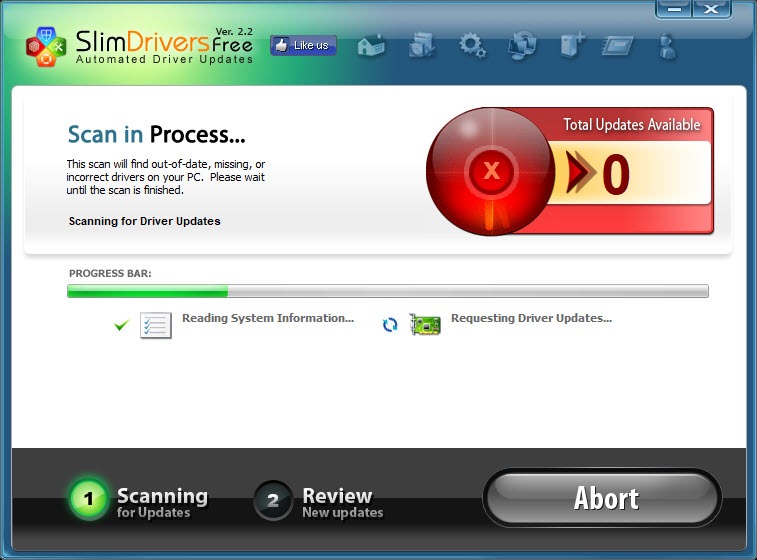
About SlimDrivers
Outdated drivers are one of those quiet computer problems that gradually degrade performance, cause occasional crashes, and create compatibility issues with new hardware or software, all without ever announcing themselves clearly.
Most users never check whether their drivers need updating, partly because Windows Update doesn’t always catch everything and partly because the manufacturer-by-manufacturer hunt for current driver versions feels like more trouble than it’s worth.
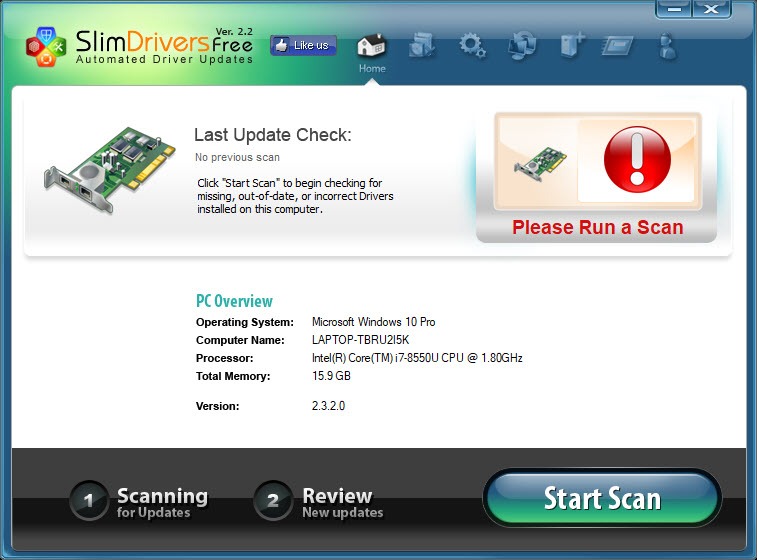
SlimDrivers is one of the tools built specifically to handle this problem, scanning the system to identify outdated drivers and helping users update them without the manual research that the task usually involves.
Developed by SlimWare Utilities, this software has been around for years as one of the more recognizable names in the driver updater category. The premise is straightforward: scan the system, identify drivers that have newer versions available, and help users install the updates without bouncing between dozens of manufacturer websites trying to find current downloads for every component.
The driver update problem this software solves
Most computers contain drivers for dozens of components, including the graphics card, network adapters, audio chipset, USB controllers, chipset itself, storage controllers, and various other hardware that all need software to communicate with the operating system properly.
When any of these drivers fall behind, the symptoms can range from minor annoyances like sleep mode glitches to major problems like blue screen crashes or hardware that simply stops working with new applications.
The standard approach to driver updates involves either trusting Windows Update to handle everything (which it doesn’t, particularly for non-Microsoft hardware) or visiting each manufacturer’s website individually to check for newer versions. For a typical computer with hardware from many different vendors, this manual process is genuinely tedious, which is why most users simply never do it.
This software automates the discovery part of that workflow, scanning the system, identifying installed drivers, comparing them against current versions in its database, and presenting a list of what could be updated. Users then choose which updates to apply rather than handling the discovery and download process for each one separately.
Cloud-based driver database
The detection engine works by comparing your installed drivers against a cloud-based database of current driver versions. This approach has both advantages and limitations worth understanding.
On the positive side, the cloud database is regularly updated with new driver releases, which means the comparison reflects current information rather than potentially outdated local data. The application doesn’t need to be reinstalled or its database manually refreshed to know about new driver versions, since the comparison happens against current cloud data.
On the limitation side, the database accuracy depends on how thoroughly SlimDrivers tracks specific manufacturers and components. Common hardware from major vendors typically gets reliable recommendations, while obscure or specialized hardware sometimes shows incorrect “newer version available” notifications when the database hasn’t been updated for less common components. This is a common limitation of driver updater tools generally, not unique to this product.
Backup and restore for safety
A particularly important feature is the ability to back up existing drivers before installing new ones, providing a safety net if a new driver causes problems. Driver updates occasionally introduce instability, particularly with cutting-edge releases that haven’t been tested in every possible hardware combination, and having a way to roll back is genuinely valuable.
The backup creates copies of the current drivers, which can be restored later if a new version turns out to cause more problems than the version it replaced. For users approaching driver updates cautiously, this safety mechanism removes much of the risk that would otherwise come with applying multiple updates at once.
The restore process is straightforward, letting you revert specific drivers without affecting others that are working correctly. This selective rollback is more useful than full system restore points for cases where only one driver needs to go back to its previous version.
Scheduling and automation options
For users who want to keep drivers updated without remembering to run scans manually, the application supports scheduled scans that run automatically at defined intervals. Daily, weekly, or custom schedules check for new drivers and notify you when updates are available.
The automation can be configured to either prompt you for action when updates are found or download updates automatically while leaving installation up to you. For most users, scheduled scans with manual installation offers the right balance, since automatic installation removes the chance to evaluate whether a particular update is worth applying or might introduce issues.
For technical users who routinely keep their systems current, the manual scan approach often works better, since you control exactly when updates happen and can group them with other system maintenance activities.
One-click updates for multiple drivers
When you’ve reviewed the list of available updates, the application supports updating multiple drivers in sequence rather than forcing you to handle each one separately. This is genuinely useful when many drivers need updating after a fresh Windows installation or after a system has been neglected for a long time.
The bulk update process downloads each driver, applies it, and moves on to the next, with appropriate handling of restarts that some drivers require. For users facing a long list of outdated drivers, this batch approach saves significant time compared to manually downloading and installing each one.
What to actually expect from driver updaters
It’s worth being realistic about what driver updater software does and doesn’t do well. For common hardware with widely available drivers, these tools can save real time and identify updates that users wouldn’t have known about otherwise. For specialized or older hardware where the manufacturer no longer provides updates, no tool can magically create newer drivers that don’t exist.
There’s also the broader question of whether driver updates always improve things. In many cases, drivers that are working correctly don’t necessarily benefit from updating, and chasing the latest version sometimes introduces problems that the previous version didn’t have. The conventional wisdom of “if it isn’t broken, don’t fix it” applies to drivers as much as anywhere else.
This software is most valuable when you’re actually experiencing driver-related problems, when you’ve installed new hardware that needs current drivers, or when you’ve recently reinstalled Windows and need to update everything from generic drivers to manufacturer-specific versions.
For routine maintenance on a working system, more selective updating often makes more sense than indiscriminately applying every available update.
Conclusion
SlimDrivers addresses a real problem that affects most computers gradually over time, automating the kind of driver maintenance that few users would do manually. For systems with components from many different manufacturers, the convenience of scanning everything in one place and updating selectively saves significant time compared to the alternative of checking dozens of manufacturer websites individually.
It’s not a magic solution, and driver updates aren’t always improvements, so applying judgment to which updates make sense remains worthwhile. But as a tool for identifying what could potentially be updated and providing the means to actually update it, SlimDrivers does its job well enough to earn its place for users who otherwise would never check on their drivers at all.
Features & benefits
Pros & Cons
- Automated scanning identifies outdated drivers without manual research
- Cloud-based driver database stays current with new releases
- Backup and restore functionality provides safety net for problematic updates
- Scheduling support enables automated maintenance without manual intervention
- Bulk update process handles multiple drivers efficiently
- User-friendly interface accessible to non-technical users
- Free version covers basic functionality for most home users
- Database accuracy can vary for less common or specialized hardware
- Aggressive promotion of premium features in the free version
- Some recommended updates may not actually improve your system
- Driver updates occasionally introduce new problems rather than solving existing ones
- Not always better than letting Windows Update and manufacturers handle drivers
Frequently asked questions
This software scans your computer to identify installed drivers, compares them against a database of current driver versions, and helps you update outdated ones. The goal is to automate the driver update process that would otherwise require visiting each hardware manufacturer's website individually to check for newer versions.
Yes, in many cases. Windows Update primarily handles drivers for hardware that Microsoft has agreements to distribute, which leaves significant gaps for third-party hardware components. This tool checks against a broader database that includes many manufacturers Windows Update doesn't cover, particularly for graphics cards, motherboard chipsets, and various peripherals.
Generally yes, but with caveats. The application's backup feature lets you revert problematic updates, and most recommended drivers do work correctly. However, occasionally a new driver introduces issues that the previous version didn't have. The cautious approach is to update one driver at a time rather than everything at once, particularly for critical components like graphics cards.
Sometimes yes, sometimes no. New drivers often include performance improvements, bug fixes, and compatibility updates, but they don't always translate to noticeable performance gains on every system. The most significant improvements typically come from graphics drivers, while updates to less performance-sensitive components like USB controllers or audio drivers are usually less noticeable.
For common hardware from major manufacturers, the database is generally reliable. For obscure or specialized hardware, accuracy may be lower, occasionally showing incorrect "newer version available" recommendations. Reviewing each suggestion before applying it helps avoid installing drivers that aren't actually intended for your specific hardware.
The backup feature created before the update lets you restore the previous driver version, which usually resolves problems introduced by a bad update. For situations where the backup isn't sufficient, Windows System Restore or Device Manager's "Roll Back Driver" option provide additional recovery paths.
Both approaches work depending on your preferences. Automatic scheduled scans ensure regular checking without requiring you to remember, while manual scans give you control over when checks happen. Most users find weekly or monthly scheduled scans provide good balance between staying current and avoiding constant interruptions.
The standard update process replaces old drivers with new ones through the manufacturer's installer, which typically handles cleanup of the previous version. Some leftover files may remain, but they generally don't cause problems and don't take significant disk space.
Yes, the application presents the list of available updates and lets you choose which ones to apply. This selective approach is generally smarter than updating everything blindly, particularly for components that are working correctly and might not benefit from a newer version.
Each approach has strengths. Windows Update is conservative and only distributes drivers Microsoft has approved, which provides safety but also misses many available updates. This software is more aggressive in finding updates but requires more user judgment to apply them wisely. Many users use both, letting Windows Update handle automatic updates while running this tool periodically to catch what Windows misses.


