

Auto Typer
About Auto Typer
Auto Typer is a small Windows utility that types pre-set text into any application or web form when you press a configured hotkey. The use case is straightforward but genuinely useful. You have phrases, paragraphs, login details (excluding the password itself), email signatures, customer service responses, code snippets, or any other text you find yourself typing repeatedly, and you want one keystroke to insert it instead of typing it out each time.
Configure the text once, assign a hotkey, and the next time you press that combination, the text appears in whatever window has focus as if you’d typed it yourself.
The application is purpose-built for this single function rather than being a general-purpose automation tool. It doesn’t run scripts, control the mouse, send commands to applications through APIs, or do anything beyond simulated typing. The simplicity is part of the appeal.
Anyone who needs to insert canned text in a Windows workflow can configure the tool in five minutes without learning scripting or macro languages.
Where this earns its space on a machine
Repetitive text input is one of those daily inefficiencies that adds up over months and years without users realizing how much time it consumes. Customer service representatives type the same greetings, holds, and resolutions dozens of times per day. Developers paste the same boilerplate comments, license headers, and stub code into many files.
Email professionals send variations of the same templates to different recipients. Online forms ask for the same name, address, and phone number entries across dozens of services.
For each of these workflows, Auto Typer replaces the repeated typing with a single hotkey. The five seconds saved per insertion turns into hours over a week. The reduced typing fatigue is real if you spend your days at a keyboard.
And the consistency benefit (every customer gets the same accurate response, every code file has the correct license header, every form has the correctly spelled address) matters more than the time savings in some cases.
How the configuration actually works
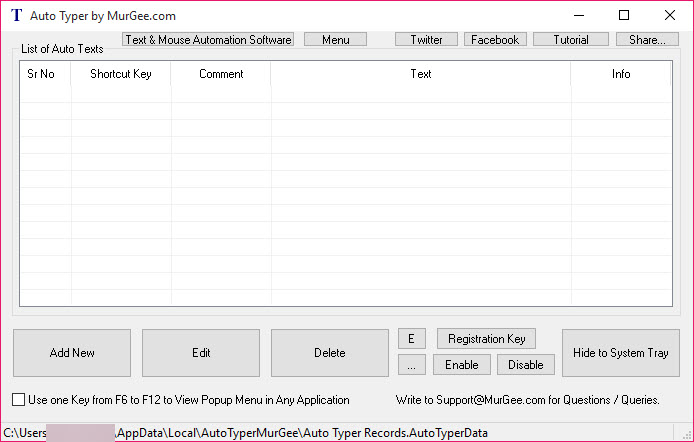
The main window shows a list of configured text entries, each with its content, the assigned hotkey combination, optional name or label, and current status. Adding a new entry opens an editor where you type or paste the text you want to insert. The text can be any length, can include line breaks, can include special characters, and can mix any languages your keyboard supports.
The hotkey assignment uses any combination of Ctrl, Alt, Shift, and Windows keys plus a regular key. Avoid hotkeys that conflict with applications you actually use. Ctrl+S is a bad choice because it’s universally bound to Save. Ctrl+Alt+S or F11 are typically safe because few applications claim those combinations. The tool warns about conflicts with itself but can’t know what other applications have registered.
You can configure dozens or hundreds of entries if your workflow needs them, with each entry having its own hotkey. For users with many entries, organizing them by category or function (response templates in one group, code snippets in another, personal info in a third) is the practical approach to staying oriented.
Speed control and human-like timing
One of the practical features of the application is configurable typing speed. The default speed inserts text as fast as the system can process keystrokes, which is essentially instant for short entries and quick for long ones. For most uses this is exactly what you want.
For specific scenarios where instant text insertion isn’t appropriate, the application offers slower typing speeds that simulate human pace. Why does this matter? Some applications (particularly online forms and certain web applications) react badly to text that appears instantaneously, treating it as automated input and triggering anti-bot protections. Slower typing speeds defeat this detection by mimicking what a typing user would actually produce.
This same feature is what makes the tool potentially useful for typing-into-game scenarios where the game expects manual input timing. For game-related uses, this is also where the legitimacy question gets nuanced, since some game terms of service prohibit any form of automation regardless of how it’s implemented.
The single-key versus combination question
Some use cases want simple hotkeys like F1 or F2 rather than complex combinations. Auto Typer supports single-key hotkeys, but the trade is obvious. A single-key hotkey will fire every time you press that key in any context, including when you’re editing a document and just want to insert that character.
The practical workflow for single-key hotkeys is to either reserve specific keys you never use for text input (function keys F9 through F12 are common choices) or to enable and disable the tool based on context. Some users keep the application running but quickly toggle it off when they need to type normally.
For most users, modifier-plus-key combinations are the safer choice. Ctrl+Alt+something or Win+something gives you many combinations that don’t conflict with normal typing, and you don’t have to think about disabling the tool when switching contexts.
Limitations honestly stated
The application doesn’t read passwords from a password manager or insert them dynamically. It just types whatever static text you’ve configured. For password insertion, dedicated password managers like KeePass handle that workflow with auto-type features that read from encrypted credential storage. The general-purpose text typer isn’t appropriate for storing passwords because the entries aren’t encrypted.
The tool also doesn’t include any conditional logic or variable substitution. The text you configure is the exact text that gets typed. If you want different greetings based on time of day, different content based on what application is active, or any dynamic behavior, you’ll need something more capable like AutoHotkey which is a full scripting language for keyboard and mouse automation. Auto Typer sits at the simpler end of the spectrum specifically because that’s the use case it serves.
For multi-step automation workflows that combine text input with mouse actions, application switching, and other operations, AutoIt is the appropriate tool. The boundary is clear. Simple text insertion through a hotkey is this tool’s territory. Anything more complex belongs in a real automation framework.
Comparison with clipboard managers
Some users solve similar problems with clipboard managers that store frequently-used text and let you paste from a list. Ditto, CopyQ, and Clibor all handle this clipboard-based approach. The workflow is different. With a clipboard manager, you open the manager (usually through a hotkey), select the entry you want, and paste it. With this auto typer, you press one hotkey and the text appears directly without any intermediate selection.
For workflows with a small set of frequently-typed entries, the direct hotkey approach is faster. For workflows with many occasionally-used entries, the clipboard manager approach scales better since you don’t need to memorize dozens of hotkey combinations.
Both approaches have a place, and many users run both for different scenarios. Direct hotkey insertion for the five or ten most-typed phrases. Clipboard manager for the longer list of occasionally-needed snippets. The tools complement each other rather than competing.
Text expansion approach
A related category worth mentioning is text expansion, which inserts text based on abbreviations you type rather than hotkey combinations. Type “addr” and it expands to your full address. Type “sig” and it expands to your email signature. Beeftext handles this approach as a dedicated text expander.
The expansion model has a different ergonomic feel than the hotkey model. With hotkeys, you have to remember which combination produces which text. With expansion, you type a memorable abbreviation that becomes the text. For some users the expansion approach is more natural because abbreviations are easier to remember than arbitrary key combinations. For others, the hotkey approach is faster because no typing is required at all.
Auto Typer uses the hotkey approach exclusively. If text expansion fits your workflow better, dedicated tools exist for that pattern.
Running quietly in the background
The application sits in the system tray when minimized, using minimal system resources while it waits for hotkey input. Memory footprint is small (typically under 20 MB), CPU usage is essentially zero when idle, and the application doesn’t interfere with normal Windows operation in any visible way.
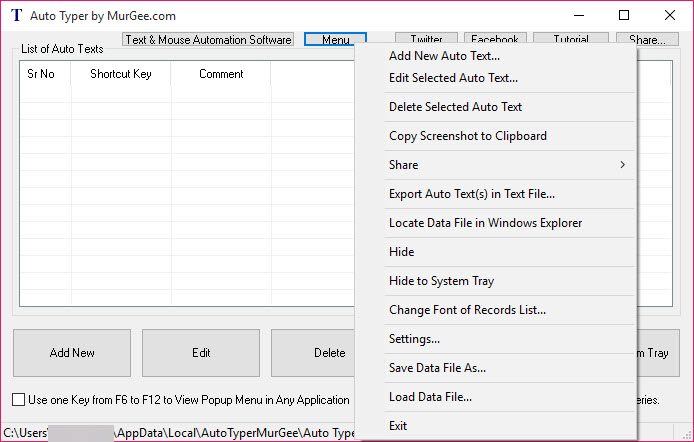
Right-click the tray icon to access the main window for configuration changes, to pause and resume hotkey monitoring, or to exit the application. The pause function is useful when you need to type one of your hotkey combinations literally without triggering the text insertion. Pause the application, type what you need, and unpause it when you’re done.
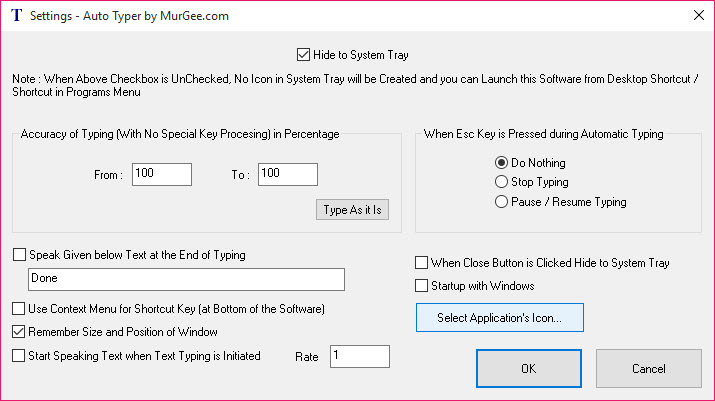
For systems where you want Auto Typer to start automatically with Windows, an option in the settings adds it to startup. The tool launches silently with no splash screen and waits in the tray for the hotkeys it’s configured to recognize.
Where caution applies
This needs to be mentioned directly. Any tool that types text on your behalf can be misused in contexts where that’s inappropriate. Online games, exam systems, certain workplace monitoring environments, and various other contexts have policies prohibiting automated input. Using this tool to bypass those policies is a violation regardless of how technically straightforward the use is.
The reasonable framing is that the application is a productivity tool for inserting your own canned text into your own workflows. Using it that way is legitimate and useful. Using it to violate terms of service, cheat on assessments, or otherwise circumvent rules that prohibit automation is not a technical question, it’s an ethical and possibly legal one. The tool itself doesn’t enforce these distinctions, but the user choosing how to use it should think about them.
Conclusion
Auto Typer is the right tool for users whose daily work involves repetitive text entry and who want a simple way to eliminate the wasted typing. Customer service workers, developers inserting boilerplate, professionals sending similar emails, and anyone filling out the same forms repeatedly all benefit from one-keystroke insertion of their commonly-used text.
The simplicity of the application is part of its value, since the configuration takes minutes and the daily use becomes automatic within a day or two.
For users with more complex automation needs, AutoHotkey and AutoIt cover real scripting and multi-step workflows. For users who specifically want text expansion through abbreviations rather than hotkeys, Beeftext fits that pattern better. Auto Typer occupies the specific niche of hotkey-driven static text insertion, which is what most users actually need when they encounter the repetitive-typing problem.
Configure your most-used phrases once, save yourself the cumulative hours of retyping them, and move on to the work that actually requires fresh thought.
Pros & Cons
- Single-purpose design makes the tool genuinely simple to configure and use
- Hotkey-driven insertion is faster than clipboard-based approaches for frequently-used text
- Configurable typing speed including slower human-like pace for specific scenarios
- Supports any length of text including multi-line and special characters
- Runs quietly in the system tray with minimal resource use
- Pause and resume function avoids triggering insertion when typing the hotkey literally
- No installation complexity, no learning curve, no scripting required
- Doesn't handle password insertion securely, which dedicated password managers do better
- No conditional logic, variable substitution, or dynamic content
- Hotkey conflicts with other applications require careful selection of key combinations
- Static text only, with no support for adapting content based on context
- Not suitable for complex multi-step automation that combines typing with other actions
- Misuse in contexts that prohibit automation is a real risk that users should think about
Frequently asked questions
The application types pre-configured text into whichever application has focus when you press a configured hotkey combination. You set up the text once with an assigned hotkey, and pressing that hotkey thereafter inserts the text as if you'd typed it manually.
Clipboard managers require you to open the manager, select an entry, and paste. This tool inserts the text directly with one hotkey press. The trade is that hotkey-based insertion requires remembering which combination produces which text, while clipboard managers scale better to large numbers of occasionally-used entries.
The application stores text in unencrypted form, which makes it inappropriate for password storage. Dedicated password managers with auto-type features handle that use case with proper encryption. Use the right tool for the right purpose.
Some online forms and web applications treat instant text insertion as automated input and trigger anti-bot protections. The slower typing speeds mimic human pace and defeat this detection. The same feature can be useful for typing into applications that don't handle very fast input correctly.
AutoHotkey is a full scripting language for keyboard and mouse automation. It can do everything this tool does plus much more, including conditional logic, mouse control, application interaction, and complex multi-step workflows. The trade is the learning curve. This tool is purpose-built for simple text insertion and configures in minutes, while AutoHotkey requires learning its scripting syntax.
Yes. The tool simulates keyboard input at the system level, so any application that accepts keyboard input will receive the typed text. This includes web browsers, word processors, command prompts, chat applications, games, and essentially anything that takes text input.
Choose combinations that few or no applications claim. Modifier-heavy combinations like Ctrl+Alt+letter or Win+letter rarely conflict. Avoid simple combinations like Ctrl+S, Ctrl+C, or Ctrl+V that are universally bound to standard operations. The application warns about conflicts with itself but can't detect conflicts with other applications.


