

ShowKeyPlus
About ShowKeyPlus
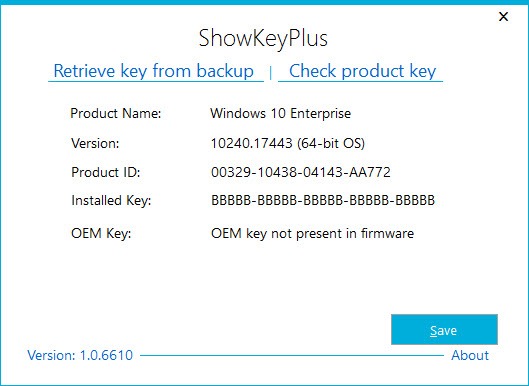
ShowKeyPlus pulls the product key out of your machine and shows it to you in plain text, which is the one job it exists to do. Open it and the key is sitting right there in the window, no menus to dig through, no scan to wait on. It reads the activation key from the registry and, when one is present, the original key baked into the BIOS or UEFI firmware, then tells you which Windows edition each one belongs to.
That firmware part is the detail that matters. Plenty of newer machines ship with a digital license stamped into the motherboard rather than printed on a sticker, and ShowKeyPlus reads that embedded key directly.
So even on a system where you never saw a key on paper, the tool can surface the one the manufacturer programmed in. For anyone about to wipe a drive or move to new hardware, having that key written down first is cheap insurance.
Reading the installed key versus the firmware key
The window splits what it finds into two lines, and the distinction is worth understanding. The installed key is whatever currently activates the copy of Windows you’re running. The OEM key is the one embedded in firmware by the manufacturer, which may differ from the installed key if you upgraded editions or reinstalled with a different license.
When both exist and don’t match, that’s not a bug. It usually means the machine came with one edition and was later activated with another. The tool just reports both honestly and lets you sort out which one you actually need, rather than guessing for you.
It also identifies the edition tied to each key, Home, Pro, and so on, which saves you from staring at a 25-character string trying to remember what it unlocks.
Checking a key from a file, not just the live system
Here’s the feature that pushes it past the basic key-readers. ShowKeyPlus can read the product key from an offline Windows installation, not only the one currently booted. Point it at a folder containing another Windows install (the SOFTWARE registry hive specifically) and it extracts the key from that, which is genuinely useful when you’re recovering a key off a dead machine’s drive that you’ve slaved into a working PC.
There’s also a straight key-check function. Paste in a product key and it tells you which edition that key is for and whether it looks like a retail, OEM, or volume (MAK) key. That last one trips people up: volume-licensed keys often don’t surface the way retail keys do, so if the tool reports a MAK key as not available to display, that’s the licensing type at work, not a failure of the application.
How it stacks up against other key finders
This category is crowded. ProduKey goes wider, pulling keys for installed software like Office and other applications, not just the operating system, so if you need to recover an application key too, that’s the more complete grab. What ShowKeyPlus does better is the Windows-specific stuff: the firmware key reading, the OEM-versus-installed split, and the offline-install lookup are cleaner and clearer here than in most general-purpose recovery tools.
If your goal is a full picture of the machine rather than just keys, a hardware-and-software auditor like Belarc Advisor reports the key alongside everything else installed. But that’s a heavier tool for a heavier job. For the narrow task of “show me my Windows key, accurately, right now,” the focused approach wins.
No installation, no clutter
The application runs without dropping itself all over your system, so you can keep a copy on a USB stick and pull keys off any machine you sit down at. The interface is a single small window with tabs, and there’s nothing to configure. You can save the results to a text file with one click, which is the sensible move before any reinstall.
It’s plain-looking, and it won’t win design awards. But for a tool you open once before a format and close again, that’s beside the point. It does the thing and gets out of your way.
Conclusion
ShowKeyPlus is the tool to reach for when you need your Windows product key fast and accurate, especially before a reinstall or a hardware move. The firmware key reading, the clear split between installed and OEM keys, and the ability to pull a key off an offline drive are what set it apart from the dozens of generic key viewers floating around. It’s narrow on purpose, and that focus is its strength.
It won’t be enough if you also need keys for installed software, where a broader recovery tool covers more ground, and the spare interface won’t impress anyone. But for the specific job of reading a Windows key correctly, including the awkward cases other tools fumble, this is a dependable little utility worth keeping on a USB stick.
Pros & Cons
- Reads both the installed key and the firmware-embedded OEM key, and labels the edition for each
- Recovers keys from an offline Windows installation, not just the running system
- Identifies retail, OEM, and volume key types so you understand what you actually have
- Runs without installation, so it travels on a USB stick
- Saves results to a text file in one click before a reinstall
- Focused on Windows keys only, so it won't recover keys for installed applications
- Volume (MAK) keys often can't be displayed, which confuses users expecting a result
- The interface is bare and dated compared to polished system tools
- Offline-install key reading requires knowing where to point it, which trips up less technical users
Frequently asked questions
It reads the installed key from the registry and, when present, the original key embedded in the BIOS or UEFI firmware by the manufacturer. On machines with a digital license stamped into the motherboard, it surfaces that key even if you never had one on a sticker.
One line is the key currently activating Windows, the other is the OEM key built into firmware. They differ when the machine shipped with one edition and was later activated with another, or after an edition upgrade. Both are reported so you can tell which applies to your situation.
Yes. If you connect the old drive to a working PC, the tool can read the key from that offline Windows installation by pointing it at the SOFTWARE registry hive on that drive. This is the main reason people keep it around for recovery work.
That usually points to a volume or MAK license rather than a retail key. Those licensing types often don't expose a readable key the way retail and OEM keys do, so the result reflects how the license works, not a problem with the application.
Yes, it reads keys on current Windows editions and correctly labels Home, Pro, and other versions. The firmware key reading behaves the same across recent releases.
Absolutely. Run the tool, save the result to a text file, and keep it somewhere safe before you wipe the drive. If the key lives only in firmware, a clean install usually reactivates on its own, but having it written down removes the guesswork.


