

System Explorer

 (17 votes, average: 4.24 out of 5)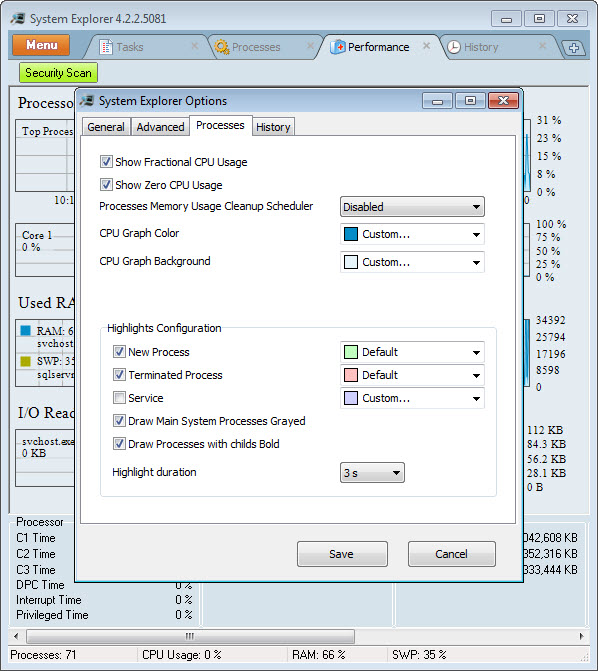
About System Explorer
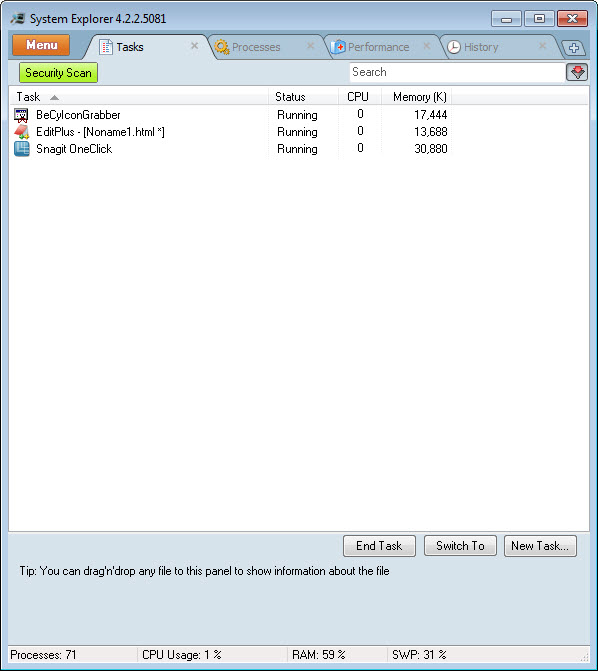
System Explorer is a versatile system monitoring and management tool designed for Windows users who want deeper insight into what is happening behind the scenes on their computer. It goes well beyond the standard Task Manager, offering detailed information about running processes, services, startup items, and active connections.
Whether you are a curious power user trying to identify resource hogs or a technical professional troubleshooting performance issues, this tool brings together a wide range of diagnostic features in one streamlined interface that feels both familiar and refreshingly capable.
Detailed process monitoring and analysis
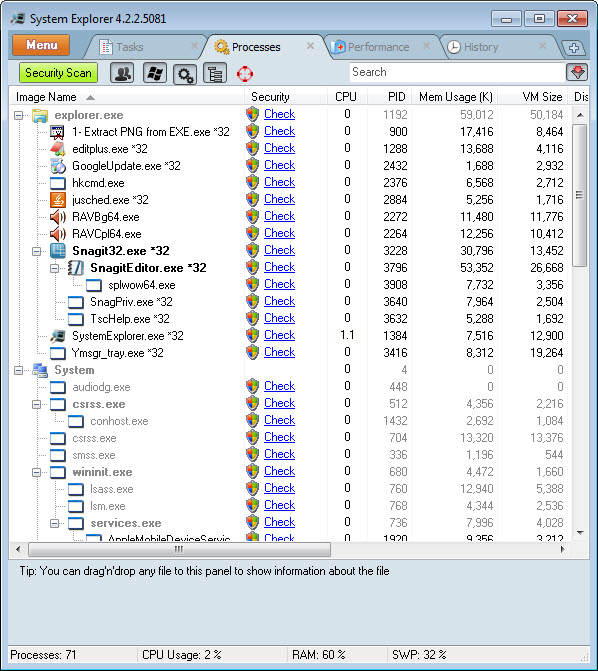
The core strength of System Explorer lies in its comprehensive process viewer, which lists every running task along with detailed information about CPU usage, memory consumption, file handles, and parent-child relationships. Each process can be inspected individually, revealing modules, threads, network activity, and security details.
A particularly useful feature is the integration with an online security database, which lets you check whether a process is known, trusted, or potentially suspicious. This adds an extra layer of confidence when investigating unfamiliar entries on your system.
Startup management and autorun control
Slow boot times often come down to too many programs launching automatically at startup, and this software gives you full control over that list. You can review every autorun entry, see what it does, and disable items that are not essential without diving into the registry.
The interface clearly displays the command path, publisher, and location for each entry, making it easy to identify legitimate applications and remove anything that looks unnecessary. This makes the tool a practical companion for keeping your machine responsive over time.
Service and driver oversight
Beyond regular processes, the application provides full visibility into Windows services and drivers. You can start, stop, pause, or reconfigure services directly from within the interface, and the included filters help separate Microsoft components from third-party additions.
This kind of granular control is valuable for anyone diagnosing system instability or trying to streamline a Windows installation by disabling unnecessary background services. The clear layout makes potentially complex tasks much more approachable.
Network connections and active sessions
Tracking what your computer is communicating with online is another area where this tool shines. The connections viewer displays open ports, remote addresses, and the specific processes responsible for each connection, helping you spot anything unusual.
This information is presented in real time, so you can watch traffic as it happens.
For users concerned about privacy or investigating suspected malware activity, this functionality offers immediate clarity without needing additional utilities.
File and registry inspection tools
System Explorer also includes a built-in scanner that checks running files against multiple online databases, helping confirm whether components on your machine are legitimate. The same logic applies to registry entries, giving you a clear sense of which items are trustworthy.
There is also a snapshot feature that captures the current state of your system, allowing you to compare it later and spot any changes.
This is especially handy after installing new software, since it makes unwanted modifications easier to identify and reverse.
Performance graphs and resource history
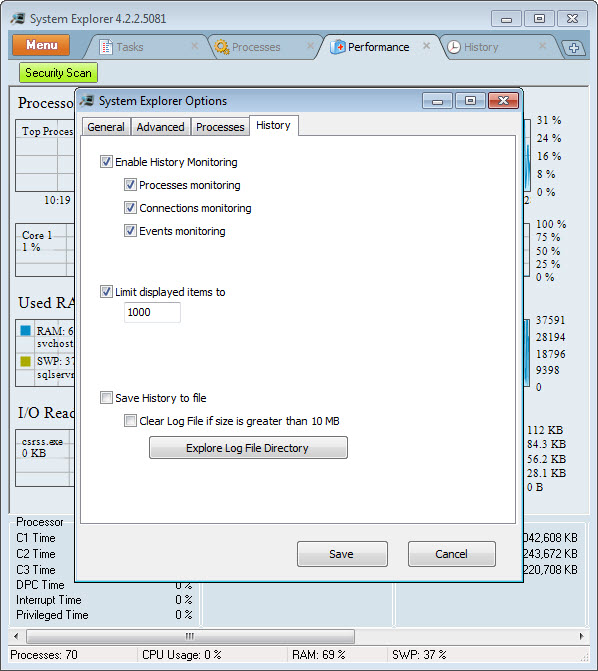
Real-time graphs display CPU, memory, disk, and network activity, giving you a visual overview of how your system is behaving. Historical data is retained as well, so you can review usage patterns over time rather than relying only on the current moment.
This kind of historical insight helps when troubleshooting intermittent issues, since you can correlate spikes with specific events or applications and build a clearer picture of what is really affecting performance.
Conclusion
System Explorer is a capable and well-rounded utility that turns the often opaque world of Windows internals into something far more transparent and manageable. With its detailed process information, startup controls, network monitoring, and security checks, it offers a level of insight that the built-in tools simply do not provide.
For users who want a deeper understanding of their system or need a reliable companion for troubleshooting and maintenance, System Explorer delivers serious functionality in an accessible package that rewards both casual exploration and detailed analysis.
Features & benefits
Pros & Cons
- Comprehensive process information goes well beyond the standard Windows Task Manager
- Online security database integration helps identify suspicious or unknown components
- Startup manager makes it simple to control which programs launch with Windows
- Real-time monitoring of network connections offers strong visibility into outbound traffic
- Snapshot feature is excellent for tracking changes after installations or updates
- Lightweight footprint keeps the application responsive even on older hardware
- The interface, while functional, can feel cluttered for users new to system utilities
- Some advanced features assume a degree of technical knowledge to interpret correctly
- Online database lookups depend on community submissions and may occasionally lack data
- Visual design feels somewhat dated compared to newer monitoring tools
- Documentation is fairly minimal, leaving some features to be discovered through exploration
Frequently asked questions
Yes, this tool is designed to coexist with security software and actually complements it by offering deeper visibility into running processes and services without interfering with active protection.
Absolutely. This software cross-references running components against an online database of known files, helping you spot unfamiliar or potentially malicious items that warrant further investigation.
No, the application has a small footprint and minimal impact on system performance, even when running continuously in the background to monitor activity.
Yes, full functionality requires administrator rights so this tool can access detailed information about all running processes, services, and system components.
Yes, the application includes an option to take over the standard task manager shortcut, letting you launch it instead of the built-in tool whenever you press the usual key combination.
Snapshots capture the current state of your processes, services, drivers, and registry entries, so you can compare before and after states to detect changes made by installed programs or unwanted modifications.
Yes, this tool runs on both 32-bit and 64-bit Windows installations and properly inspects processes from either architecture without compatibility limitations.


