

AutoRuns
About AutoRuns
AutoRuns shows everything that starts with your computer, and it means everything. The startup folder and the registry keys that most tools stop at are two tabs of twenty. The rest cover services, drivers, scheduled tasks, browser helpers, codecs, shell extensions, print monitors, network providers and office add-ins.
Then come the hooks that run before sign-in and the obscure event subscriptions that malware favours because nothing else looks there. Each entry shows its publisher, its description, the file it points to and whether the file’s digital signature checks out, and a checkbox beside it switches the entry off without deleting it.
It is the tool technicians reach for when a machine misbehaves and the ordinary startup list looks clean. AutoRuns can hide every entry signed by the system’s maker so only third-party additions remain. It checks every file against dozens of antivirus engines through an online lookup, and jumps straight to the registry key or folder where an entry lives.
It runs from a single file without installation, it can read the startup configuration of another drive, and a command-line twin writes the same inventory to a text file for comparison later. The sections below cover the tabs, the filters that make the list readable, the online check, the ways of acting on an entry, and the care the tool demands.
Twenty tabs, and the ones that matter
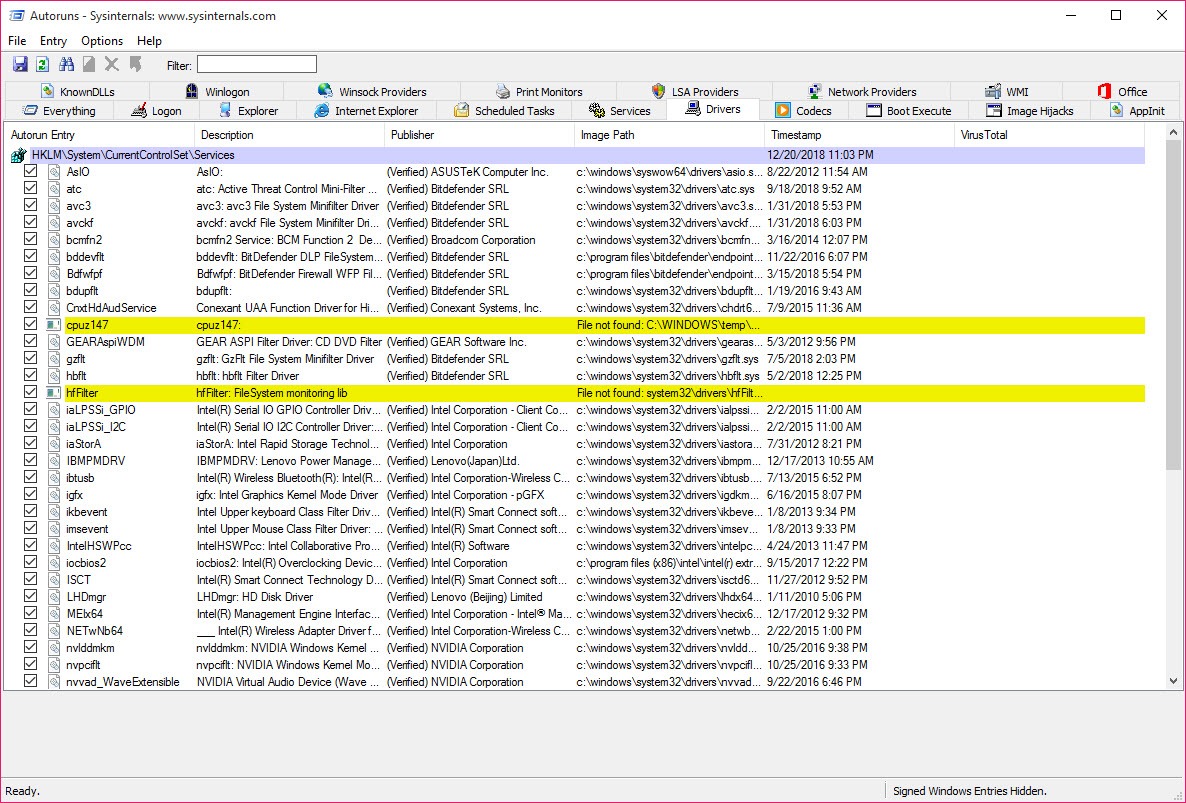
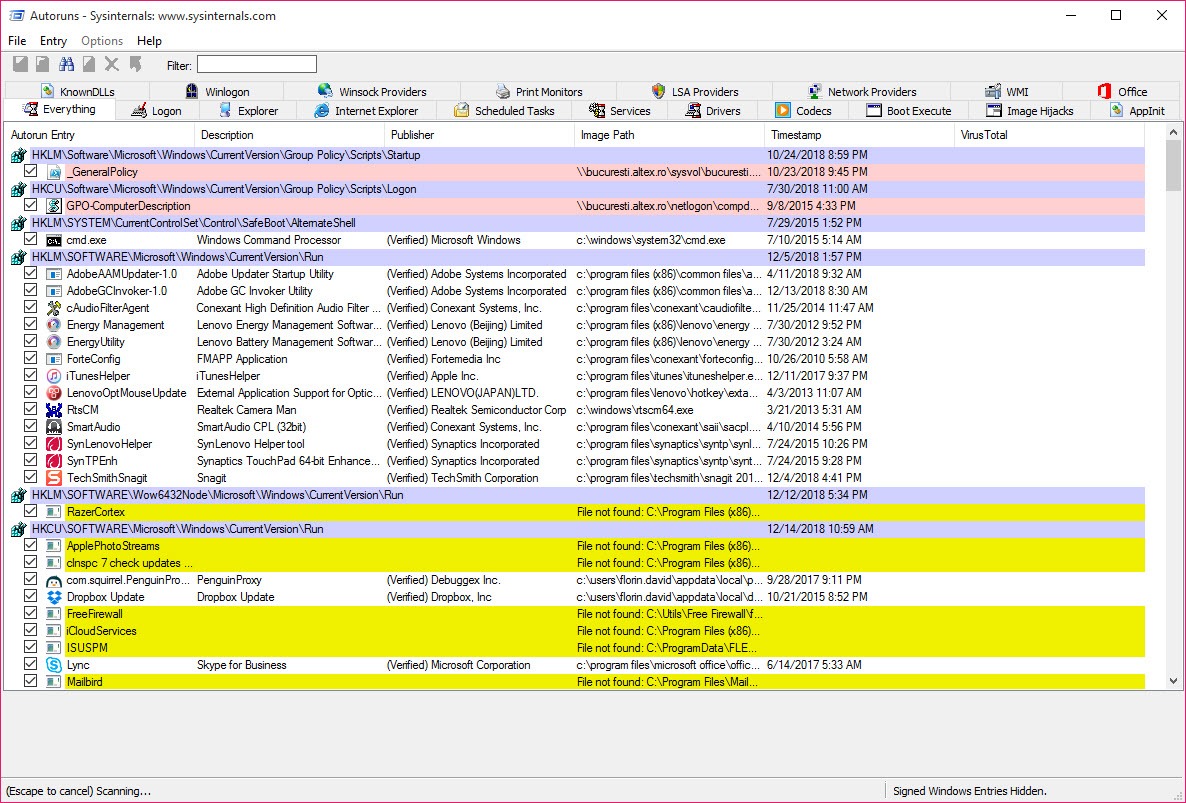
The AutoRuns Everything tab lists the lot, which on a working machine runs to many hundreds of entries. The others split them by type. Logon holds the classic startup locations. Services and Drivers hold the background components that load before any user signs in.
Scheduled Tasks is where update agents and persistent helpers increasingly hide, since a task fires on a schedule rather than at startup and escapes the simpler tools. Explorer lists shell extensions, the add-ons that appear in right-click menus and slow the file manager when they misbehave.
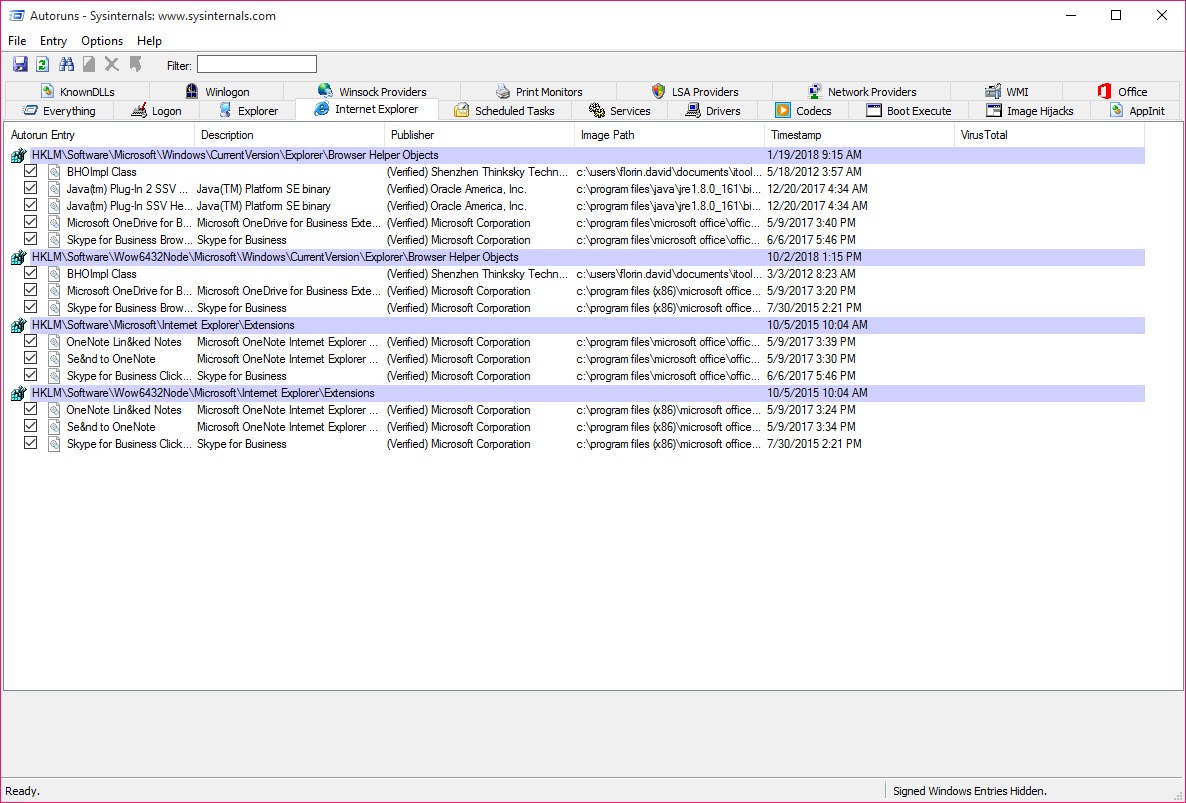
The remaining tabs cover narrower ground, the browser helpers that once carried toolbars, the image hijacks that redirect one program’s launch to another, the known DLLs, the codecs, the boot execute entries and the event subscriptions. A newcomer rarely needs them. A technician cleaning a stubborn infection checks all of them, because a persistence mechanism that survives a clean of the obvious tabs is usually in one of these.
For the running side of the same picture, which process is doing what right now, Process Explorer from the same family is the companion.
Hiding the signed entries
The full AutoRuns list is unreadable, and two filters fix that. One filter removes everything signed by the system’s maker, and a second removes the system’s own components, so what remains is the software added since the machine was built. On a typical machine that cuts hundreds of lines to a few dozen, each of them a program someone installed, and the question for each is whether you recognise it.
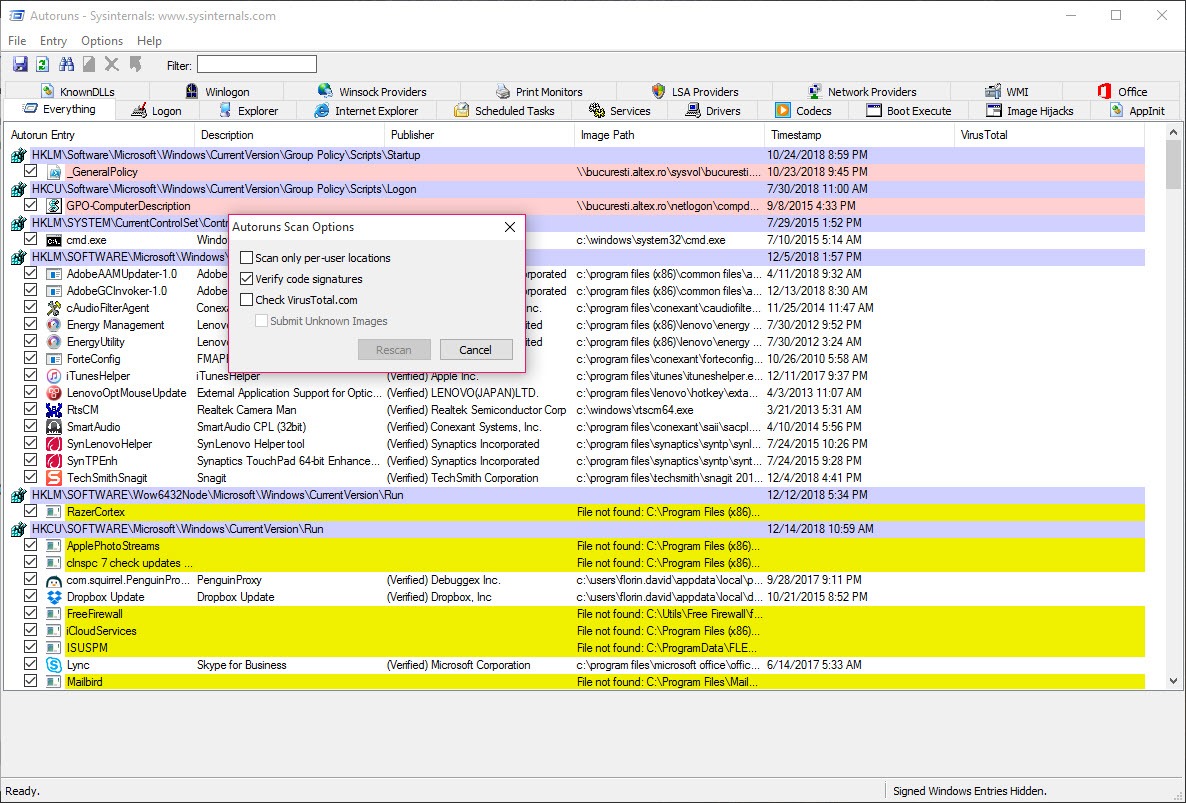
Signature verification is the filter’s foundation. With it on, the tool checks each file’s digital signature and colours entries that are unsigned or whose signature fails, which is where attention goes first. A legitimate program is almost always signed by its publisher.
An unsigned file in a startup location, with a blank publisher and a path in a temporary folder, is the shape of trouble. The inventory for other user accounts on the machine can be viewed too, since an entry under another profile starts when that person signs in.
The online check
Every entry’s file in AutoRuns can be checked against an online multi-engine scanner by its hash. Turn the option on, accept the service’s terms once, and a column fills with the ratio of engines that flagged the file, zero out of seventy for a clean one. A file the service has never seen can be uploaded for a scan with a further option. A filter then shows only the files that are unknown or flagged, which is the fastest route from a cluttered list to the one entry that matters.
The hashes go out, not the files, unless you choose to upload, and the lookup needs a connection. For a second opinion on a flagged file, or for removing what the tool finds, Malwarebytes scans with a behaviour-based engine and quarantines, which this tool does not.
Acting on an entry
The AutoRuns checkbox is the gentle action. Untick an entry and it is disabled, not deleted, so a mistake is undone by ticking it again. Delete removes the entry outright, and the tool asks first. Jump to Entry opens the registry editor or the folder at the exact location of the entry. Jump to Image opens the folder holding the file it points to, which is how a suspicious file is found on disk. A right-click searches the web for the file name, and the properties dialog shows the file’s details.
Two further actions suit the technician. Analyze Offline System reads the startup configuration of another drive. That is how a machine that will not boot is examined from a working one, or an infected disk from a clean system where the malware cannot interfere. Save writes the whole inventory to a file, and Compare shows what changed between two saves, so the entries added since a known-good state stand out.
The command-line twin writes the same inventory as text or CSV for scripts and scheduled audits.
The care it demands
The AutoRuns checkbox that disables a service or a driver disables it, and the tool does not know which ones the machine needs. Unticking the wrong driver can stop the machine booting, and the official guidance is to run as administrator, change one thing at a time and keep a saved inventory to compare against. The tool reports and switches. It does not judge, beyond the signature check and the online ratio, and it does not clean.
That is the trade. A tool that shows every startup location and lets you switch any of them off is exactly as dangerous as it is useful. For a gentler watch on new startup entries as they appear, with a prompt to allow or block each one, a startup guardian that watches for new entries covers the everyday case without the full inventory.
Conclusion
AutoRuns suits technicians and careful users who need to know everything that starts with a machine, from a slow boot that the ordinary list cannot explain to a persistence mechanism hiding in a scheduled task. The twenty tabs, the signed-entry filters, the online check and the offline analysis are why it is the standard for the job.
It will switch off anything, including things the machine needs, and it will not clean what it finds. Hide the signed entries, verify the rest, save an inventory before changing anything, and untick one line at a time.
Pros & Cons
- Lists every startup location across twenty tabs, including scheduled tasks, services, drivers and event subscriptions
- Hides signed system entries so only third-party additions remain
- Verifies digital signatures and checks files against an online multi-engine scanner
- Jump to Entry and Jump to Image open the exact registry key or folder
- Reads the startup configuration of an offline drive
- Saves and compares inventories, with a command-line twin for scripts
- Can disable a driver or service the machine needs
- Full list is overwhelming until the filters are on
- Reports and switches but does not clean or quarantine
- Online check needs a connection and the service's terms
Frequently asked questions
It removes every entry signed by the system's maker, leaving the third-party software added since the machine was built, which is the list to review.
It verifies the file's signature and can check its hash against an online multi-engine scanner, showing how many engines flagged it. It does not remove anything, so a flagged file needs a removal tool.
No. Unticking disables the entry and ticking it again restores it. Delete removes it outright, after a confirmation.
Yes. Analyze Offline System reads the startup configuration of another drive from a working machine, which is also how an infected disk is examined where its malware cannot interfere.


