

Speccy
About Speccy
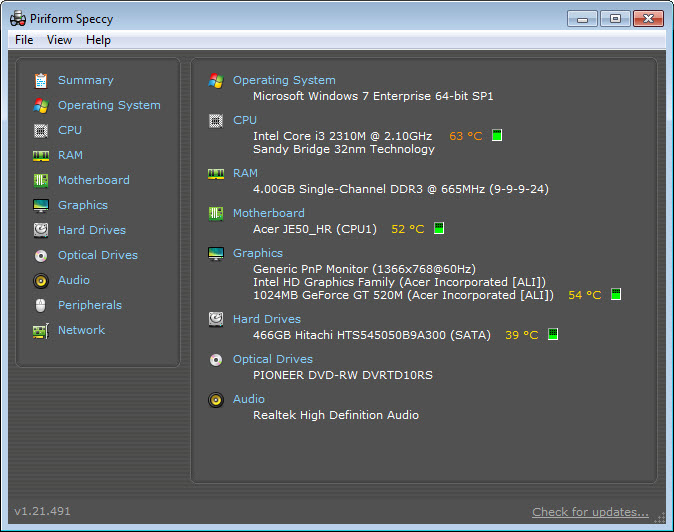
The question people actually have about a computer is rarely one question. It is what processor, how much memory, which motherboard, is the drive healthy, and why is it hot. Speccy answers all of those on one screen before you click anything.
That Speccy summary is the reason it became the recommendation for anybody who is not a technician. The built-in system information exists and reports the same facts scattered across several places in a form written for administrators, while this puts the useful ones together and adds the field nobody else includes.
That field is temperature. Processor, motherboard, graphics, drive temperatures all appear alongside the configuration, which turns a summary of what you have into a summary of how it is doing.
For watching those temperatures change over time rather than reading them once, a monitoring overlay reporting clocks and temperature during a workload is the tool for that, and this one answers the question at a glance.
The memory section is the upgrade planner
Here is where Speccy earns its place, and the use case is one almost everybody meets eventually.
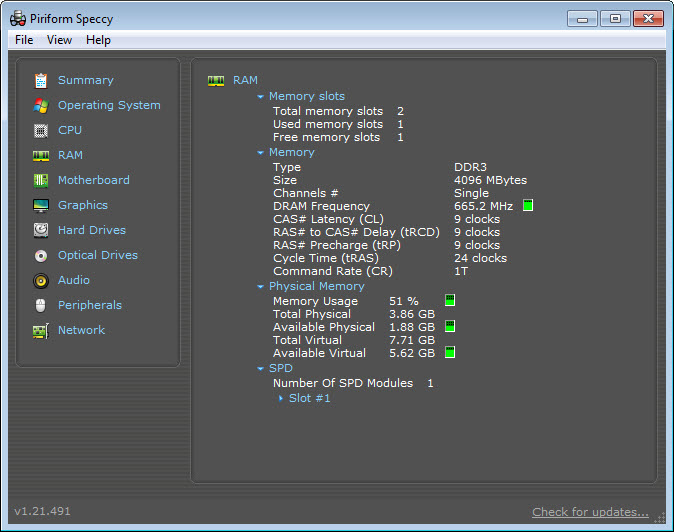
Adding memory to a machine requires knowing four things. How many slots the board has, how many are occupied, what type and speed is already installed, and what size each existing module is. Getting any of those wrong means buying the wrong thing.
Speccy reports all of it, per slot. Which slots are filled, the size, type, frequency, timings of each module, and the manufacturer that made it. That is enough to walk into a shop or fill a basket with confidence rather than opening the case and guessing.
For deeper detail on the same components, particularly the timings and the memory controller, CPU-Z reports more and presents it in a denser form aimed at people who already know what they are reading.
Motherboard, and what it will accept
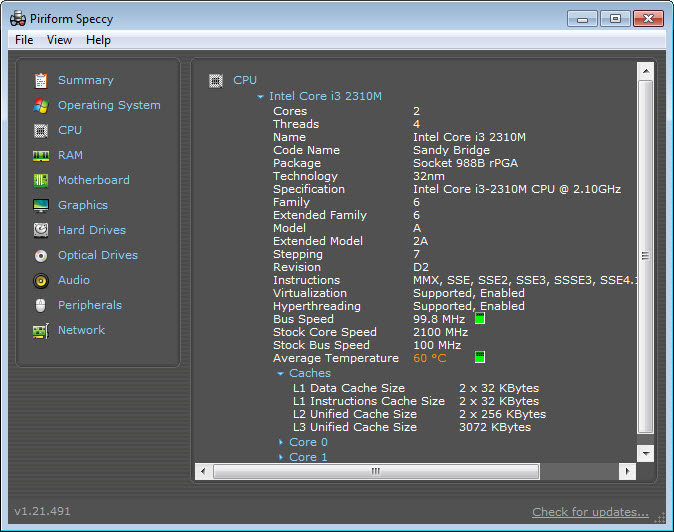
Speccy reports the board model, the chipset, the firmware version, which together determine what upgrades are possible at all.
That matters because a processor upgrade depends on the socket and the chipset supporting it, and a memory upgrade depends on what the board accepts and how many slots it has. Knowing the exact board model is the starting point for looking any of that up.
The firmware version deserves a separate mention. A board running old firmware may not recognise newer processors it is otherwise capable of supporting, and knowing which version is installed is the first step in establishing whether that applies.
Storage and whether the drive is dying
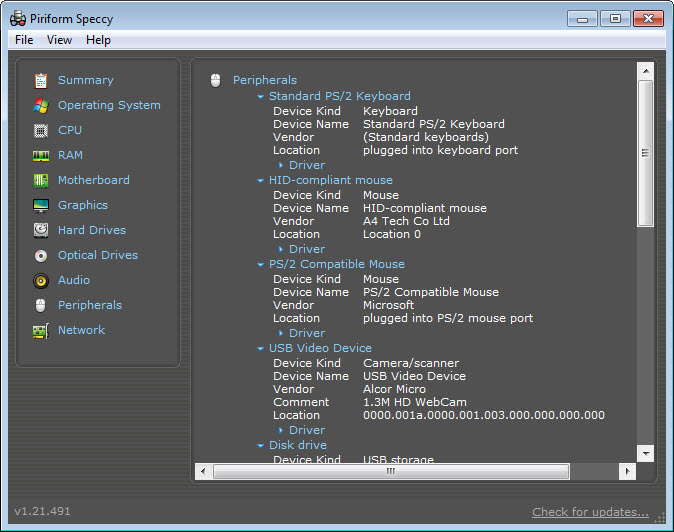
Drives are reported with their model, size, interface, plus the health attributes they keep about themselves, including the reallocated sector counts that indicate a mechanical drive in trouble.
Having that on the same screen as everything else is convenient, and it is a summary rather than a full picture. A drive reporting itself as healthy while quietly reallocating sectors deserves a closer look, and CrystalDiskInfo shows every attribute with its trend, which is what tells you whether a drive is deteriorating or simply imperfect.
Sharing what it found
This is the feature that makes it useful to somebody other than the person running it.
Speccy exports results to a text file or a structured format, a snapshot can be saved and reopened later, and the findings can be published as a link that somebody else opens.
That converts the least useful sentence in technical support, which is a description of a computer from somebody who does not know what it contains, into a complete specification that whoever is helping can read. Anybody who has tried to diagnose a relative’s machine over the telephone understands exactly how much that saves.
For a broader audit including installed software and the licences recorded on the machine, a full system report covering software as well as hardware produces a document covering considerably more ground.
Where it stops
Two limitations shape what to expect from Speccy. Speccy is readable rather than exhaustive, which is a deliberate choice and means somebody wanting every register and every capability flag will find it superficial.
The second matters more. Development has been quiet for a long time, and hardware released since then is where a tool like this shows its age. Recent components may be reported generically, incompletely or not at all, which is precisely when somebody is most likely to be checking.
Component-specific tools remain current where this does not, and GPU-Z identifies graphics hardware including cards far newer than this software understands.
Conclusion
Speccy remains the tool to point somebody at when they need to know what is in their computer. One screen, plain language, temperatures included, and a memory section detailed enough to plan an upgrade from without opening the case.
Its weakness is time. Quiet development means recent hardware can defeat it, which is unfortunate given that a new machine is exactly what somebody might be checking. Use it for the everyday question, reach for a component-specific tool when the answer looks wrong or incomplete, and remember the export function when helping somebody remotely, because it turns a conversation into a document.
Features & benefits
Pros & Cons
- One summary screen answers most questions about a machine without navigating anywhere
- Temperatures appear alongside configuration, which most inventory tools omit
- Memory reported per slot with size, type, speed and how many slots are free
- Motherboard model, chipset and firmware version identified for upgrade planning
- Drive health attributes included rather than only capacity and model
- Results export, save as a snapshot, or publish as a link for somebody else to read
- Readable by somebody with no technical background, which its rivals are not
- Development has been quiet, so recent hardware may be poorly recognised
- Summary depth rather than exhaustive detail, by design
- Temperature readings are a snapshot rather than monitoring over time
- Component-specific tools report considerably more about each part
- Nothing here tests or benchmarks anything, only reports what is present
Frequently asked questions
Yes, and that is one of its distinguishing features. Processor, motherboard, graphics, drive temperatures appear on the summary alongside the configuration, where most inventory tools report configuration alone.
The memory section reports each slot individually, showing which are occupied and what is in them. That, plus the module type and speed, is everything needed to buy the right memory without opening the case.
Yes, by exporting to a text or structured file, saving a snapshot, or publishing the results as a link. That turns a vague description of a machine into a specification whoever is helping can actually read.
Not always. Development has been quiet for a long time, and components released since then may be reported generically or missed entirely, which matters before relying on it for a very new machine.
It gathers the useful facts onto one screen, presents them in ordinary language, and adds temperatures. The built-in tool reports much of the same information scattered across several places in a form written for administrators.


