

Driver Booster
About Driver Booster
Every driver updater makes the same promise and raises the same doubt. Driver Booster scans the machine, compares what is installed against a large database of hardware drivers, and offers to replace everything it considers out of date with one click. Whether that is a good idea depends almost entirely on which drivers you let it touch, and the program is not going to tell you.
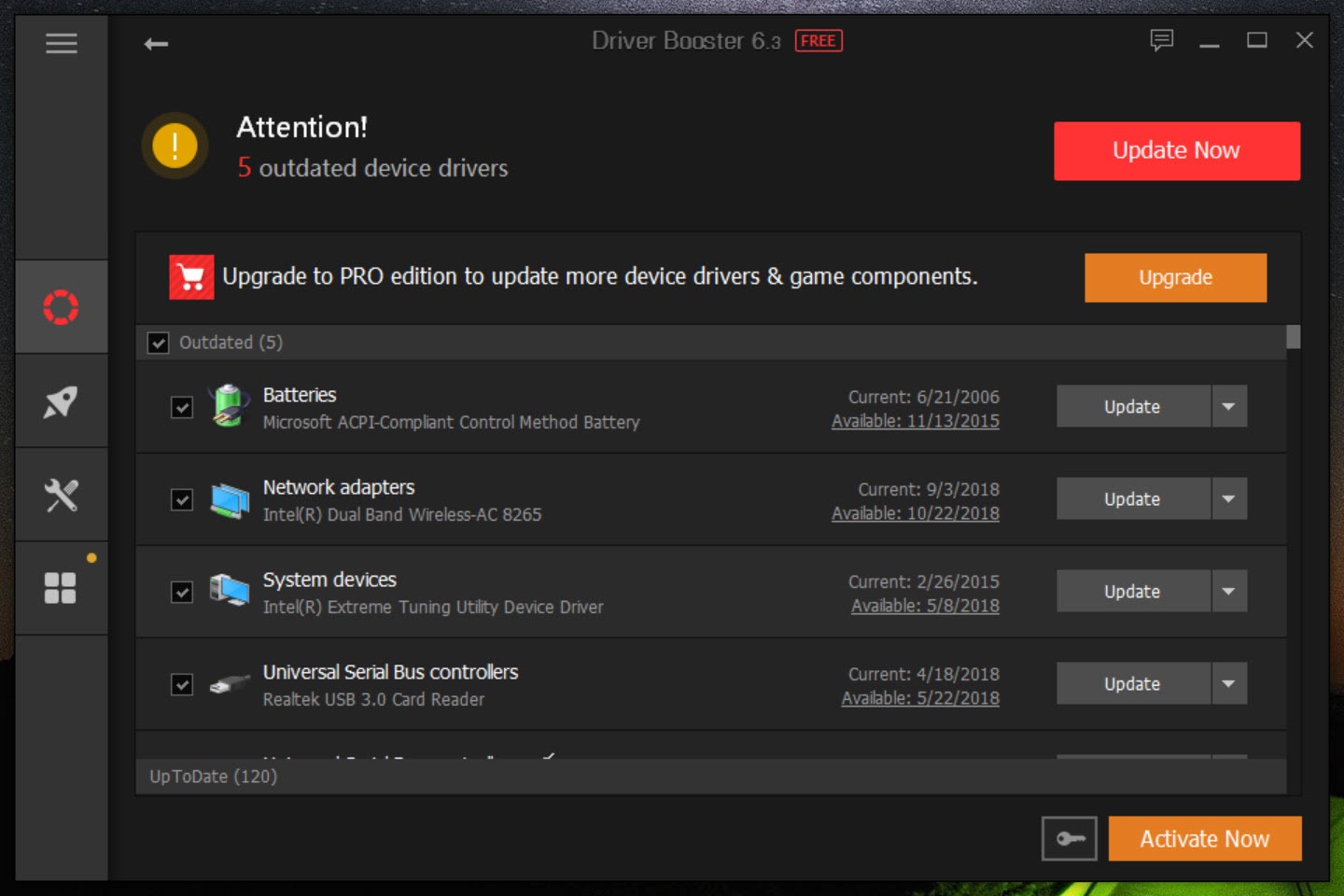
What it does do is thorough. Quick and full scans report every device with its current status, so up to date, outdated, missing or misbehaving, and each entry expands to show what is installed against what is on offer. Update all in one action, or tick the ones you actually want.
The honest framing for a review like this is that the tool is competent and the category is risky. Everything below is about which parts to use and which settings to change before you use them.
The scan, and the number it hands you
Independent testing has repeatedly found that Driver Booster reports more outdated drivers than its competitors on the same machine. That cuts both ways and both directions matter.
On the positive side it reflects an unusually large database, and it will identify obscure hardware that other tools shrug at. A card reader in a laptop, the audio chip in a docking station, a chipset component nobody has thought about, all get recognised.
On the other side, a list of thirty outdated drivers creates an impression of urgency that the situation rarely deserves. A driver that has worked faultlessly for years is not a problem waiting to happen, and replacing it because a newer build exists is how working systems become broken ones. Read the list as an inventory rather than as a to-do list.
If you are unsure what a cryptically named entry actually is, a system information tool that names the hardware plainly settles it faster than searching the driver name.
Newest or most stable, the setting nobody finds
Buried in the options is a choice between fetching the latest available driver and fetching the most stable one. It is the single most consequential setting in the program and almost nobody changes it.
Set it to stable. The newest driver for a piece of hardware is the one with the least testing behind it, and outside of graphics cards, where new releases do add game support, there is no advantage to being first. The difference between the two settings is the difference between a tool that keeps a machine current and a tool that keeps a machine working.
While you are in there, the ignore list deserves a visit too. Anything you have deliberately pinned to an older driver belongs on it, because otherwise the next automatic scan will helpfully undo your decision.
The safety net, and where it is gated
Before making changes, Driver Booster can create a system restore point and back up the drivers it is about to replace, keeping a few previous generations so a rollback is possible from inside the program.
That is exactly the right design, and there is a catch. Driver backup belongs to the paid tier, which means the version most people install performs the risky operation without the safety mechanism that makes it survivable. The restore point still helps, and a restore point is a blunter instrument than a driver rollback.
The sensible answer is to take your own backup first. Double Driver copies the entire working driver set to a folder in a couple of minutes, and having that folder means a bad update is an inconvenience rather than an evening.
Which drivers to let it touch
Here is the part that decides whether this program helps you or hurts you.
Graphics drivers should come from the hardware maker’s own utility. Those tools publish new releases first, they install the control panel that belongs with the driver, and they handle the profiles that games actually rely on. GeForce Experience and its equivalent for the other major graphics brand both do this properly, and a general-purpose updater is at best redundant there.
Chipset and storage controller drivers are similar. The manufacturer’s package usually installs several related components together in the correct order, and swapping one of them out individually is how a storage controller ends up in a state nobody intended.
What is left is where a database tool earns its money. Peripheral audio, card readers, network chips on older boards, docking station components, printers, all the hardware whose makers stopped publishing anything findable. Driver Booster is very good at those, and those are the entries worth updating.
The offline updater is the best thing here
One tool inside it justifies the download on its own. The offline driver updater installs the essential drivers, graphics, audio, network, chipset, USB, motherboard, onto a machine with no internet connection at all.
Anyone who has finished a clean installation only to discover the network adapter has no driver, and therefore no way to download the driver for the network adapter, will understand immediately. Prepared in advance on a working machine, this turns that dead end into a five-minute job.
It is not the only approach to the problem. Snappy Driver Installer is built around exactly this scenario, with full driver packs you download once and carry on a stick, and no account or tier structure attached to it.
Game components and the fix-it tools
Alongside device drivers, Driver Booster tracks the runtime components games depend on, so the graphics interface libraries, physics libraries, audio libraries and similar redistributables. These are separate from drivers and can be excluded from scanning if you would rather it left them alone.
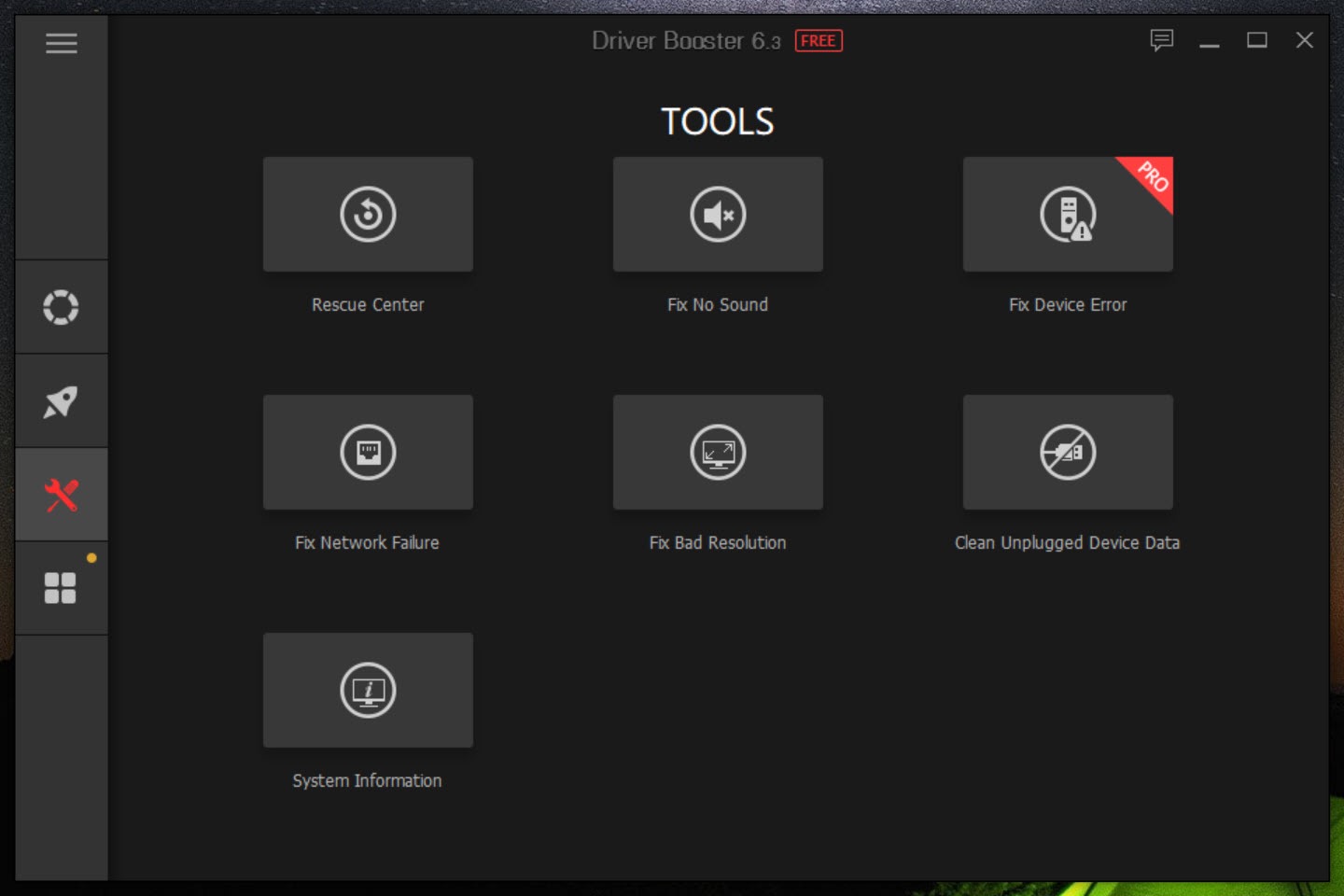
The tools section offers targeted repairs for common symptoms. No sound, device errors, invalid device data left behind by removed hardware, network failure, wrong screen resolution. A system information panel sits alongside them.
Be realistic about what those fixes are. Most of them reinstall or reset the relevant driver and clear the associated device records, which is what a technician would do by hand. That is useful packaging for somebody who does not know where to start, and it is not diagnostic intelligence. When a graphics driver update goes badly wrong and a normal reinstall will not clear it, a tool that strips a graphics driver back to nothing is the one that actually fixes it.
Automation, and the advertising
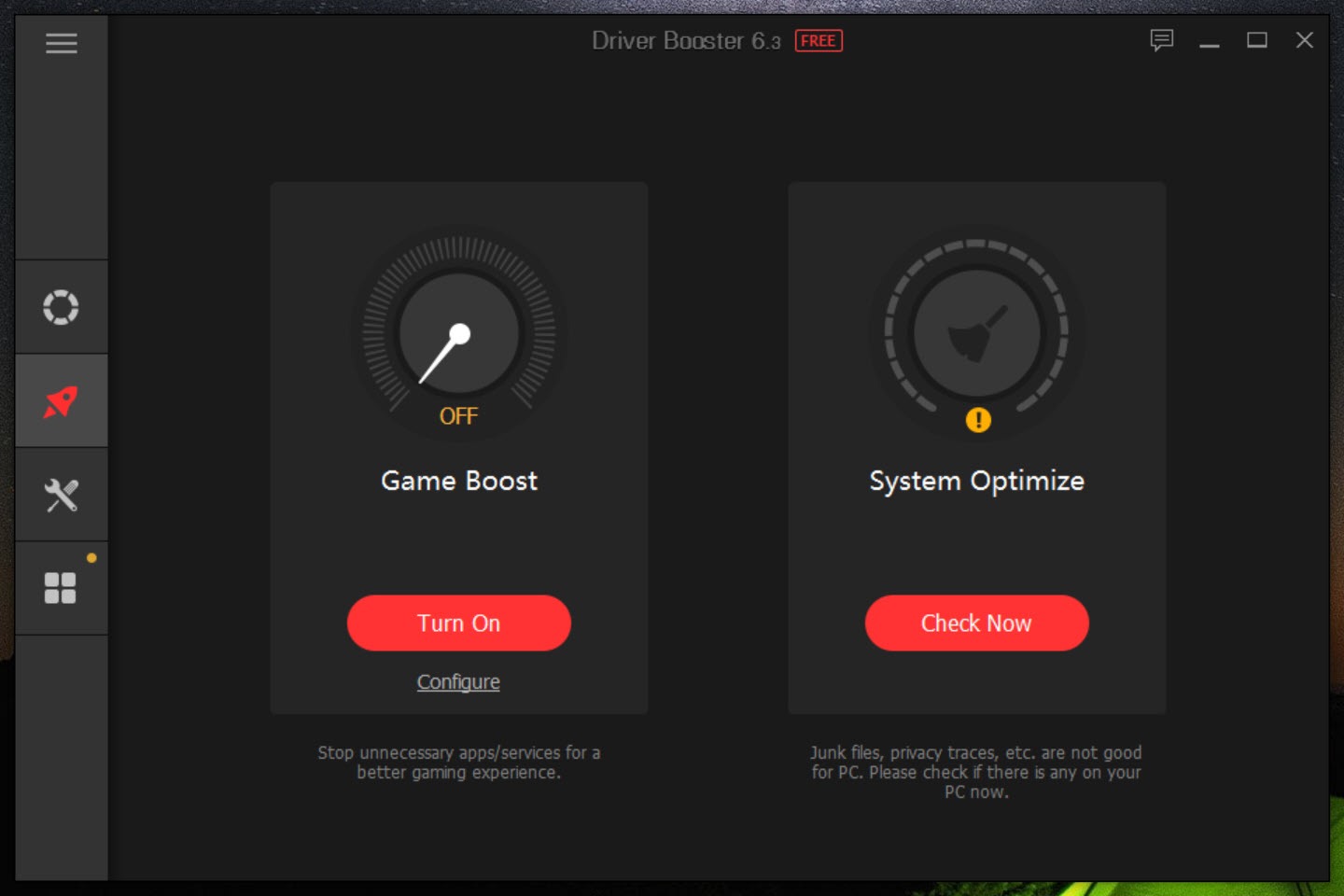
Scheduling in Driver Booster covers a fixed frequency or a scan at every startup, and there is an option to update drivers automatically while the system is idle. Downloads run quietly in the background with bandwidth limits available, installation can reboot the machine on its own, and the download and backup folders are both configurable.
Leaving unattended driver updates switched on is a decision to think about rather than a convenience to enable. On a machine you support for somebody else it means changes you did not review, on hardware you cannot test, at a time you were not watching.
The other thing to expect is promotion. The installer offers other products from the same maker, and several prominent buttons in the main interface lead to advertisements for those products rather than to features of this one.
It never blocks anything and it never stops. On a program whose core job takes three clicks, having a third of the interface devoted to selling you something else is the most irritating thing about it.
Conclusion
Driver Booster is a capable tool aimed at a job that needs less doing than its interface suggests. The offline updater is excellent and solves a real dead end, the database does recognise hardware that nothing else identifies, and the stable-driver setting turns it from a risk into a reasonable maintenance tool for somebody who does not want to hunt down drivers by hand.
Use it selectively and it is worth having. Change the setting to stable, populate the ignore list, back up your drivers with something else first, let the graphics and chipset drivers come from the hardware makers, and point it at the obscure peripherals where it actually helps.
Click Update All on a working machine without reading the list, and you will eventually find out why people distrust this category.
Pros & Cons
- Scan coverage is broad, recognising obscure peripherals that other updaters miss
- A setting chooses stable drivers over newest ones, which is the safer default
- System restore point and driver rollback are both available before changes
- The offline updater installs essential drivers on a machine with no connection
- Game runtime components are tracked separately and can be excluded entirely
- Ignore list keeps hardware you have deliberately pinned to an older driver
- Scheduling, idle updating, bandwidth limits and configurable folders all present
- Driver backup, the actual safety net, sits behind the paid tier
- Reports far more outdated drivers than the situation usually warrants
- Graphics and chipset drivers are better handled by the hardware maker's own utility
- Repair tools mostly reinstall drivers rather than diagnosing anything
- Several interface buttons exist only to advertise the maker's other products
- Unattended automatic updating is offered without much warning about the risk
Frequently asked questions
It can create a system restore point, and driver backup with rollback belongs to the paid tier. Anyone using the unpaid version should copy the working driver set out with a separate backup tool before letting it change anything.
Preferably not. The graphics hardware maker's own utility publishes releases sooner and installs the control panel and game profiles that go with them. Use this for the hardware whose makers no longer publish anything findable.
Because the database is large and it compares against the newest build available rather than against what your machine needs. A driver that has worked for years is not a fault, so treat the list as an inventory rather than a queue of repairs.
Yes, and this is its strongest feature. The offline updater handles graphics, audio, network, chipset, USB and motherboard drivers, which solves the fresh installation where the network adapter has no driver.
The shared runtime libraries games expect to find installed, covering graphics interfaces, physics and audio. They are tracked separately from device drivers and scanning for them can be switched off if you maintain them yourself.
Stable, in almost every case. The newest build carries the least testing, and for anything other than a graphics card there is no benefit to installing a driver the week it appears.


Not free, and not cool. Anything by IOBit has been nothing but scams and headaches.