

Kudu

About Kudu
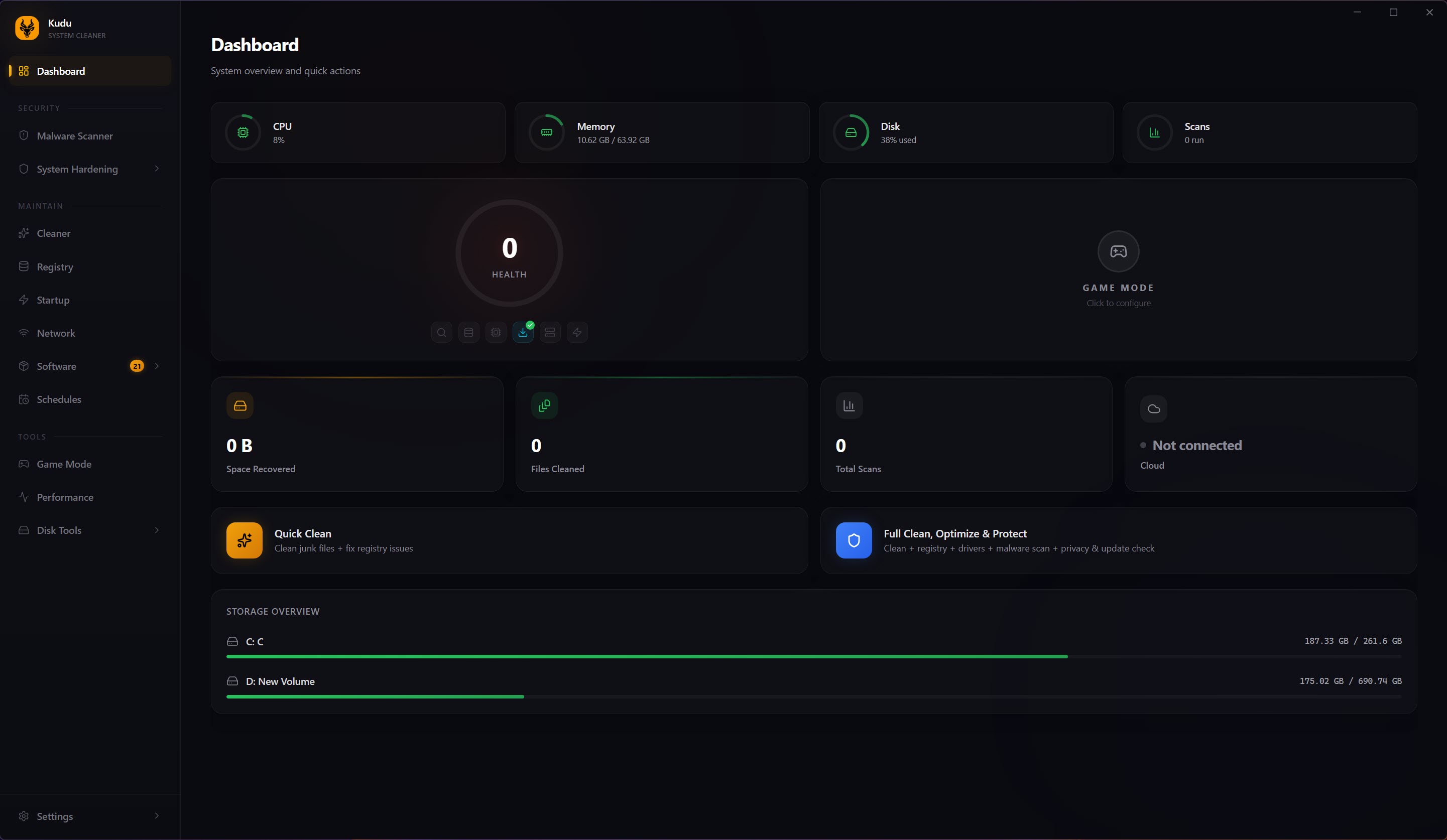
Kudu is an open-source maintenance suite that packs more than fifteen tools behind one dashboard. Inside sit a system cleaner, a multi-engine malware scanner, a real-time performance monitor, a debloater, a disk analyzer, a registry tool, a software updater, and a one-click gaming optimizer, with no ads and nothing extra slipped into the installer. One window replaces the drawer of single-purpose utilities most people accumulate over the years.
The design principle that holds it together is simple. Nothing destructive happens without a snapshot, a backup, or your explicit approval first. That pattern repeats in the cleaner, the registry tool, and the gaming optimizer alike, and it’s what makes a suite this broad usable by someone who doesn’t know what a DNS cache is.
The fair question is whether one app doing fifteen jobs can hang with the specialists it wants to replace. After going through what each module does, the answer is mostly yes, with caveats you should understand before committing.
One dashboard instead of a dozen utilities
Open Kudu and every module sits on the home screen at once. Routine upkeep normally means bouncing between programs, one to clear junk, another to manage what loads at boot, a third to see where disk space went, a fourth to update software. Here they live together, which turns maintenance from a chore you keep postponing into ten minutes on a Sunday.
Breadth alone proves nothing, so the rest of this review looks at whether the individual modules hold up.
Deep cleaning with a risk label on everything
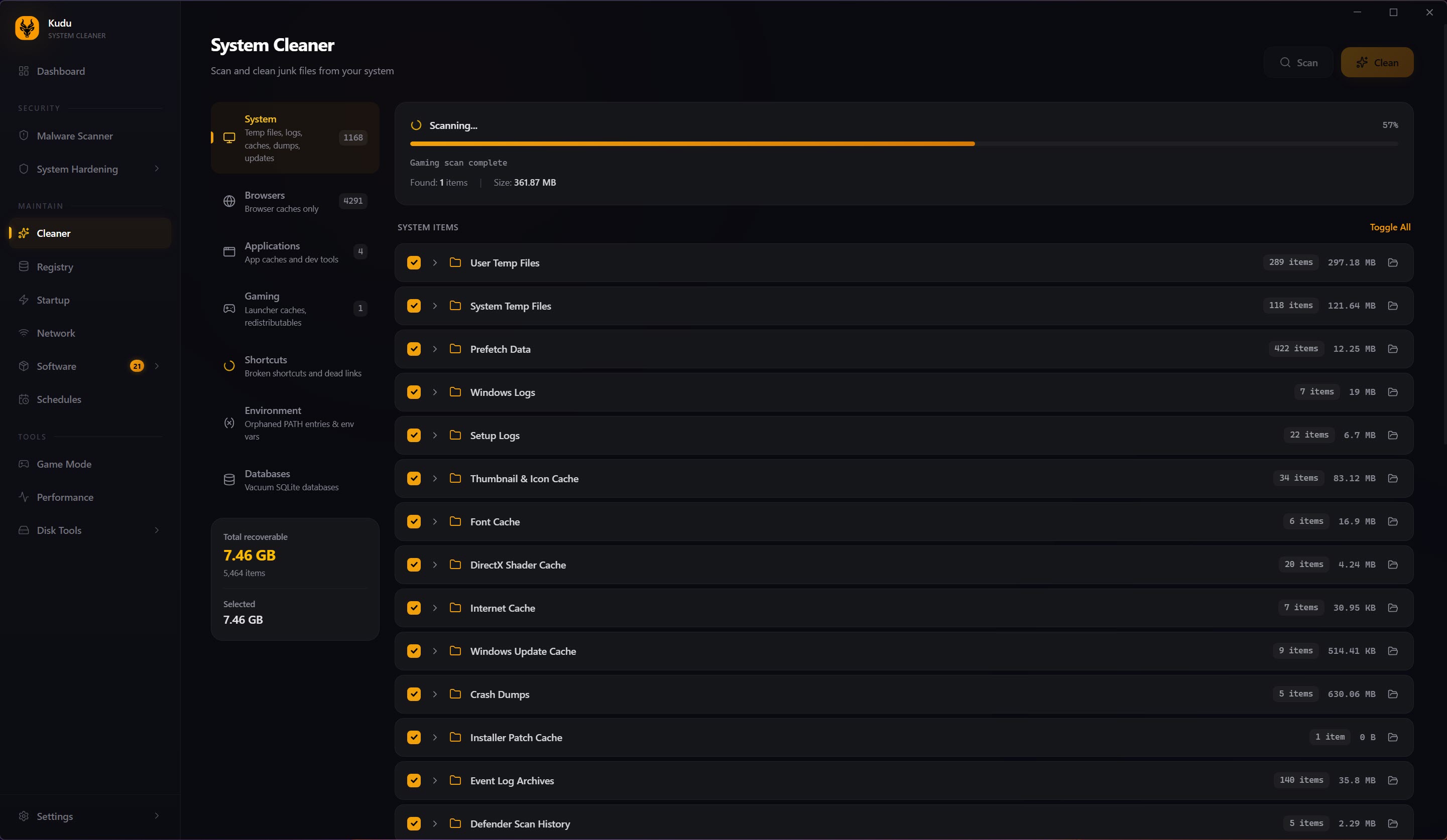
The System Cleaner scans more than fifteen categories, from temp directories, browser caches, and application logs to crash reports, memory dumps, thumbnail databases, DNS and font caches, and update leftovers. A scan finishes in under a minute and reports how much space each category holds.
The detail that separates it from the pack is risk classification. Every item gets tagged safe, moderate, or advanced, so you’re never guessing whether clearing a given cache is harmless or something you’ll regret. Critical files are backed up automatically before deletion and restore with one click.
A dedicated cleaner like BleachBit sweeps just as thoroughly, but hands you that power without the risk grading or the undo button. And CCleaner, the long-time default of the category, has spent years bundling extras that this application pointedly avoids.
The decluttering trio
Kudu‘s Debloater removes more than seventy pre-installed apps that ship on a new machine and mostly sit there consuming space. The Registry Cleaner covers eight categories of registry problems and, true to the house pattern, writes an automatic backup before changing anything, the right call in a discipline where aggressive editing regularly causes more damage than the clutter it removes.
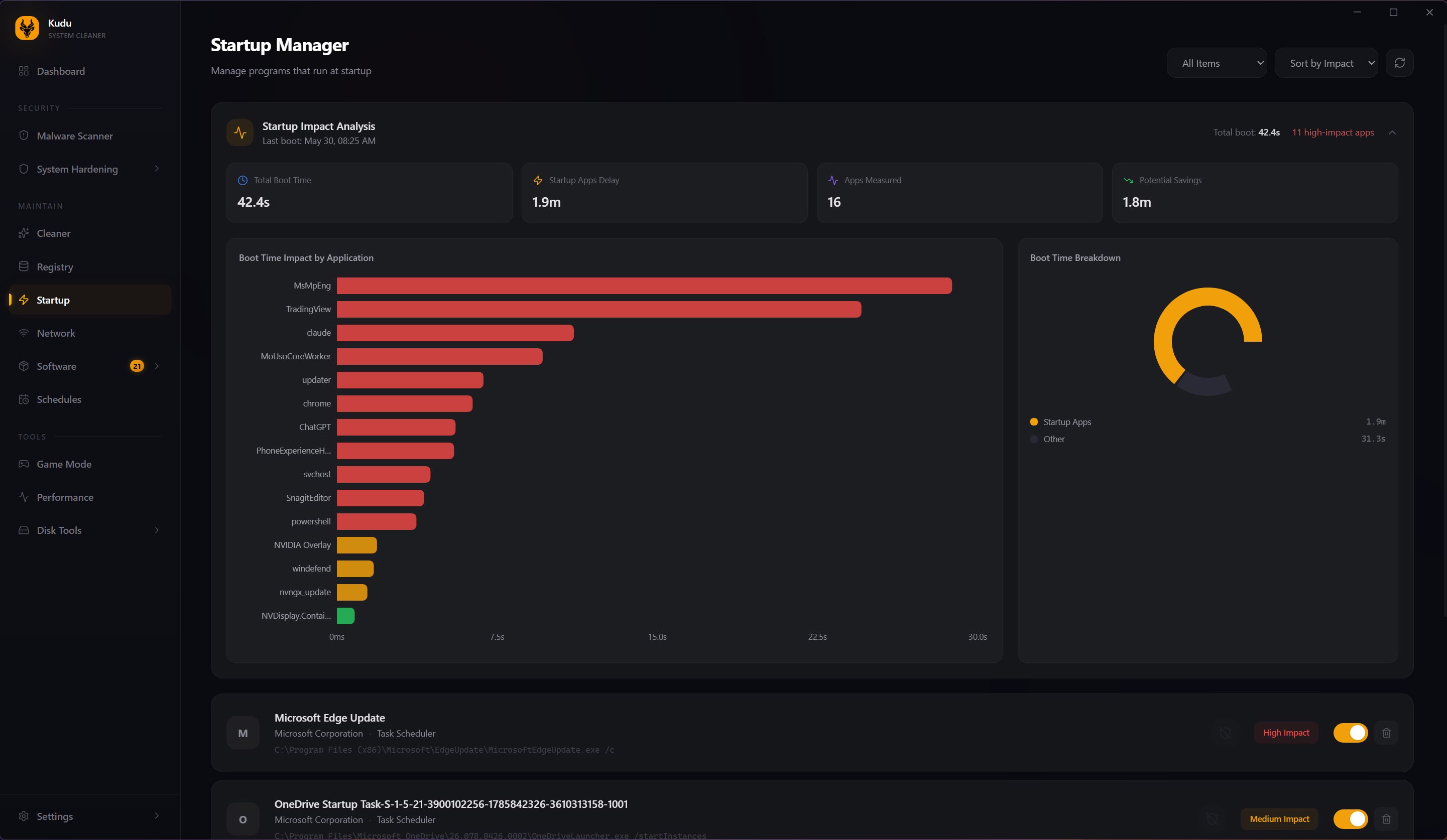
The Startup Manager goes a step further than a bare list. Each boot entry carries an impact rating, so you can see which ones actually drag out startup instead of guessing from program names. A respected specialist like AutoRuns shows you far more entries, but leaves the research on every one of them to you.
Storage rounds out the trio. The Disk Analyzer draws your drive as an interactive treemap, the proportional-rectangles view that tools like WizTree made famous, and it remains the fastest way to spot the one forgotten folder quietly eating half a disk.
Live monitoring and a warning before your drive dies
This is where Kudu stretches past anything a pure cleaner does. The Performance Monitor charts five subsystems with per-second granularity, covering per-core CPU load, memory and swap pressure, disk activity down to IOPS and queue depth, network throughput per interface and per process, and a sortable process list you can kill or reprioritize from directly.
Charting over time is the part that matters, because intermittent slowdowns only reveal themselves when you can line up a spike with the process that caused it.
The standout is S.M.A.R.T. disk health analysis. The tool reads the drive’s own diagnostic attributes (temperature, reallocated sectors, remaining-life estimates) and warns when a disk is starting to fail. A dying drive almost always telegraphs trouble in that data weeks before it takes your files with it, and almost nobody looks at those numbers until it’s too late.
Having the warning surface inside a program you already open for cleaning is a quiet safety net that justifies the suite on its own.
Security hardening, scored from 0 to 100
The Privacy Shield audits more than thirty-five privacy and security settings, from firewall status, disk encryption, and secure boot to telemetry, advertising IDs, remote desktop, auto-login, and screen-lock timing, then rates your overall posture with a score from 0 to 100. One click enforces the recommended configuration, and any change reverses instantly. A single security number sounds like a gimmick until you watch it climb as you fix things, at which point it becomes a surprisingly effective nudge.
The malware scanner leans on more than seventy signature patterns across multiple engines, and the smart part is where it looks. It inspects running processes, startup entries, browser extensions, and scheduled tasks, exactly where modern unwanted software hides.
Threats go to quarantine and false positives restore with a click. Be measured about it, though. Seventy-odd signatures make a strong second opinion, not a replacement for a full-time antivirus, and treating it as your only defense misreads what it’s for.
Kudu‘s Software Updater patches outdated programs in bulk, closing the gaps people neglect most. For drivers specifically, a focused tool like Driver Booster digs deeper than any general updater will.
Game Mode, built around a snapshot
Hit the toggle and up to eighteen tweaks fire across five categories. Resource-hungry background services like search indexing stop, background browsers and chat apps are terminated, standby memory is cleared, the high-performance power plan kicks in while recording and transparency effects switch off, and network latency drops through a DNS flush and disabling of Nagle’s Algorithm, which stops TCP packet batching. A progress bar shows each step as it runs.
Here’s the part that matters. Before touching anything, Kudu captures a full snapshot of the original configuration, and deactivating restores every setting exactly as it was, with a session timer tracking the system’s state throughout.
Critical processes sit on a protected safelist, tweaks needing elevation carry an ADMIN badge, and a failed step is reported without blocking the rest. Plenty of gaming boosters make changes they never cleanly reverse. This one is temporary by design, and that single distinction is why it’s usable.
Scripting, scheduling, and whole fleets
Two capabilities push the suite toward advanced users. Nearly every module exposes a command-line mode with metrics exportable as JSON, so the cleaner, scanner, and monitor can all feed your own scripts. The Scheduler then automates cleanups, scans, and update checks on a recurring basis, so maintenance happens whether anyone remembers it or not.
The optional cloud dashboard goes further still. From a browser you can watch the health of many machines at once, run remote maintenance commands, and check security compliance against recognized frameworks with audit-ready reports. That’s territory no single-PC cleaner enters, and the clearest signal that IT teams are part of the target audience.
The honest limitations
Breadth has a cost. An all-in-one rarely beats a dedicated specialist at any single task. The scanner is a second opinion, the disk analyzer may lose a race against a purpose-built one on an enormous drive, and if you already trust a set of focused utilities, this suite wins on friction rather than raw capability.
Registry cleaning and aggressive decluttering also carry inherent risk no matter how many backups stand behind them, so reviewing what the tool proposes to remove remains the sensible habit. It makes that review as easy as it can be. It can’t make the judgment for you.
Conclusion
Kudu fits the person tired of maintaining a drawer full of single-purpose utilities, and equally the IT admin who wants one open, scriptable tool across a fleet. If your idea of upkeep spans cleaning, monitoring, decluttering, hardening, and patching, having it all in one ad-free window, with snapshots and backups standing behind the destructive parts, is a real and repeatable convenience.
It won’t satisfy someone hunting the single fastest disk analyzer or the strongest malware engine, because specialists always win their own narrow contest. What it offers is competent coverage across the whole maintenance spectrum without the advertising and trust baggage that has dogged this category.
For most people, broad and careful beats deep and fragmented.
Pros & Cons
- More than fifteen maintenance tools consolidated behind one ad-free dashboard
- Risk labels plus automatic backups make the cleaner hard to hurt yourself with
- Startup Manager and Performance Monitor rate impact instead of leaving you guessing
- S.M.A.R.T. analysis flags failing drives weeks before data loss
- Game Mode's snapshot restores every setting exactly, with protected-process safelists
- Command-line mode, JSON export, scheduling, and optional fleet management
- Built-in scanner supplements an antivirus rather than replacing one
- Individual modules rarely outperform dedicated single-purpose specialists
- Registry and decluttering work carries inherent risk despite the safety nets
- More tools than a casual user will ever open
Frequently asked questions
Over fifteen tools behind one dashboard, among them a system cleaner, malware scanner, performance monitor, startup manager, disk analyzer, debloater, registry cleaner, software updater, security hardening, and a one-click gaming optimizer.
It's open source, shows no ads, and bundles nothing in the installer, and its scope runs far past cleaning into monitoring, scanning, hardening, and fleet management. CCleaner stays narrower and has drawn criticism for the extras in its installer.
No. The scanner inspects processes, startup items, extensions, and scheduled tasks, which makes it a strong second opinion, but its signature set is far smaller than a dedicated, always-on antivirus carries.
It writes an automatic backup before every change, so anything that misfires can be reversed. Glancing over the proposed removals before confirming is still the sensible habit with any registry tool.
A full snapshot of your settings is saved before any tweak applies. Deactivating restores everything exactly as it was, a session timer tracks the active state, and critical processes are shielded by a safelist.
Managing many machines from a browser, with health monitoring, remote maintenance commands, and security compliance checks backed by audit-ready reports. It's aimed at IT teams rather than single-PC users.


