

FixWin
About FixWin
FixWin is a repair tool that turns the fiddly command-line and registry fixes for a misbehaving system into buttons. Each entry names a symptom in plain language, the recycle bin icon is broken, File Explorer will not open, the taskbar has stopped responding, a shortcut arrow needs removing, and beside it sits a Fix button that runs the exact commands or registry edits that put it right. No typing, no hunting through forums for the correct command, no risk of a mistyped registry path. It is portable, so it runs from a folder or a stick with nothing to install.
The fixes are grouped into six tabs, File Explorer, Internet and Connectivity, System Fixes, System Tools, Troubleshooters and Additional Fixes, each holding a dozen or more entries. FixWin does not scan and does not diagnose. You already know what is wrong, you find the matching entry, and you fix it.
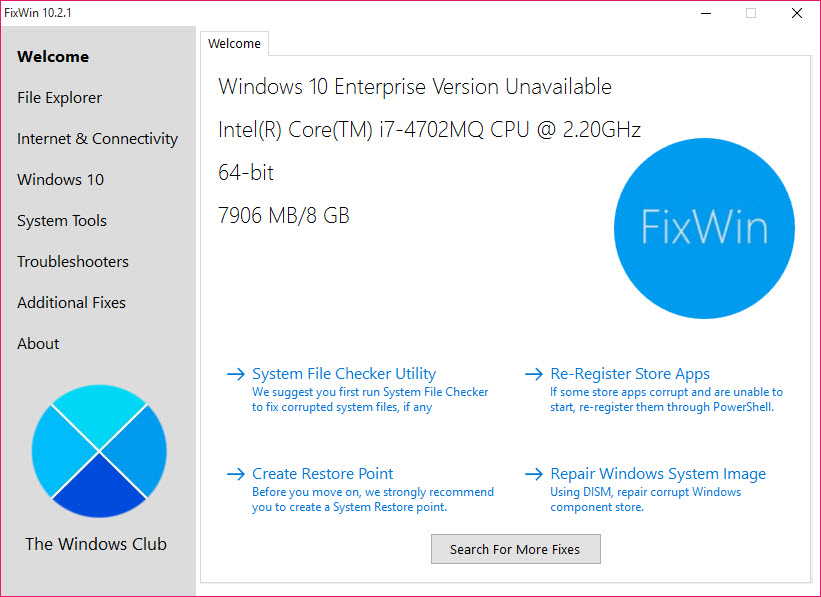
The welcome page and the two big commands
The first screen holds the tools worth reaching for before any individual fix. A button creates a restore point, and the tool tells you to use it. Two more buttons run the system’s own deep repair commands. System File Checker scans protected system files and replaces any that are corrupted, and the image repair command fixes the underlying system image that the file checker depends on. Both normally mean typing commands into an elevated prompt. Here they are one click each.
Running the image repair before the file checker is the order that works most often when both are needed, and the welcome page puts them side by side so that is easy to do. Re-registering the bundled packaged apps lives here too, for the common case where they stop opening.
The six tabs of fixes
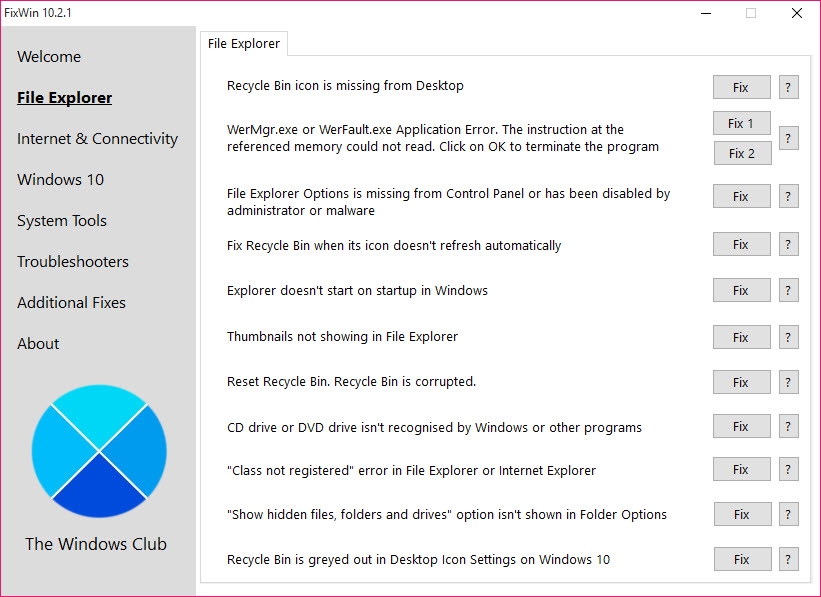
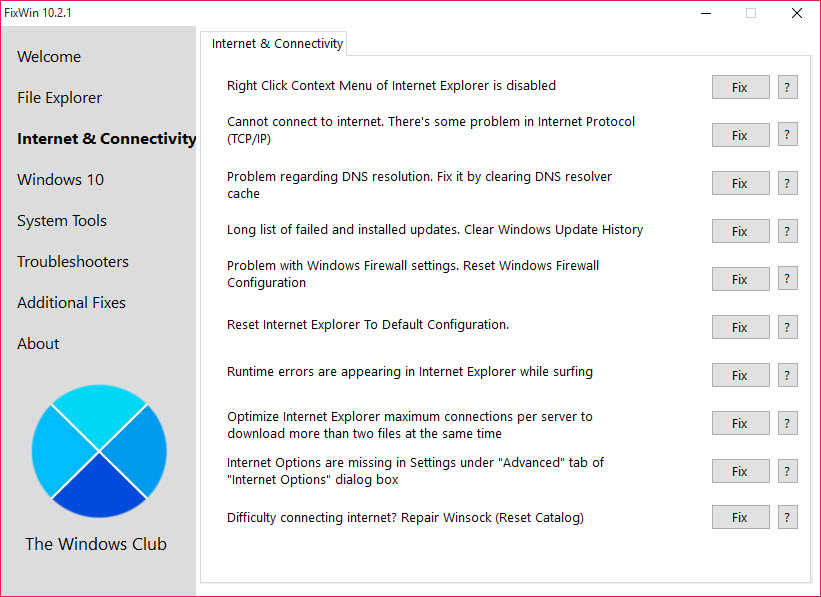
File Explorer covers the desktop and the file manager. Reset the recycle bin when its icon breaks, rebuild the thumbnail cache when previews go wrong, restore a missing right-click entry, fix blank desktop icons. Internet and Connectivity resets the network stack, flushes the DNS cache, and clears the proxy tampering that leaves a machine connected but unable to reach anything, the residue a post-infection repair tool is built to hunt down in bulk.
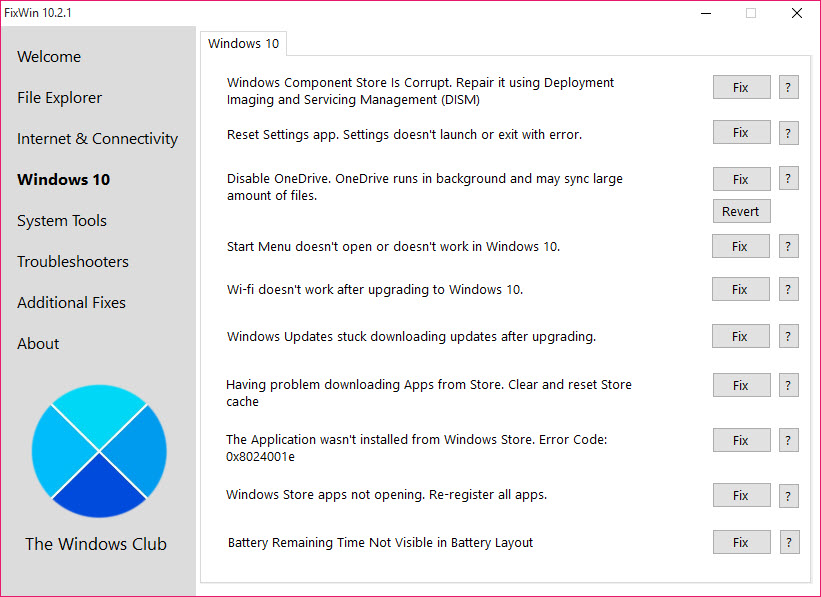
System Fixes is the catch-all for the things that break after an update or an infection, Task Manager or the registry editor disabled by policy, a missing hibernate option, a stalled update service. System Tools repairs the built-in applications when they crash on launch. Troubleshooters opens the system’s own guided troubleshooters rather than fixing anything itself, and Additional Fixes holds the remainder, from font cache rebuilding to re-registering system libraries.
Reading the info button, and why it matters
Because the fixes edit the registry and run system commands, knowing what each does before pressing it is not optional. The info button next to every fix describes the change in a sentence or two, which is the difference between fixing a symptom and changing behaviour you wanted. A few fixes overlap with settings you chose deliberately, and the description is where you catch that.
The tool applies one fix at a time by design, and checking the result before running another beats firing several and not knowing which helped. For a stubborn startup or policy entry the tool does not list, a startup and registry inspector shows what is loading before you decide what to change.
What it is not
FixWin is not a tweaker and not a cleaner. Its entries repair things that are broken rather than adjusting things that work, so for customising behaviour and appearance a settings tweaker from the same maker is the companion tool.
It also cannot fix what its scripts do not cover, and a system too broken to run the tool at all needs recovery media instead.
Conclusion
FixWin suits anyone who has hit a specific, nameable fault, a dead Start menu, a network that connects to nothing, a policy that disabled Task Manager, and wants it fixed without opening a command prompt or editing the registry by hand. The plain-language entries and the info buttons make it approachable, and the welcome-page commands save the most common trips to the terminal.
It is not for browsing when nothing is wrong, and it will not tune or clean a healthy machine. Make a restore point, run one fix at a time, read what each does first, and it is the fastest way through the everyday breakages that would otherwise take an evening of searching.
Pros & Cons
- Common repairs as one-click buttons with no command line or registry editing
- Info button explains each fix before it runs
- Restore point, System File Checker and image repair on the welcome page
- Portable, running from a folder or a stick with no installation
- Six tabs covering explorer, network, system and built-in tool fixes
- Does not scan or diagnose, so you must know the problem first
- Only fixes what its scripts cover
- Not a tweaker or cleaner, despite the category it sits in
- Some fixes overlap with settings you may have chosen deliberately
Frequently asked questions
No. It has no scanner. You identify the symptom, find the matching fix and run it, so it helps most when you already know what is wrong.
Create a restore point first using the button on the welcome page, read each fix's info button before running it, and apply one fix at a time.
They run the system's own deep repair commands, one to replace corrupted system files and one to repair the system image, without you typing anything at a prompt.
No. It repairs broken things and does not clean, tweak or optimise. Pair it with a separate tweaker for customisation.


