

Re-Enable

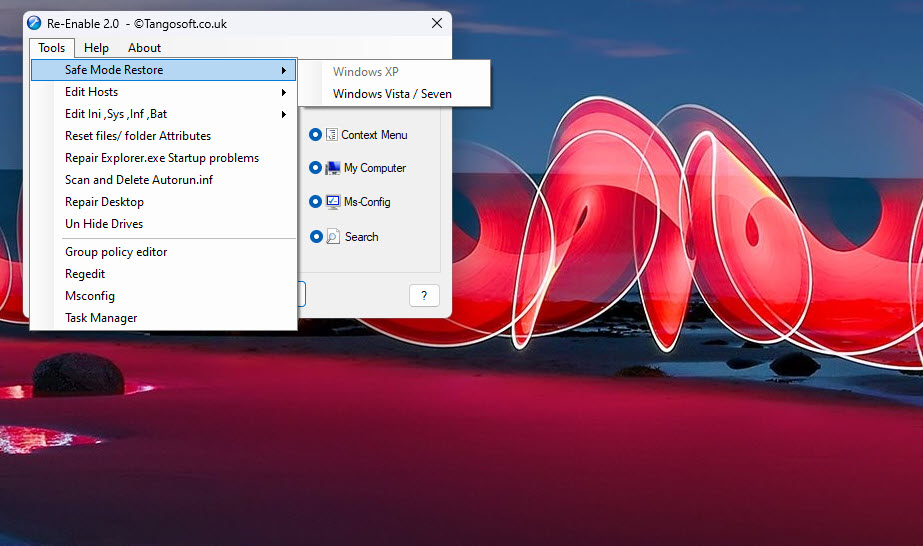
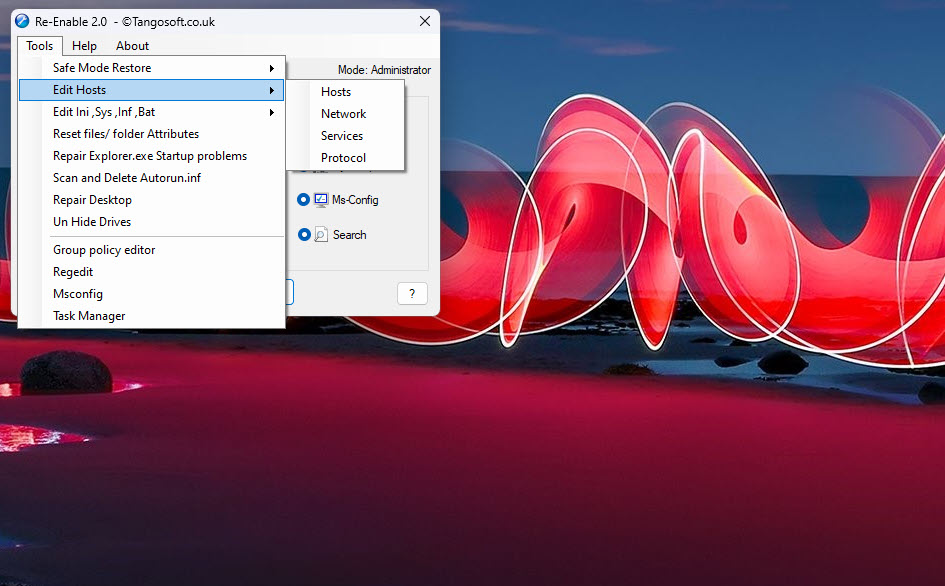
About Re-Enable
Anyone who has dealt with a serious malware infection knows the strange aftermath that often comes after the threat itself is gone. The antivirus has done its job, the malicious files are quarantined or deleted, but somehow the computer still feels broken. Task Manager refuses to open, Registry Editor displays an error message, the Run command does nothing, and System Restore acts like it’s not even installed. Re-Enable is a small utility built specifically to fix exactly this kind of damage, restoring access to system tools that malware commonly disables to make itself harder to remove.
The premise is simple but addresses a problem more common than most users realize. When a virus or malware infection takes hold, one of its priorities is often to disable the tools that would help you fight back.
Even after the malware itself is cleaned up, those disabled tools usually stay disabled, leaving users stuck without the standard ways of inspecting or repairing their system. This software walks through the registry settings and policies that malware typically modifies and reverts them to their default working state.
What malware actually disables and why it matters
Most users never realize how many ways Windows can be locked down through registry tweaks and group policy settings. Task Manager, Command Prompt, Registry Editor, the Run command, Folder Options, Control Panel, MSConfig, and various other system utilities can all be disabled by changing a few values in the registry. Legitimate IT administrators sometimes do this on managed corporate machines, but malware abuses the same mechanisms to keep users from poking around and discovering the infection.
The frustrating part is that even after a successful malware cleanup, these registry changes often remain. The infection is gone, but the locked-down environment it created stays exactly the way the malware left it. Going through and manually fixing each disabled component requires registry knowledge most users don’t have, and even technical users find it tedious to track down every individual setting that needs reverting.
This is where Re-Enable earns its place in the toolkit. Rather than fixing one thing at a time through registry edits, the tool scans for all the common malware-induced changes and offers to restore them in one operation.
A focused list of repairs
The tool covers a specific list of common malware effects rather than trying to be a general system cleaner. The typical fixes include re-enabling Task Manager, Command Prompt, Registry Editor, the Run command, MSConfig, System Restore, Folder Options, the right-click context menu, and various Control Panel applets. It also addresses settings that prevent users from changing their wallpaper, modifying screen savers, or accessing Windows Update.
Each fix is presented clearly with a description of what it restores, letting you choose which repairs to apply rather than applying everything blindly. For users who only need one or two specific fixes, this granular approach avoids unnecessary changes to settings that might be intentionally configured the way they are.
Safe mode operation for stubborn cases
Some malware is persistent enough that it actively resists attempts to fix the damage, undoing repairs as soon as they’re applied. To handle these cases, this software is designed to work effectively in Safe Mode, where most malware doesn’t load and the system runs with only essential drivers and services.
Booting into Safe Mode and running the tool from there gives you the cleanest possible environment for applying repairs. Once the changes are made, restarting normally usually leaves the system in a fixed state, since the malware that was reversing the fixes is no longer present after a successful cleanup of the infection itself.
For users dealing with particularly stubborn cases where settings keep reverting, this Safe Mode approach is worth knowing about. It’s often the difference between a frustrating cycle of repair-and-revert and a single clean fix that actually sticks.
File association and registry repair
Beyond just re-enabling system tools, the application can also fix common file association problems that malware sometimes creates. When .exe files refuse to launch normally, when .lnk shortcut files become broken, or when basic file types lose their proper associations, these issues often trace back to registry damage that goes hand-in-hand with the original infection.
Restoring these associations brings back the basic functionality users expect from their computer, like double-clicking executables to run them or shortcuts working as intended. For users who have managed to clean up an infection but still find their computer behaving strangely, these association repairs frequently fix what otherwise feels like persistent post-infection weirdness.
When to use this tool and when to skip it
This software is useful in a narrow but important set of situations. It’s the right tool when you’ve cleaned up a malware infection but find that system tools or common functionality is still broken, when you’ve inherited a computer with weird restrictions that the previous owner couldn’t explain, or when you want to verify that no lingering registry damage is affecting your system after a security incident.
It’s not a general system optimizer, antivirus, or cleanup utility. Users looking for performance improvements, drive cleanup, or active malware protection should look at different categories of software entirely. The strength of this tool lies in its narrow focus on a specific aftermath problem rather than trying to be a one-stop solution for every PC issue.
Conclusion
Re-Enable is a perfect example of a utility that does one specific thing genuinely well rather than trying to be everything to everyone. For users dealing with the lingering effects of a malware infection, particularly the frustrating disabled-system-tools problem that so many infections leave behind, it offers a quick and reliable path back to a normally functioning computer.
It’s not a tool you’ll use often, but when you actually need it, the value is real. Re-Enable sits quietly in the toolkit alongside antivirus software and other security utilities, ready for the specific moment when an infection has been cleaned up and you’re left wondering why your computer still doesn’t feel right.
Pros & Cons
- Specifically targets damage left behind after malware infections
- Restores Task Manager, Registry Editor, Command Prompt, and other system tools
- Fixes file associations that prevent normal program launching
- Granular control over which repairs to apply
- Works effectively in Safe Mode for cases involving persistent malware
- Simple interface that doesn't require registry knowledge to use safely
- Focused scope avoids the bloat of general system cleaners
- Useful only for a narrow set of post-infection scenarios
- Doesn't replace antivirus or active malware protection
- Cannot fix damage that goes beyond the standard registry settings it targets
- Interface design is utilitarian rather than visually polished
- Limited usefulness for users without an actual infection problem
Frequently asked questions
This software addresses registry settings and Windows policies that malware commonly modifies to disable system tools like Task Manager, Registry Editor, Command Prompt, and the Run command. After cleaning a malware infection, these settings often remain damaged, and this tool reverts them to their working defaults.
Yes, this tool only modifies registry settings related to common malware-induced changes, restoring them to their standard Windows defaults. It doesn't make permanent changes that can't be reversed, and the granular control over which repairs to apply lets you avoid changes you don't want.
No, this software is designed for repairing the aftermath of an infection, not for detecting or removing active malware. You should run a proper antivirus or anti-malware tool to remove the infection first, then use this utility to clean up the leftover damage to your system settings.
Many viruses disable Task Manager through a registry setting or group policy modification, which prevents users from killing the malware process while it's running. After the virus itself is gone, the disabled Task Manager setting often remains, and this tool can re-enable it along with other commonly disabled system utilities.
Either works depending on the situation. For most cases, normal mode is fine and convenient. For stubborn infections that actively resist repairs by re-applying their damage, Safe Mode provides a cleaner environment where most malware doesn't load, allowing the fixes to stick reliably.
Yes, this software includes file association repairs that address common scenarios where executable files, shortcuts, or other file types stop working correctly due to registry damage. Restoring these associations typically returns the system to expected behavior immediately.
This software is built specifically for restoring defaults rather than configuring restrictions. Users who actually want to disable system tools intentionally (as part of a kiosk setup or limited user environment) need different tools designed for that purpose, since this one applies only the unlock direction of changes.
Some malware damage extends beyond the common patterns this tool addresses, in which case more targeted manual repairs or professional cleanup may be necessary. The tool focuses on common scenarios, so very unusual or sophisticated infections may leave damage that requires individual diagnosis.
No, this software only modifies system registry settings related to specific Windows policies and tool permissions. It doesn't touch user files, documents, photos, or any personal data on the computer, since none of that is relevant to the repairs it's designed to perform.


