

Quick CPU

 (5 votes, average: 4.60 out of 5)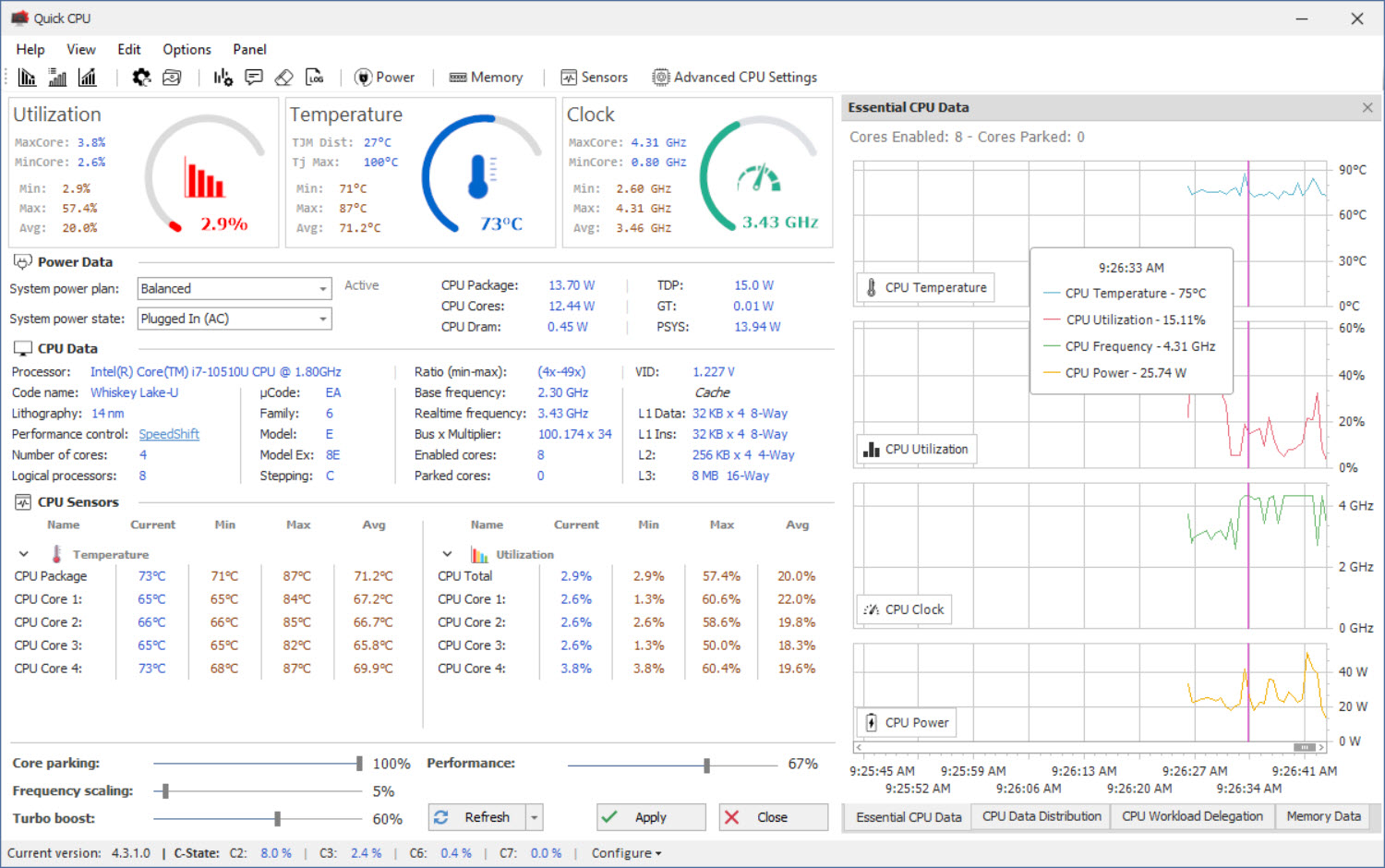
About Quick CPU
Most users go their entire lives without ever thinking about how their CPU actually behaves under the hood. Windows decides when to ramp up clock speeds, when to park cores to save power, when to throttle for thermal reasons, and when to switch between performance states, all without exposing any of that information to the user in a meaningful way.
Quick CPU is a small but surprisingly capable utility that pulls back the curtain on all of this, giving you both the visibility to understand what your processor is doing and the controls to actually change it.
Developed by Sourena Hamzehei, this software has built a steady following among power users, system tuners, and IT professionals who want more granular control over CPU behavior than Windows offers out of the box. It’s not as deep into low-level hardware tweaking as some alternatives like ThrottleStop, but in exchange it offers a cleaner interface, broader CPU support, and a more approachable learning curve.
A live dashboard for what your CPU is really doing
The main window of Quick CPU is essentially a real-time dashboard showing core-by-core information about clock speeds, voltage, temperatures, power consumption, and load. Where Task Manager gives you a single percentage and a vague utilization graph, this tool shows individual cores with their current frequencies, P-state and C-state information, and detailed thermal readings.
For users tuning a system or troubleshooting performance issues, this kind of visibility makes a real difference. You can see at a glance whether your CPU is hitting its expected turbo speeds, whether thermal throttling is kicking in earlier than it should, and whether specific cores are underperforming compared to their siblings, which is occasionally a sign of a hardware issue worth investigating.
Core parking control for predictable performance
One of the more practically useful features in this software is the ability to control core parking behavior. By default, Windows parks unused cores to save power, which is great for battery life but can cause noticeable performance hiccups in workloads that suddenly need more cores than are currently active. Disabling or limiting core parking ensures all cores stay ready, which is particularly valuable for gaming and real-time audio production where consistent latency matters more than power savings.
The slider-based interface makes it easy to set core parking percentages without diving into Windows registry hacks or PowerShell commands, which is the usual route for adjusting these settings. For users who have always wanted more control over this behavior but didn’t want to touch obscure system settings manually, this approach is genuinely helpful.
C-State and P-State management
Beyond core parking, this tool offers control over CPU C-states (idle states) and P-states (performance states), letting you adjust how aggressively the CPU drops into low-power modes when idle and how quickly it ramps back up under load. These settings affect both performance responsiveness and power consumption, and the ability to tune them is normally hidden behind BIOS settings or PowerShell scripts.
The real benefit here is for users who want predictable performance, particularly in real-time audio production, low-latency gaming, or other scenarios where the CPU dropping into deep sleep states between bursts of activity creates noticeable hitches. Disabling deep C-states keeps the processor responsive at the cost of some power efficiency, which is a fair trade for many enthusiast use cases.
Turbo Boost and frequency control
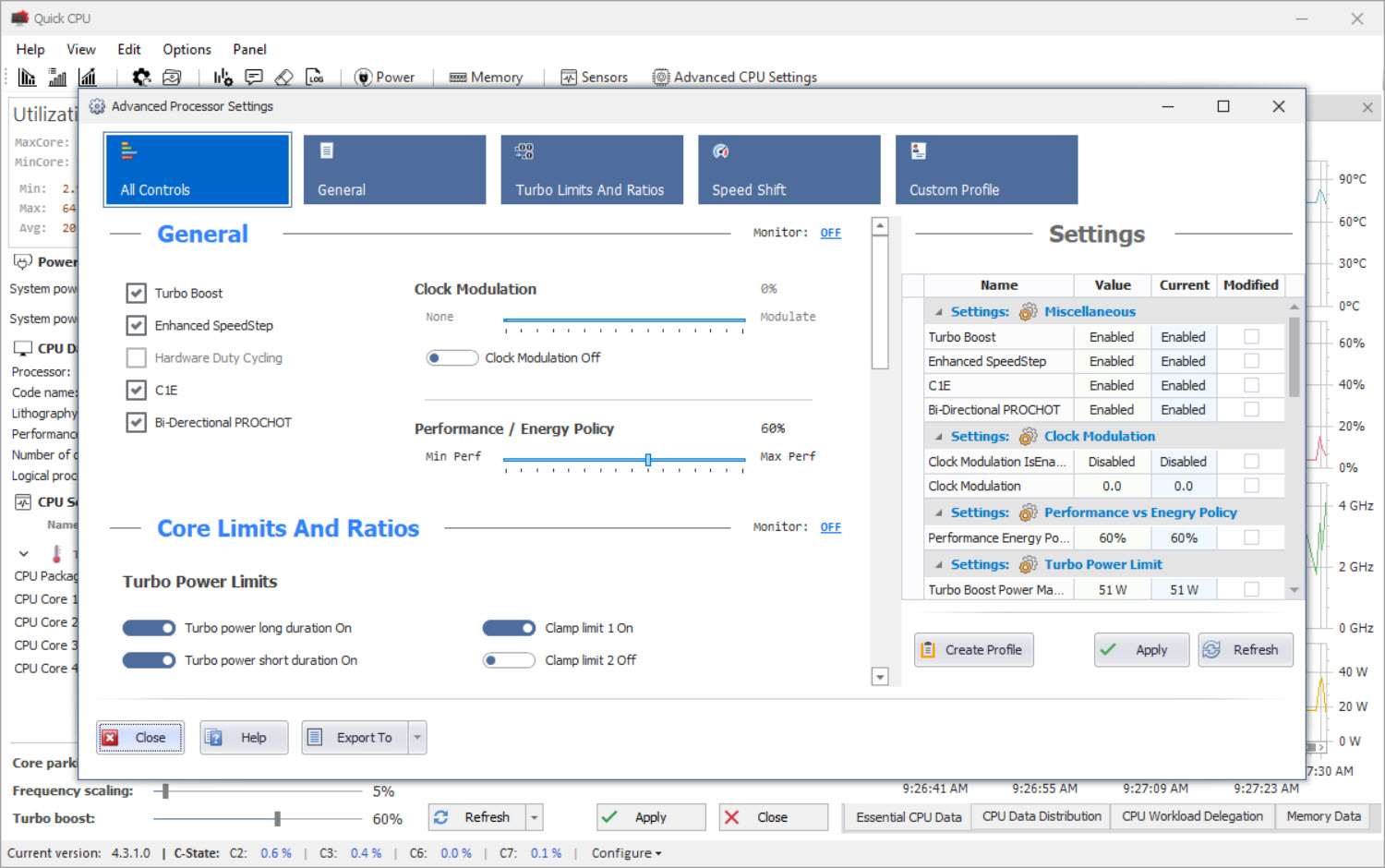
Quick CPU lets you enable or disable Intel Turbo Boost or AMD’s equivalent boost technology directly from the interface. This is occasionally useful in scenarios where consistent clock speeds matter more than peak performance, like benchmarking, audio production with strict latency requirements, or laptop use where keeping turbo disabled extends battery life and reduces heat dramatically.
The frequency monitoring section shows real-time clock speeds for every core, which is invaluable for verifying that your settings actually do what you expect. After making changes, you can see immediately whether the CPU is behaving as intended, which beats guessing or having to run separate benchmarks just to confirm a setting took effect.
Power and voltage monitoring
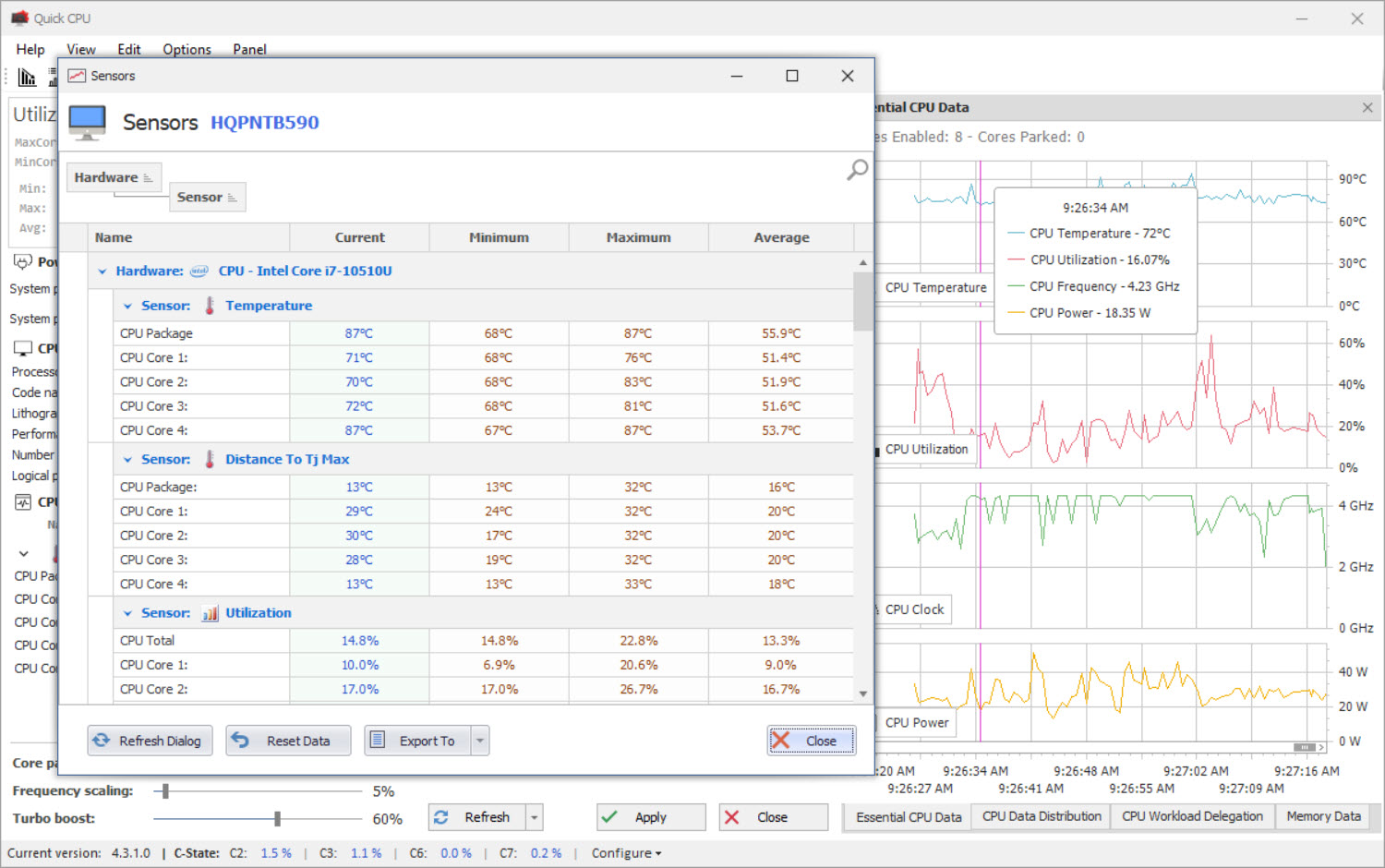
The power monitoring section displays real-time CPU power consumption in watts, broken down by package power, core power, and other sub-components on supported processors. For users curious about how power-hungry their system actually is under various workloads, this provides accurate readings that go beyond the rough estimates most monitoring tools provide.
Voltage monitoring works similarly, showing core voltages updated in real time as the CPU cycles through its various power states. While the tool doesn’t typically expose voltage adjustment controls (since these are often locked at the firmware level on modern systems), having accurate voltage readings helps diagnose stability issues and verify that the CPU is operating within its designed parameters.
System monitoring and benchmarking
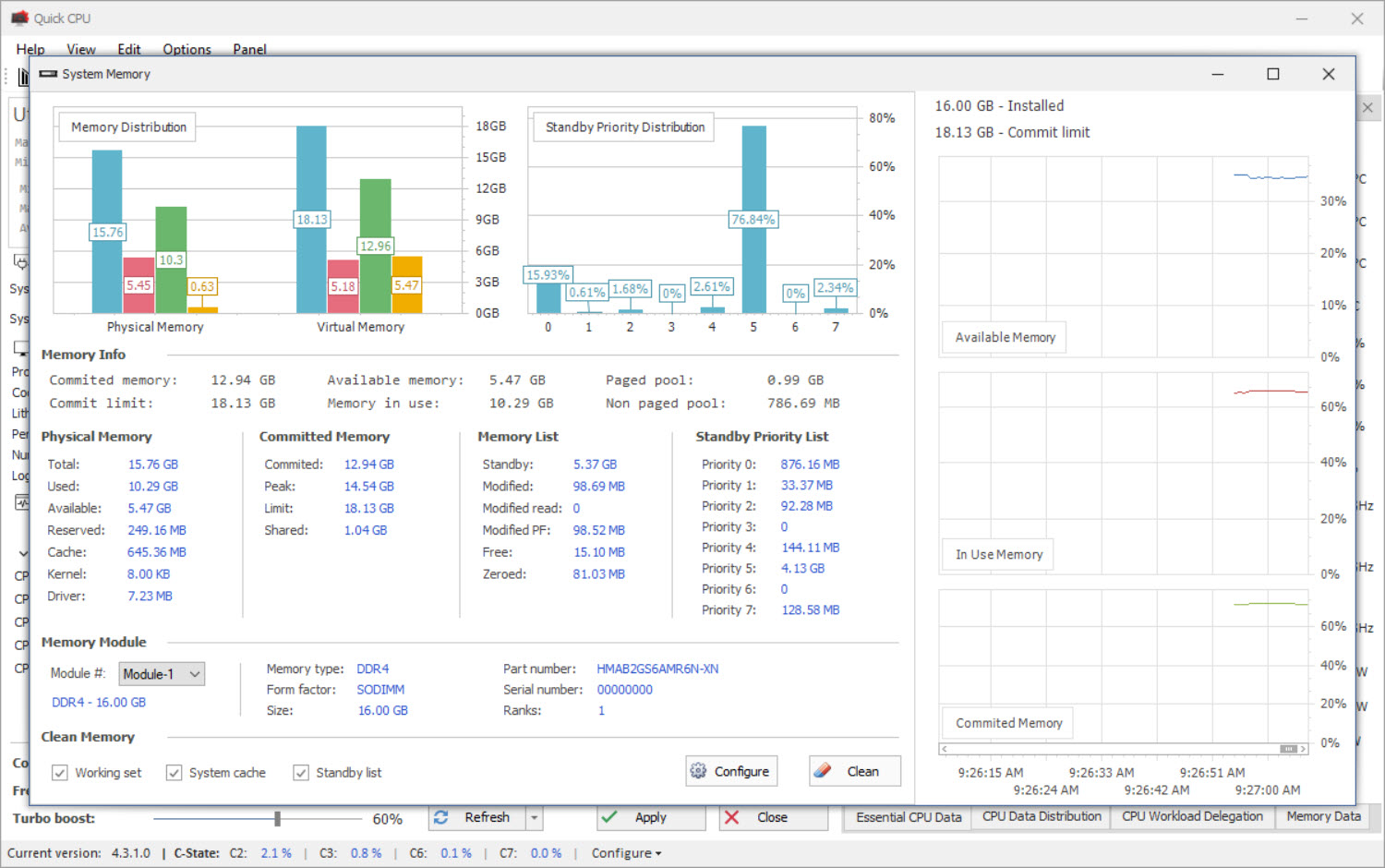
Beyond CPU-specific information, Quick CPU also provides general system monitoring including memory usage, disk activity, and system uptime. The built-in benchmarking utility lets you run quick performance tests to verify that any changes you make actually improve performance rather than degrade it, which is more useful than it sounds since some optimizations end up being placebos that don’t survive proper testing.
The benchmark results can be saved and compared over time, helping you track whether system performance is degrading due to background bloat, thermal issues, or other factors that creep up gradually rather than appearing suddenly.
Profile-based settings
A particularly thoughtful feature is the support for saved profiles, letting you configure different settings for different scenarios and switch between them with a single click. You might have one profile for gaming with aggressive performance settings, another for audio production with disabled C-states for low latency, and a third for general use that prioritizes power efficiency and battery life.
For users who switch between different workloads regularly, this saves the tedious process of manually adjusting multiple settings every time you change what you’re doing.
When this tool actually makes sense
Despite its capabilities, this software isn’t for everyone. Users running modern desktop CPUs with adequate cooling and reasonable workloads will probably never notice a difference from any of these tweaks. Windows defaults are reasonable for typical use cases, and chasing fractional performance gains through obscure CPU settings is often more about the satisfaction of tinkering than measurable real-world benefit.
But for laptop users fighting thermal limits, audio professionals chasing every millisecond of latency reduction, gamers trying to squeeze consistent frame times out of older hardware, or just curious enthusiasts who like understanding what their CPU is actually doing, Quick CPU delivers genuine value that the standard Windows tools simply don’t offer.
Conclusion
Quick CPU sits in an interesting spot between casual monitoring tools and deep technical utilities like ThrottleStop. It offers enough depth to satisfy enthusiasts who want real control over their CPU behavior, but it’s presented in a way that doesn’t require years of background reading to make sense of.
For users who like understanding what their hardware is doing, who want to fine-tune performance for specific workloads, or who simply enjoy having proper monitoring tools available when problems arise, Quick CPU is genuinely worth installing. It won’t turn a slow laptop into a gaming powerhouse, but it will give you the visibility and control to make smart decisions about how your processor behaves day to day.
Pros & Cons
- Real-time per-core monitoring of frequency, voltage, temperature, and power consumption
- Core parking control without needing registry edits or PowerShell scripts
- C-state and P-state management for predictable performance and lower latency
- Turbo Boost toggle for scenarios needing consistent clock speeds
- Built-in benchmarking helps verify whether tweaks actually improve performance
- Profile support for switching between gaming, audio, and battery setups quickly
- Many tweaks produce minimal real-world difference on modern, well-cooled systems
- Voltage adjustment is limited or unavailable on most current CPUs due to firmware locks
- Some features overlap with what experienced users can do through Windows directly
- Documentation is thin, leaving newcomers to figure out what each setting does on their own
- Pro version is required to unlock some of the more advanced features
Frequently asked questions
Yes, this software uses standard Windows APIs and CPU register access for the changes it makes, which means it doesn't do anything that the operating system itself isn't already designed to allow. Reverting changes is straightforward, and any modifications can be undone by restoring default settings or simply uninstalling the tool.
Not in the sense of overclocking. This tool helps optimize how Windows manages your CPU, which can reduce latency, eliminate certain hitches, and ensure consistent performance under load. Whether you notice the difference depends heavily on your hardware and use case, with laptops and older desktops typically benefiting more than modern high-end systems.
Yes, this software supports both Intel and AMD CPUs across modern generations. Some specific features may be Intel-only or AMD-only depending on the underlying technology, but the core monitoring and tuning capabilities work on both architectures.
Core parking is a Windows feature that puts unused CPU cores into a low-power sleep state when they're not needed. It saves power but can cause performance hiccups when workloads suddenly need more cores than are currently active. Disabling or limiting core parking keeps cores available, which helps with gaming and real-time audio at the cost of slightly higher idle power use.
No, the changes this software makes are within the operational parameters that the CPU and Windows already support. Unlike aggressive voltage adjustments or extreme overclocking through other tools, the settings here can't damage hardware. If anything goes wrong, restoring defaults returns the system to normal behavior.
Some features depend on specific CPU capabilities, BIOS settings, or running with administrator privileges. Voltage controls in particular are often locked at the firmware level on modern consumer CPUs, which prevents any software from accessing them regardless of which tool you use.
Yes, this software works on laptops and is actually particularly useful there, since laptops often suffer from thermal limits and aggressive power management that this tool can help address. Many laptop users find that adjusting core parking and Turbo Boost settings makes a noticeable difference in responsiveness and gaming performance.
Yes, accessing CPU registers and modifying performance-related Windows settings requires administrator rights. The software requests elevation when launched and uses these privileges only for the legitimate purpose of reading and modifying CPU and power management settings.
Some settings persist automatically while others reset on reboot, depending on whether they're stored in Windows itself or only applied while the application is running. The interface clearly indicates which settings are permanent and which require the tool to be running, so you can plan accordingly based on your needs.


