

ThrottleStop
About ThrottleStop
Anyone who has owned a gaming laptop for more than a few months has probably watched it choke under load. The CPU spikes, the fans go full throttle, temperatures climb past 95°C, and suddenly the whole thing slows to a crawl as Windows quietly tells the processor to back off and cool down. It’s called thermal throttling, and it’s the single biggest reason why expensive laptops feel sluggish in long gaming sessions or heavy workloads. ThrottleStop is the small, free utility that thousands of users have turned to in order to fight back against this problem.
This tool has been around for well over a decade and continues to receive regular updates. It started as a way to bypass throttling on older Intel laptops, but over the years it has grown into a comprehensive CPU control panel that covers undervolting, turbo management, power limit overrides, and performance monitoring all in one place.
A serious tool for serious laptop users
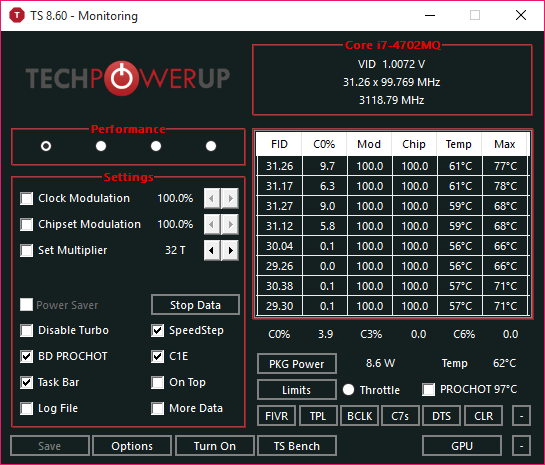
To be clear up front, ThrottleStop is not a casual application. The interface is dense, dropping you straight into a window full of checkboxes, sliders, and acronyms like BD PROCHOT, C1E, Speed Shift EPP, and TPL that mean very little if you’re new to CPU tuning. There’s no friendly onboarding wizard, no “make it faster” button, just a wall of options that assume you know what you’re doing.
But if you spend a couple of evenings reading guides and learning what each setting actually does, this software becomes genuinely powerful. Gaming laptop owners in particular have built entire communities around it, sharing settings profiles for specific models like the ASUS ROG, Lenovo Legion, or Dell XPS lineup, where the tool can dramatically improve thermals and sustained performance.
For users who prefer to see the workflow in action before diving in, the video below walks through the core settings and shows what a proper setup looks like in practice:
Undervolting for cooler temperatures and longer turbo boost
The headline feature for most users is the undervolting capability built into the FIVR section. Undervolting means reducing the voltage supplied to the CPU while keeping the clock speeds the same, which in turn lowers heat output and power draw without sacrificing performance. On a thermally constrained laptop, this can be the difference between hitting 95°C and throttling within minutes versus staying around 80°C and holding turbo speeds for the entire session.
The process involves carefully nudging the voltage offset down by a few millivolts at a time, stress testing for stability, and finding the sweet spot where the CPU runs cool but doesn’t crash. It takes patience and a willingness to test, but the payoff for users with hot-running laptops is substantial. Some users report 10°C reductions in peak temperatures, which is huge in the context of laptop thermals.
It’s worth noting that recent Intel processors (10th gen and newer) have voltage control locked at the firmware level on most consumer chips, which means undervolting through this software no longer works on all systems. For older laptops where this restriction doesn’t apply, it’s still one of the most effective optimizations you can make.
Disabling BD PROCHOT and other thermal protections
One of the more powerful (and risky) features of ThrottleStop is the ability to disable BD PROCHOT, which is a signal that lets components like the GPU or VRM tell the CPU to throttle even when the CPU itself isn’t hot. On some laptops, BD PROCHOT triggers prematurely, causing massive performance drops in scenarios where the CPU has plenty of thermal headroom.
Disabling it can unlock significant performance, especially in gaming scenarios where the GPU and CPU are both under load. Granted, this should be done with caution, since the signal exists for a reason, but for users who have monitored their temperatures and confirmed the CPU isn’t actually hot, switching it off can transform sluggish laptops into responsive machines.
Turbo and Speed Shift control
Beyond undervolting, this software also gives you fine control over Intel’s Turbo Boost behavior, including disabling turbo entirely on battery to extend runtime, setting custom multipliers per core, and adjusting power limits (PL1 and PL2) to override the conservative defaults that many laptop manufacturers ship with.
Speed Shift EPP control is another useful feature, letting you adjust how aggressively the CPU ramps up its clock speeds in response to load. Lower EPP values prioritize performance, higher values prioritize power efficiency, and finding the right balance for your specific workflow can make a noticeable difference in everyday responsiveness.
Real-time monitoring and benchmarking
The right side of the main window shows real-time temperatures, frequencies, and throttling status for each core, which is invaluable when you’re tuning settings and need to see exactly what the CPU is doing. The TS Bench utility built into the software lets you run quick stress tests to verify stability after voltage changes, and the limit reasons window shows you exactly which throttling conditions are being hit during a workload.
This level of visibility is something even paid alternatives often lack. For users who want to understand their CPU rather than just blindly applying settings, the diagnostic tools alone justify having ThrottleStop installed.
Profiles for different scenarios
A particularly useful design choice is the support for multiple profiles, letting you configure different settings for different use cases. You might have a “Gaming” profile with turbo enabled and BD PROCHOT disabled, a “Quiet” profile that limits turbo and lowers power limits for everyday work, and a “Battery” profile that aggressively reduces clock speeds when running unplugged.
Switching between profiles is a single click, and they can also be triggered automatically based on whether your laptop is plugged in or running on battery. For users who want their laptop to behave differently depending on the situation, this flexibility is genuinely useful in daily life.
Conclusion
ThrottleStop is one of those rare tools that genuinely earns its reputation. For gaming laptop owners frustrated by thermal throttling, for users with older Intel CPUs who want every last drop of performance, and for tinkerers who like understanding exactly what their hardware is doing, it’s simply unmatched in its space.
The learning curve is real, and it’s not a tool to install and click around in casually. But for users willing to read the guides, watch a few tutorials, and spend a few evenings learning the ropes, ThrottleStop can transform a hot, throttling laptop into a cool, fast machine that holds its performance through long sessions. That kind of result, from a tool this small, is hard to argue with.
Pros & Cons
- Undervolting can dramatically reduce CPU temperatures and unlock sustained performance
- Real-time monitoring shows exactly what your CPU is doing under load
- Multiple profiles for different use cases (gaming, battery, quiet)
- Disabling BD PROCHOT can fix premature throttling on certain laptops
- Custom power limits and turbo control bypass conservative manufacturer defaults
- TS Bench utility helps verify stability after settings changes
- Tiny portable executable with no installation required
- Completely free with no ads, telemetry, or bundled software
- Steep learning curve makes it intimidating for casual users
- Voltage control is locked on most Intel 10th gen and newer consumer CPUs
- Limited functionality on AMD systems compared to Intel
- Disabling thermal protections like BD PROCHOT carries some risk if used carelessly
- Interface is dense and assumes prior knowledge of CPU acronyms and concepts
Frequently asked questions
Yes, the software itself is safe and has been used by hundreds of thousands of users for over a decade without reports of damage. That said, the changes it makes (especially disabling BD PROCHOT or aggressive undervolting) carry some risk if applied without understanding what they do. Sticking to conservative settings and stress testing after each change keeps you out of trouble.
Functionality on AMD systems is significantly limited compared to Intel. Some monitoring features work, but the core undervolting, turbo control, and thermal management features are designed for Intel CPUs. AMD users typically use Ryzen Master instead for similar functionality.
No, undervolting is one of the safest tuning operations you can perform. Reducing voltage actually reduces stress on the silicon and lowers temperatures, which extends component life if anything. The only risk is system instability if you push too far, but this just causes crashes rather than hardware damage.
Intel locked voltage control at the firmware level on most consumer 10th generation and newer CPUs, which prevents this tool from accessing the controls. This is a hardware-level restriction, not a software issue, and there's no workaround on affected systems. Some workstation and HEDT chips are not affected by this lock.
BD PROCHOT is a signal that lets components like the GPU or VRMs tell the CPU to throttle when they get hot. On some laptops it triggers prematurely, causing performance drops even when the CPU isn't hot. Disabling it can help in those cases, but only after monitoring temperatures to confirm the protection isn't needed.
On unlocked Intel CPUs (typically K-series or HEDT chips), this software can adjust multipliers to overclock. On most laptop CPUs and locked desktop chips, the multipliers are restricted by the firmware, so you can only adjust down rather than up. The tool is much more commonly used to optimize and undervolt than to overclock.
Intel Extreme Tuning Utility (XTU) and ThrottleStop overlap significantly in functionality, with XTU offering a more polished interface and official Intel support. This software is more powerful for advanced users, supports older CPUs that XTU dropped, and has features like profile switching that XTU lacks. Many enthusiasts use both for different purposes.
Yes, the latest versions of this software run on Windows 11 without issues. The same caveats about Intel's voltage lock on newer CPUs apply, since they're hardware-level restrictions rather than OS-related, but the application itself works correctly across modern Windows versions.
Settings are saved in a configuration file, but they only take effect when this software is running. To apply your settings automatically on boot, you need to add it to the Windows startup task scheduler, which the documentation explains. Without this step, every restart returns the CPU to default behavior until you launch the application again.
This software primarily controls the CPU, but features like disabling BD PROCHOT can indirectly affect GPU behavior since BD PROCHOT can be triggered by the GPU. The tool itself doesn't directly modify GPU settings, voltage, or clock speeds, so for GPU tuning you need separate utilities like MSI Afterburner.


