

ParkControl
About ParkControl
ParkControl is a small Windows utility that surfaces two settings the operating system tries to keep buried: CPU core parking and CPU frequency scaling. Both controls exist inside the active power plan, but the standard Control Panel UI hides them behind hidden registry attributes.
ParkControl exposes them in a single window with a few sliders and a couple of dropdowns, which means you can change them in seconds instead of editing the registry or running powercfg commands.
The use case is narrow. If you’ve ever seen micro-stutters in games on a multi-core system, audio dropouts in a DAW, or latency spikes in real-time workloads, the cause is sometimes Windows aggressively parking cores or downclocking them under uneven load.
ParkControl lets you turn that behavior down or off without having to commit to a permanent Highest Performance power plan.
What core parking actually does
Core parking is a power-saving feature in Windows that puts unused CPU cores into a low-power C-state when the workload doesn’t justify keeping them online. On a modern multi-core or hyper-threaded chip, you might be running with half your logical cores parked at idle, which is fine for battery life on laptops or for ambient desktop use.
The trade-off shows up when a workload suddenly spikes. Unparking a core takes time, measured in microseconds rather than milliseconds, but in latency-sensitive scenarios that delay is enough to cause a frame drop, a buffer underrun, or a stuttery mouse cursor in a CPU-bound game.
The scheduler also tends to keep ramping work onto already-active cores instead of waking parked ones, which can leave performance on the table if the active cores are saturated.
This is the gap ParkControl fills. You set a minimum percentage of cores that should always stay unparked, and Windows applies it to the active power plan immediately. No reboot, no logout, no batch script.
The interface and the controls that matter
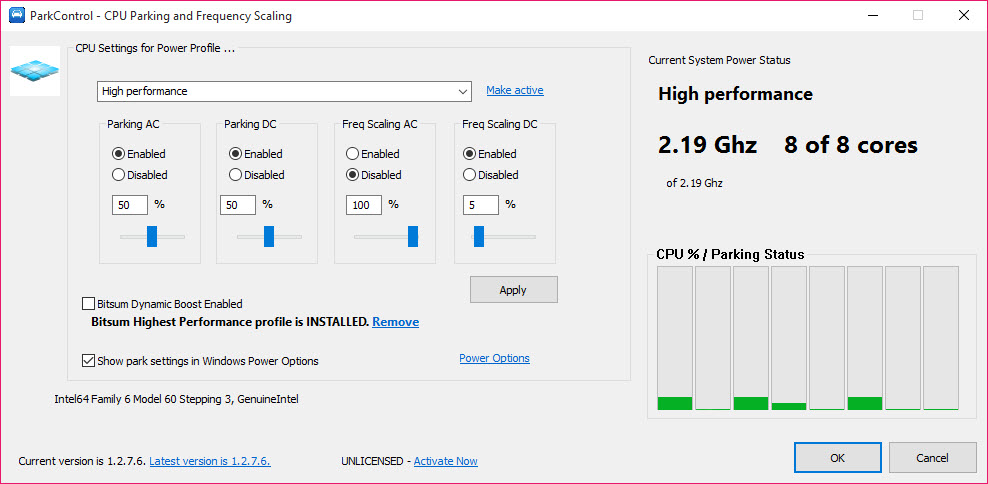
The window itself is unfashionably small. Two columns, AC power on the left, DC (battery) power on the right, each with the same four primary controls.
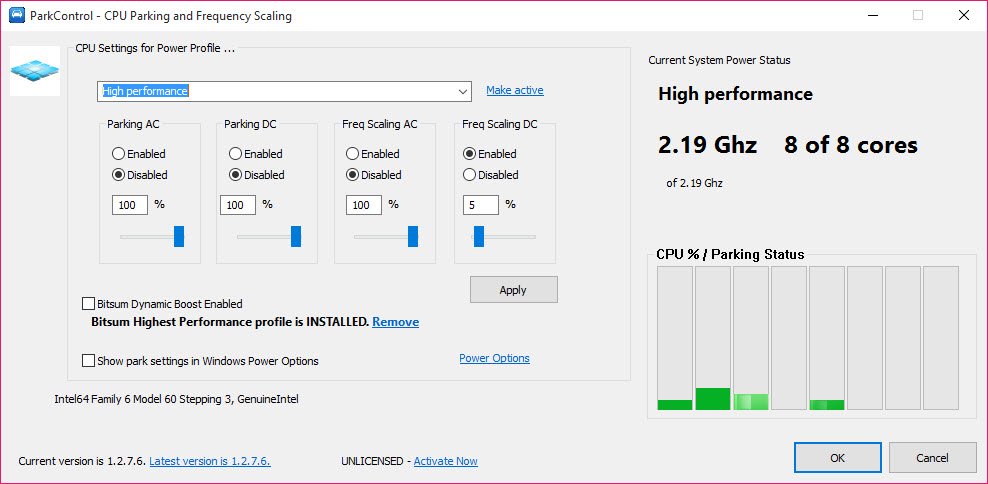
Core Parking Min sets the percentage of cores you want unparked at all times. At 100% no core ever parks. At 0% Windows handles parking with default aggressiveness, which on most plans is fairly active. For gaming or low-latency work, 100% on AC and something more conservative like 50% on DC is a common setup if you’re on a laptop. Desktop users almost always want 100% on AC.
CPU Frequency Scaling Min and Max set the lower and upper bounds (as a percentage of base clock) that Windows can scale the CPU between.
Setting Min to 100% effectively disables downclocking, keeping the CPU at full speed at all times, which trades power and heat for responsiveness. Setting Max below 100% caps the top speed, useful for thermally constrained laptops or for keeping fan noise predictable.
The Apply button writes the changes to the currently active power plan. The settings persist across reboots because they’re stored in the plan itself, not in a separate config file. If you switch power plans, you’ll need to apply ParkControl settings to the new plan separately, or set them up across all plans you use.
Power-plan integration and the custom Highest Performance plan
ParkControl edits the active Windows power plan directly. There’s no separate ParkControl service required for the settings to keep working, because once written, they’re just standard power-plan attributes. You could uninstall the application and the settings would remain in place until you change the plan or restore defaults with powercfg /restoredefaultschemes.
The installer also offers a custom Highest Performance power plan that pre-configures cores unparked at 100% and frequency at 100% with no scaling. It’s effectively a more aggressive sibling to Windows’ built-in High Performance plan, with core parking disabled out of the box. Some users prefer to just switch to that plan and forget about it.
Others prefer to apply targeted ParkControl settings to the Balanced plan so they keep the rest of the Balanced behavior (display sleep, hard disk power-down, etc.) intact.
If you want broader process-level control on top of what ParkControl does at the power-plan level, Process Lasso handles per-application CPU affinity, priority class, and induced idling, which is the layer above where ParkControl operates.
Frequency scaling beyond core parking
The frequency sliders are arguably as important as core parking on modern chips, especially those with aggressive idle states. A CPU sitting at 800 MHz because Windows decided the workload didn’t justify ramping up will respond noticeably slower to a sudden spike than one held at 3.6 GHz with no scaling at all.
This matters most for workloads with bursty, microsecond-scale demands: real-time audio, low-latency game engines, certain HFT scenarios, and any application where wake-up latency cascades into noticeable jank. For everyday productivity work, the difference is invisible. For a producer running a 64-track session in a DAW with VST plugins, it’s the difference between glitch-free monitoring and an unusable workflow.
The downside is heat and power draw. A desktop CPU pinned at 100% scaling will consume more idle power and generate more heat than one allowed to downclock during light use. On a desktop with adequate cooling it’s a non-event. On a thin laptop it’ll cost battery runtime and bring the fans on more often.
The DC column is there for exactly this reason. You can run aggressive on AC and let Windows save power on battery.
When it helps and when it doesn’t
The honest answer to “will this make my computer faster” is: not for most workloads. Throughput-bound tasks like compilation, rendering, encoding, and most desktop applications already saturate the available cores and don’t care about parking. Browsers, office apps, and background services run identically whether parking is on or off.
Where the impact is measurable is latency. Games with CPU-bound moments, especially older titles that don’t scale well across many threads, often show smoother frame pacing with cores unparked. DAW users report fewer dropouts. Some virtualization and emulation workloads benefit. Streamers using OBS or similar tools sometimes see steadier encode performance.
It’s also useful as a diagnostic. If you’re chasing a stuttering problem and you don’t know whether it’s GPU, CPU, or scheduler related, flipping core parking off temporarily is a quick test. If the stutter disappears, you’ve isolated the cause. If it doesn’t, you can revert and look elsewhere.
For broader system telemetry while you’re testing, pairing ParkControl with Core Temp or CPU-Z gives you the temperature and clock visibility to see what the settings are actually doing.
For laptop owners chasing battery life, the opposite use case applies. Cranking parking aggressiveness up and capping max frequency can extend runtime, though the built-in Power Saver plan usually does that already without needing ParkControl.
The tool is more interesting on the performance end of the spectrum than the power-saving end.
Sister tools in the same category
If ParkControl turns out to be too narrow for your needs, the next step up is Quick CPU, which adds per-core monitoring, voltage and turbo state controls, and a more detailed view of what the CPU is actually doing in real time.
For laptop users specifically, ThrottleStop targets a different problem (thermal and power-limit throttling on Intel chips) but lives in the same general neighborhood of low-level CPU tuning.
ParkControl stays deliberately minimal. Two columns, four sliders, one button. The lack of scope is the appeal for anyone who just wants the core parking and frequency knobs without a dashboard full of additional controls they don’t plan to touch.
Conclusion
ParkControl is for the narrow but persistent group of users who care about CPU responsiveness more than power efficiency. Gamers chasing smooth frame times, audio producers fighting buffer dropouts, people running latency-sensitive workloads, and anyone troubleshooting unexplained stutters will get genuine value from the few controls it exposes.
For everyday productivity users, it’s mostly an unnecessary intervention into power management that the operating system handles fine on its own.
The strength is the focus. It does one thing, exposes it cleanly, and stays out of the way once configured. The weakness is exactly the same thing. There’s no monitoring, no per-process control, no broader power management framework, so anyone needing more will outgrow it quickly and end up looking at tools that operate on a wider canvas.
As a single-purpose surgical instrument it works well. As a general system optimizer it’s not trying to be one.
Features & benefits
Pros & Cons
- Exposes hidden core parking and frequency scaling controls in a tiny interface
- Settings apply instantly to the active power plan with no reboot
- Separate AC and DC settings let laptop users run aggressive on power, conservative on battery
- Installs an optional Highest Performance plan with sensible defaults baked in
- No background service or persistent process required after applying settings
- Tiny memory footprint and negligible system impact
- Single-purpose by design, so it won't help with most non-latency workloads
- No per-application or per-process control, only system-wide power-plan changes
- Limited monitoring, you'll need a companion tool to actually see CPU behavior
- Settings revert if you switch power plans without applying them to the new plan
- The UI is dense for a four-control utility, with technical labels that need some homework
Frequently asked questions
It modifies hidden attributes of the active Windows power plan: the minimum percentage of unparked cores and the minimum and maximum CPU frequency scaling percentages. These controls exist in every power plan but are not shown in the standard Control Panel UI.
Core parking is a power-saving feature. The operating system puts unused cores into a low-power state when the workload doesn't need them. This saves energy and reduces heat, but introduces a small wake-up delay when sudden workloads arrive, which can show up as stutter in latency-sensitive applications.
Sometimes. For CPU-bound games, especially older or single-thread-heavy titles, keeping cores unparked and frequency pinned high can smooth out frame pacing and reduce micro-stutters. For modern, well-threaded titles running on capable hardware, the difference is often imperceptible.
No. Once you apply settings, they're written to the power plan and persist on their own. You can close or even uninstall ParkControl and the configuration remains active until something else changes the plan.
Higher idle power consumption and more heat, since cores stay active even when not doing work. On a desktop with good cooling this is negligible. On a laptop running on battery it shortens runtime and brings the fans on more often.
Yes. Core parking decides which cores stay online. Frequency scaling decides how fast the active cores run. ParkControl controls both independently, so you can keep all cores unparked while still allowing downclocking, or pin frequency high with parking left at default.
Yes. It coexists with process-level managers, frequency monitors, and thermal tools because they operate at different layers. ParkControl writes power-plan settings, while tools like Process Lasso work at the process scheduler level.
The settings stay applied to the plan you configured but don't follow you to a new plan. If you switch from Balanced to High Performance, you'll need to apply ParkControl changes to the new plan as well, or use the custom Highest Performance plan it installs.


