

Photoscape
About Photoscape
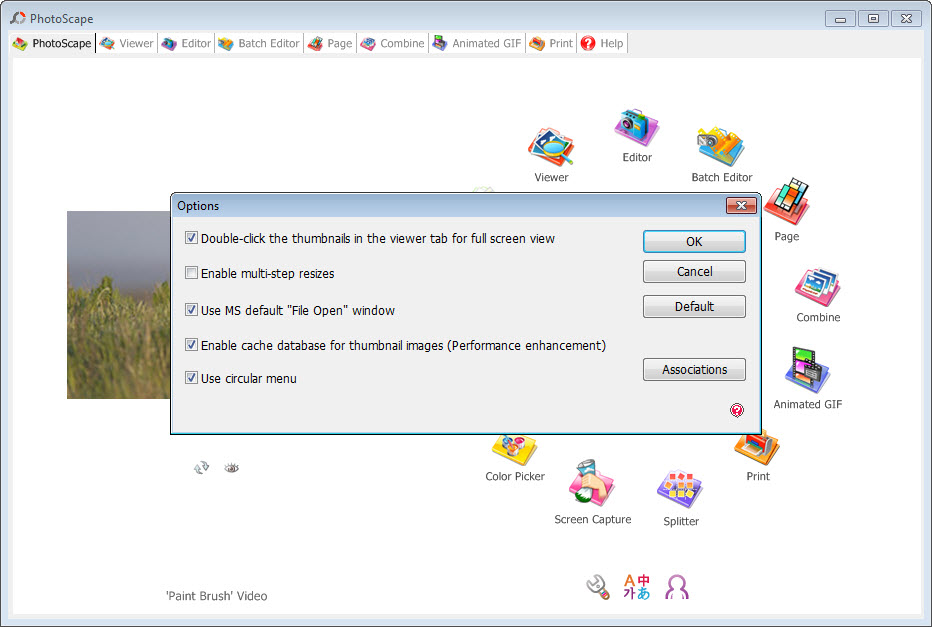
Photoscape opens on a ring of round buttons, each one a separate tool. Viewer, Editor, Batch Editor, Page, Combine, Animated GIF, Print, Splitter, Screen Capture, Colour Picker, Rename, Raw Converter and a paper printer for lined and graph sheets all sit on that first screen, and clicking one opens it in a tab.
The design is a toolbox rather than a single editor, and the appeal is that the small photo jobs most people actually do, fixing a dark picture, shrinking a folder of images, making a collage, printing passport photos, each have their own simple tool.
None of the tools is deep. The editor will not replace a layered image editor, the RAW converter handles conversion rather than development, and the viewer is basic. What Photoscape offers instead is breadth and approachability, so someone who has never edited a photo can brighten an image, crop it, add a frame and a caption, and print it, all without hunting through menus.
This is the classic edition, and it stays simple, and a newer sibling with a redesigned interface also exists for those who want the same idea in a more modern window.
The editor, and the everyday fixes
The Photoscape editor is where most time goes. A row of tabs across the bottom holds the tools. Home covers resizing and cropping, then brightness and colour along with white balance, backlight correction for faces in shadow, and a set of filters and effects. Object adds text and speech balloons, plus shapes and clipart. Crop has preset ratios for prints and social posts, and Tools adds red eye removal, a mole and blemish remover, a mosaic brush for blurring faces or plates, and a clone stamp.
Auto Level and Auto Contrast give a one-click improvement that suits most snapshots, and frames add a border in dozens of styles. Every change can be undone step by step, and the original stays untouched until you save.
It is not built for precise retouching, since there are no layers or masks, and for that work a full image editor is the right tool. For the fixes most family photos need, it is quick and forgiving.
Batch editing a whole folder
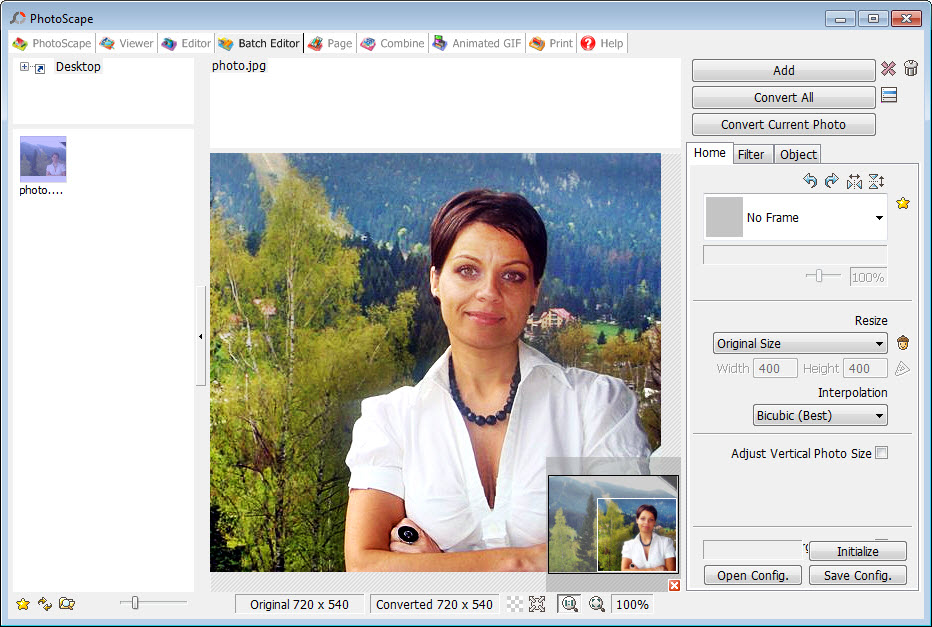
The Photoscape Batch Editor applies almost everything the editor can do to many photos at once. Drop in a folder, choose a resize, a frame, a text watermark, an auto level or a filter, and every photo is processed in one pass and saved to a new folder. The settings save to a file, so a routine such as resizing for email with a small watermark can be run again with one click next time.
This is the module that saves the most time for anyone preparing photos to share, upload or print in quantity. It covers the common operations rather than every possible one, and for chained, scripted conversions across many formats, an image converter with saved batch scripts goes further.
Page, Combine and Splitter
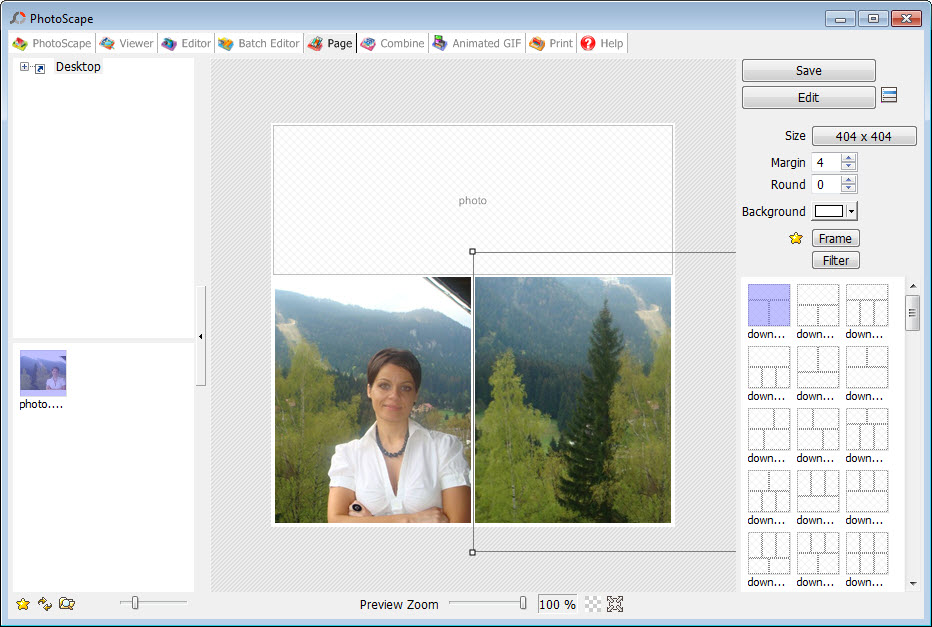
Page arranges several photos onto one canvas using a large library of layout templates, from simple grids to decorative collages, with margins, rounded corners and background colour adjustable. Photos drop into the frames and can be moved and zoomed inside them. It is the quickest way to make a photo page for printing or sharing.
Combine joins photos side by side, top to bottom or in a tile, which suits before-and-after comparisons and long strips of screenshots. Splitter does the reverse, cutting one image into a grid of pieces for printing a poster across several sheets or for social media tiles.
Each is a single-purpose tool, and each does its one job without fuss.
Animated GIFs and printing
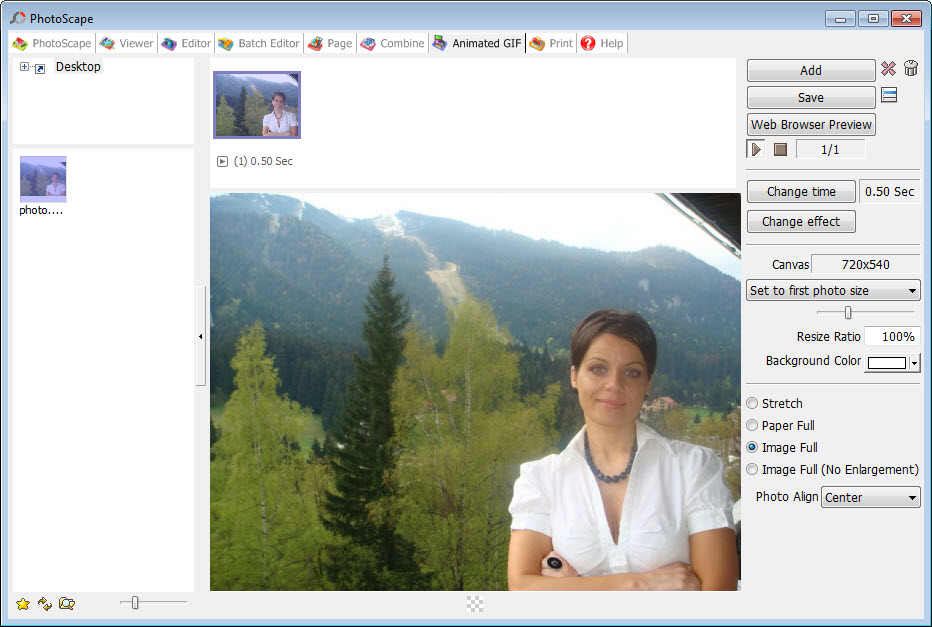
The Photoscape Animated GIF tool builds a simple animation from a set of photos, with the delay between frames and the background colour for odd-sized images under your control. It handles a short loop well and offers nothing for editing individual frames.
The Print module lays photos out for printing, with layouts for portraits, passport photos and contact sheets, adjustable alignment and resolution, which makes printing several small photos on one sheet straightforward.
The RAW converter
The Photoscape RAW converter turns camera RAW files into JPEGs for cameras from the major makers. It converts rather than develops, so there is no control over exposure, white balance or noise before conversion, and anyone shooting RAW seriously will want a dedicated RAW editor.
For a quick conversion of a few RAW files to share, it is enough.
Screen capture, colour picker and rename
Screen Capture grabs the whole screen, a window or a region, sends it to the clipboard or straight into the editor, and repeats the last capture with a click. It is basic next to a dedicated capture tool, but having it in the same window as the editor is convenient. The Colour Picker zooms in on any part of the screen and reports the colour as RGB or hex, useful for matching a shade.
Rename changes file names in batch using templates, the photo’s EXIF date, today’s date, numbered sequences and custom text, which turns a folder of camera-generated names into something sortable. It is one of the most useful small tools in the set and one people forget it has.
Where it shows its age
The Photoscape interface looks dated, with small icons and an old-fashioned layout, and the editor’s controls are less refined than modern alternatives. There are no layers, no masks and no non-destructive adjustments. The RAW support stops at conversion, and development of the classic edition has slowed.
None of that stops it doing the everyday jobs well, but anyone who outgrows it will notice the ceiling quickly.
Conclusion
Photoscape suits beginners and anyone whose photo needs are practical rather than artistic. Brightening a dark photo, resizing a folder for email, building a collage, printing passport photos or renaming a camera dump each take a minute with its dedicated tools, and the ring of buttons makes every one of them easy to find.
It is the wrong choice for detailed retouching or serious RAW work, and its interface is plainly old. Use the Batch Editor and Rename for the time they save, keep a layered editor for the occasional heavy job, and it covers the rest of what a household’s photos need.
Pros & Cons
- Twelve separate tools, from editor to batch processor, in one window
- Batch Editor applies resizing, frames and other edits to whole folders
- Page and Combine make collages and photo strips in seconds
- Print module handles passport photos and contact sheets on one sheet
- Rename builds file names from EXIF dates and sequences
- Approachable enough for complete beginners
- No layers, masks or non-destructive editing
- RAW converter converts without any development controls
- Dated interface with small icons
- Each tool is basic compared with dedicated alternatives
Frequently asked questions
Yes. The Batch Editor applies resizing and other edits to a whole folder in one pass, and the settings can be saved for reuse.
No. Edits apply directly to the image with step-by-step undo, but there are no layers or masks.
Yes, to JPEG, for cameras from the major makers. It converts without exposure or white balance controls.
Yes. The Print module includes layouts for passport photos and contact sheets, among others, on a single page.


