

WinToBootic
About WinToBootic
WinToBootic is the bootable USB creator that does one specific thing through one specific workflow. Drag a Windows ISO onto the application’s window, click Do It, and a few minutes later your USB drive contains a working installation of whatever Windows version was inside that ISO. The application doesn’t ask elaborate questions about partition schemes, file systems, boot loaders, or other technical details that more sophisticated tools expose. The process is essentially Drag → Click → Wait → Boot from USB, with reasonable defaults handling everything in between.
The application targets users who need bootable Windows installation USBs and don’t want to learn how the boot process actually works to produce them. Where alternatives like Rufus expose substantial configuration options that match the complexity of what bootable USB creation actually involves, this software hides the complexity behind a simplified interface that produces working results for the common case. Drop the ISO. Choose the USB drive. Click the button. The trade-off is real.
Users wanting fine-grained control over partition schemes, BIOS versus UEFI handling, persistence, or other advanced parameters find the simplified approach restrictive. Users who just want a working Windows install USB and don’t care about the technical details find the stripped-down workflow genuinely refreshing.
The drag-and-drop workflow
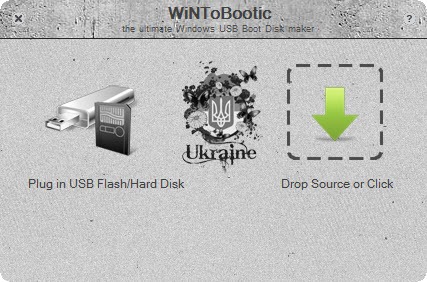
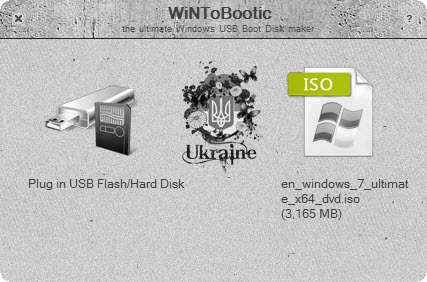
The interface is built around the drop zone that occupies most of the application window. Drag a .iso file from your file manager onto this zone, and the application loads the ISO contents for use as the source. Alternatively, drag a folder containing extracted Windows installation files for direct use without going through the ISO step. Or point at a physical DVD that contains Windows installation media, which the application reads directly without requiring you to rip the disc to ISO first.
The drop-source flexibility matters because users acquire Windows installation media through different paths. Some download ISO files directly. Some extract them from existing installations. Some still use physical DVDs (rare but real). The application handles each input type without requiring conversion to a specific format first, which eliminates intermediate steps that other tools sometimes force.
Here is a tutorial about how to create a bootable USB drive:
After dropping the source, the USB drive selection happens through a dropdown showing available USB drives currently connected. Pick the drive you want to write to, with the application showing capacity and current contents so you can confirm you’re working with the right drive before committing to data destruction. The Quick Format option formats the USB drive before writing, which is typically what you want unless the USB already has the right format from a previous operation.
The Do It button initiates the actual creation process. The application formats the USB drive (if Quick Format was selected), copies the Windows installation files from the source to the USB drive, makes the drive bootable through MBR or GPT modifications appropriate to the source’s expectations, and verifies the result.
The process takes anywhere from a few minutes to fifteen or twenty depending on USB drive speed and source file size, with progress shown through standard percentage indicators.
Source format support
The application handles three main source types. ISO files, the most common source for users downloading Windows installation media. Folders containing extracted Windows installation contents, useful when you’ve already extracted an ISO for some reason or have installation files from a network share. DVDs containing Windows installation media, useful for users who still have physical Windows media and want USB versions for installation on systems without optical drives.
For users dealing with various source types in different scenarios, this flexibility means one application handles all three rather than requiring different tools for different scenarios. The conversion happens transparently with the result being identical regardless of source type, which means you can use whatever source you have available without thinking about format compatibility.
The application also handles WinPE (Windows Preinstallation Environment) sources, useful for creating rescue and recovery USBs rather than just installation media. WinPE images contain stripped-down Windows environments designed for system maintenance, recovery, and various administrative tasks that don’t require full Windows installations.
Booting from a WinPE USB created through this software produces the rescue environment that can repair systems with various boot or filesystem issues.
The supported Windows version range covers Vista through current releases. Older Windows versions (XP and earlier) used different installation mechanisms that the application doesn’t support, with users wanting USB installation media for older versions needing alternatives. For the substantial majority of practical Windows installation scenarios from roughly 2007 forward, the version coverage handles what users actually need.
NTFS file system and the boot process
The application formats USB drives with NTFS rather than FAT32 by default, which matters for Windows installation media specifically. Recent Windows versions include installation files (specifically install.wim) that exceed 4 GB, which FAT32’s file size limit can’t accommodate. NTFS doesn’t have the same limit, with the format change accommodating these larger files without requiring split archives or other workarounds.
The trade-off with NTFS for boot drives is older firmware compatibility. Some older systems with legacy BIOS implementations have less reliable NTFS boot support than FAT32. For users targeting current systems, NTFS works without issues. For users targeting older hardware specifically, the FAT32 alternative through different tools might produce more reliable boot behavior on those systems.
The application configures the USB drive with appropriate boot sectors for whatever Windows version it’s writing. The boot configuration handles both legacy BIOS systems (using MBR-based boot) and modern UEFI systems (using either MBR or GPT-based boot depending on the source). Most users don’t need to think about which configuration applies, with the application choosing reasonable defaults based on the source content.
For users specifically targeting UEFI-only configurations or specifically targeting legacy BIOS configurations, the simplified interface doesn’t expose direct control over which scheme to use. Users with these specific requirements may find tools like Rufus producing better results because they can explicitly choose the partitioning and boot configuration appropriate to their target system.
Comparison with alternatives
The bootable USB creator category has multiple well-established alternatives, each with different positioning. Rufus is probably the most popular alternative, offering substantially more configuration options including explicit partition scheme selection (MBR vs GPT), file system selection, cluster size configuration, persistent partition support for some Linux distributions, and various other advanced features. The trade-off is interface complexity that intimidates users who just want bootable USB drives without learning the underlying boot mechanics.
Ventoy takes a fundamentally different approach by installing a bootloader on the USB drive once and then letting you simply copy multiple ISO files to the drive afterward. Boot from the Ventoy USB, choose which ISO to load, and the bootloader handles loading whichever installation or recovery image you selected. For users who want one USB drive that contains multiple bootable images, Ventoy’s approach is genuinely superior to single-image tools.
UNetbootin historically focused on Linux distribution USB creation rather than Windows. It works for Windows in some scenarios but isn’t specifically optimized for Windows installation media. For users primarily creating Linux USBs with occasional Windows needs, UNetbootin handles the broader use case while sometimes producing less reliable Windows results.
Universal USB Installer covers the broader bootable USB scenario including various Linux distributions, system rescue tools, and Windows installation media through one interface. The Linux distribution focus means the Windows handling is one of many supported targets rather than the primary focus.
SARDU handles multi-ISO USB drives similar to Ventoy but with a different interface approach, useful for users wanting one drive that contains multiple installation and recovery options through SARDU’s specific multi-boot menu system.
For the specific scenario of single-ISO Windows installation USB creation through the simplest possible workflow, WinToBootic still has a place even with so many alternatives available. Users wanting maximum simplicity find this approach matching their expectations better than feature-rich alternatives. Users wanting maximum flexibility find Rufus more appropriate. Users wanting multi-boot capability find Ventoy producing better results.
Use cases that still apply
The reasonable use cases for this software involve scenarios where its specific simplicity is the feature. Creating a quick Windows installation USB without thinking about configuration. Producing a WinPE rescue USB for system recovery work. Writing Windows installation media from physical DVDs that you want to convert to USB. Setting up systems where you don’t have time or interest in learning Rufus’s configuration options.
For users who create bootable USBs occasionally rather than as a regular workflow, the simplicity makes the application approachable without learning curve investment. Open it, drag the ISO, click the button, get a working USB. The whole process from “I need a Windows install USB” to “I have a working Windows install USB” stays under fifteen minutes including the actual writing time.
For users creating bootable USBs frequently as part of professional system administration work, the simplicity becomes a limitation rather than a feature. Repeated USB creation across many configurations benefits from tools that expose options for specific scenarios rather than treating everything as the same default case.
For users dealing with non-Windows bootable scenarios (Linux installation media, various rescue distributions, custom boot images), this software’s Windows-specific design produces issues. Linux ISOs sometimes work but sometimes don’t, with the application’s Windows-targeted boot configuration not always matching what specific Linux distributions expect. Users with cross-platform bootable USB needs typically find broader-scope alternatives more reliable.
Considerations and limitations
Active development has slowed substantially across recent years. The application continues to work for the scenarios it originally targeted, but new features arrive rarely if at all, and compatibility with newer Windows releases sometimes lags as Microsoft adjusts installation media formats. For current Windows 11 ISOs, the application generally works but with occasional edge cases that newer tools have already addressed.
The simplified interface that makes the application approachable also means users with specific technical requirements can’t address them through this software. UEFI-only systems with secure boot enabled sometimes require specific configuration that the application doesn’t expose. Legacy BIOS systems with specific boot quirks may need adjustments the simplified interface doesn’t allow. Users encountering these specific scenarios typically need to switch to more configurable tools.
NTFS-only USB creation works for most current scenarios but doesn’t accommodate users who specifically need FAT32 USB drives for compatibility with older firmware or specific embedded systems that don’t handle NTFS reliably. The default works for the typical case but isn’t universally appropriate.
Some older Windows versions have specific installation requirements that the application doesn’t handle correctly. Users targeting specific older releases may find the application producing USBs that don’t actually boot or that produce installation errors during the Windows setup process. For these scenarios, version-specific tools or manual approaches sometimes work better than this generic utility.
The application’s documentation and support resources are limited compared to more popular alternatives. When something doesn’t work, finding solutions requires more searching through community forums and less reliance on dedicated documentation than alternatives with active development teams provide.
The interface design reflects priorities from when the application originally launched. The visual aesthetic looks notably dated compared to current applications, with various small interface conventions that newer software has moved past. The functional capability remains adequate, but users coming from polished current applications find the experience feeling like software from a previous era.
Conclusion
For users who need bootable Windows installation USBs through the simplest possible workflow, WinToBootic delivers a focused tool that handles the common case without requiring configuration knowledge. The drag-and-drop interface, broad source format support, automatic boot configuration, and NTFS formatting that accommodates current Windows installation file sizes produces working bootable USBs through a workflow that takes minutes rather than requiring extensive learning. For users creating bootable USBs occasionally rather than as a regular workflow, the simplicity is genuinely valuable.
The reasons to consider alternatives have grown over time as the application’s development has slowed. Users wanting maximum configuration flexibility find Rufus covering more ground through its extensive options. Users wanting multi-ISO USB drives find Ventoy producing fundamentally better results for that specific scenario. Users wanting cross-platform bootable USB creation find Universal USB Installer or UNetbootin handling Linux distributions alongside Windows more reliably.
Users whose needs match the application’s specific strengths and who don’t require features beyond what it offers, this software still produces working results through the simplified workflow that originally made it popular.
Pros & Cons
- Simplified drag-and-drop workflow makes bootable USB creation approachable
- Supports ISO files, extracted folders, and physical DVDs as sources
- Works with Windows Vista through current releases plus WinPE rescue environments
- Quick Format option handles USB preparation in one step
- NTFS formatting accommodates Windows installation files exceeding 4 GB
- Free without paid tiers or feature restrictions
- Single-purpose design avoids the configuration complexity of feature-rich alternatives
- Low resource requirements run on essentially any reasonably current system
- Active development has slowed substantially with infrequent updates
- Simplified interface doesn't expose configuration for users with specific requirements
- Limited to Windows-targeted bootable USB creation rather than cross-platform support
- Compatibility with newest Windows releases sometimes lags newer alternatives
- Documentation and community support resources are limited compared to popular alternatives
- Visual aesthetic and interface design reflect priorities from earlier development eras
Frequently asked questions
This software is a bootable USB creator focused specifically on Windows installation media. It uses a simplified drag-and-drop workflow where users drop a Windows ISO file, extracted folder, or DVD source onto the application window, select the USB drive, and click the Do It button to write the bootable USB. The application supports Windows Vista through current releases plus WinPE rescue environments, with NTFS formatting handling installation files that exceed FAT32's 4 GB size limit.
The application creates bootable USB drives from Windows installation sources. The created USB can boot a computer and run the Windows installer or WinPE rescue environment. The process involves formatting the target USB drive, copying installation files from the source, and configuring the boot sectors so the USB is recognized as bootable when the system starts. After completion, the USB drive can be inserted into any compatible computer to install Windows from USB rather than requiring optical media.
Run the application, drag a Windows ISO file onto the drop zone in the main window (or browse for an ISO, folder, or DVD), select the target USB drive from the dropdown, optionally check Quick Format to format the drive before writing, and click the Do It button. The application handles formatting, file copying, and boot configuration, with progress shown through standard indicators. After completion, the USB drive is ready for use to install Windows on compatible systems.
The application accepts three main source types. ISO files are the most common source, typically downloaded from Microsoft or other sources. Folders containing extracted Windows installation files work for users who've already extracted an ISO or have installation files from network shares or other locations. Physical DVDs containing Windows installation media work for users who still have optical media and want USB versions. Each source type produces equivalent bootable USB results.
Both tools handle similar use cases as bootable USB creators with substantial capability overlap. Rufus offers substantially more configuration options including explicit partition scheme selection, file system selection, cluster size configuration, and various other advanced features that match the actual technical complexity of bootable USB creation. WinToBootic offers a simplified workflow with reasonable defaults handling everything automatically. For users wanting maximum flexibility and willing to learn the configuration, Rufus produces better results. For users wanting simplicity without configuration learning curves, this software fits better. Rufus also receives more active development than this application currently does.
NTFS formatting accommodates Windows installation files that exceed FAT32's 4 GB single-file size limit. Recent Windows versions include install.wim files that often exceed this limit, which means FAT32 USBs can't hold them without workarounds like splitting the file. NTFS doesn't have the same restriction, allowing the installation files to be copied directly. The trade-off is that some older firmware implementations have less reliable NTFS boot support than FAT32, though modern systems handle NTFS USBs without issues.
The application supports creating Windows To Go style USB drives that boot Windows directly from USB rather than installing Windows to a system disk. Drop a compatible Windows To Go-capable ISO source, select the USB drive (which should be a high-performance USB drive for acceptable performance), and create the USB. Note that not all Windows versions support Windows To Go properly, with this functionality being most reliable on Enterprise editions of supported Windows versions.
USB boot failures typically come from a few common causes. The system's BIOS or UEFI firmware may not be configured to boot from USB devices, requiring boot order adjustments in firmware settings. The USB drive may have been incorrectly formatted or the boot configuration failed during creation, requiring recreation through this software or alternative tools. The source ISO may be corrupted, requiring re-downloading from a verified source. The target system may have specific boot requirements (UEFI only, secure boot enabled) that the created USB doesn't satisfy. For persistent boot failures, trying alternative bootable USB creation tools sometimes produces better results.
The application generally works with Windows 11 ISOs to produce bootable installation USBs. Some specific configurations of Windows 11 (particularly secure boot requirements and TPM checks during installation) require the target system to meet Windows 11's hardware requirements regardless of how the USB was created. The bootable USB itself works correctly, with installation success depending on the target hardware meeting Windows 11's requirements rather than on USB creation specifics.
The application is designed for Windows-specific bootable USB creation rather than Linux distributions. Some Linux ISOs work when written through this software, but the Windows-targeted boot configuration doesn't always match what Linux distributions expect for proper booting. For Linux bootable USB creation, dedicated tools like UNetbootin or Rufus typically produce more reliable results because they handle Linux-specific boot configurations explicitly.


