

UNetbootin
About UNetbootin
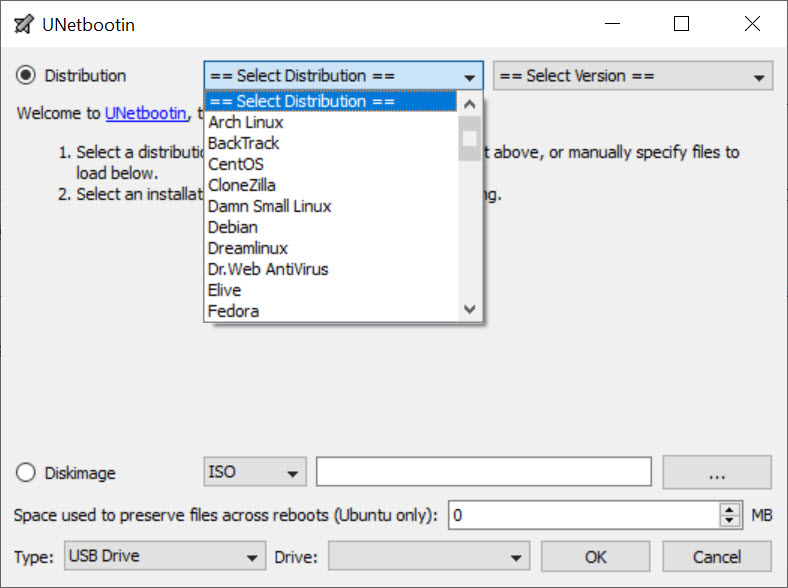
UNetbootin puts a Linux distribution on a USB stick so a computer can boot and run it without installing anything. Pick a distribution from the built-in list and the program downloads it for you, or point it at an ISO you already have, choose the stick, and press OK.
A few minutes later the stick boots into a live desktop that runs entirely from the USB, leaving the computer’s own disk untouched. That is how people try a distribution before committing, or rescue files from a machine that will not start.
It does this in a way that differs from the other USB writers, and the difference decides when it is the right tool. UNetbootin does not format the stick. It copies the files onto whatever file system is already there and adds its own boot loader, so documents already on the stick survive.
It can add persistent storage to some distributions, so changes made in the live session are kept between boots. It was built for the older style of booting, and that is now its main limit. The sections below cover the built-in downloader, writing an ISO, persistence, the hard disk option, and the firmware question that decides whether a modern machine will boot the result.
The built-in distribution list
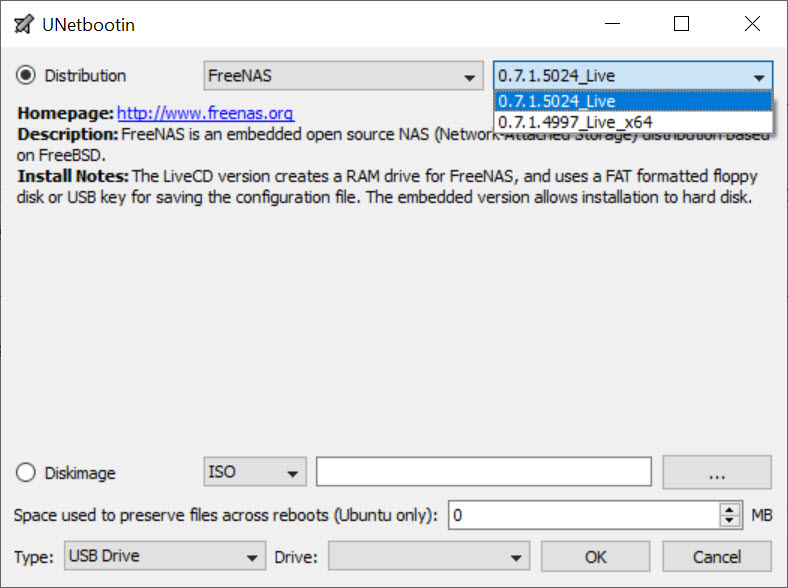
The first way to use UNetbootin needs no ISO at all. A drop-down lists dozens of distributions, the big general-purpose ones along with rescue systems, small desktops for old hardware and specialist tools, each with a short description. Choose one and a version, and the program fetches the image from the distribution’s own servers and writes it in one step.
The list is the program’s quiet strength for a newcomer who does not know where a distribution’s download lives or which file to pick. Some entries point at older releases, since the list is only as current as the program’s last update, so for the newest version of a distribution the second method is the sure one.
The list also includes utilities such as partition editors and rescue discs.
Writing an ISO you already have
The second way to use UNetbootin is to supply the ISO. Browse to the file, choose the target stick from the drive list, and write. The program extracts the files from the image onto the stick and installs a boot loader that starts them, rather than copying the image byte for byte. Because the stick is not formatted, a drive with files on it keeps them, and a stick that boots one distribution can be reused for another by writing over it.
That approach suits the distributions it was designed around, and it is the reason some images do not work. An ISO that depends on its own exact layout, as many current ones do, boots unreliably when its files are extracted and started by a different loader. The program’s own guidance is to use the distributions on its list where possible and to expect the odd failure outside it.
For a byte-for-byte copy that writes the image exactly as its makers intended, balenaEtcher is the simpler, more reliable route.
Persistence
A live stick normally forgets everything when it shuts down, and UNetbootin can change that. The persistence option reserves space on the stick, in a file up to a set size, where the distribution saves changes, installed packages and documents. The next boot then picks up where the last one stopped. For a stick that is used as a travelling system rather than a one-off installer, that turns it into something closer to a real computer.
It works with the distributions that support the mechanism, mainly the family built around one popular desktop distribution, and not with others. The size is capped at a few gigabytes by the file system most sticks use. When persistence does not appear for a distribution, the distribution does not support the file the program creates, and no setting will change that.
Installing to a hard disk
A less-known UNetbootin option targets a hard disk partition instead of a stick. The program places the distribution’s files on an existing partition and adds an entry to the computer’s boot menu, so the system boots from the disk into the live distribution without a USB at all. That is a frugal way to add a rescue system to a machine.
It writes to the system disk’s boot configuration, which is a step to take with a backup and a clear idea of how to undo it. Removing the entry afterwards is done from inside the program, which lists the installations it made and uninstalls them.
The firmware question
Here is the UNetbootin limit that matters most today. The program was built for the older boot method that firmware used before the current standard, and it does not fully support the current one. On a modern machine with the current firmware and secure boot enabled, a stick made here often will not appear as a boot option, or starts and stops. On older machines, and on current ones with the legacy boot mode switched on in the firmware, it boots as it always did.
That makes it a tool for older hardware and for machines whose firmware can be set to the legacy mode, and the wrong tool for a recent laptop out of the box. It also does not make installation sticks for the system most computers ship with, which need a different writer.
For a stick that boots on both kinds of firmware and carries many images at once, Ventoy is the modern approach.
Where it shows its age
UNetbootin development has slowed to occasional releases, the interface has not changed in a long time, and writing is slower than the current tools. There is no verification of the written stick and no checksum of the image, both of which a fast single-image writer provides as a matter of course. The distribution list ages between releases. And the extraction approach, once an advantage, is now the cause of most boot failures with current images.
Against that, the no-format writing, the persistence file and the hard disk option are things the newer tools either lack or do differently. On an older machine the program still does exactly what it did when it was the standard.
Conclusion
UNetbootin suits people putting a Linux live system on a stick for an older machine or one set to legacy boot. That covers a first-timer who wants the distribution fetched for them and someone adding a rescue system to a hard disk partition. The downloader, the no-format writing and the persistence file are what it still does that the newer tools do not.
It struggles with current firmware, current images and speed. Use it where the hardware suits it, use the distribution list rather than a random ISO, and reach for a modern writer when a stick must boot a new machine.
Pros & Cons
- Built-in list of distributions that downloads and writes in one step
- Writes without formatting, so files already on the stick survive
- Persistent storage for supported distributions
- Can install a live system to a hard disk partition with a boot menu entry
- Runs on older machines that the modern writers no longer target
- Open source and small
- Built for the older boot method, with poor support for current firmware and secure boot
- Extracting images rather than copying them byte for byte causes failures with current ISOs
- No verification or checksums, and slower writing than current tools
- Distribution list ages between infrequent releases
Frequently asked questions
Modern firmware with secure boot does not support the older boot method the program uses. Switch the firmware to legacy boot mode, or use a writer built for current firmware.
No. It copies files onto the stick without formatting it, so existing files survive. Make sure there is enough free space for the distribution.
Yes, for distributions that support persistence, through a file of a set size on the stick. Many distributions do not support it.
No. It is built for Linux distributions and live systems. A different writer is needed for that.


