

CPU Temp
About CPU Temp
CPU Temp is a processor temperature monitor that does one thing more than most of its rivals. Beyond the number, it shows you the distance to Tj Max, the junction temperature at which the processor starts throttling itself, so you always know how much thermal headroom is left rather than guessing whether 78 degrees is fine for your particular chip. Alongside temperature it tracks utilisation, clock speed, power for the package and the cores, and the voltage the processor is requesting.
It competes with Core Temp, HWMonitor and Open Hardware Monitor, and the difference is the presentation. Where those tools give you a dense table of sensors, CPU Temp gives you a large live chart, a set of tiles to switch what the chart shows, and a colour-coded thermal indicator in the header. It is built for the person who wants to glance at a window during a game or a render and know immediately whether the cooler is coping.
The home screen and the thermal indicator
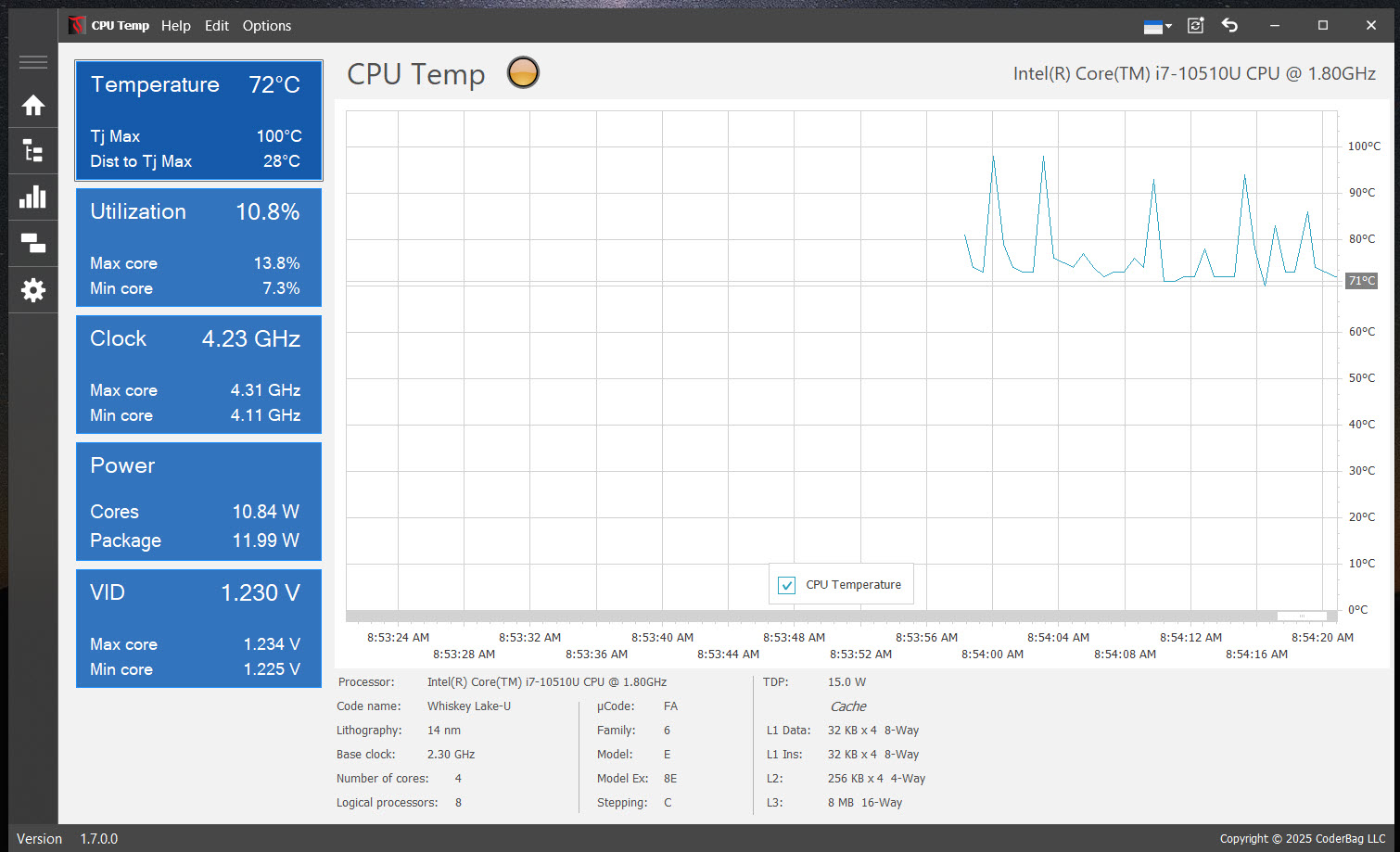
The main view is a column of tiles on the left, a real-time chart in the centre and a summary of the processor (name, code name, base clock plus core and thread counts) along the bottom. Click the Temperature tile and the chart plots the package temperature with Tj Max and distance to Tj Max beside it. Click Utilization, Clock, Power or VID and the chart follows. Power splits into the whole package and the cores alone, which is a quick way to see how much of a laptop’s power budget the integrated graphics are taking.
The VID tile deserves a caveat that the application itself prints. VID is the voltage the processor asks for, not the voltage the board delivers, so it is not a substitute for a vCore reading from the motherboard.
The thermal indicator next to the header is a three-band traffic light. Green covers 1 to 60 degrees by default, orange 61 to 85, and red from 85 up to Tj Max. Both boundaries are adjustable in Settings, and the whole application can be switched between Celsius and Fahrenheit from the Edit menu. It is a good idea to push the red band down on a laptop that sits at 80 degrees under any load, otherwise you will never see it change colour.
Per-core readings and the distribution charts
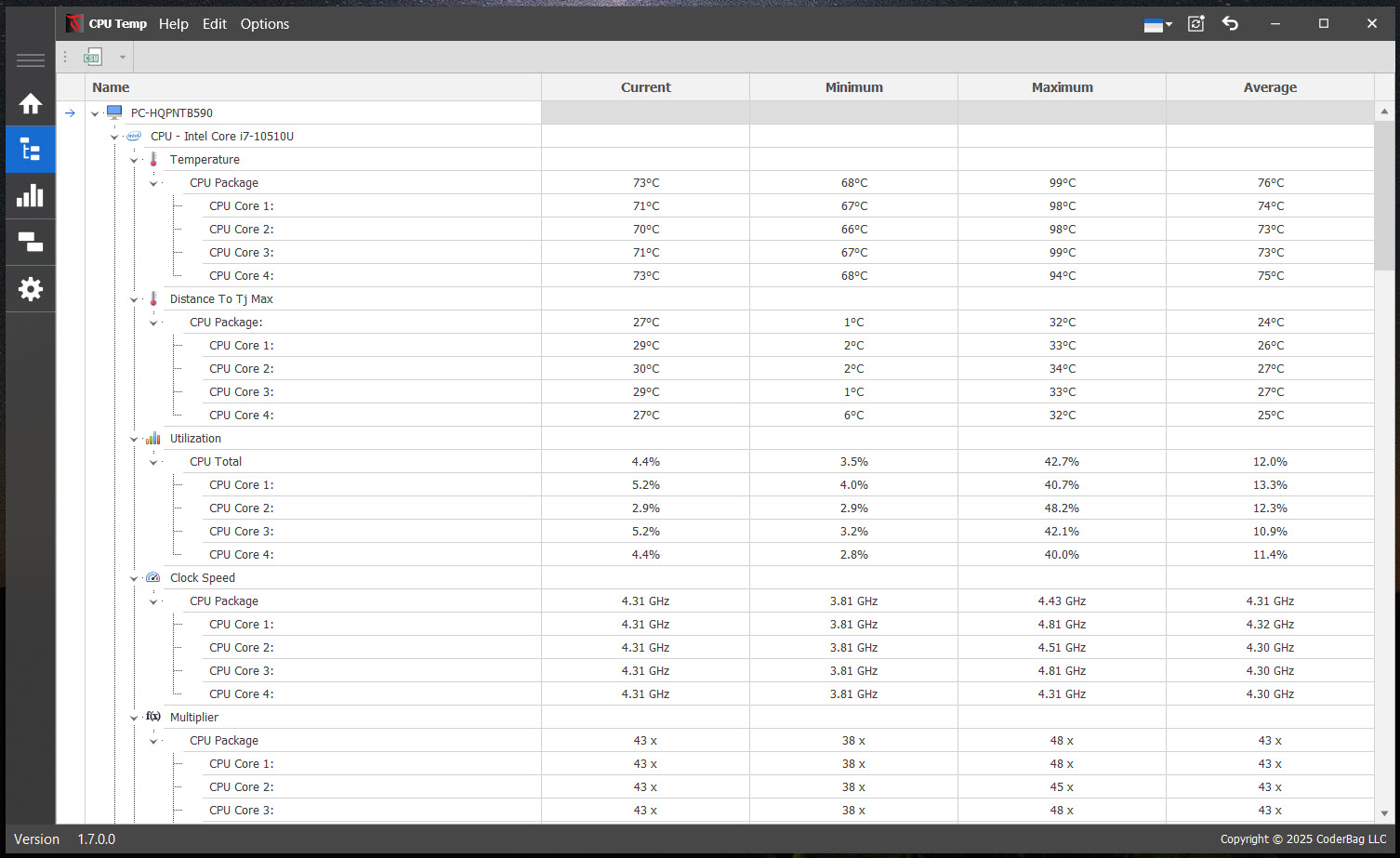
The Monitor view is the table the enthusiasts want. Every core appears with its live temperature, the lowest and highest seen since launch, and the average, plus its own distance to Tj Max, its load, its clock and its power. It is where you spot the one core that runs eight degrees hotter than its neighbours because the cooler is not seated flat, which a package temperature alone would never show you.
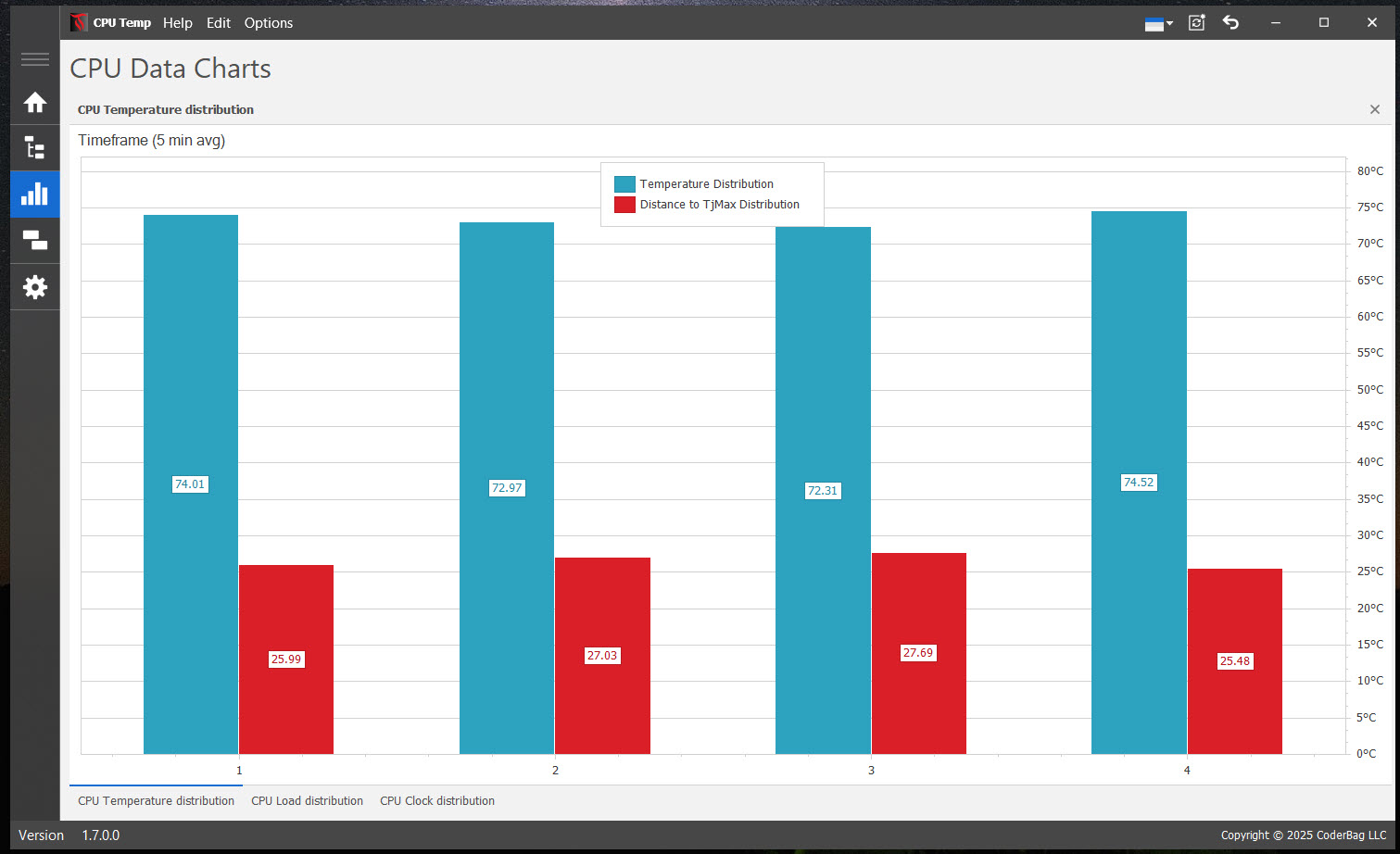
The CPU Data Charts view turns that into bar charts. There are up to five, depending on what the processor exposes, showing how temperature, load, clock speed and power are distributed across the cores, plus a pie chart of workload delegation. Each bar is an average over a rolling window, five minutes by default and adjustable in Settings, so the charts smooth out the spikes and tell you where heat actually sits over time.
On hybrid processors with performance and efficiency cores the two types get separate series, which makes it easy to see whether a scheduler is dumping everything on the P-cores.
If you want to make those charts say something, you need load. Pairing CPU Temp with a stress tester that logs its own sensors for ten minutes gives you a distribution chart you can actually read.
More than the processor, but not a full sensor suite
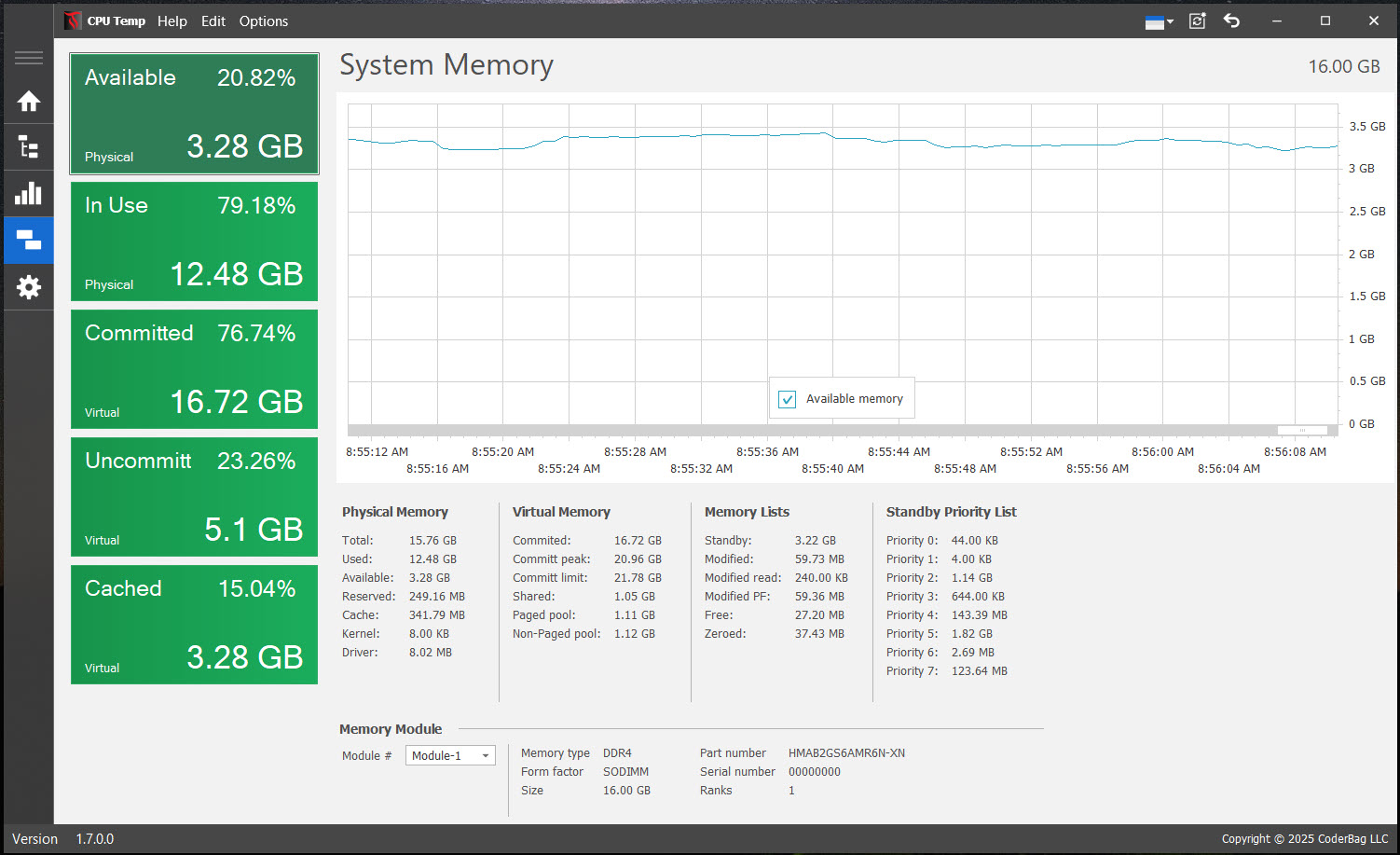
Despite the name, the Monitor view also lists other hardware sensors it can reach, so the graphics card’s temperature and utilisation appear in the same table with its clock, and there is a system memory control with its own live chart. The whole sensor list exports from the toolbar to CSV, and also to PDF, HTML, XLSX, DOCX and RTF, which is unusual for a monitor this size.
That is where it stops. There are no fan speeds, no motherboard voltages, no drive temperatures and no fan control. For those you want a monitor that reads every board and drive sensor, and you will give up the polished charts to get them.
Tray icon and refresh rate
Minimised, CPU Temp sits in the notification area. A left click pops up a small notification panel with the current readings and a right click opens a context menu, so you rarely need the main window once it is configured.
The refresh rate of the real-time data is configurable, and the time range of the history chart on the home screen is separate from the averaging window used by the distribution charts, which confuses people at first. There are also more than forty interface themes and colour palettes, though the dark ones look good on a second monitor.
Reading what it tells you
The interpretation is the part most monitors leave to you, and this one at least frames it. Roughly 30 to 65 degrees is ordinary desktop work, 70 to 90 is a sustained heavy load and acceptable if it does not stay pinned at the top, and anything within a few degrees of Tj Max means the processor is already throttling clock speed to save itself. If you see the Clock tile dip while the Temperature tile is red, that is throttling in action.
What CPU Temp cannot tell you is which limit is doing the throttling, since thermal limits, current limits and power limits all look the same from the outside. ThrottleStop reports the specific flag. What this tool gives you is the earlier warning, the shrinking distance to Tj Max, which is usually enough to know that a dust-clogged cooler or dried thermal paste is the next job.
Conclusion
CPU Temp is for the gamer, the laptop owner and the recent builder who wants to know whether the cooling is adequate and does not want to learn a sensor table to find out. The distance to Tj Max and the per-core distribution charts answer that question better than a bare temperature does, and the interface is pleasant enough to leave on a second screen.
Anyone who wants to be alerted, to log a week of temperatures, or to see fan speeds and voltages in the same window should look elsewhere. This is a viewer, a good one, and it is honest about the fact that it is nothing else.
Pros & Cons
- Distance to Tj Max shown for the package and every core
- Colour-coded thermal indicator with adjustable bands
- Per-core distribution charts averaged over a configurable window
- Separate series for performance and efficiency cores
- Sensor table exports to CSV, PDF, XLSX and more
- No temperature alarms or notifications of any kind
- No long-term logging to a file
- No fan speeds, motherboard voltages or drive temperatures
- VID is not the delivered voltage and can mislead
- Tj Max is unavailable on some processors, leaving the distance field empty
Frequently asked questions
No. The header indicator changes from green to orange to red, but there is no sound, pop-up or automatic action. If you want an alarm, Core Temp or a monitoring tool with alerts is the better fit.
Some processors do not expose their junction maximum, so CPU Temp cannot display it or calculate the distance to it. Temperature, load and clock readings still work, and the thermal indicator uses your configured bands instead.
Yes, in the Monitor view, which lists the graphics card's temperature and load alongside its clock speed and the processor sensors. The home screen chart and tiles remain processor-only.
The distribution charts average each core over a rolling window, five minutes by default. Until the application has run that long they average whatever time is available, so the bars settle down once the window fills. The length is adjustable in Settings.


