

VLC Media Player
About VLC Media Player
VLC Media Player opens any video or audio file you point it at and plays it without complaint. No codec packs needed. No nag screens. No bundled toolbars. No upgrade pop-ups. The orange traffic cone in your taskbar has been the same single application for over two decades, maintained by the non-profit VideoLAN, and it remains the most successful open-source desktop application ever shipped to a general audience.
What people often miss is that this thing is far more than a player. The same binary that opens an obscure MKV will also transcode it to MP4, stream it across the network, capture your desktop, rip a DVD, rotate a sideways phone video, and act as a server for an embedded device on the other end of the house.
Most users use maybe ten percent of it, and that ten percent is already enough to justify keeping it installed.
The codec story and why it still matters
The reason VLC Media Player opens files that other players choke on is that it ships its own copy of every relevant decoder. The internal stack is built on libavcodec (the same library that powers FFmpeg under the hood) plus a long list of additional demuxers, parsers, and format handlers maintained by the VideoLAN team.
There is no dependency on what the system has registered. The codec packs that used to be a standard install (CCCP, K-Lite, the various others) exist primarily because the system media frameworks did not ship with broad codec support out of the box. VLC sidesteps that entire problem.
This matters more in 2026 than people sometimes realize. New codecs (AV1, VVC, the ProRes variants for raw footage) reach VLC builds quickly, and old ones (RealMedia, DivX, oddball legacy formats from 2003) keep working long after the official tools for them have been abandoned. If you have a folder of old files in containers nobody remembers, this is what opens them.
Subtitle handling and the OSD menus
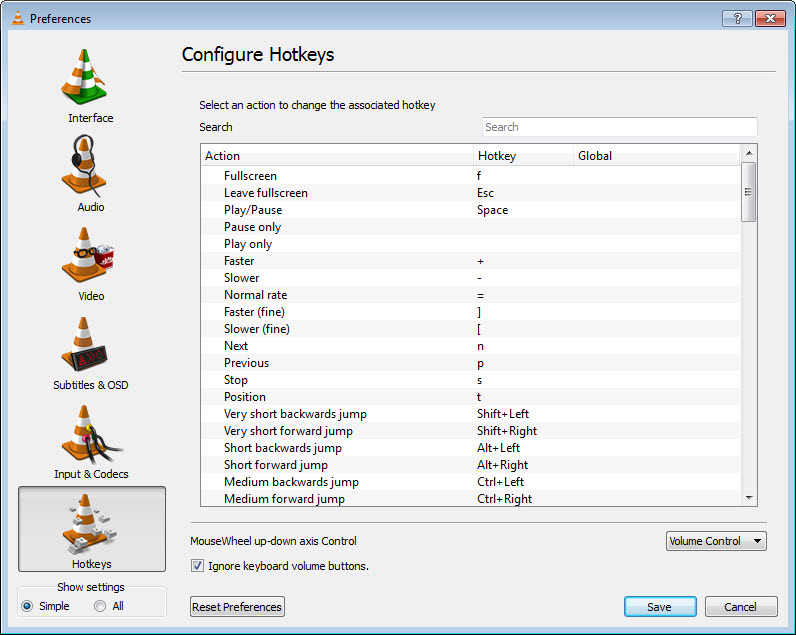
Subtitle support in VLC Media Player is unusually deep. It loads external SRT, SSA/ASS, SUB, IDX, and embedded subtitle tracks from MKV containers without configuration. You can adjust subtitle delay in 50ms increments with a hotkey (H and G in the default bindings) to fix sync issues, change font and outline, and switch tracks during playback.
The auto-detect feature picks up subtitle files named to match the video (movie.mkv and movie.srt in the same folder), which is how most external subtitles arrive in the wild.
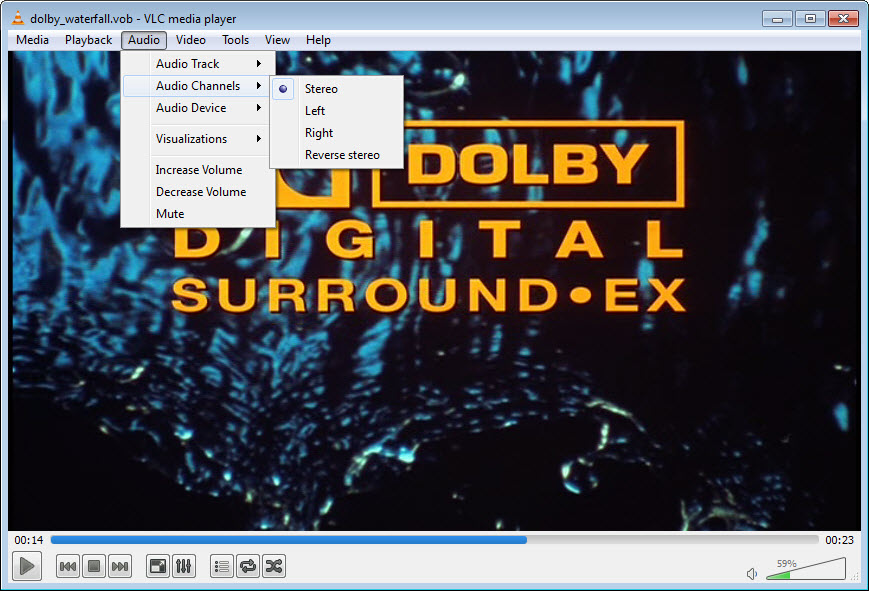
The OSD (on-screen display) menus expose audio track selection, video track selection, aspect ratio overrides, deinterlacing modes, and audio synchronization adjustments. None of this is hidden behind a settings dialog.
Most of it is reachable from the right-click menu or a single keystroke. For multilingual content (anime fansubs, foreign films with dubs, documentaries with optional commentary), players that treat subtitles as an afterthought get this wrong. VLC does not.
The hidden transcoder
Convert/Save is the feature most reviews skip. VLC Media Player can transcode files between formats using its bundled libavcodec, and the dialog (Media menu, Convert/Save, or Ctrl+R on the default binding) walks you through choosing input, output container, video codec, audio codec, and resolution. You can also trim using the start time, stack filters, and apply rotation or deinterlacing during the conversion.
This is not a replacement for HandBrake when you want serious encoding control with two-pass or constant-quality modes. But for “I need this MOV to play on a device that only takes MP4,” it is in the program you already have open.
The fact that most users do not know it exists says more about how much the player overshadows the rest of the toolkit than about the feature’s usefulness.
Network input, streaming, and remote playback
Open Network Stream (Ctrl+N) accepts HTTP, HTTPS, RTSP, RTMP, MMS, UDP multicast, and several niche protocols including direct DVB tuner URLs. You can paste a YouTube URL and it plays, though that capability is fragile and breaks whenever YouTube changes its internals. The reliable use cases are IPTV M3U playlists, network camera streams (security cams, RTSP feeds from IP doorbells), and direct HTTP video URLs.
The other direction works too. VLC Media Player can act as a streaming server, broadcasting a local file or capture device over UDP, HTTP, or RTSP to any number of clients.
People build basic home IPTV setups around it without ever realizing they have built something resembling Kodi without the library management layer. There is also an HTTP-based web interface (enabled in the preferences under the Lua interface) that lets you control playback from a phone browser, useful for the kind of person who runs the player on a TV-connected PC.
Skins, extensions, and the Lua layer
The default skin is functional but undeniably plain. The skinning system is not new and not particularly active anymore, though the skin browser inside the application still works and the basic .vlt skin files load fine when you find them. People who care about the look usually swap to something cleaner, though the practice has waned as the default has stayed visually static for years.
The extension system is more interesting. VLC Media Player supports Lua scripts for both interface tweaks and playlist enhancements. There are community extensions for fetching subtitles automatically, displaying additional metadata, syncing scrobbles to music tracking services, and integrating with other libraries.
Most of these are unmaintained, and finding a working one for a specific need takes some hunting, but the layer exists. For a lighter alternative interface with a more modern aesthetic, MPV Player takes that minimalist approach further.
Where it starts to show its age
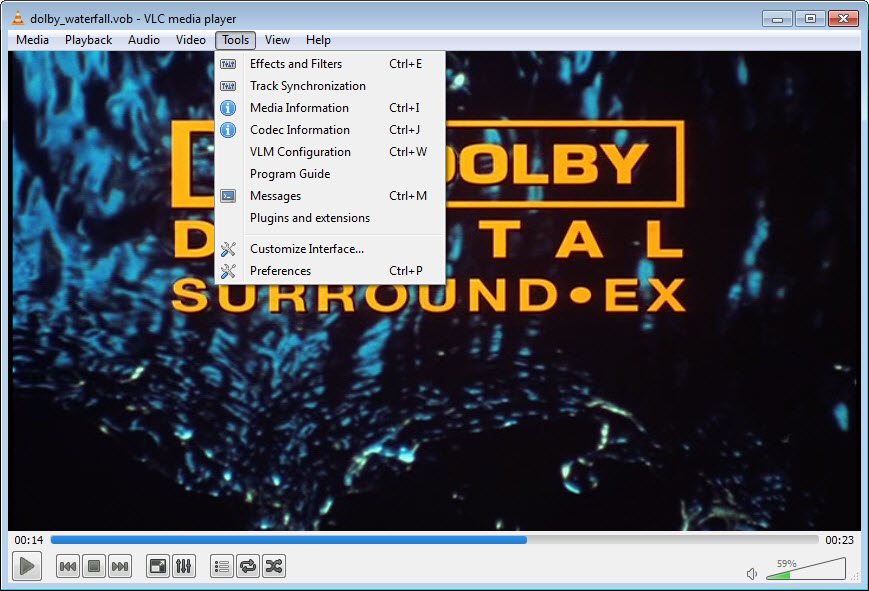
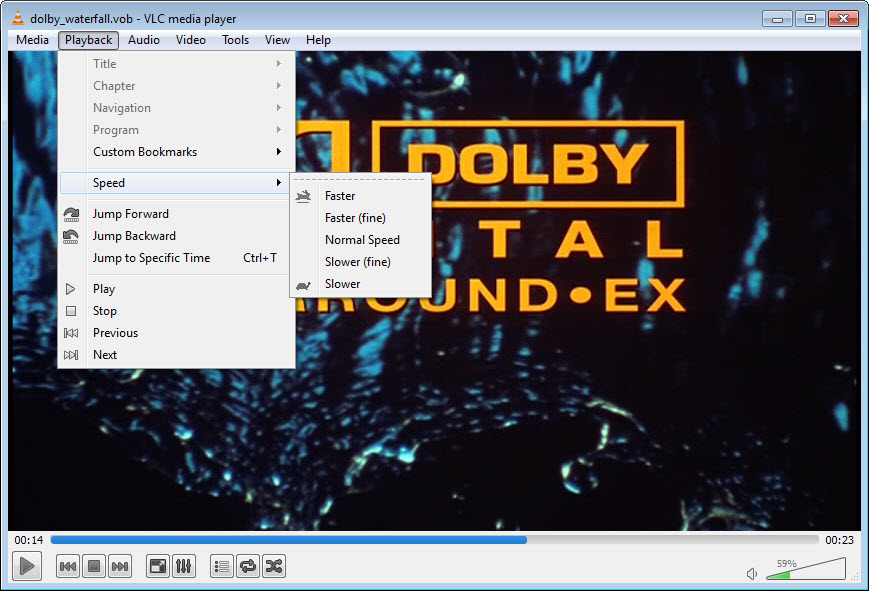
The cone-headed elephant in the room is the interface. The Qt-based UI has barely changed since the late 2000s. Hotkeys, menus, and dialogs all work, but the visual design is dated and the preferences window is genuinely hostile to anyone who is not already familiar with the terminology. Finding a specific option means clicking through nested categories with technical labels.
Performance is usually fine but not the best in its category. For very high bitrate 4K HDR content, PotPlayer and mpv-based players often handle hardware decoding more efficiently. The differences only show on demanding files and underpowered hardware, but they exist.
Bug-for-bug compatibility with broken files is another double-edged thing. VLC plays files other players reject, which is fantastic, but it also means it will sometimes play files that have actual corruption with subtle artifacts you might not notice.
The repair-on-open behavior for AVI files (the dialog that asks “should I fix this?”) is famous, and it works, but it is symptomatic of how much effort goes into tolerating broken input.
Conclusion
VLC Media Player is the only piece of software in this category that has stayed both relevant and trustworthy for two and a half decades. It is the right choice when you have a folder of arbitrary media files and want them to play, when you need to do something to one of those files (trim, convert, capture, stream) without installing another tool, or when you simply do not want a player that ships with bundled offers, login screens, or telemetry. It has the depth of a professional toolkit and the manners of a utility that respects your machine.
The dated UI and the dense preferences are the price you pay for that. Some specialized players play 4K HDR slightly more efficiently, some look prettier, some have library management features VLC has never bothered to build.
None of them cover the same breadth from one install. If you only keep one media player on your machine, the case for this one is the same as it was in 2005, and the case is still strong.
Pros & Cons
- Plays virtually any audio and video format without external codecs
- Subtitle support is deep and works without configuration
- Hidden transcoder, recorder, and streaming server inside the same binary
- Network input handles RTSP, IPTV, HTTP streams, and DVB sources
- Cross-platform open source project with two decades of active development
- No bundled software, no ads, no upsells
- Lua extension layer and HTTP control interface for advanced users
- UI is functional but visually dated and has barely evolved in years
- Preferences menu is dense and overwhelming for newcomers
- High-bitrate 4K performance lags behind some specialized players
- Skinning system exists but is largely unmaintained
- YouTube and similar site integrations break regularly when those sites change
Frequently asked questions
Quite a lot. The application can transcode files between formats, record from the desktop or a webcam, stream files across a network, rip DVDs, capture screenshots, and run as an HTTP-controlled server. Most of these features live in the Media menu and are not exposed prominently in the main interface.
Enable Advanced Controls in the View menu to get the record button. Seek to the start point, click record, let playback run to the end point, then click record again to stop. The clip is saved to the Videos folder in your user profile. For more precise editing, the Convert/Save dialog allows specifying a start time and applying filters during transcoding.
Yes, but with caveats. Unprotected Blu-ray discs play out of the box. Commercial discs require the appropriate AACS keys and a BD+ table file in specific locations on disk, since this software does not ship decryption material. The community documents the procedure, but it is not a one-click experience.
External subtitle files in SRT, ASS, SSA, SUB, or IDX format load automatically when named to match the video file, and any subtitle or audio track embedded in containers like MKV or MP4 can be selected from the right-click menu during playback. Timing offsets can be adjusted in 50-millisecond steps with a hotkey.
Yes. The Convert/Save dialog in the Media menu walks through choosing an output container, video and audio codecs, bitrate, and resolution. For repeat batch encoding jobs with tight quality control, a tool dedicated to transcoding is a better fit, but for one-off format changes it works without leaving the player.


