

Streamlabs Desktop
About Streamlabs Desktop
Streamlabs Desktop is a live streaming application built to get a broadcast on air with the least fuss, bundling the scene switching, overlays, alerts, and chat that a streamer would otherwise assemble from half a dozen separate tools. It captures your screen, your game, your webcam and microphone, arranges them into scenes you flip between mid-stream, and pushes the result to Twitch, YouTube, and the other platforms.
What sets it apart from the bare-bones broadcaster it grew out of is everything wrapped around the encoder, the follower alerts, the donation notifications, the ready-made visual themes, all stitched into one login.
The trade that defines it belongs in the first breath. This is the convenient, all-in-one path, heavier on system resources and more opinionated about how you work than the lean alternatives, and that suits a beginner far better than it suits a purist.
If you want your first stream live tonight with alerts already working, this is the shortest road. If you want minimal overhead and total control, the road forks elsewhere.
Scenes, sources, and getting on air
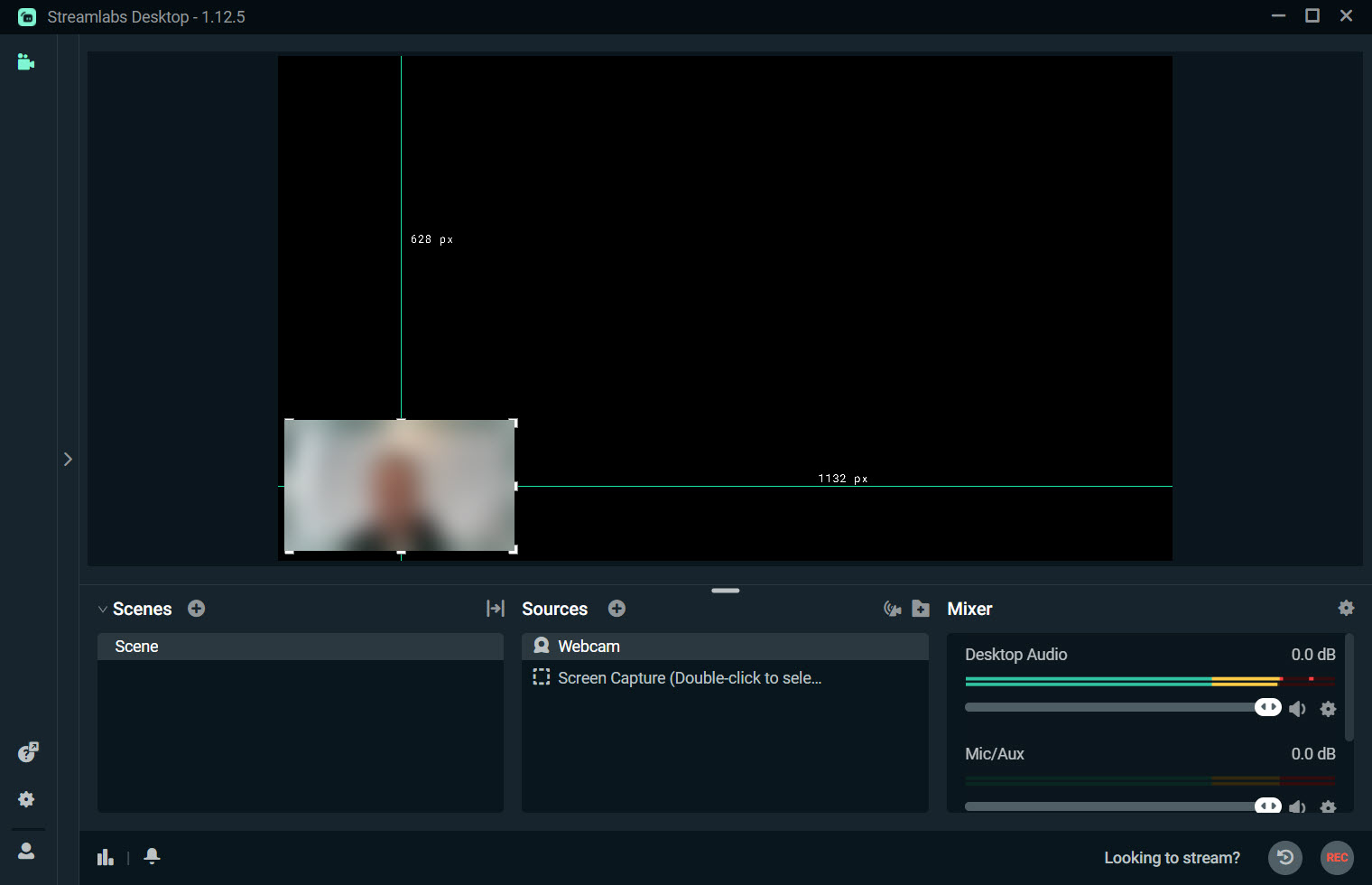
The core of Streamlabs Desktop is the same scene-and-source model every serious broadcaster uses. A scene is a layout, a source is a thing inside it, your gameplay capture, a webcam, an image, a browser widget, and you stack and position them, then switch between scenes live, the starting-soon screen, the main gameplay view, the be-right-back card. The editor makes this drag-and-drop, and the layout is more approachable than the sometimes-fiddly arrangement in leaner tools.
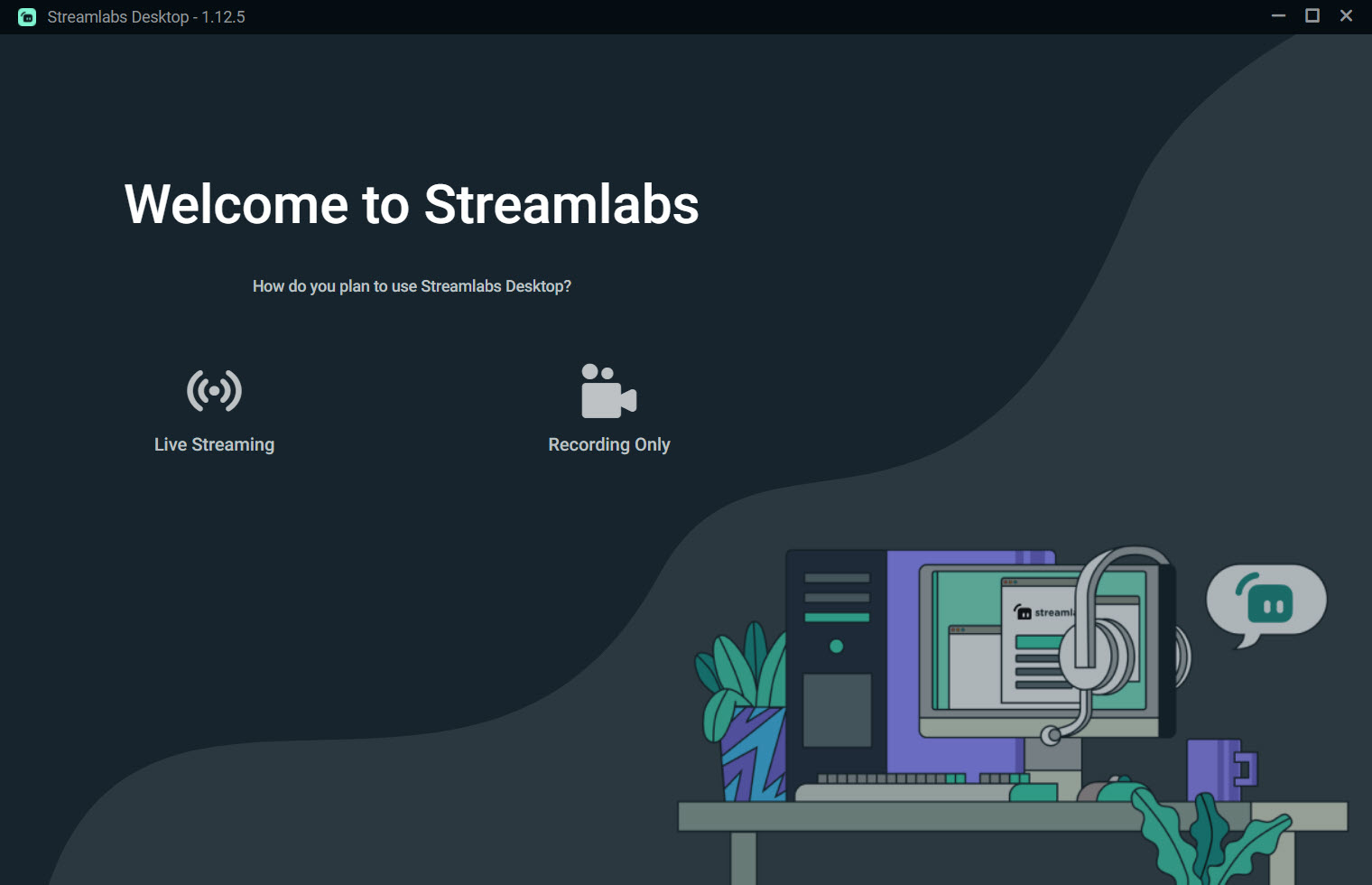
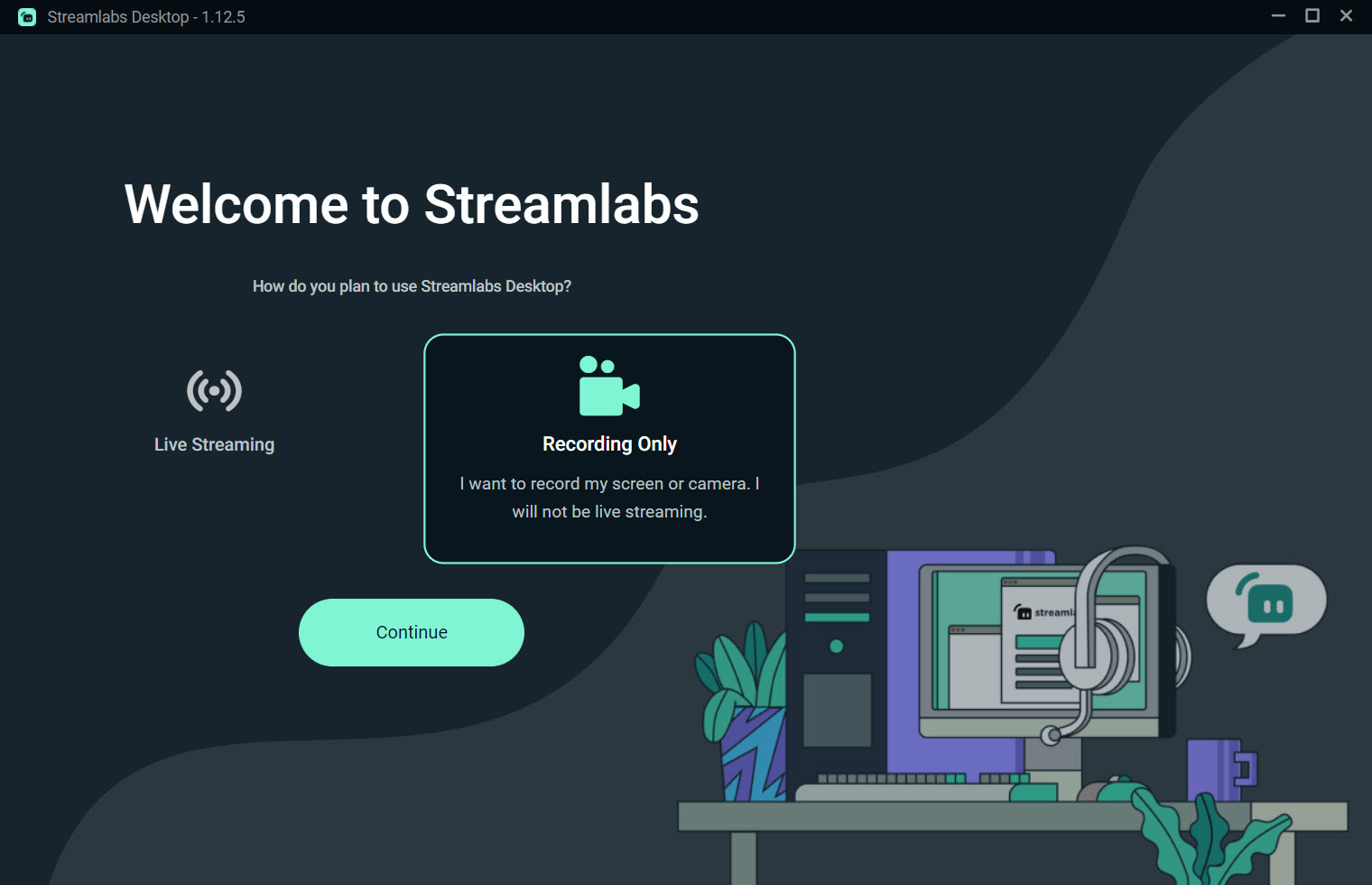
The setup wizard is where the beginner-friendliness shows most. It logs into your streaming account, detects your hardware, tests your connection, and suggests encoder settings, bitrate, resolution, frame rate, matched to what your machine and upload can actually sustain.
That auto-configuration spares newcomers the single most confusing part of streaming, and getting those numbers wrong is what produces the stuttering, pixelated broadcasts that sink a new channel before it starts.
The alerts and widgets that come built in
Here is the real reason people choose it. Follower alerts, subscription notifications, donation popups, chat boxes, event lists, and goal trackers are baked in, configured inside the same application rather than pieced together from external services and pasted in as browser links. A new follower triggers the on-screen animation and sound without you wiring anything up, which in a leaner tool means signing up for a separate alert service and manually adding its URL as a browser source.
The theme system extends the convenience to the look. Complete visual packages, matching overlays, alert styles, panels, and transition animations, apply in a few clicks, so a channel goes from default-blank to visually coherent without a designer.
The results lean toward a recognizable style, and a channel chasing a truly unique identity will still want custom artwork, but for getting presentable fast, nothing in the category is quicker.
Chat, multistreaming, and the wider kit
The in-app chat window in Streamlabs Desktop pulls your viewers’ messages beside the controls, so moderating and responding doesn’t need a second monitor full of browser tabs, and it merges chat across platforms when you broadcast to more than one at once. That multistreaming, sending a single broadcast to Twitch and YouTube together, is handled directly rather than through an external relay, which is a genuine convenience for a growing channel hedging its platform bets.
Audio, the half of streaming beginners underestimate, gets per-source mixing with filters for noise suppression and gain. For anything more elaborate, routing game audio, chat, and music onto separate channels the way advanced streamers do, a dedicated virtual mixer like VoiceMeeter Banana still does the heavy lifting that no built-in mixer matches.
Since so much of streaming culture lives in community chat, keeping the community hub Discord running alongside is practically part of the setup.
The honest costs
The resource appetite is the recurring complaint, and it’s fair. All those integrated widgets and the browser sources powering them consume memory and CPU on top of the game you’re actually trying to stream, and on a mid-range single-PC setup the overhead can cost frames in demanding titles. Streamers on modest hardware feel this most, exactly the audience the convenience was meant to serve.
The other honest note is the walled-garden feel. The alerts, themes, and account tie into one ecosystem, and that integration is the appeal until you want to leave, at which point the convenience reveals its lock-in.
The most direct rival, XSplit Broadcaster, makes a different bargain with its own polished feature set, and the leaner open broadcaster this one is based on trades every built-in widget for lightness and freedom. The right pick is simply a matter of which trade fits.
Conclusion
Streamlabs Desktop is for the new or growing streamer who wants alerts, overlays, and a coherent look working tonight without stitching together a toolbox first. The setup wizard and the built-in widgets collapse what used to be an evening of configuration into a few clicks, and for that audience the convenience is worth real money and real resources.
Streamers on tight hardware, or perfectionists who want minimal overhead and no ecosystem strings, will prefer the leaner broadcasters and accept the extra setup work. Between quick-and-complete and lean-and-free, this one owns the first half decisively.
Pros & Cons
- Alerts, overlays, themes, and chat built in, no external services to wire up
- Setup wizard auto-configures encoder settings from your hardware and connection
- Drag-and-drop scene editor that beginners grasp quickly
- Built-in multistreaming to several platforms at once
- In-app chat merges viewers across platforms beside the controls
- Heavy on memory and CPU, which can cost frames on modest single-PC setups
- Ecosystem lock-in across alerts, themes, and account
- Built-in themes lean toward a recognizable, less unique look
- Advanced audio routing still needs a separate virtual mixer
Frequently asked questions
Follower and donation alerts, overlays, visual themes, goal trackers, and an in-app chat, all built in and configured in one place rather than assembled from separate external services.
No, that's its strength. The setup wizard logs into your platform, detects your hardware, and picks encoder settings automatically, which removes the most confusing part of going live.
The integrated widgets and browser-based overlays run on top of your game, consuming extra memory and CPU. On a single-PC setup with a demanding game, that overhead can reduce frame rates.
Yes, built-in multistreaming sends one broadcast to several platforms at once, and the in-app chat merges the messages from all of them into a single view.
The built-in mixer with noise suppression suffices for most. Streamers who separate game, chat, and music onto independent channels usually add a dedicated virtual audio mixer for that finer control.


