

PotPlayer
About PotPlayer
Some media players aim for simplicity and hide everything. PotPlayer went the other way. It plays practically any file you throw at it out of the box, then hands you the keys to every stage of the playback pipeline, from decoders and renderers to a keyboard where nearly every action can be remapped.
The result sits alongside VLC among the most capable players around, with a different personality. Where VLC keeps its power politely tucked away, this one leaves the machine room door open.
That openness cuts both ways, and we’ll cover the messy side too. But the first thing to know is that for ordinary watching, none of the complexity is mandatory. Install, double-click a file, and it plays, smoothly, with no codec hunting.
Everything plays, and the hardware does the work
The built-in decoders cover the practical universe of formats, containers, and codecs, which retires the old ritual of installing a K-Lite Codec Pack before a machine could play anything unusual. Streams from URLs play too, so a network broadcast or an online video link can go straight into the player.
Heavy files are where the engineering shows. Hardware acceleration through DXVA, CUDA, and QuickSync pushes decoding onto the graphics hardware, so high-resolution video plays smoothly on modest machines while the processor stays cool enough for whatever else you’re doing.
On an aging laptop that stutters through demanding files elsewhere, switching the decoder setting here is often the entire fix.
The subtitle machine
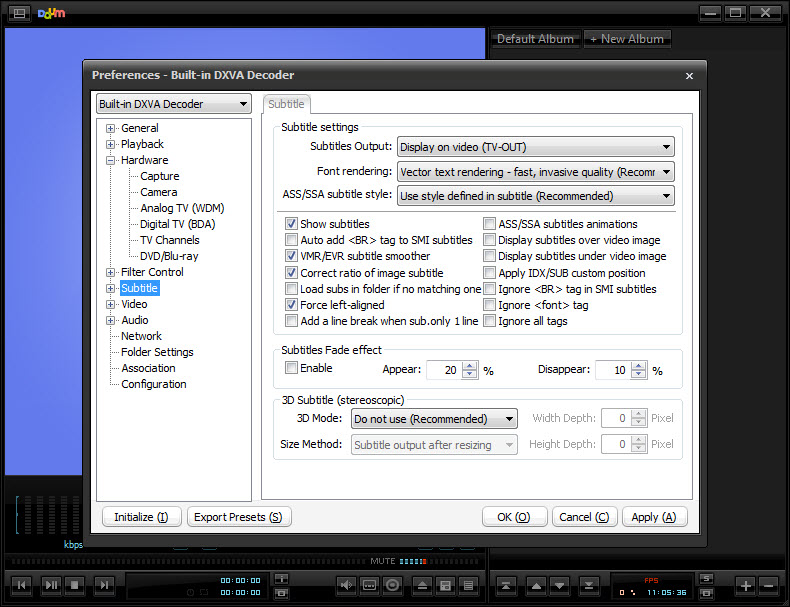
Subtitle support goes far past displaying an .srt file. PotPlayer loads every common subtitle format, lets you drag timing forward or backward on the fly when the sync is off, and searches online databases for missing subtitles without leaving the player. Styling is fully yours, with font, size, color, outline, and position all adjustable, and it can display two subtitle tracks at once, a quiet killer feature for language learners running original and translated text together.
If your viewing involves anything foreign-language, this area alone justifies the install. Competitors like GOM Player also do online subtitle lookup, but few give you this much control over how the text ends up looking on screen.
Seeking, speed, and the little playback luxuries
Hover over the seek bar and a thumbnail preview shows exactly which scene you’re about to jump to, ending the skip-and-overshoot dance every player used to force. Playback speed adjusts in fine steps, handy for lectures at 1.5x or transcribing at 0.7x, and an A-B repeat function loops any segment you mark, which musicians and language students will recognize as the feature they always end up hunting for.
Bookmarks and chapter points let you flag moments in long files and jump back to them later, even across sessions. None of these are headline features on their own. Together they’re the difference between a player you use and a player you’d miss.
Recording, capture, and video in every dimension
PotPlayer doubles as a capture tool. It records what it plays, saves snapshots, turns segments into GIFs, and takes input from webcams and other capture devices, so grabbing a clip for reference or a reaction GIF happens without a separate program. Screen recording of the playback area is built in as well.
It also handles the exotic end of video, meaning 360-degree footage you can pan around in, 3D output modes, and the high-bit-depth files that choke lesser players. Whether you’ll ever need those is another question, but when the odd file arrives, it plays instead of erroring out.
The settings labyrinth
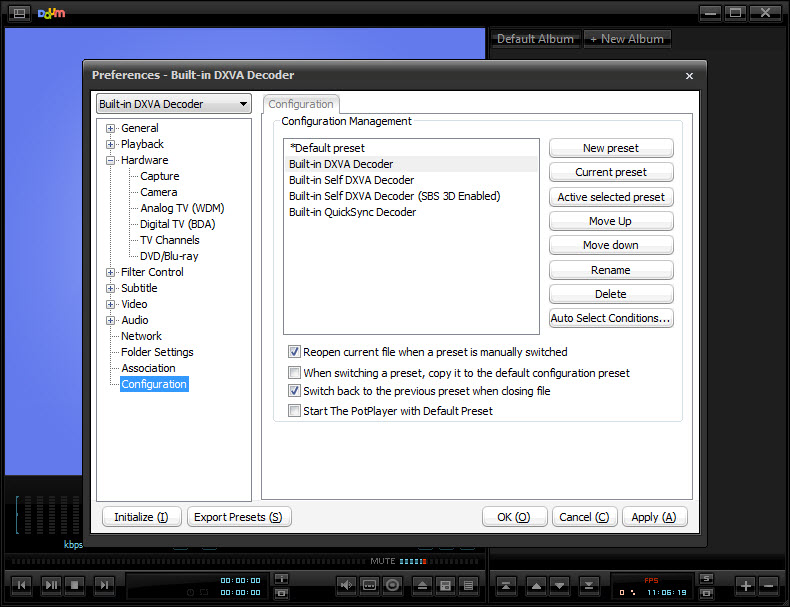
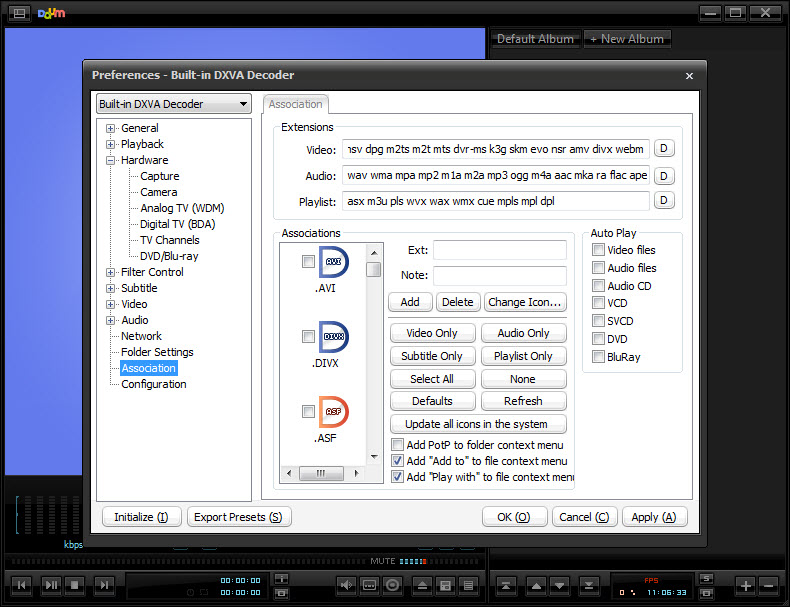
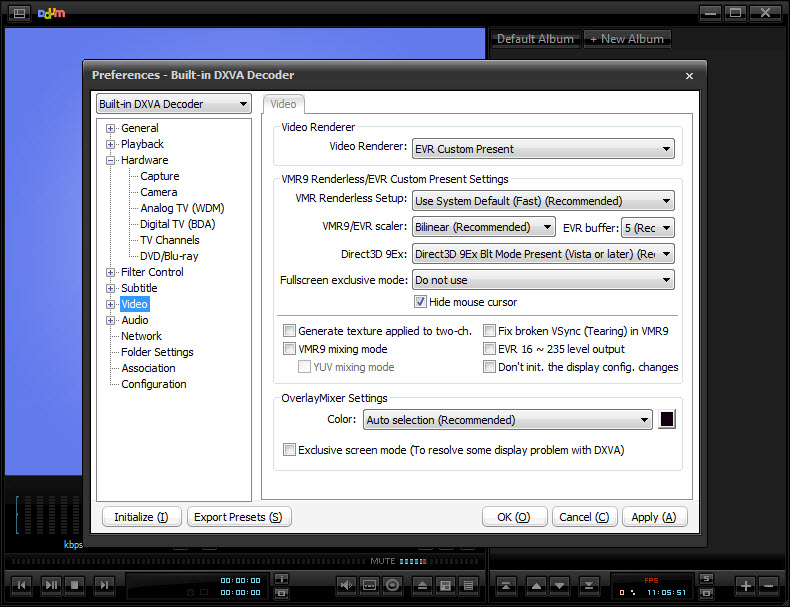
Now the honest part. The preferences window is enormous, a tree of pages covering filters, renderers, decoders, shaders, and behaviors that can swallow an afternoon. Most of it is labeled in language that assumes you already know what a video renderer is, and a wrong toggle deep in the tree can make playback visibly worse, with no obvious trail back to what you changed. A reset-to-defaults exists for a reason.
The other consideration is that this software is closed source. Nothing about it is unusual in that regard, but users who specifically want an auditable player will lean toward VLC or an SMPlayer setup instead. And the interface, while skinnable, defaults to a look that’s more functional than fashionable.
None of this dents the core experience, because the defaults are sensible and you can ignore the labyrinth forever. Just know which kind of player you’re inviting in. This is the one with a thousand switches, most of which you’ll never need, and a few of which you’ll someday be very glad exist.
Conclusion
PotPlayer is the enthusiast’s pick. It suits the person with a mixed folder of odd formats, foreign-language files needing subtitle finesse, an old laptop that demands hardware acceleration, or the occasional 360 clip. For them, it’s arguably the most complete player available, and the everyday features (thumbnails, A-B repeat, speed control) make it pleasant even when nothing exotic is playing.
Viewers who want zero decisions and open-source transparency are still well served by VLC. Everyone else gets a player that starts simple and goes exactly as deep as they’re willing to follow.
Features & benefits
Pros & Cons
- Plays virtually every format out of the box, no codec packs required
- Hardware acceleration keeps high-resolution files smooth on modest machines
- Subtitle handling with live sync adjustment, online search, and dual tracks
- Seek bar thumbnails, A-B repeat, fine speed control, and bookmarks
- Built-in recording, snapshots, GIF creation, and capture device input
- Plays 360-degree and 3D content most players refuse
- Preferences are overwhelming and assume technical vocabulary
- A careless change deep in the settings can degrade playback
- Closed source, which rules it out for users wanting auditable software
- Default skin looks dated next to modern players
Frequently asked questions
No. Decoders for the common formats and codecs are built in, and files that used to demand a codec pack installation play immediately.
Yes, it searches online subtitle databases from inside the player, and once loaded, timing can be nudged forward or backward live until the sync is right.
Yes. It supports 360-degree footage with mouse panning, plus 3D output modes, alongside ordinary flat video.
It saves snapshots, records video segments, creates GIFs from clips, and accepts input from webcams and capture devices, all without extra software.
The player exposes its whole processing chain, so renderer, decoder, and filter choices directly affect the picture. If something looks wrong after experimenting, restoring default settings is the fastest recovery.


