

WinSSHTerm
About WinSSHTerm
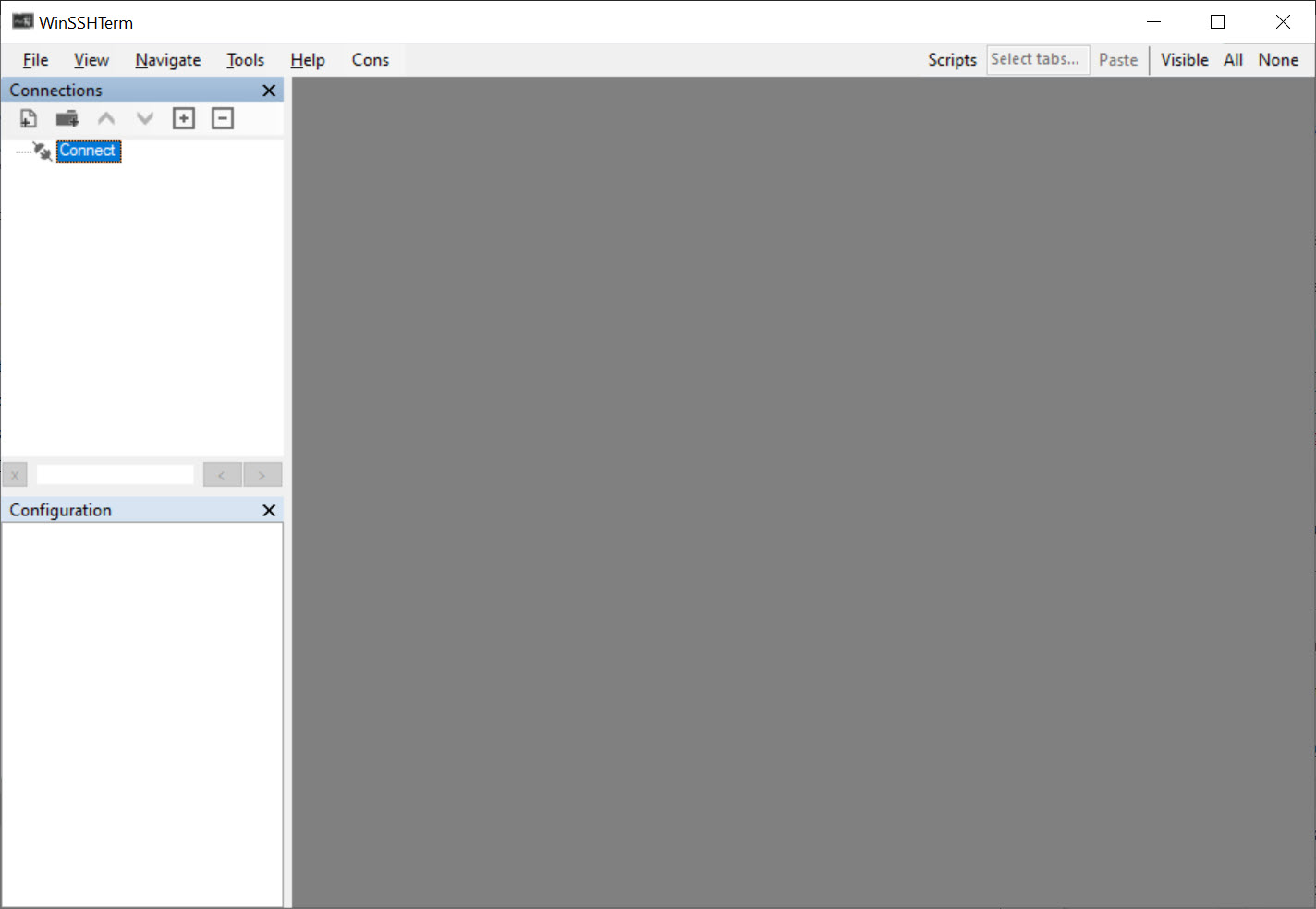
Working on remote machines from this platform usually means three programs open at once. A terminal, something to move files, and, if anything graphical is involved, a third piece nobody enjoys configuring. WinSSHTerm puts all three behind one window with tabs.
WinSSHTerm replaces none of them. It embeds the terminal you already use, calls the transfer client you already have, and wires up the graphical piece so it works without you thinking about it.
That arrangement is the product, and understanding it explains both why it feels solid and what it depends on.
You supply the terminal
Here is the first thing to know about WinSSHTerm, because it surprises people expecting a self-contained application.
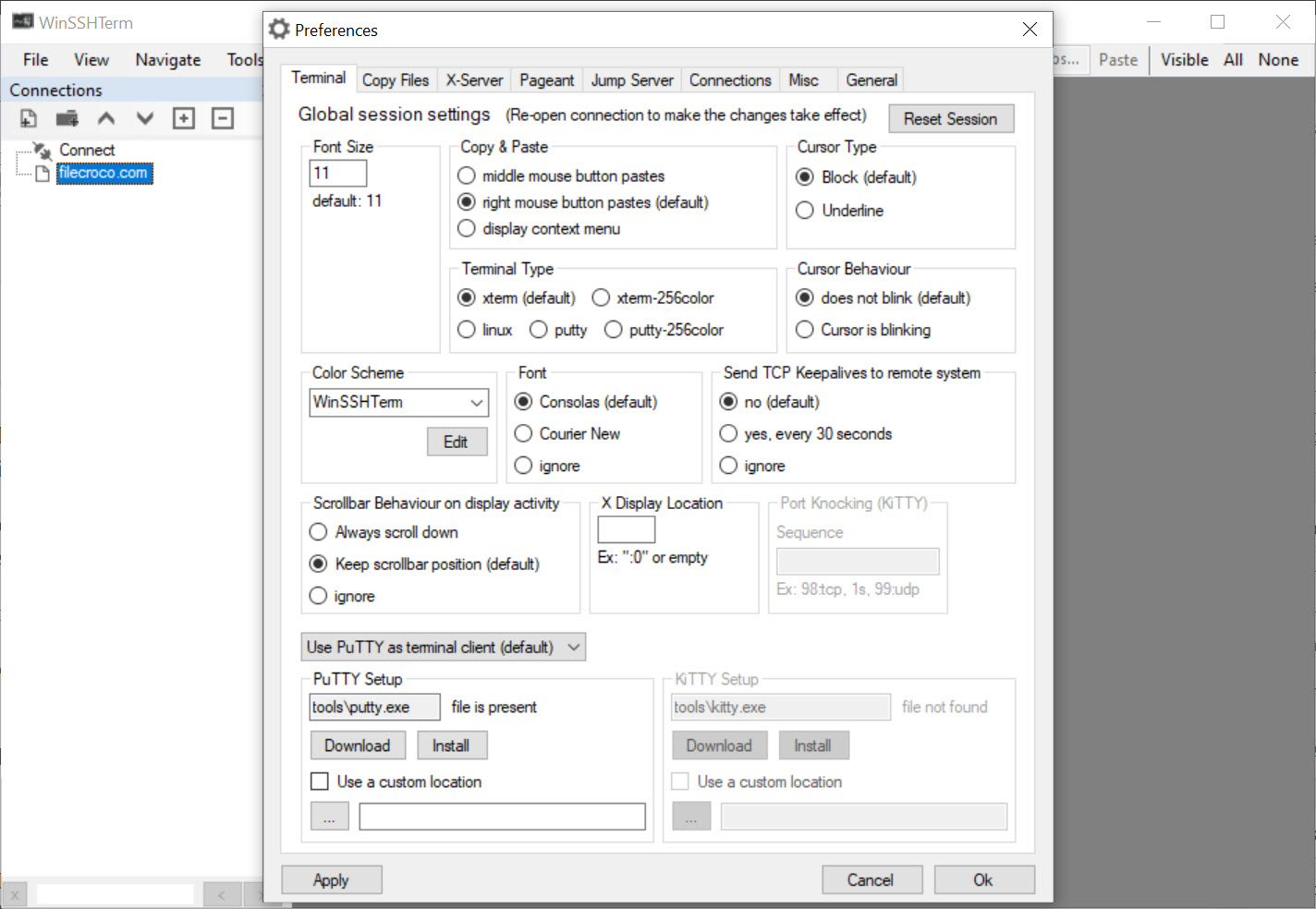
There is no terminal of its own. One of the established terminal programs has to be placed inside it, and from then on that program does the actual work while this handles the tabs, the sessions and everything around them.
The consequence is reassuring rather than limiting. The terminal behaves exactly as it always has, with the same rendering, the same key handling and the same quirks, because it is the same program. Nothing has been reimplemented and nothing behaves subtly differently.
PuTTY is the usual choice, and a well-known fork of it is the alternative for anybody who prefers the additions.
Files and graphical applications, in the same session
The WinSSHTerm integration is what separates it from a tab wrapper, and the second half is the part nobody else does neatly.
File transfer opens against the machine you are already connected to, with the credentials already known, so moving a file is a command rather than a separate login. The transfer client does the work and this supplies the connection.
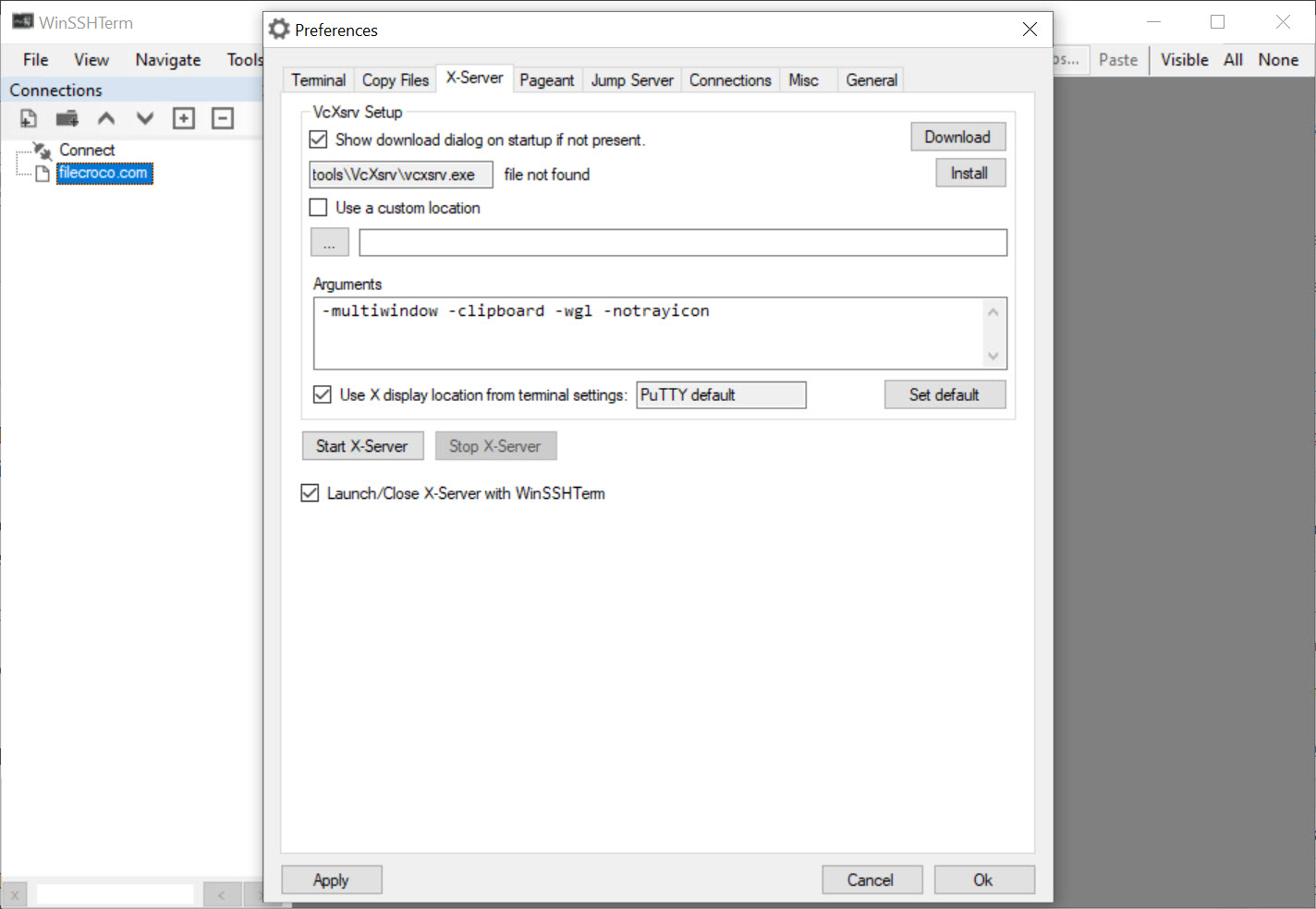
Running a graphical application from the remote machine is the more interesting one. A fork carrying extra session handling and automatic login embeds the same way, and that alternative terminal suits anybody who wants those additions. A program on the server can put its window on your desktop, which requires a display server running locally and the connection configured to forward it, and setting that up manually is an afternoon nobody wants.
Here it is arranged for you. Start the session, run the graphical program, and its window appears alongside your local ones, with copy and paste working between them.
That capability is properly uncommon in this category and it is the reason somebody administering machines with graphical tools would choose this over a plain tabbed terminal.
Different colours for production
The WinSSHTerm feature that shows somebody had made the mistake it prevents. Sessions can carry a background colour by environment, so production connections look different from development ones at a glance.
That sounds cosmetic and it is not. Typing a destructive command into the wrong tab is the classic way to have a bad afternoon, and a red background where you expected a green one interrupts the reflex before the return key.
Nothing enforces it, since the colours are yours to assign, and the value is entirely in having assigned them consistently before the day you need them.
Sending one command to several machines
The administrative capability added after users asked for it. The same command can be typed once and sent to several open sessions simultaneously, along with pasting the same text into all of them.
That covers the ordinary case of running the same check, the same update or the same restart across a group of machines that are already open in front of you.
The obvious caution applies with force here. A command sent to eight sessions is executed eight times, and a mistake propagates across all of them at once rather than giving you the chance to notice after the first.
For managing many connections across several protocols rather than concentrating on this one, mRemoteNG organises them into a tree with settings inherited from folders.
Jump hosts and template variables
Two WinSSHTerm features aimed at managed environments rather than at a personal machine.
Connections can be made through an intermediate host, which is how access to machines that are not directly reachable is normally arranged. That is configured per connection rather than requiring a separate tunnel to be set up first.
Template variables let common values be defined once and referenced across many connections, so a change to a shared setting is one edit rather than fifty. Anybody maintaining a large connection list will recognise why that matters more than it sounds.
Connections can also be shared with colleagues, which raises the same question every connection manager raises about whether credentials travel with them.
Migrating from whatever you use now
The practical detail that removes the barrier to trying WinSSHTerm.
Connection lists import from the several other clients people are likely to be leaving, including the plain terminal’s own saved sessions and the various tabbed front ends built around it.
That matters because the reason people stay with a connection manager is rarely the software and usually the hundred entries they do not want to retype.
The donation arrangement
Being straightforward about the WinSSHTerm commercial position, since it has changed.
The software is free to use and some capabilities are tied to a donation, with users reporting periodic prompts appearing after that arrangement was introduced.
That is a mild form of the shareware model rather than a subscription, and whether the prompts are tolerable is a matter of temperament. The core function of tabs, sessions and integration is available regardless.
For the file transfer side used on its own rather than through this, a client that watches a folder and mirrors changes to a server is the same program in its own window.
Conclusion
WinSSHTerm is a connector rather than a client, which turns out to be the right design. Keeping the terminal you already trust, calling the transfer client you already have, and arranging the graphical piece nobody wants to configure produces one window that covers the whole job without reimplementing any of it.
Two things decide whether it suits you. It expects you to supply the pieces, so it is an assembly rather than a single installation, and its capabilities are aimed at somebody managing a room full of machines. For one or two servers a plain terminal is enough, and beyond that the environment colours alone justify the setup.
Pros & Cons
- Embeds an established terminal, so behaviour matches what you already know
- File transfer opens against the connected machine with credentials already known
- Graphical remote applications configured for you, which is usually an afternoon's work
- Environment colours make production tabs visibly different from development ones
- One command can be sent to several open sessions at once
- Jump host support configured per connection
- Imports connection lists from the other clients people migrate from
- Requires a terminal program supplied separately, since it includes none
- Behaviour and quirks are inherited from that terminal rather than fixed here
- Sending a command to several sessions multiplies mistakes as readily as work
- Some capabilities are tied to a donation, with prompts reported
- Aimed at people managing many machines, and excessive for one or two
Frequently asked questions
No. An established terminal program has to be embedded into it, and that program then does the actual connecting while this handles the tabs and sessions. Behaviour therefore matches the terminal you already use.
A terminal program, and optionally the transfer client for moving files and a local display server for running graphical remote applications. The integration is what it provides rather than the components themselves.
Making production connections look different from development ones, so the tab you are about to type into is visibly the wrong one before you press return. It is a habit rather than an enforcement.
Yes, and having that configured for you is one of the main reasons to choose it. The remote program's window appears alongside your local ones, with copy and paste working between them.


