

CopyQ


 (5 votes, average: 1.80 out of 5)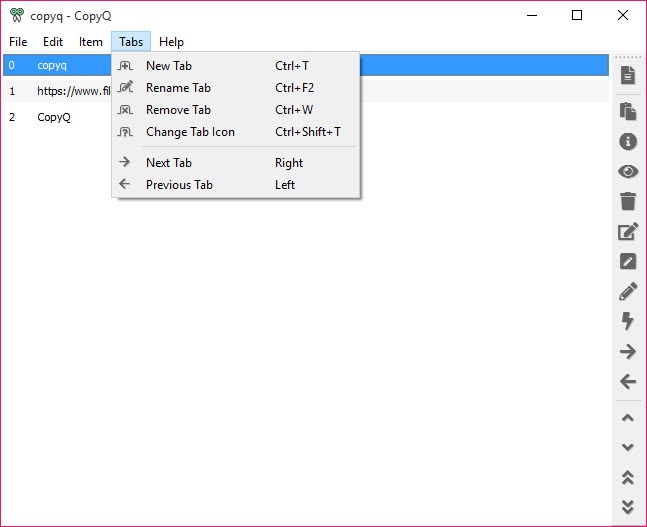
About CopyQ
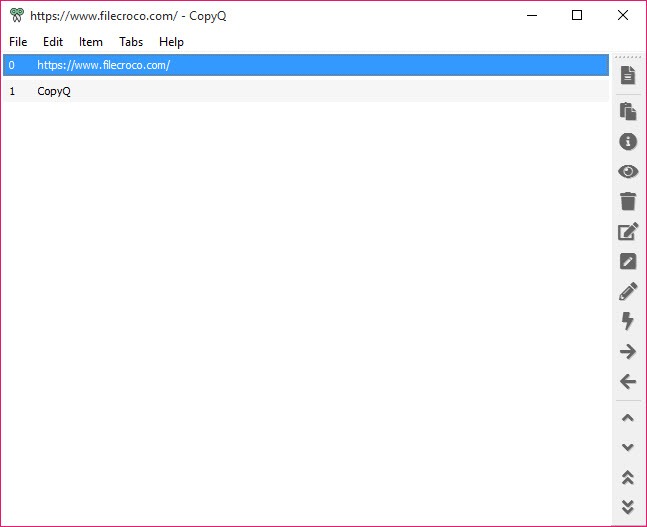
CopyQ is a clipboard manager that treats your copy history less like a list and more like a small database you can search, edit, and script against. Your system clipboard normally holds exactly one thing at a time. Copy something new and the old contents vanish. CopyQ runs quietly in the tray, catching everything you copy (text, images, HTML, URLs, code, even arbitrary custom formats) and keeping it all in a searchable history you can pull from whenever you need it.
Plenty of clipboard managers do the basic job of remembering what you copied. What separates CopyQ from the simpler ones is depth. It has tabs for organizing items, an ECMAScript scripting engine, a full command-line interface, and a Vim-style editor baked in.
That makes it the choice for people who want their clipboard to actually do work, not just store it. If you only want the last twenty things you copied in a popup, this is probably more tool than you need.
If you want to strip formatting from pasted text automatically or trigger a custom action every time you copy a URL, this is where you end up.
Tabs turn the history into organized workspaces
The first thing that separates CopyQ from a flat clipboard log is tabs. You can split your history into named tabs and keep work projects, research snippets, and reusable boilerplate in completely separate spaces. A writer might keep one tab for quotes and another for reference links. A support rep can park canned responses in their own tab and grab them without hunting through documents.
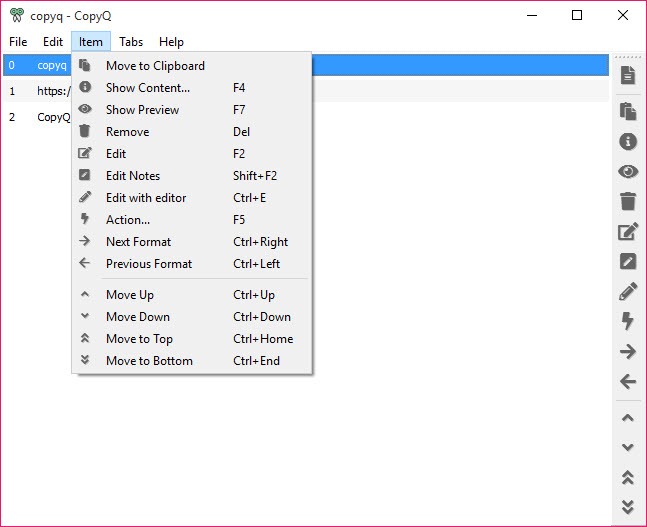
Items inside a tab can be sorted, edited in place, dragged into other tabs, or dropped straight into another application. You can attach notes or tags to individual entries, which sounds minor until you have a few hundred clips and need to remember why you saved a particular one.
Search runs with a tap of F3 and filters as you type, highlighting matches. For a history that grows into the thousands, that search is what keeps the whole thing usable rather than a junk drawer.
Scripting and the command line do the heavy lifting
Here is the part that earns CopyQ its reputation among technical users. There is a scripting interface based on ECMAScript, and you can write small commands that run automatically when the clipboard changes. A command that strips all HTML formatting from whatever you paste. One that auto-capitalizes text. One that fires only when the copied content matches a pattern, like a URL or an email address. The custom command system can run a program on the text of selected items and pass that text in as an argument, so the clipboard becomes a trigger for whatever you want to script around it.
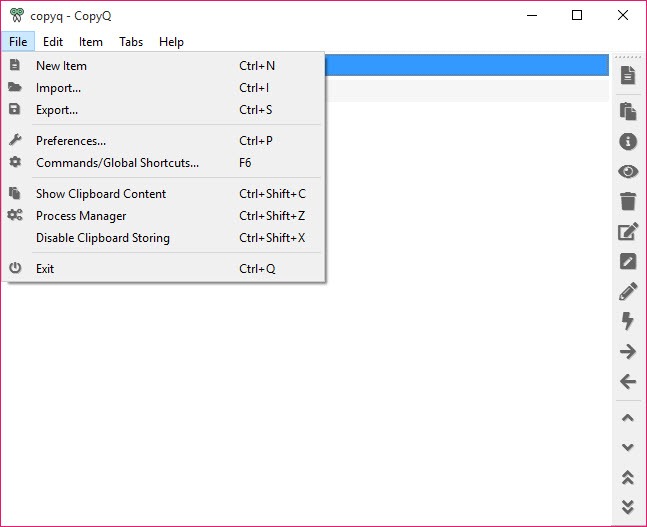
The command-line side mirrors that power. With the main app running, you can issue commands like adding text to the history, printing the contents of a specific row, or pasting to the focused window, all from a terminal or a batch file. That opens the door to wiring CopyQ into other automation workflows you already use.
It is genuinely more than a clipboard tool at that point. Whether you will ever touch any of this is another question. Most people will not, and that is fine, but the ceiling is unusually high for a free utility.
Editing, images, and the Vim-style editor
CopyQ does not just store what you copy. It lets you change it. The built-in editor handles text edits in place, and for anyone who lives in Vim, there is a Vim-like editing mode with familiar shortcuts. You can also point items at your preferred external text editor if you would rather edit there.
Image support is better than most rivals manage. Copy a screenshot or an image and it lands in the history as a real item you can preview, not just a thumbnail reference that breaks later. The application stores text, HTML, images, and custom data formats side by side, so a clip keeps its proper type rather than getting flattened to plain text.
There is also a paste-as-plain-text shortcut for the opposite case, when you want the words without the formatting baggage they came with.
Encryption, sync, and ignore rules
A few features push CopyQ into territory that simpler tools like Clibor or Copy++ do not reach. Specific tabs can be encrypted. You generate keys, then mark which tabs get protected, which makes a reasonable home for passwords or sensitive snippets you do not want sitting in plain history. Granted, a dedicated password manager is still the safer place for real credentials, so treat this as convenience rather than a vault.
Tab synchronization points a tab at a folder on disk. Drop that folder inside a synced directory (Dropbox, Google Drive, whatever you use) and the tab’s contents travel across your machines. It is not a polished cloud-sync feature with a login, just a clever use of folder syncing, but it works.
And ignore rules let you tell CopyQ to skip clipboard content from certain windows or matching certain text, so a password field or a particular app never leaves a trace in your history.
Conclusion
CopyQ is built for the person who copies and pastes constantly and wants real control over what happens to that data. Developers juggling code fragments and terminal output, writers managing research across separate tabs, support staff reusing canned replies, anyone whose day involves moving text and images around in volume. For that crowd, the scripting and tab organization quietly remove a lot of friction.
It is not the pick for someone who wants a tidy popup and nothing else, and the plain interface plus missing auto-updater are fair knocks against it. But few free utilities offer this much headroom. You can use CopyQ as a simple history on day one and slowly grow into the scripting and automation as your needs get more demanding, which is a rare kind of flexibility to get at no cost.
Pros & Cons
- Tabbed history keeps different projects and snippet types cleanly separated
- ECMAScript scripting and a full command line make it programmable far beyond a normal clipboard tool
- Stores text, HTML, images, and custom formats without flattening them to plain text
- F3 search with live filtering keeps even a huge history navigable
- Encrypted tabs and per-window ignore rules add a layer of privacy control
- Free, open source, and runs as a portable program with no install required
- The depth comes with a learning curve that casual users will find unnecessary
- Default appearance is plain and the interface feels more functional than friendly
- No built-in auto-updater, so you check for new versions yourself
- Tab sync leans on external folder-syncing rather than a real cloud feature
Frequently asked questions
The scripting engine and command line. Beyond storing history, the application can run custom commands on clipboard items, automate formatting, and be controlled from a terminal, which simpler tools cannot do.
They serve slightly different users. Ditto is friendlier for someone who just wants a fast clipboard popup. CopyQ wins on advanced editing, scripting, image handling, and cross-tab organization, so the heavier your workflow, the more it pulls ahead.
Yes. It keeps images, HTML, URLs, and custom data formats as proper items you can preview and reuse, not just plain text.
Press F3 inside the main window to open search, then type. Results filter live and matching text is highlighted, which makes finding an old clip quick even with thousands stored.
It can. You can encrypt specific tabs and set ignore rules so clipboard content from chosen windows or matching certain text is never saved at all.


