

PDFCreator
About PDFCreator
PDFCreator is a virtual printer. It adds a printer to the system, and anything that can print, a browser, a spreadsheet, an old accounting package with no export button, can produce a PDF by choosing that printer instead of a physical one. The rendering is done by Ghostscript, and on top of that engine sits a workflow layer that decides what the file is called, where it goes, whether it is encrypted or signed, and what happens to it afterwards.
That layer is the reason to pick it over doPDF or the print-to-PDF option built into the system. Those give you a PDF and a save dialog. PDFCreator gives you profiles, each attached to its own printer, so that “Invoices” saves an encrypted PDF/A into a dated folder and emails it, while “Quick” just drops a file on the desktop. Whether you need any of that is the question this article tries to answer.
One printer per profile
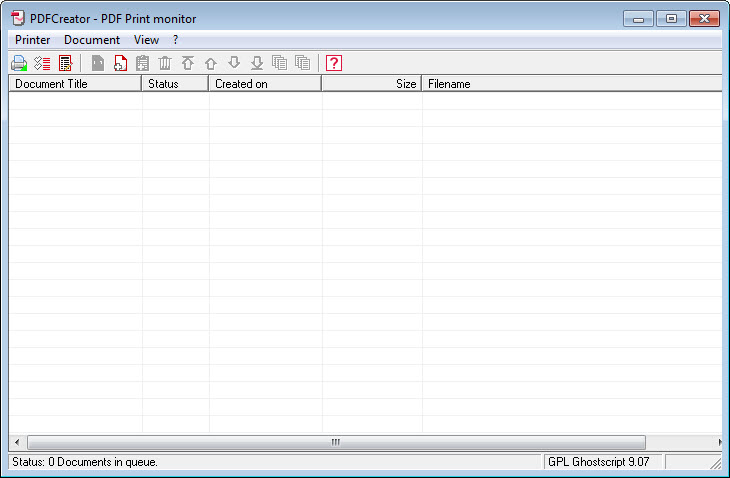
Printing to it opens a small window with the document title and author, plus subject and keywords, already filled from the source, a profile dropdown, and buttons to save, email, merge or preview. You can also create several printers in the settings and bind each to a profile, so the choice happens in the print dialog rather than afterwards. Set a profile to auto-save and its printer produces a file with no window at all, which is what you want for anything that runs unattended.
There is a catch with unattended profiles. Since nobody is there to type anything, every password the profile needs, for encryption, for signing, for the SMTP server, has to be stored in the profile, and the documentation is frank that the storage is obfuscation rather than real encryption. If you want no workflow layer at all and simply a PDF button in every program, a single-purpose PDF printer does that with less to configure.
Output formats beyond plain PDF
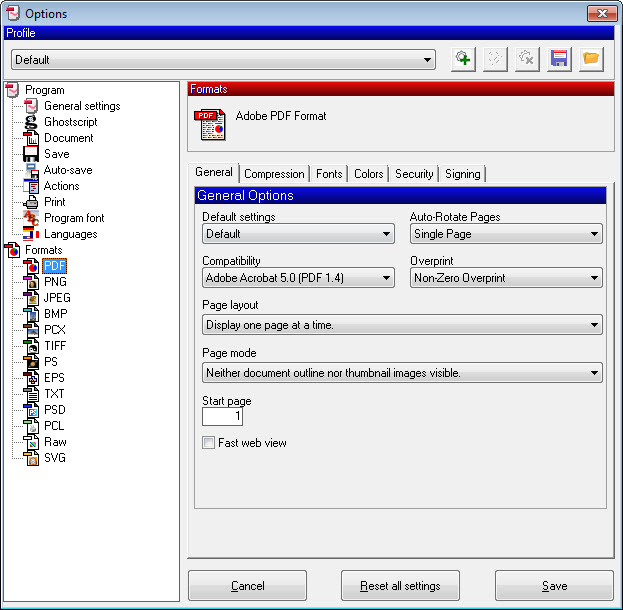
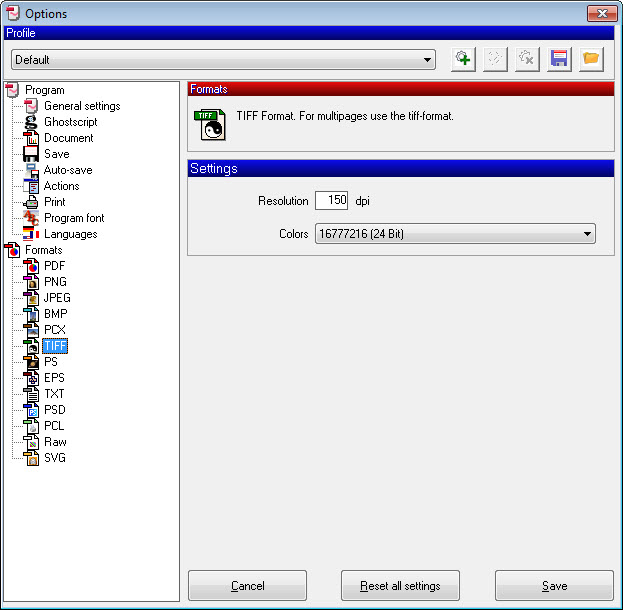
Alongside standard PDF, PDFCreator writes PDF/A-1b, PDF/A-2b and PDF/A-3b for archiving, and PDF/X-3 for print production. Pick one of those and encryption is switched off automatically, because both standards forbid it, which surprises people the first time. Image formats are JPEG, PNG and multi-page TIFF at a default 150 dpi, and there is a plain text output that extracts whatever text the print job carried.
The PDF settings are where the file size gets decided. Image compression can be JPEG at a chosen quality or ZIP for lossless, images can be resampled down to a target dpi, and the colour model can be forced to RGB, CMYK or greyscale (though that setting ignores embedded images).
Auto-detect orientation reads the text direction page by page and rotates sideways pages, which works on real text and does nothing for text inside pictures. You can also set how a viewer opens the file, single or double page, with or without the bookmark panel, and which page it starts on.
Tokens, auto-save and what happens to duplicate names
Filenames and folders in a PDFCreator profile are built from tokens. <Title>, <Author>, <Username>, <Counter> and <DateTime> are the ones you will use, and <DateTime> takes a format parameter, so <DateTime:yyyy-MM> creates a monthly folder without any scripting. Combine a few and a scanned statement lands in Documents\2026-03\Bank Statement – 2026-03-14.pdf every time, named by the program that printed it.
When the target file already exists you choose between overwrite, unique filenames (a numbered suffix is added) or auto-merge, which appends the new print job to the existing file. That last one turns a folder into a running logbook with no extra steps.
There is also an option to save into a temporary folder that PDFCreator empties every 48 hours, for profiles whose whole purpose is to send the file somewhere else.
Merging, plus covers and stamps
Print three documents in a row without saving and they queue in the print job window, where you can merge them into one PDF and drag the order around before saving. That is the everyday merge. The profile-level version is the Modify actions, which run on every output. A cover PDF prepended, an attachment appended, a background PDF laid under every page (letterhead is the obvious use), a text watermark, a stamp with your own text and font, and page numbers with a chosen position and format.
Together these cover the paperwork cases, but they are one-directional. The tool builds files and never opens them again, so rotating a page or deleting one afterwards means an editor that can rearrange pages in an existing PDF rather than this. PDFCreator does not pretend otherwise, and the settings say as much.
Encryption and digital signatures
The Encryption action sets an owner password, a user password or both, and the usual permission flags for printing, copying, form filling and editing. The personal edition encrypts at 128-bit AES and the Professional edition at 256-bit, which is a curious place to draw the line, since 128-bit AES is not what anyone breaks. The practical difference is compliance paperwork rather than security.
Signing uses a certificate file with its password and adds reason and contact fields plus a location. You can also place a visible signature image, either a picture file or one drawn with the mouse on a small canvas and saved with a transparent background.
Time-stamp servers are supported. As with everything else, all of this can run inside an auto-save profile, which is how an accounts department signs every outgoing invoice without touching it.
Send actions, and where the personal edition stops
After the file is written a profile can run one or more Send actions in an order you set. Open in the default viewer, print to a physical printer, email through the desktop client or directly via SMTP or Outlook Web, upload by FTP or HTTP, push to OneDrive, SharePoint or Dropbox, or run any program with the file path as an argument. If one action fails you decide whether the rest still run.
The line between editions sits here. User tokens (values pulled out of the printed text itself, which can also split one print job into several PDFs), the CS-Script action that lets you write C# against the job, forwarding a job from one profile into another, and the COM interface for controlling it from your own code are all Professional-only.
The personal edition still automates a great deal, but the moment you want data from inside the document to drive the filename, you have hit the wall.
Advertisements and the setup offer
The personal edition shows advertisements inside its own window. Not in the PDFs, and not as pop-ups, but as a panel in the print job dialog, and it is the most common complaint about this software by a wide margin. The Professional edition removes them and adds an MSI installer and group policy support for deployment, which is the version any office should be running.
The setup also offers a companion PDF editor, PDF Architect, with the box ticked by default. Untick it unless you want it, because it installs separately, uninstalling PDFCreator later does not remove it, and it has its own promotional messages.
If ads in a PDF printer are a deal-breaker and you do not need the automation, PDF24 Creator covers the everyday printing and merging without them.
Conclusion
PDFCreator suits small offices, freelancers and anyone whose PDFs need to be named, filed, stamped or sent the same way every time. The profile system is the best of any virtual printer we have used, and once a few printers are set up, the machine does the filing.
Home users who print a PDF once a week are paying for that power in screen space taken by advertisements, and a plainer printer will serve them better. The verdict depends entirely on whether you will build a workflow or just want a file.
Pros & Cons
- Multiple printers, each bound to its own profile
- PDF/A-1b, 2b, 3b and PDF/X-3 output with encryption handled correctly
- Token-based filenames and folders with date formatting and counters
- Auto-merge appends new print jobs to an existing file
- Cover pages, backgrounds, watermarks, stamps, page numbers applied to every output
- Send actions to email, FTP, HTTP and the major cloud drives
- Advertisements in the print job window of the personal edition
- Setup pre-selects a separate PDF editor that uninstalls separately
- User tokens plus scripting and the COM interface are Professional-only
- Stored passwords in auto-save profiles are only obfuscated
- Cannot edit or rearrange an existing PDF
Frequently asked questions
Open the profile, enable auto-save, set the folder and filename using tokens, then link that profile to one of the virtual printers in the application settings. Printing to that printer writes the file silently.
The PDF/A and PDF/X standards prohibit encryption, so PDFCreator switches it off automatically for those formats. Use standard PDF if you need a password.
Yes. Print each document without saving and they collect in the print job window, where you can merge and reorder them. For a hands-off version, set the profile's existing-file behaviour to auto-merge.
The setup offers PDF Architect with the option pre-selected. It installs as a separate program and has to be uninstalled separately.
They are part of the personal edition and cannot be switched off in its settings. Only the Professional edition runs without them.


