

BootRacer
About BootRacer
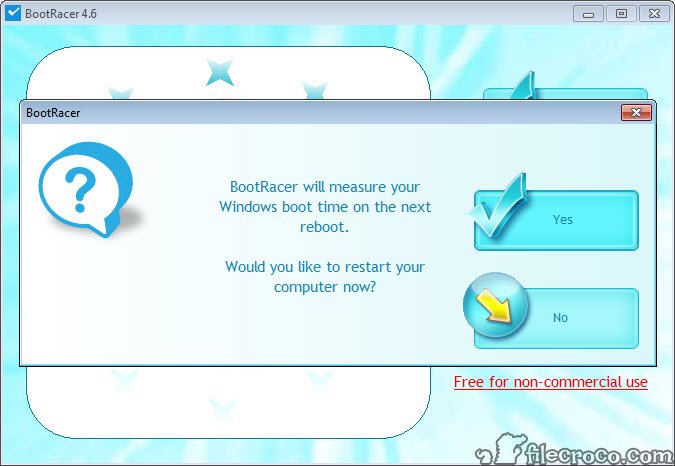
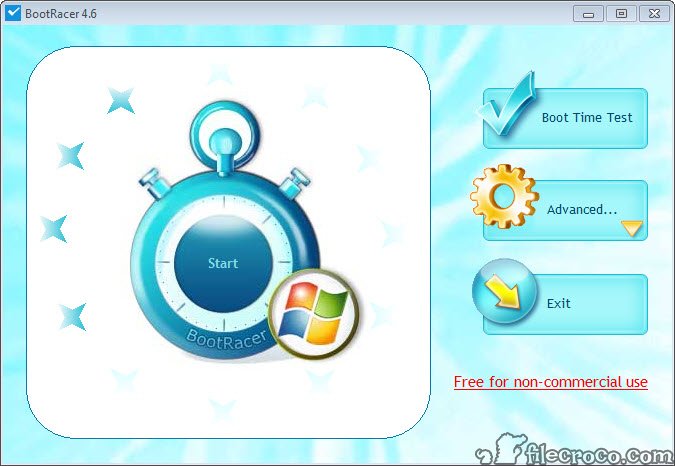
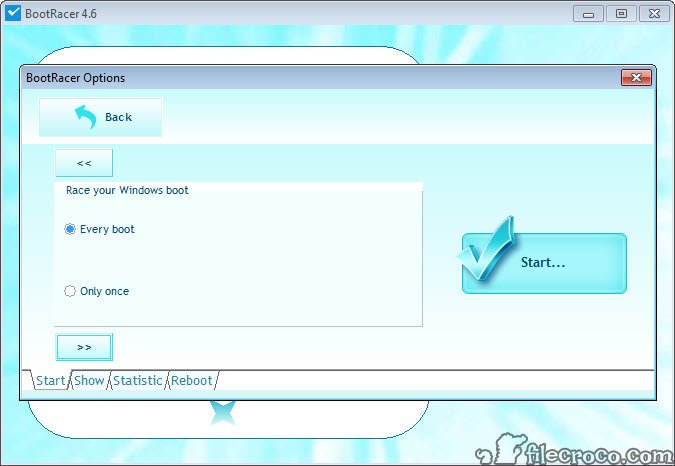
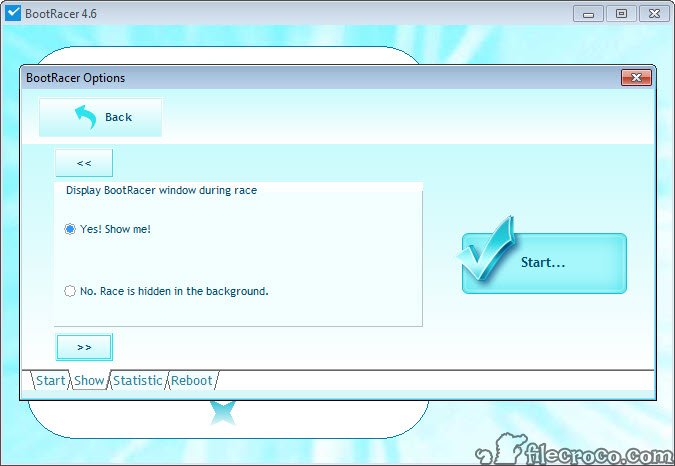
Most users complain about slow boot times based on a feeling. The login screen takes forever, the desktop crawls to draw, programs are still loading two minutes after Windows says it is ready. BootRacer turns that feeling into a number. It measures exactly how long the system spends in each phase of startup, logs every boot to a history database, and flags when performance starts to degrade compared to your own baseline.
The tool runs in the background during startup, hooks into Windows boot events, and reports three distinct timing values. Time from power-on to logon screen. Time from logon (password entered) to desktop. And total time to a fully responsive system, defined as the point where CPU and disk activity drop to near-idle.
Splitting those three is the part that matters. A computer slow to reach the logon prompt has a different problem than one that hangs for 90 seconds after you type your password, and lumping them together (as Windows itself does in Event Viewer) hides which phase actually needs attention.
Why measuring boot time is useful in the first place
If you have ever tried to “speed up” Windows by disabling startup programs, you know the problem. You disable a few entries, reboot, and the system feels faster. Maybe. You disable a few more, reboot again, and now it feels slower? Or about the same? Without a baseline, every change is guesswork.
BootRacer removes the guesswork. You run a test, get a number in seconds, make a change, run another test, and see whether the number actually moved. The history view stores every boot result with a timestamp, so you can correlate slowdowns with specific events (a Windows update, a new application installation, an antivirus change) instead of vaguely blaming Windows.
For anyone using startup managers like Autoruns to clean up boot bloat, this is the feedback loop you would otherwise be missing.
The password timeout problem
Every boot measurement tool has to deal with a basic question. Does the time it takes you to type your password count as boot time? Different tools answer differently, and the inconsistency matters because typing speed varies wildly. A 5-second password entry on one day and a 30-second one the next day will make boot times look dramatically different even if nothing else changed.
BootRacer solves this by detecting the logon event and excluding the password entry time from its main metric. The total goes up to the logon prompt, pauses, then resumes counting after Windows authenticates you.
You see “time to logon” and “time from logon to desktop” as separate values, and the time you spent staring at the password field does not pollute either one. Most competing tools either include the password time silently (inflating numbers) or skip it entirely (missing the boot complete time). This split-measurement approach is the most accurate of the lot.
The boot rating and what it actually means
After each measurement, the application assigns a rating. Excellent, Good, Average, Slow, Very Slow. The thresholds are based on the boot time in seconds, and they are tuned for typical desktop hardware running Windows 10 or 11. Anything under 15 seconds (time to desktop, password excluded) gets Excellent. 15 to 30 is Good. Above 60 is Slow.
This is useful as a quick reference but not as gospel. The rating does not know whether your machine has an NVMe SSD or a 5400 RPM mechanical drive, and a number that is “slow” on the former is “excellent” on the latter.
We treat the rating as a relative measure against your own history rather than an absolute judgment, and that is how the tool is most useful in practice.
Startup program management
Beyond measurement, BootRacer includes a startup program manager that lets you disable, delay, or pause entries that run at boot. The list is similar to what Task Manager’s Startup tab shows, but with a few additions. You can pause an entry (it stays registered but does not run on the next boot), delay it (it runs but only after a configurable wait), or fully disable it. There is also an undo history that holds up to a thousand previous changes, so if disabling something breaks an application, you can revert without remembering what you did.
The delay feature is the underrated one. Some startup programs (cloud sync clients, update checkers, manufacturer utilities) genuinely need to run on every boot but do not need to run immediately. Delaying them by 30 to 60 seconds lets the desktop become responsive first, then the slow stuff kicks in once you are already working.
Compared to a dedicated startup organizer, the integration of measurement and management in one window means you can immediately verify whether a change actually helped.
History and degradation tracking
Every boot the system performs gets logged automatically, even when you do not explicitly run a test. The history view shows a sortable list of boot times with date, total time, and rating. Over weeks or months, this becomes a record of how your system performance has evolved.
What we have found useful in practice is the degradation warning. The application calculates a rolling average of recent boots and notifies you when current boot times exceed it by a configurable margin.
This catches the slow creep that happens when you install software over time, where each individual addition seems minor but the cumulative effect doubles your boot time over six months. Without an automated benchmark running on every boot, that drift is invisible until it becomes painful.
The countdown timer
A smaller feature that turns out to be genuinely useful. After each boot, the application displays a countdown showing how many seconds remain until the system is fully ready, based on the average of your recent boots. Instead of staring at the desktop wondering whether disk activity is finished or just paused, you see “30 seconds remaining” and can plan accordingly. Get coffee, check your phone, come back to a responsive machine.
The estimate is based on observed history, not a fixed number, so it adapts to your actual hardware. A laptop that takes 45 seconds will show 45 seconds. A workstation that takes 15 will show 15. The accuracy improves the longer you have used the tool.
Free version limits and the paid tier
The free version measures boot time, manages startup entries, logs history, and shows the countdown timer. The paid Premium tier adds malware blocking at startup (it inspects startup entries against a threat database), unlimited boot history depth, and removal of the upgrade prompts. For most users, the free tier covers everything that actually matters, and the upgrade nags are infrequent enough to be tolerable. If you want a more aggressive cleanup approach, the free version pairs well with general system optimization tools.
Where the data comes from and the methodology question
One detail worth understanding. BootRacer measures the wall-clock time between the user-mode startup events that Windows itself logs, plus its own service hooks. It does not measure pre-Windows BIOS or UEFI initialization time, which means a system with a slow firmware POST will show a fast “boot time” even though you waited a long time before Windows even started. For a complete picture of slow startup, you may need to add the BIOS time separately, which Windows exposes in Task Manager under the Startup tab.
It also cannot distinguish between hardware-bound delays (a slow SSD) and software-bound delays (a heavy antivirus). The total tells you the symptom, not the cause. For diagnosing which startup program is responsible for a specific slowdown, you still need to disable items one at a time and observe the result.
The tool just makes that observation reliable.
Conclusion
BootRacer is built for users who want to treat boot performance as something measurable rather than something to complain about. System administrators tracking fleets of identical machines, enthusiasts tuning their own setups, anyone who has installed too much software over the years and wants to know which changes actually helped, will get use out of it. The split-phase measurement and automatic history logging are the two features that separate it from simpler alternatives.
It is not a one-click optimizer and does not claim to be. The tool gives you data, you do the work of acting on it. For a casual user who just wants a faster computer without thinking about it, generic cleanup software will feel more satisfying because it produces an immediate visible result. For anyone who wants to know whether that result is real, this is the verification layer that closes the loop.
Pros & Cons
- Splits boot time into three distinct phases (to logon, to desktop, total) instead of one opaque number
- Excludes password entry time so measurements stay consistent across days
- Logs every boot automatically and warns when performance degrades compared to your history
- Built-in startup manager with pause, delay, and disable options, plus a 1000-step undo
- Countdown timer based on real boot history rather than a fixed estimate
- Free for non-commercial use with most features intact
- Does not measure pre-Windows firmware time, so the total can be misleading on systems with slow UEFI
- Cannot identify which specific startup item caused a slowdown without manual testing
- The premium upsell appears periodically in the free version
- The rating thresholds do not adjust for hardware type, so SSD vs HDD machines get judged by the same scale
- Startup program list overlaps significantly with Windows Task Manager, making part of the feature redundant
Frequently asked questions
The application measures time from power-on to logon screen, time from logon to desktop, and total time to a fully responsive system. It logs each phase separately so you can identify which part of startup is slow.
No, the time between the logon prompt appearing and the password being entered is excluded from the main measurement. This keeps boot times comparable across days regardless of how fast you type.
Task Manager shows which programs are set to run at startup and gives a vague impact rating. This tool measures actual boot time in seconds, logs history, distinguishes between boot phases, and includes a delay feature that Task Manager lacks.
Some startup entries are required for specific applications to work correctly. The tool maintains an undo history of up to 1000 changes, so if disabling an entry causes a problem, you can restore it without needing to remember what you changed.
Boot time depends on background processes (Windows Update, antivirus scans, scheduled tasks), system load at shutdown, and current disk fragmentation. The application's degradation warning compares against a rolling average specifically to filter out one-off variations.
Yes, the application measures wall-clock time and works the same way regardless of storage type. On SSD systems, total boot times are typically much shorter (often under 20 seconds), so the absolute differences between optimizations are smaller but still measurable.


