

Picosmos Tools
About Picosmos Tools
Picosmos Tools gathers a dozen separate image utilities behind one launcher of coloured tiles. Click a tile and a viewer opens, or a layered editor, or a one-click effects panel, a collage maker, a batch converter, a background cutout tool, a screen capture tool with text recognition, a screen recorder, a portrait retoucher or a small animation maker. Each is its own window with its own controls. The suite’s promise is that whatever you need to do with a picture, one of the tiles will do it.
The honest way to read that list is as a set of light tools rather than one deep one. The viewer is good, the effects panel is quick and pleasant, the capture tool is handy, and the editor opens more formats than you would expect, including RAW, PSD and WebP, with proper layer support.
None of them reaches the depth of a dedicated application, and a few exist mainly to fill a tile. Picosmos Tools earns its place through convenience, not power, and anyone who understands that going in will get on with it well.
The viewer and the launcher
Picosmos Shows, the Picosmos Tools viewing module, is the part that people keep using after the novelty wears off. It browses folders as thumbnails with a size slider, opens images quickly, and steps through a folder with the keyboard. There is an option to show images from subfolders in one flat view, labelled oddly in translation, which is useful for a shoot spread across date folders.
The launcher’s tile screen is bright and animated, and it means every task starts from the same place. The trade is that nothing chains together. Finish in the effects panel and you save a file, then open the batch tool and load that file again.
There is no shared workspace, so a job that touches three modules involves three saves.
The Editor, the Effect panel and Cutout
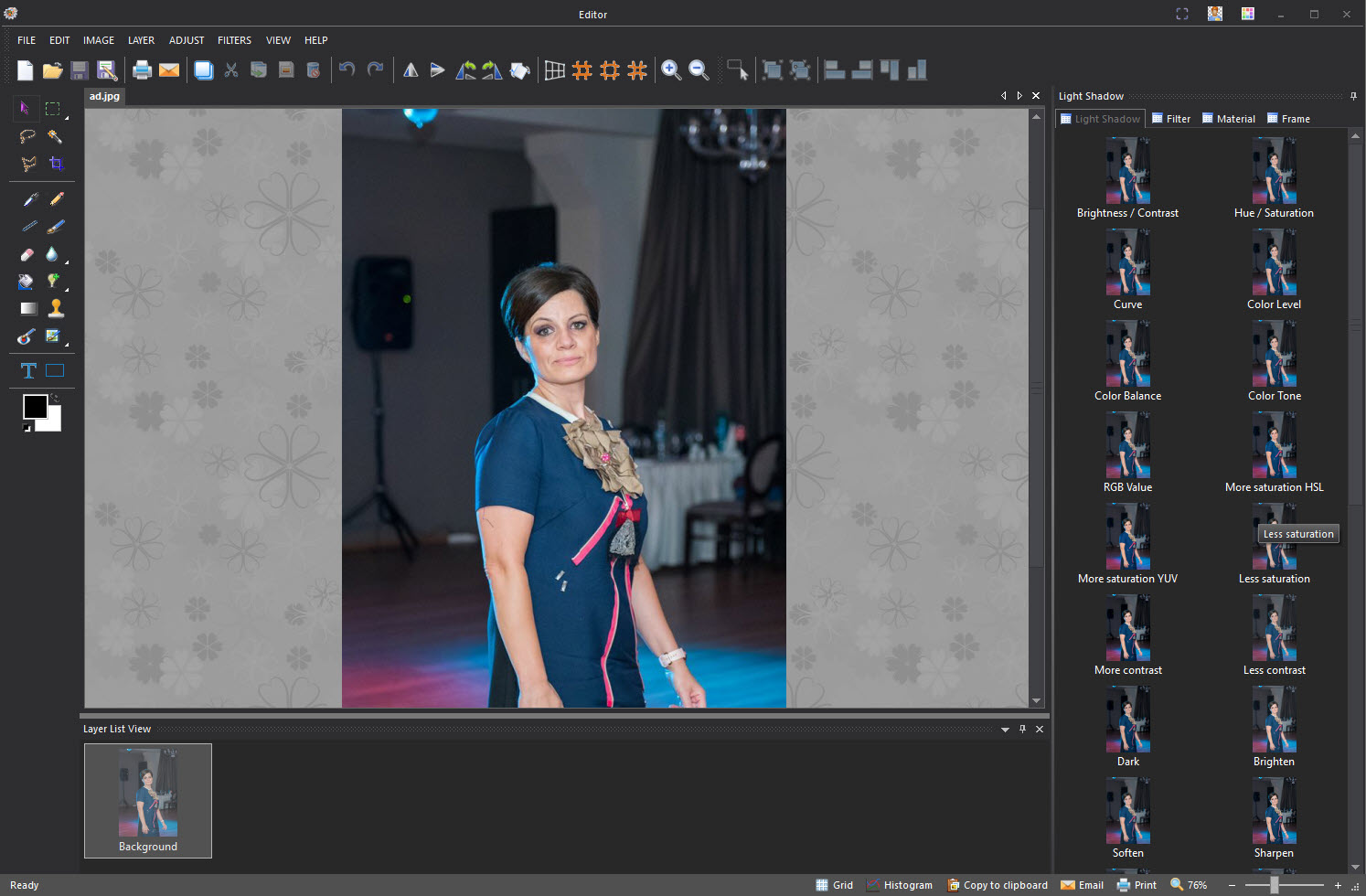
The Picosmos Tools Editor is a conventional layered editor with several kinds of selection tool, brushes, transforms and a long filter list. It handles cropping, rotation and the basic brightness and colour adjustments, with a curves-style adjustment missing and no adjustment layers or masks, which caps what it can do for careful retouching. For everyday corrections it is capable and quick.
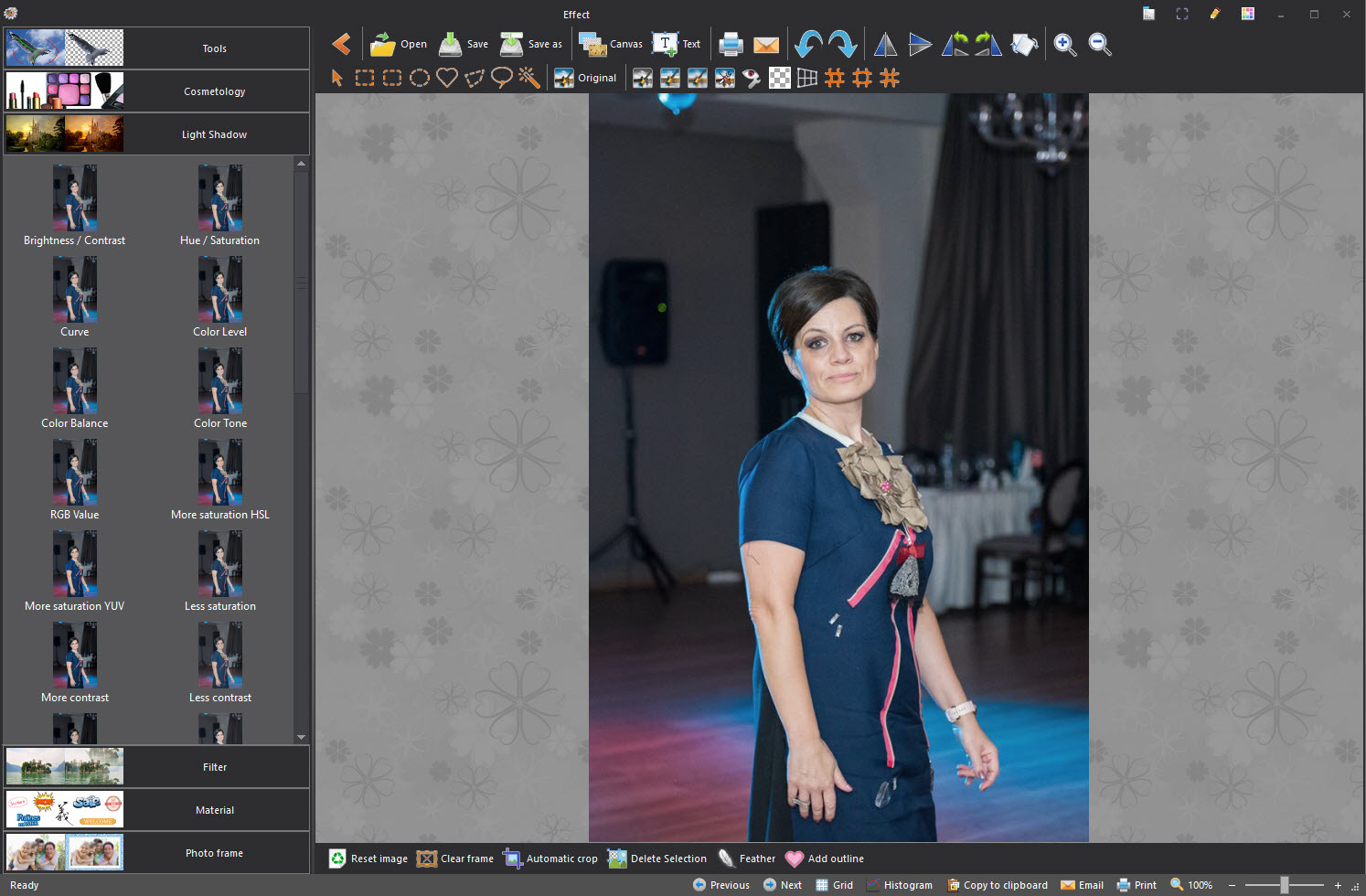
Effect is the module most people enjoy. Open a picture, scroll the sidebar of filter thumbnails, click one and it applies. Frames and clipart live here too, along with text overlays, and effects can be painted on with a brush rather than applied to the whole image. Individual effects have few settings, so the look is take-it-or-leave-it, but for a quick social post it does the job faster than opening a full image editor.
Cutout separates a subject from its background with a few strokes marking foreground and background, then refines the edge. It is decent on clear edges and struggles with hair and glass, as most such tools do.
Erase removes an unwanted object by cloning from around it, and works on small blemishes better than on large ones.
Page, Combine and Split
Page is the Picosmos Tools poster and collage designer. Drop images into a template, move them around and resize them, add text and a background, and export a single image. Templates cover common social and print sizes, and the results look like templates, which is fine for a quick invitation and less so for anything with a brand behind it.
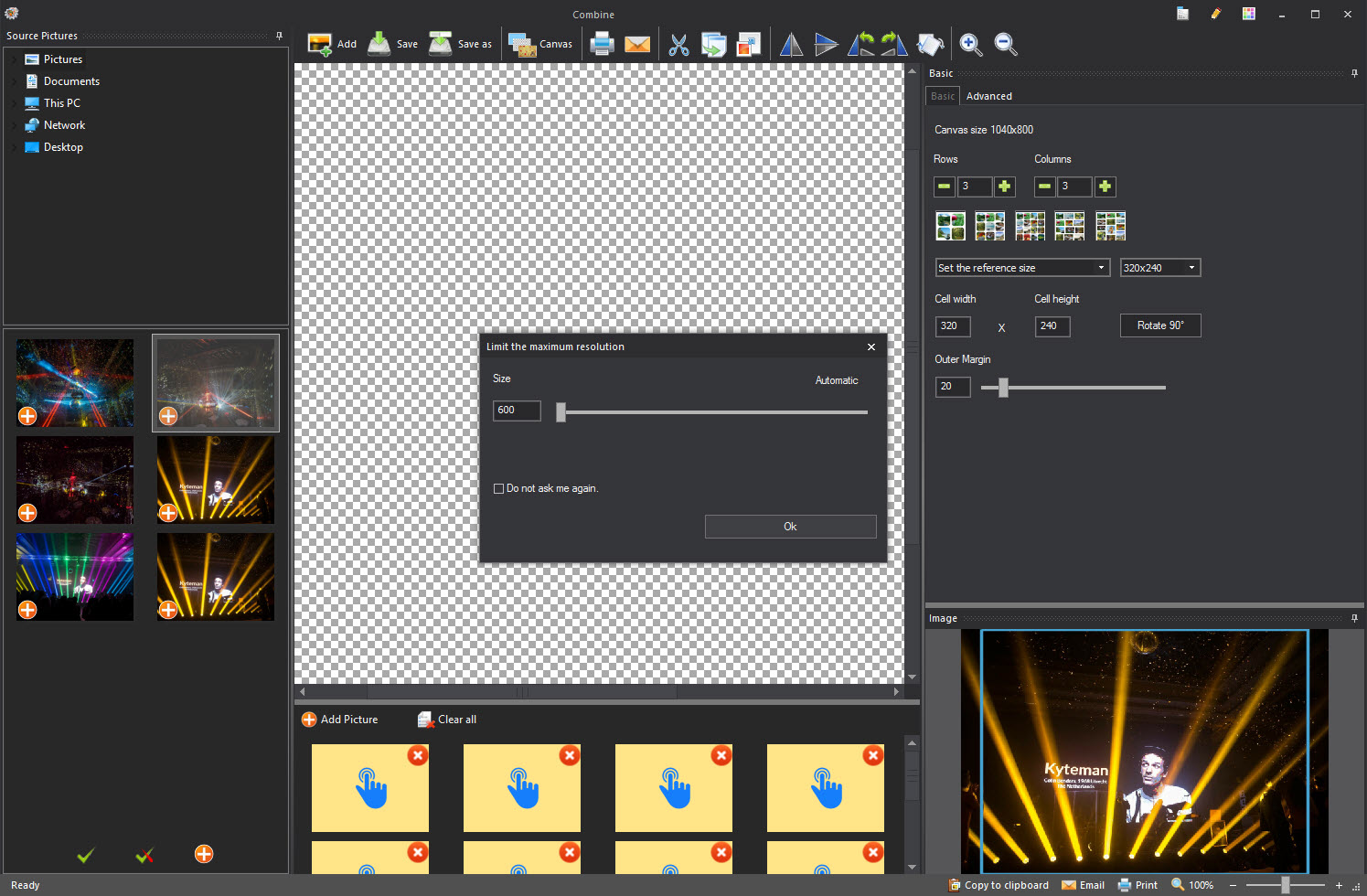
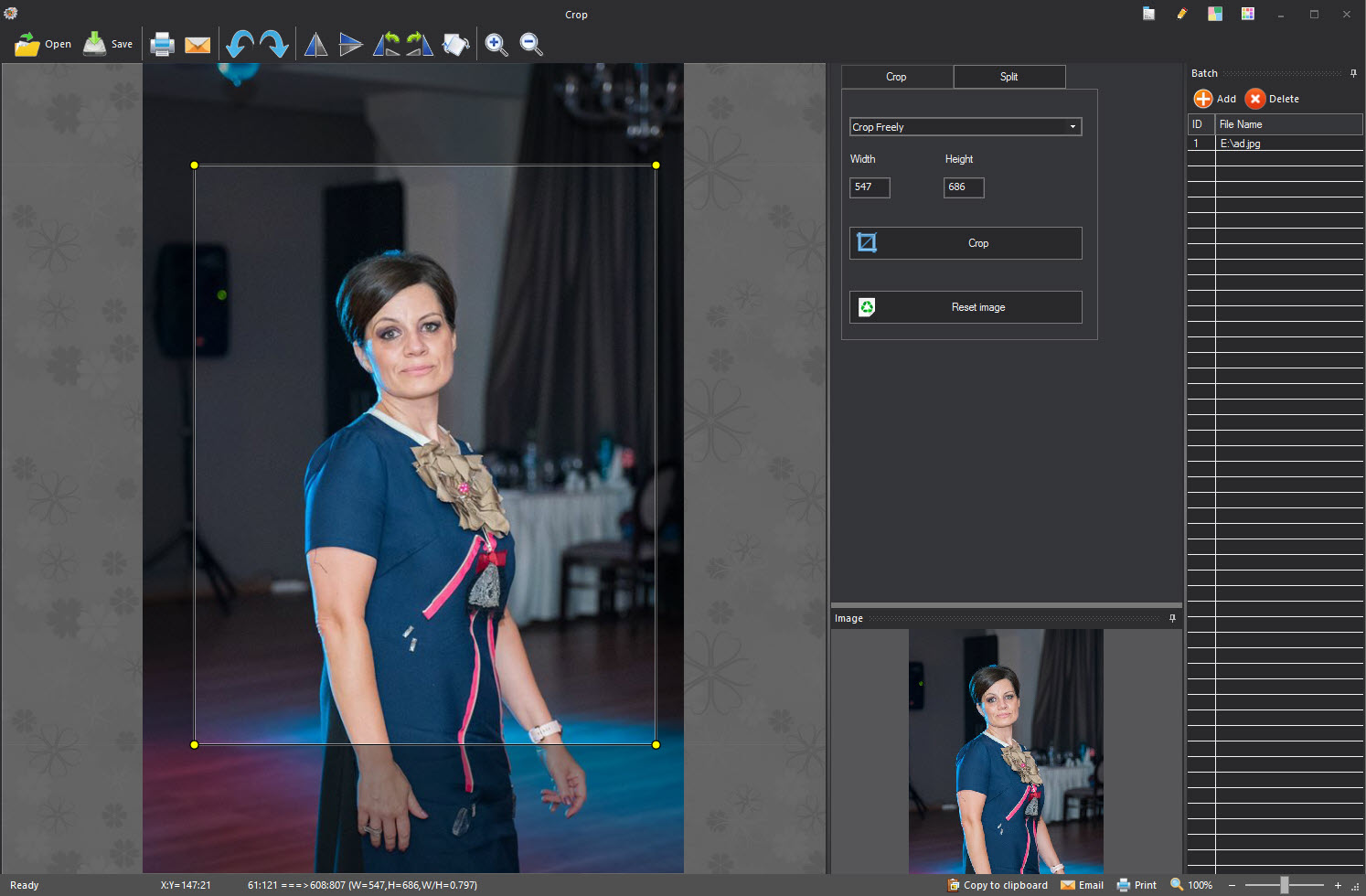
Combine stitches several images into one by rule, side by side, in a grid, or top to bottom with a set gap, which is how before-and-after comparisons and long screenshot strips get made. Split does the reverse, slicing one image into a grid of tiles for a puzzle or a multi-post layout. Both are single-purpose and both are quicker here than in an editor.
Batch work, screen capture and recording
The Picosmos Tools Batch module renames and converts a folder of images in one pass, with resizing or watermarking applied along the way. It covers the routine tasks and it is not in the same league as a dedicated batch converter, which offers chained operations and saved scripts. For a folder of photos that need to be smaller with a logo in the corner, it is enough.
Screen Capture grabs a rectangle, adds arrows, dashed lines and icons or text labels, and can run text recognition on the captured area so a screenshot of a document becomes editable text. That recognition step is the standout in the suite, since it saves retyping a table from a locked PDF or a chat window.
The capture itself offers a single rectangle mode, with no window, scrolling or timed capture, and a dedicated capture tool does all of those.
Portrait beautifying and animation
Beautify detects a face, locates the features, and offers skin smoothing and whitening, eye enlarging, lip colour, hair colouring and similar adjustments with sliders. The detection is reliable on a clear frontal portrait and the results are the usual airbrushed look, adjustable in strength. It suits profile pictures and not much else.
Animation assembles frames into a GIF or WebM file with timing per frame. It is basic, with no onion skinning or tweening, and it produces adequate short loops from a set of images.
The screen recorder next to it captures the desktop or a region to AVI with no audio controls to speak of, so a purpose-built screen recorder is the better choice for anything with narration.
Conclusion
Picosmos Tools suits home users who want one download that covers viewing, quick effects and the occasional collage or batch job without learning a serious editor. The effects panel, the Combine tool and the capture with text recognition are the parts that justify installing it, and the viewer is good enough to become the default.
Anyone who edits seriously will outgrow the Editor quickly and find the batch tool thin. Treat it as a friendly toolbox rather than a workshop, keep a proper editor for the hard jobs, and the tiles will cover most of what a family’s photos need.
Pros & Cons
- A viewer, layered editor, effects panel, collage maker and batch tool in one download
- Editor opens RAW, PSD, TIFF and WebP with full layer support
- Text recognition on screen captures turns screenshots into editable text
- Combine and Split handle comparison strips and tiled layouts in seconds
- Effects can be painted on with a brush rather than applied globally
- Modules do not share a workspace, so multi-step jobs mean repeated saves
- No masks, adjustment layers or curves in the editor
- Batch tool lacks chained operations and saved scripts
- Capture offers only a rectangle, with no window or scrolling mode
- Some interface labels are awkwardly translated
Frequently asked questions
Yes. The Editor and viewer open common RAW formats along with PSD, TIFF and WebP.
Yes, on screen captures. Capture a region containing text and run recognition to get editable text from it.
Yes. The Editor module supports layers and selections as well as brushes, though it has no masks or adjustment layers.
Use Combine, choose the side-by-side rule, add the images and set the gap. The result exports as one image.


