

PDFescape
About PDFescape
Most tools that claim to edit a PDF do nothing of the sort. They draw a box over the page, put your text inside it, and leave the original underneath untouched, which is fine for a signature and useless for correcting a typo. PDFescape belongs to the smaller group that edits the content itself, changing the words that are already on the page along with their font and colour.
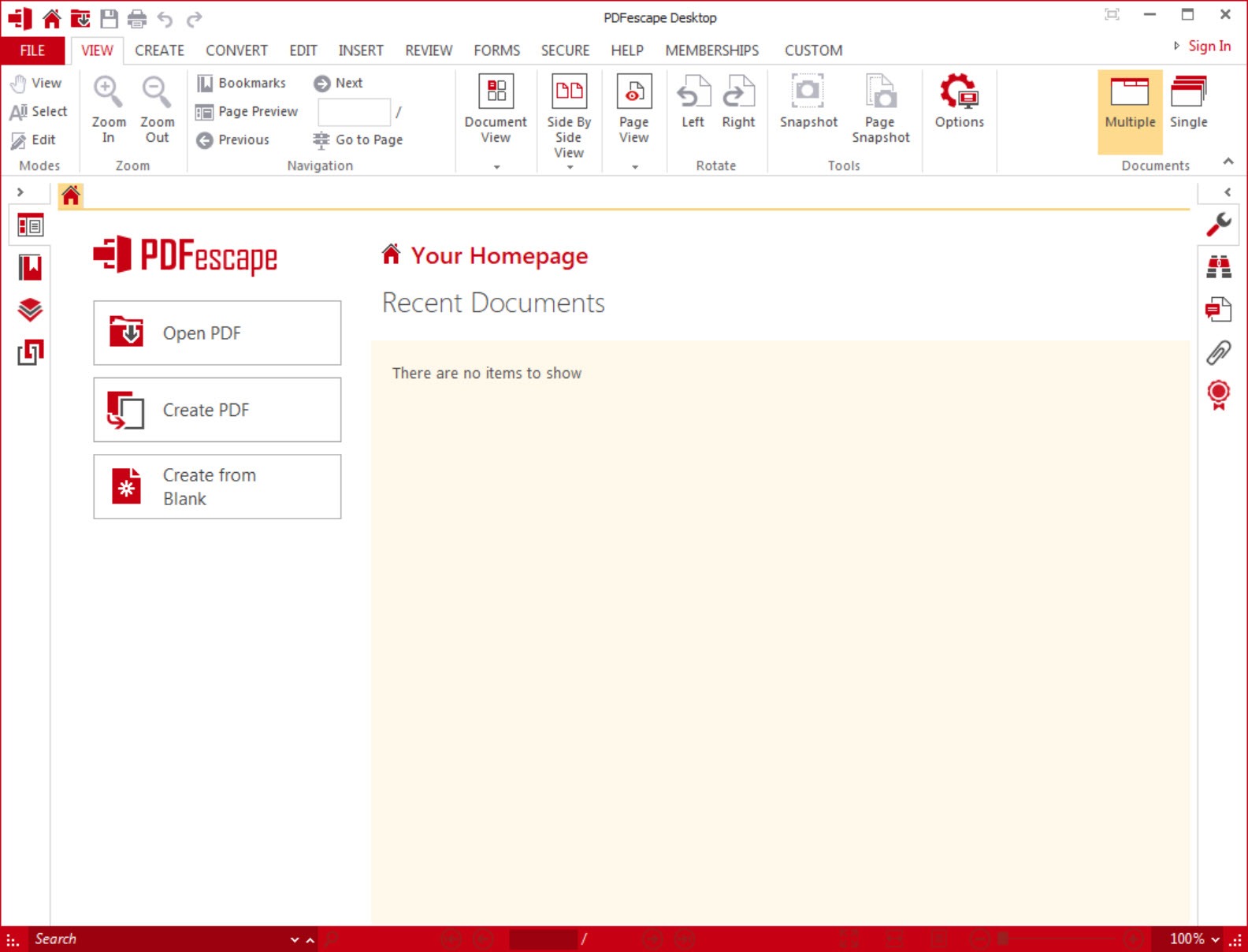
Around that sits the rest of a document suite. Annotation and markup, page assembly, form creation, signing, encryption, conversion out to editable formats, all in a ribbon interface that will look familiar to anybody who has used an office application.
It works entirely offline, which is the quiet advantage over the browser-based tools that dominate this category, and it matters for anybody handling documents they would rather not upload.
Editing text that is already there
In-line editing is the feature to test first, because it is the one most alternatives lack. Select existing text, change it, change its typeface, change its colour. Images already placed in the document can be replaced or moved rather than merely covered up.
Set expectations correctly, though, because this is a limitation of the format rather than of the program. A PDF describes a finished layout, not a document with a structure, so text does not reflow the way it would in a word processor. Lengthen a sentence and it will not push the following paragraph down the page, and a change that overruns the space available has to be resolved by hand.
For genuine re-editing, the honest route is to convert the file and work on the result. LibreOffice opens converted documents perfectly well and gives you a real document model to work in, while losing some of the original layout in the process.
Annotation and markup
The review tools are thorough. Highlighting, underlining, strike-through cover the standard corrections, while floating text boxes, freehand drawing, shapes plus sticky notes handle everything a marked-up printout would carry.
Beyond commenting, PDFescape adds the document furniture that gets requested constantly and is oddly hard to find. Stamps for approval workflows, watermarks across a draft, letterhead applied to an existing file, bookmarks for navigation and hyperlinks pointing outward or to another point in the same document.
If commenting is all you need, and nothing about the underlying content has to change, a reader with full annotation tools covers that job without an editor’s overhead.
Page assembly
Rearranging documents is where this kind of software earns its keep on an ordinary working day. Pages insert blank, import directly from another file, merge from several documents, reorder by dragging, extract into a new file, delete, rotate, crop.
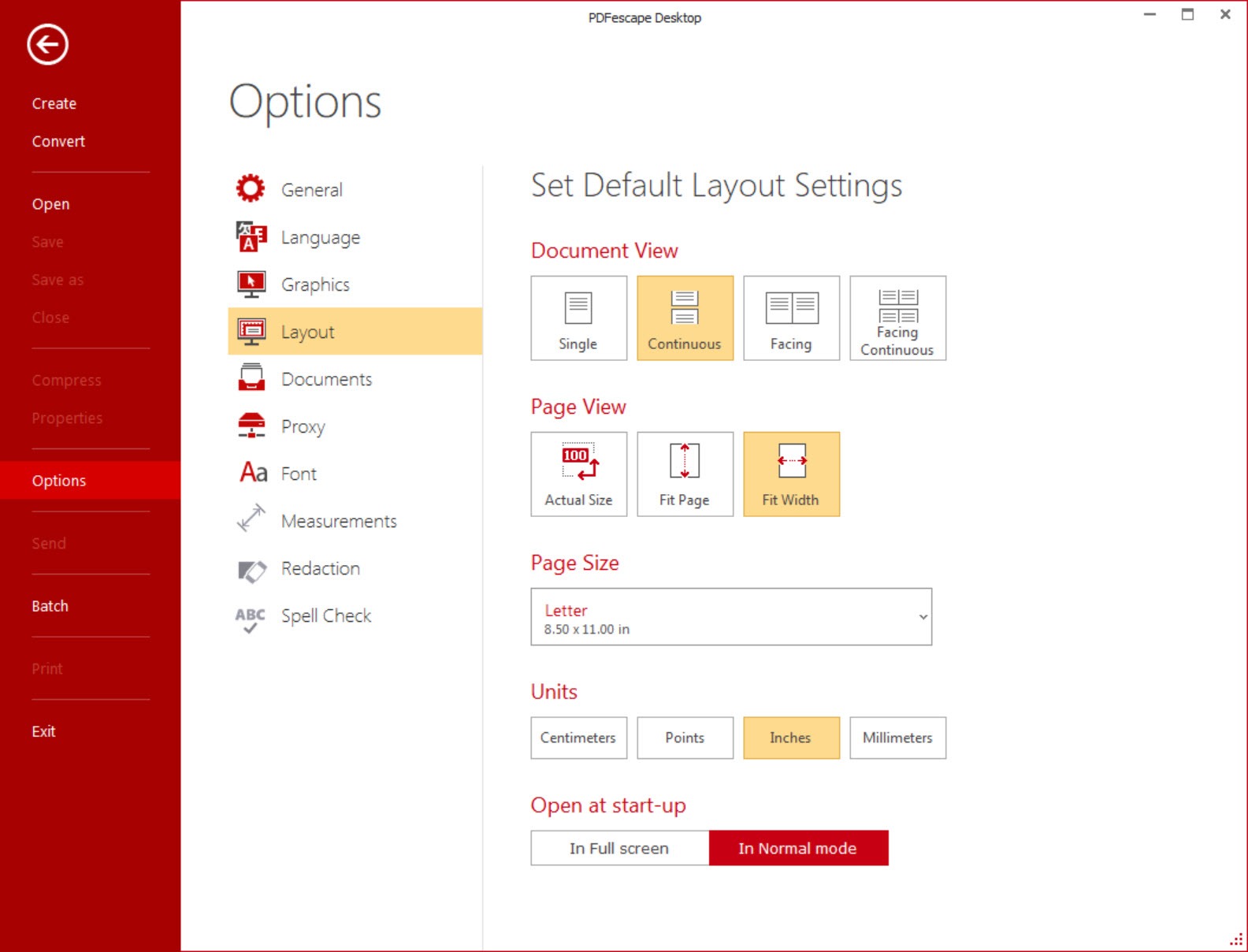
Page size can be changed as well, which sounds obscure until you have received a document mixing two paper sizes and need it to print consistently. Page numbering applies across the assembled result, and compression brings the file size down for anything being emailed.
That combination covers most of what people actually want from a PDF tool. If assembly and conversion are the whole requirement and editing never comes into it, PDF24 Creator does those jobs in a collection of small single-purpose tools instead.
Forms, created as well as filled
Filling a form is table stakes. Building one is not, and PDFescape covers both, with a field set including text boxes, checkboxes, radio buttons, dropdown lists, list boxes, and submit and reset buttons.
That matters because the alternative for most people is producing a document nobody can complete without printing it. A form with proper fields can be sent out, filled on screen, and returned without a scanner being involved anywhere in the chain.
The field types available are the standard ones rather than an exhaustive set, so calculations, conditional logic and validation scripting are outside what this offers. For a membership form or an expenses claim it is more than sufficient.
Signing and security
Signing in PDFescape takes a single action, and a scanned handwritten signature can be inserted as an image where a visual signature is expected rather than a cryptographic one.
Protection covers passwords and permissions, with encryption at the strength you would expect from any current tool, and the permission settings control whether a recipient may print, copy text or make changes.
One honest note about those permissions. They are instructions to the reading application rather than enforcement, so a reader that chooses to ignore them will, and plenty do. The password preventing the file from opening at all is real security. The tick boxes controlling printing and copying are a request, and treating them as a guarantee is how confidential documents end up somewhere they should not be.
Conversion and recognition, plus what opens
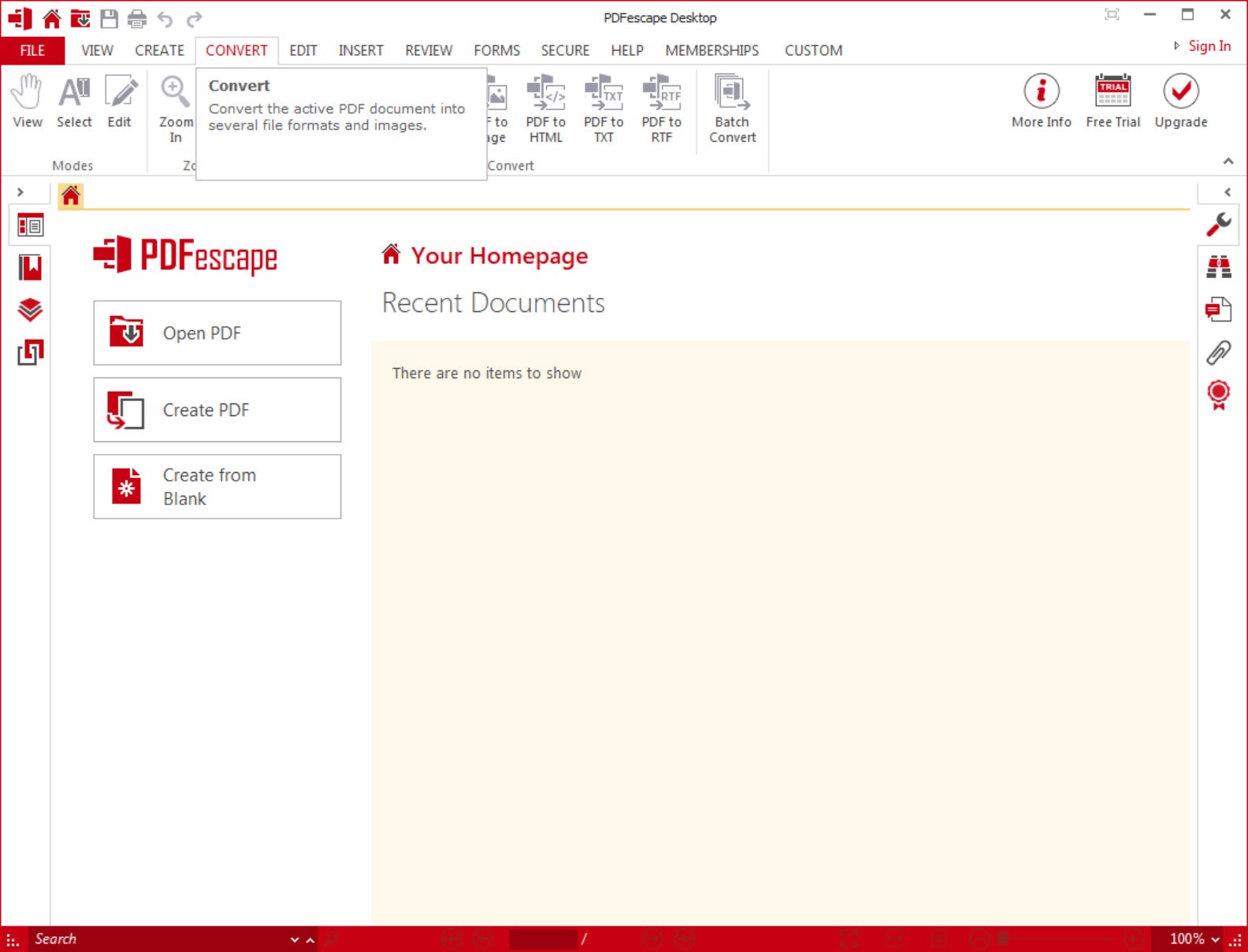
Output conversion covers the word processor and spreadsheet formats, presentations, web pages and image files, which is the route to reusing content trapped in a document somebody sent you.
Text recognition handles the harder case, turning a scanned page from a picture of words into words that can be searched and selected. That capability belongs to the upper tier, which is worth establishing before you download anything expecting it.
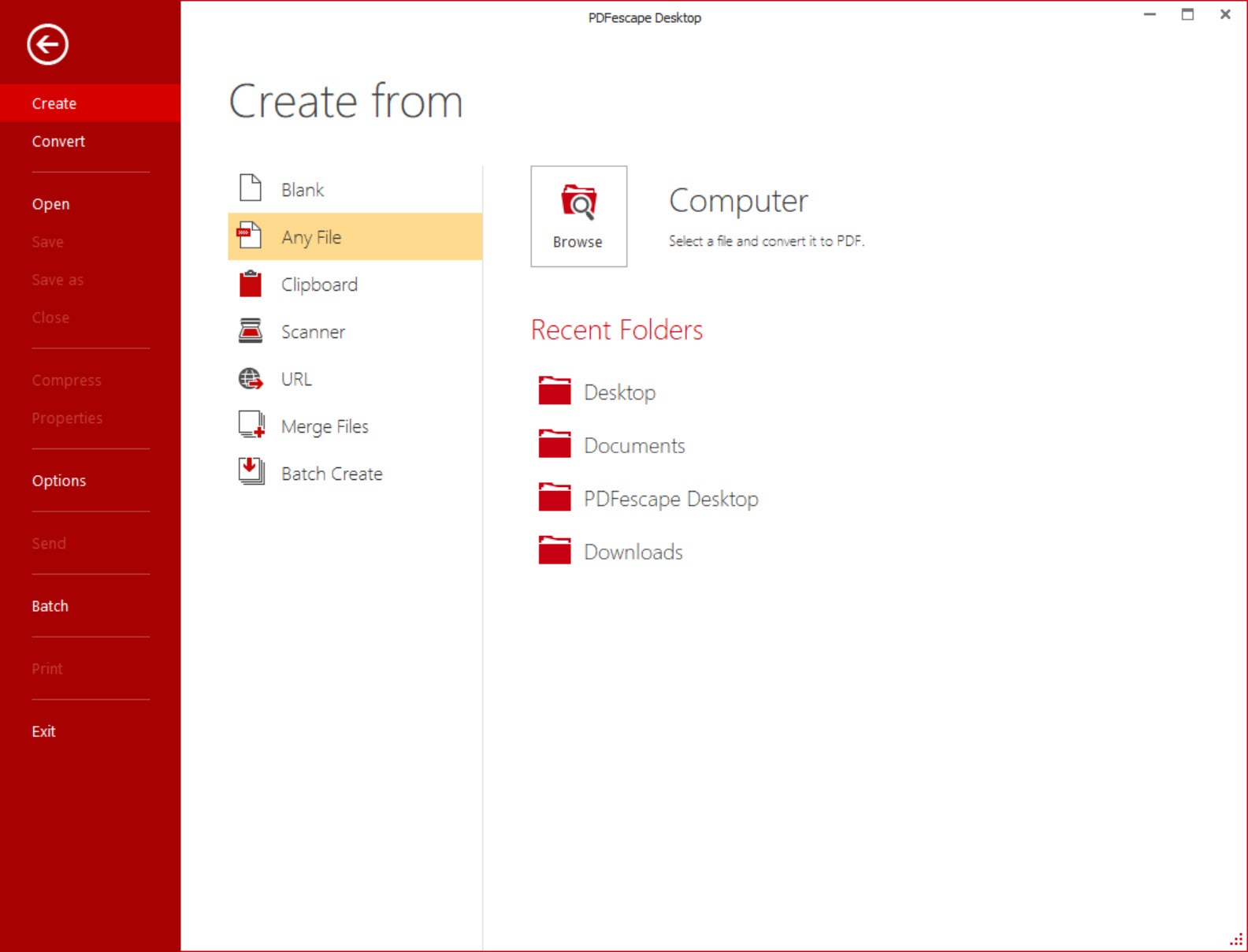
Creation works from scratch or by importing, and the import range is unusually broad, running past three hundred file extensions. In practice that means most things you point at it will open, including formats whose original application you no longer have installed.
Where it sits, and the catch
Now the part that decides whether any of the above is available to you. The desktop application belongs to the paid tiers, and the browser-based version is the entry point, with caps on how large a document and how many pages it will accept. Batch processing and the recognition features sit higher up again.
The other honest comparison is capability. PDFescape is a competent generalist rather than a specialist, and its editing tools are less refined than those in software built around editing alone. PDF-XChange Editor gives away more capability in its unpaid form than most rivals and is the first thing to compare against.
For the occasional job where a page needs redesigning rather than editing, a vector editor that opens a page as artwork handles what no PDF editor will, though it treats the text as shapes.
Conclusion
PDFescape suits somebody who deals with documents rather than designs them. Correcting text in a contract, assembling pages from three sources into one file, building a form colleagues can complete on screen, and doing all of it without a document leaving the machine is a coherent set of jobs, and the ribbon means nobody needs training to start.
Two things to settle before installing. The desktop version is the paid part of the arrangement, so check which tier includes what you actually need, and be clear that text editing in any PDF tool means adjusting a finished layout rather than reworking a document.
Get those expectations right and this handles the everyday paperwork competently. Expect a word processor and the format itself will disappoint you long before the software does.
Pros & Cons
- Edits the text and images already in a document rather than layering new content over them
- Works entirely offline, so nothing needs uploading to a service
- Form creation covers text fields, checkboxes, radio buttons, dropdowns, list boxes
- Page assembly handles merging, importing, extraction, rotation, cropping, page size
- Stamps, watermarks, letterhead and bookmarks are all present rather than being premium extras
- Converts out to word processor, spreadsheet, presentation, web and image formats
- Opens an unusually wide range of input formats, past three hundred extensions
- Ribbon interface is immediately readable to anyone familiar with office software
- The desktop application requires a paid tier, with the browser version as the entry point
- Text does not reflow, so an edit that overruns its space must be fixed by hand
- Permission settings are advisory and depend on the reading application honouring them
- Form fields lack calculations, conditional logic and validation scripting
- Text recognition and batch processing belong to the upper tier
- Editing tools are less refined than in software built purely for editing
Frequently asked questions
Yes, including its typeface and colour, which puts it ahead of tools that only overlay new content. Text will not reflow though, so an edit that needs more room than the original occupied has to be tidied manually.
The desktop application does, entirely. That is one of its better arguments against the browser-based editors, particularly for documents you would rather not send to somebody else's server.
It can, with text fields, checkboxes, radio buttons, dropdown lists, list boxes and action buttons. What it does not offer is calculated fields, conditional logic or validation scripts.
Through its text recognition, which belongs to the upper tier rather than the base one. Without it, a scan remains an image of text as far as searching and selecting are concerned.
Not reliably. Those flags ask the reading application to restrict itself, and applications that ignore them exist. A password on opening the document is the only protection that actually holds.


