

Microsoft Excel Viewer
About Microsoft Excel Viewer
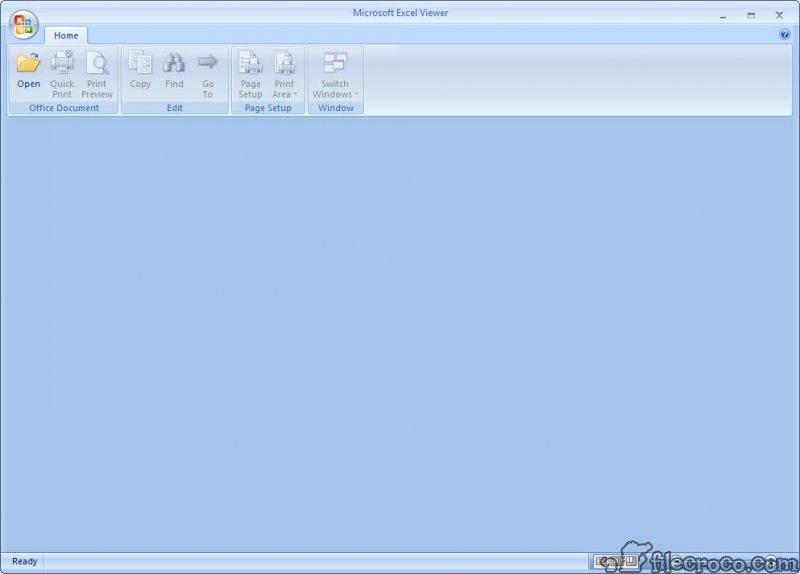
Microsoft Excel Viewer is the read-only utility that lets you open, view, print, and copy data from Excel spreadsheets without having Excel installed. It’s not a lite version of Excel and it’s not a competitor to Excel. It’s the free companion app Microsoft built for one purpose, which is letting people who don’t own Office still read .xls and .xlsx files when someone emails them a spreadsheet.
Open the file, scroll through the cells, print or copy what you need, close it. That’s the entire workflow.
What this actually does
The viewer opens spreadsheet files and presents them in a window that looks like a stripped-down version of the Excel interface most users grew up with. The familiar ribbon at the top has fewer buttons (the editing-related ones are gone), but the cell grid, the sheet tabs at the bottom, and the basic navigation all work the way you’d expect.
You can scroll through worksheets, click between tabs, zoom in and out, freeze panes for easier reading of large tables, and use the standard keyboard shortcuts for moving around (Ctrl+Home to jump to the top-left, Ctrl+End to find the bottom-right of populated cells). Selecting a cell shows its content and any formula in the formula bar, even though you can’t modify either.
Selecting a range and pressing Ctrl+C copies the values to the clipboard, which is one of the more useful features for users who need to pull data out of a spreadsheet without editing it.
Printing works through the same dialog Excel uses, with page setup options for orientation, margins, and scaling. The Print Preview is reliable and handles multi-sheet workbooks cleanly.
Format support and what loads correctly
This is where the age starts to show. The viewer supports .xls files (the binary Excel format used through Excel 2003) and .xlsx files (the XML-based format introduced with Excel 2007). For most legacy spreadsheets, both formats load fine and display with reasonable fidelity to how Excel itself would render them.
What doesn’t always come through cleanly are newer Excel features added after the 2007 version. Excel 2010 and later introduced sparklines, slicers, certain conditional formatting variants, and a long list of additional functions. Spreadsheets relying heavily on these features open in the viewer but may render incorrectly or show #NAME? errors in cells with unsupported formulas. Pivot tables generally display, but pivot table interactivity is gone.
For a 2005-era expense report or a basic data table somebody emailed you, Microsoft Excel Viewer handles the file without trouble. For a modern dashboard built in Excel 2021 with all the newest features, expect some visual quirks.
Charts usually display correctly. Embedded macros and VBA code don’t run, which is actually a security improvement for casual viewing, but it does mean any worksheet that depends on macro logic shows a static snapshot rather than the live result.
The Microsoft discontinuation and what it means
Microsoft retired the entire Office Viewers product line in 2019, with no replacement announced. The official replacements are paid (Microsoft 365 or one-time-purchase Office) or web-based (Excel for the Web, which requires a Microsoft account and an internet connection). For users who specifically need offline, free, read-only access to Excel files, Microsoft no longer offers a first-party answer.
The viewer itself wasn’t removed from the internet, and the installer for Excel Viewer 2007 SP3 is still in circulation on various download sites. The application installs and runs on Windows 10 and Windows 11, including current builds. The DLLs it uses for parsing spreadsheets are the same ones older Office installations used, and Microsoft hasn’t broken backward compatibility with them.
What you’re not getting is security updates, format support for newer features, or any kind of vendor support. For a viewer that does nothing but display files, the security implications are smaller than they would be for an editor. The biggest risk is malicious .xls or .xlsx files designed to exploit specific parsing vulnerabilities, and those vulnerabilities won’t be patched on an abandoned product. Treat the viewer accordingly. Use it for spreadsheets from sources you trust.
Why anyone still installs this
The use case that keeps Microsoft Excel Viewer relevant is pretty specific. A user who occasionally receives Excel files via email, doesn’t have or want a full Office license, and doesn’t want to upload sensitive financial data to a web app for opening. The viewer fills that gap without committing to a 600 MB Office installation or trusting a cloud service with the contents of someone’s spreadsheet.
Small businesses with one or two computers that need to read invoices, budgets, or shipping manifests from suppliers also use it. The IT pattern is to install the viewer on machines that don’t justify the Office licensing cost but still need to interact with the broader Excel ecosystem. It’s the simplest answer for “I need to print this spreadsheet” without any of the complexity of a full office suite.
The third audience is users on older or constrained hardware. The viewer’s footprint is small (around 80 MB installed), it runs comfortably on machines with 2 GB of RAM, and it doesn’t insist on the modern background services that Office 365 increasingly requires.
The modern alternatives
If you don’t have a specific reason to use the discontinued Microsoft viewer, several current alternatives do the same job better. LibreOffice is the full open-source office suite that opens .xls and .xlsx files in its Calc module. It can also edit them, save them, and create new spreadsheets from scratch. The size is bigger and the interface takes some adjustment if you’re used to Microsoft Office, but it’s actively maintained and free for any use.
Apache OpenOffice is the older sibling project that LibreOffice forked from. Development is slower but the format support for legacy spreadsheets is solid, and the install size is reasonable.
WPS Office is the third major free office suite, with a UI that mimics Microsoft Office more closely than the LibreOffice family does. Format compatibility with .xls and .xlsx is good, and the viewer mode works for read-only use if that’s what you need.
ONLYOFFICE is a more recent entrant with strong .xlsx fidelity and a cleaner modern interface. It’s heavier than the viewer-only approach but lighter than Microsoft Office, which is the position many users find comfortable.
For users who do have Excel and want power-user features on top of it, Kutools for Excel is the add-in that adds bulk operations, formulas, and workflow shortcuts. Different product category, but worth mentioning for anyone reading this who realized they actually want a full editor.
The Word Viewer parallel
For users who came here from the matching Word Viewer page, the story is the same. Microsoft shipped a matching set of free viewers for Word, Excel, and PowerPoint, all aimed at the same audience and all discontinued together in 2019. The two tools install separately, behave consistently, and have the same long-term concerns about abandonment.
Many users install both viewers as a pair for general Office document viewing without a full Office license. That use case is exactly what Microsoft originally designed them for, and the pair still covers it for users who specifically want read-only Microsoft-built tools rather than the broader open-source alternatives.
Limitations to be aware of
Beyond the discontinuation issue, there are functional limits worth knowing.
Editing is impossible by design. You can copy data out, but you cannot modify cells, add formulas, change formatting, or save changes back to the file. This is the entire point of a viewer rather than a regular spreadsheet app, but new users sometimes expect at least basic editing and are surprised when it’s not there.
Macro execution is disabled. Any .xlsm file that depends on VBA macros for its functionality will show static values rather than the dynamic results those macros produce. For data validation or workflow spreadsheets that rely on macro logic, the viewer shows what the file looks like but not what it does.
Newer file features (LET, LAMBDA, XLOOKUP, and other functions added in recent Excel versions) may show as errors. The viewer was built before these existed and doesn’t know how to interpret them. For modern spreadsheets, fidelity drops.
There’s no integration with newer Windows features like cloud file storage, OneDrive previews, or the modern file dialog. The viewer is a self-contained legacy application that does its job in isolation.
Conclusion
Microsoft Excel Viewer is a legacy answer to a question that has mostly been replaced by better options. For users specifically wanting a Microsoft-built, free, offline, read-only tool for opening .xls and .xlsx files, and who don’t mind running an application that hasn’t been updated in over five years, the tool still does what it always did. The interface is familiar, the file fidelity is acceptable for older spreadsheets, and the install is light enough to fit on any machine.
For most users in 2026, LibreOffice or WPS Office is the better choice. Both open Excel files with comparable or better fidelity, both are actively maintained with current security updates, and both can edit as well as view if your needs ever expand beyond reading. Pick the discontinued Microsoft viewer only if there’s a specific reason (legacy environment, locked-down machines, preference for the Microsoft-native rendering) that the alternatives don’t satisfy.
For everyone else, the open-source office suites have caught up and surpassed what the old viewer offered, and they don’t carry the abandonment-era security baggage.
Pros & Cons
- Free with no licensing requirements or sign-in needed
- Light footprint at around 80 MB installed, runs comfortably on older hardware
- Opens both .xls and .xlsx formats with reasonable fidelity for older spreadsheets
- Print and Print Preview work reliably for hard-copy output
- Copy-to-clipboard support lets you extract data from spreadsheets without editing
- No macro execution means safer opening of unknown files from email attachments
- Familiar Excel-style interface for users already comfortable with the application
- Officially discontinued by Microsoft in 2019 with no further security updates
- Format support stops at Excel 2007 features, with modern functions showing errors
- Read-only by design, with no way to edit or modify spreadsheets
- Newer Excel features like sparklines and certain pivot table interactions don't work
- Macro-based spreadsheets show static values rather than computed results
- No vendor support and no integration with modern Windows or cloud services
- Better-maintained alternatives exist that handle the same workflow more reliably
Frequently asked questions
The application opens, displays, and prints Excel spreadsheets without requiring a full Excel or Office installation. It's designed for users who receive .xls or .xlsx files but don't have Excel themselves and need a way to read or print the contents.
No. The viewer is read-only by design. You can view, copy data from cells, and print, but you cannot modify any content or save changes back to the file.
Yes, in most cases. Older .xlsx files open with good fidelity. Modern spreadsheets using features introduced after Excel 2007 (newer functions, sparklines, certain conditional formatting variants) may show errors or render incorrectly because the viewer predates those features.
No. Macro execution is disabled in the viewer, which means VBA code embedded in spreadsheets doesn't run. This is actually a security benefit for opening untrusted files, but it does mean macro-driven spreadsheets show only static values rather than computed results.


