

LibreOffice
About LibreOffice
LibreOffice is a full-featured office suite that covers writing, spreadsheets, presentations, vector drawing, databases, and equation editing inside one consistent package. Six applications share the same interface, the same file handling, and the same scripting model, so once you learn one you mostly know the rest.
The native file format is OpenDocument (ODF), but the suite reads and writes Microsoft formats too, including the modern .docx, .xlsx, and .pptx variants alongside older binary .doc, .xls, and .ppt files.
The defining trait is breadth. Where most free alternatives focus on one or two pieces, LibreOffice delivers a complete stack that handles long-form documents, large spreadsheets with pivot tables and array functions, master-slide presentations, and even relational databases through Base.
You get a built-in PDF editor inside Draw, a formula editor for scientific notation, and an extension ecosystem that lets you bolt on grammar checkers, template packs, and language tools.
Writer for long documents and structured text
Writer is the word processor and it leans heavier than Microsoft Word on structured authoring. Styles are central, not decorative. The Styles sidebar handles paragraph, character, frame, page, and list styles in separate tabs, which makes things like academic dissertations or technical manuals genuinely easier to maintain than in Word, where formatting tends to drift across revisions.
Cross-references, footnotes, endnotes, bibliographies through Zotero integration, and a proper master document mode for splitting huge files into chapters are all part of the package. Track changes works, comments thread, and the Navigator pane lets you jump around documents organized by headings, tables, or images. The grammar tooling is thinner than what you get in commercial suites, but installing the LanguageTool extension closes most of that gap.
There are quirks. The default page-break behavior differs from Word in ways that catch new users off guard, and very long .docx files with heavy revision history can take longer to open than their native ODF equivalents.
For pure offline drafting and editing, however, this is one of the more capable free options around, and it sits comfortably alongside lighter tools like AbiWord for users who only need a basic word processor.
Calc for spreadsheets and data work
Calc handles roughly the same workload as Excel for most practical purposes. You get pivot tables, conditional formatting, named ranges, data validation, array formulas, and over 500 functions including the statistical, financial, and engineering categories. It opens .xlsx files cleanly and saves back to them, with the usual caveat that very complex Excel workbooks with embedded ActiveX controls or some pivot chart configurations may not round-trip perfectly.
What Calc does better than Excel in some cases is regex support inside Find & Replace and the Solver add-in for linear and nonlinear optimization problems. The 1,024-column limit is lower than Excel’s 16,384, which matters for users dealing with wide datasets pulled from analytics platforms. The 1,048,576-row limit matches Excel.
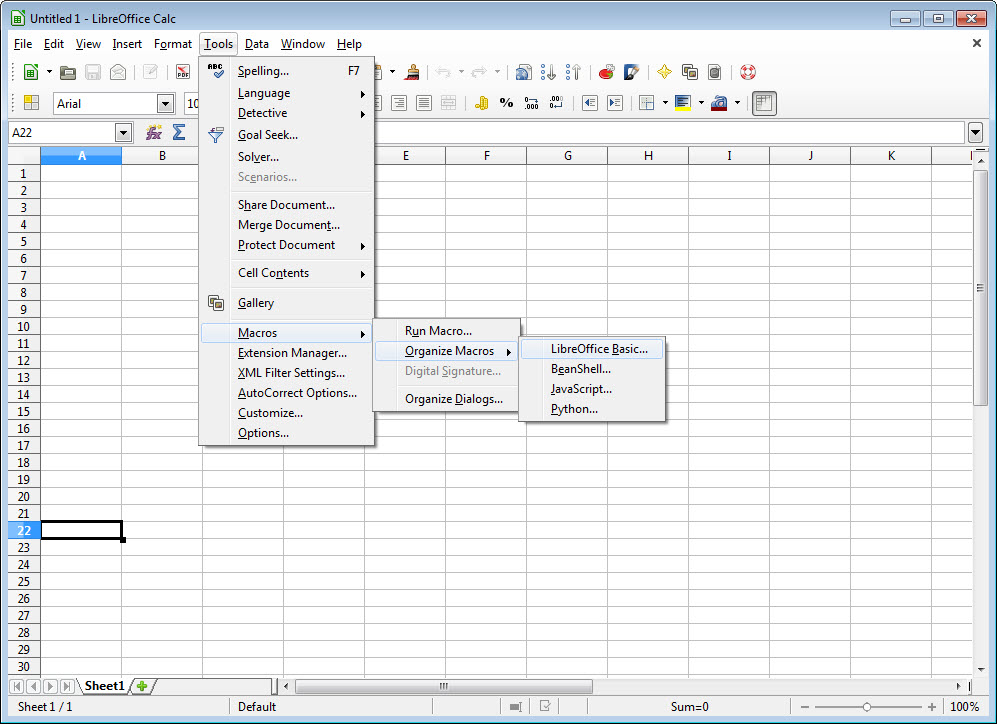
Macro support runs through LibreOffice Basic, which is similar but not identical to VBA. Existing VBA macros mostly work after some adjustment, but anything that touches the Office object model heavily will need rewriting.
Impress, Draw, Base, and Math
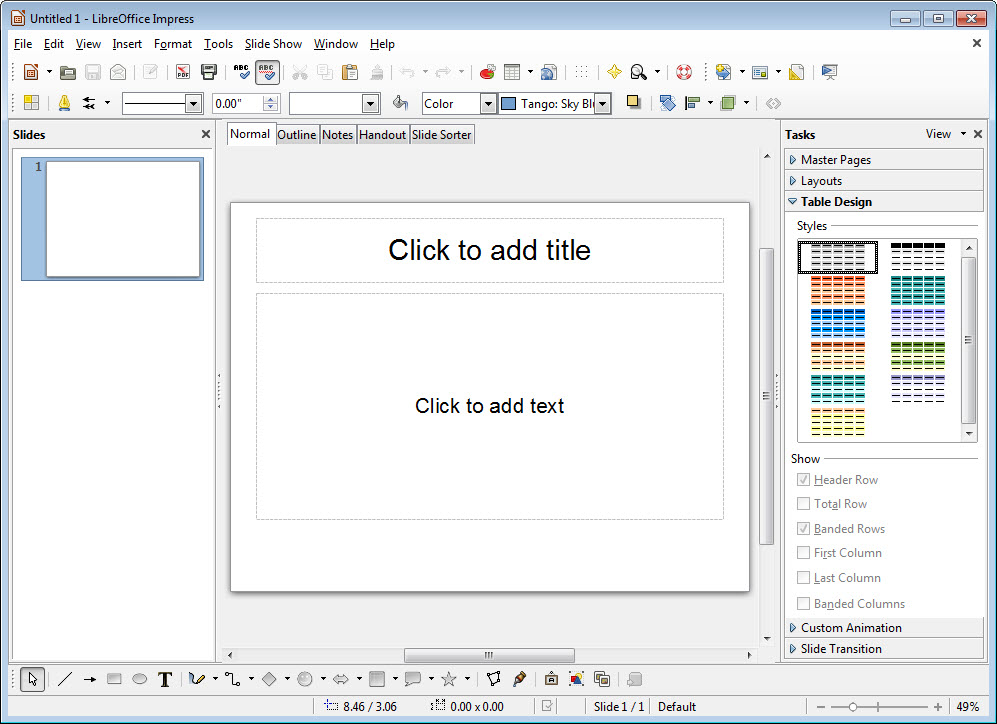
Impress is the presentation tool. It reads .pptx files, runs slideshow mode with presenter view on a second monitor, and supports the standard transitions and animations. It feels less polished than PowerPoint and lacks some of the design intelligence found in commercial suites, but the underlying engine handles complex slide decks fine.
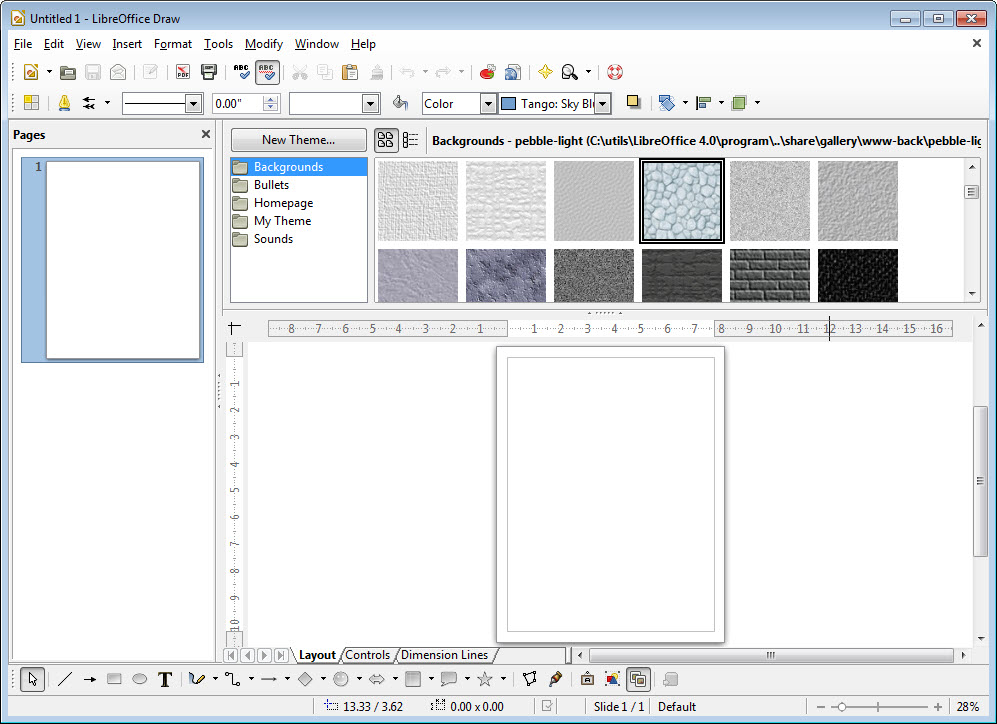
Draw is the vector graphics tool, and it doubles as a surprisingly capable PDF editor. You can open a PDF directly, edit text inside it, move objects around, redact sections, and export back to PDF. For light PDF work this often beats hunting down a dedicated editor, though for heavy PDF tasks something like PDF24 Creator is more focused. For pure PDF reading, Foxit PDF Reader is faster.
Base is the database front-end. It connects to MySQL, PostgreSQL, MS Access files, and its own embedded HSQLDB or Firebird engines. The form designer and report wizard are functional but visibly older in design than the rest of the suite. Casual users mostly ignore Base. Power users with light database needs find it useful.
Math is the equation editor, used either standalone or embedded inside Writer documents. It uses a markup language similar to LaTeX rather than a point-and-click formula builder, which is faster once you learn it and slower if you never will.
File compatibility and the OOXML question
This is where most real-world friction shows up. LibreOffice reads .docx, .xlsx, and .pptx well enough that everyday documents move back and forth without trouble. Where things get messy is with documents that use Microsoft-specific features at the edges: SmartArt, complex tracked changes from multiple authors, certain pivot chart types, embedded equations created in Word’s equation editor versus Math, and macros that depend on the Office object model.
The pragmatic approach is to keep ODF as the working format and only export to OOXML when sharing with someone who needs it. Documents that travel through several Word-LibreOffice handoffs accumulate small layout drifts. It’s not a dealbreaker, but it’s a real cost compared to staying inside the Microsoft ecosystem.
Extensions, templates, and customization
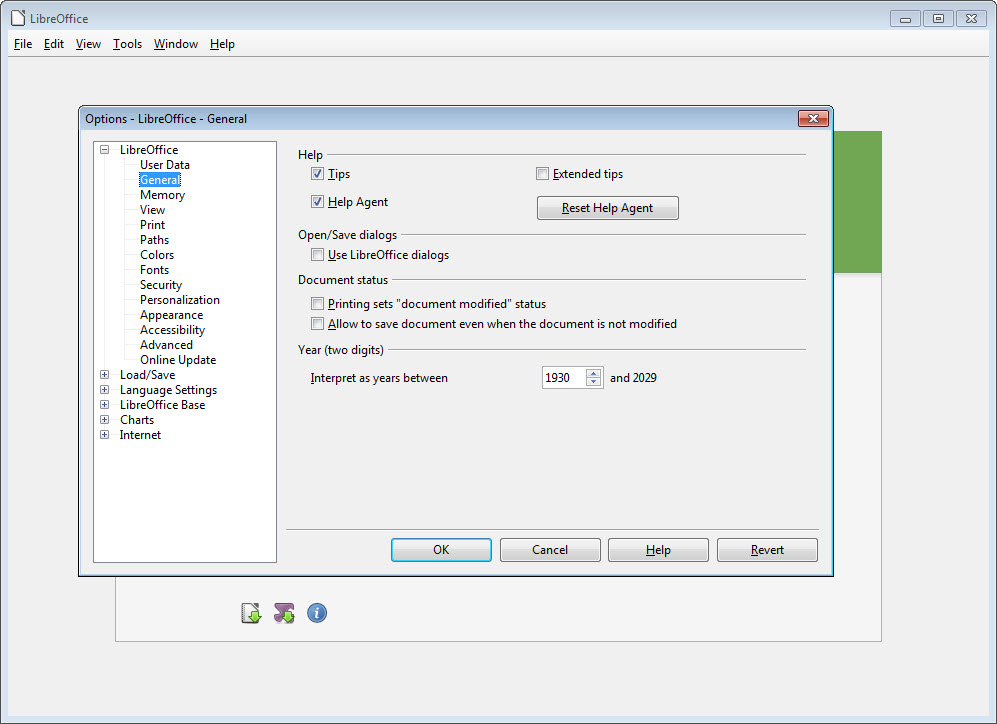
The extension repository covers hundreds of add-ons including grammar checkers, dictionary packs, template libraries, language packs, and workflow tools. Installation is a drag-and-drop affair through the Extension Manager. Quality varies, but mainstays like LanguageTool, MultiFormatSave, and various template collections are reliable.
The interface itself can be reskinned. There’s a Microsoft-style ribbon (called Tabbed view), a traditional menu-and-toolbar layout, and a few hybrid options. None of them are quite as refined as Microsoft’s ribbon, but the Tabbed view gets close enough that users migrating from Word usually adapt within a day or two.
Comparable alternatives like Apache OpenOffice and WPS Office take different routes here, with WPS leaning closer to a Microsoft-style ribbon by default.
Conclusion
LibreOffice is the strongest free office suite for users who want depth over polish, and who do most of their work offline. Long-document authors, researchers handling references and footnotes, spreadsheet users who don’t need heavy VBA integration, and anyone editing PDFs occasionally will find the toolkit covers nearly every common task. The style system in Writer alone makes it the better pick for academic and technical writing.
The suite is less suited to users locked into Microsoft 365 workflows with frequent .docx handoffs to Word-only colleagues, or to presentation designers who rely on PowerPoint’s design intelligence and template marketplace. For everyone else, the breadth of what’s included makes it a serious productivity package rather than a stripped-down alternative.
Pros & Cons
- Six full applications covering writing, spreadsheets, presentations, vector drawing, databases, and equations
- Native OpenDocument format plus solid read and write support for Microsoft .docx, .xlsx, and .pptx
- Built-in PDF editor inside Draw handles text edits, redaction, and form work
- Large extension library for grammar tools, templates, language packs, and workflow add-ons
- Style system in Writer is genuinely better for long structured documents than most alternatives
- Active release schedule with two parallel branches (Fresh for new features, Still for stability)
- OOXML compatibility is good but not perfect, especially with heavy formatting or Office-specific features
- Impress lacks the polish and design assistance found in commercial presentation tools
- Base feels dated compared to the rest of the suite
- Default interface looks utilitarian out of the box, even after enabling the Tabbed view
- VBA macros need adjustment to run reliably in LibreOffice Basic
Frequently asked questions
It's a full office suite covering word processing, spreadsheets, presentations, vector drawing, databases, and equation editing. Most people use it as a free replacement for Microsoft Office.
Yes. The suite reads and writes .docx, .xlsx, .pptx, and the older binary .doc, .xls, .ppt formats. Everyday documents round-trip without trouble, though complex files with Office-specific features may show small layout drifts.
Yes. Draw opens PDFs directly and lets you edit text, move objects, redact content, and export back to PDF. It works well for light edits and is less suited to heavy document restructuring.
Both share a common ancestor but the application has been more actively developed for over a decade. It receives more frequent updates, supports newer file formats more reliably, and has a larger extension ecosystem.
OnlyOffice prioritizes Microsoft format fidelity and a ribbon-style interface, while this suite covers a broader scope with six applications including Draw, Base, and Math. For pure .docx and .xlsx editing, OnlyOffice often renders Microsoft files closer to the original.
Yes. The suite uses LibreOffice Basic, which is similar to VBA but not identical. Simple macros usually transfer with minor edits. Complex VBA code that hooks deeply into the Office object model needs rewriting.
Yes. The whole suite runs locally with no cloud dependency. Everything from spell-check dictionaries to templates lives on your computer.


