

FastCopy
About FastCopy
FastCopy earned its reputation among system administrators and power users by doing one job extremely well, moving large amounts of data from point A to point B faster than Windows Explorer ever could. There is no library to manage, no cloud sync, no preview pane, no quick rename. Just a copy engine that uses memory and disk I/O more aggressively than the operating system’s built-in tools.
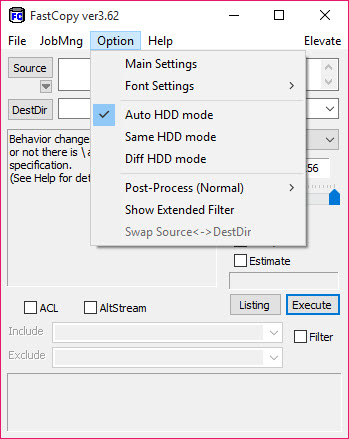
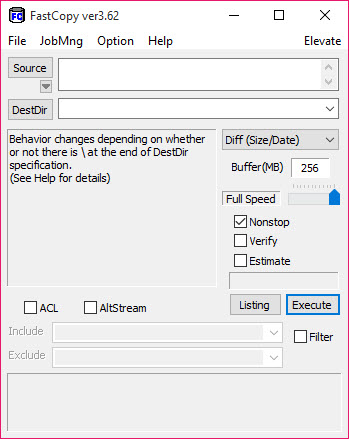
The interface is utilitarian to the point of looking outdated, and that is part of the appeal. Set a source, set a destination, pick a mode, hit Execute.
The whole window fits on a 1080p monitor with room to spare, and every parameter you might want to tweak (buffer size, thread count, verification method, ACL handling) is exposed without burying it under wizards or modal dialogs.
How the multi-threaded engine actually works
Most file copy tools, including Windows Explorer, read a chunk and then write a chunk on the same thread, which means the source drive sits idle while the destination is being written and vice versa. FastCopy separates these into independent I/O threads. While one thread is reading from the source, another is writing to the destination, and the buffer in the middle smooths out the difference in speed between the two devices.
You can adjust the buffer size from the main window. The default is conservative, but if you are moving large media files between two NVMe SSDs, bumping it to 256 MB or higher genuinely changes throughput.
On older mechanical drives the gains are smaller because the bottleneck is seek time, not bandwidth, and pushing the buffer too high on a system with limited RAM will just cause swap activity that hurts overall speed.
There is also a separate thread for hash verification, so if you enable file integrity checks (more on those in a moment), the verification happens in parallel with the next file’s read operation. Few other file copy utilities handle the pipelining this cleanly.
Copy modes that do what they say
The mode selector at the top of the window is where FastCopy gives you precise control over what happens at the destination. Diff (size/date) skips files that match by size and timestamp, which is what most people want for incremental backups. Diff (newer) only overwrites if the source is newer than the destination. Copy (overwrite) writes everything regardless. Sync removes files from the destination that no longer exist at the source, mirroring the two locations. Move deletes the source after a successful write, and Delete just removes files using the same multi-threaded engine.
There is also a Listing mode that produces a dry-run log of exactly what would happen, without touching a single byte. If you have ever run a Sync operation on the wrong folder and watched it delete files you needed, you will appreciate having this option.
Verification with xxHash3, MD5, SHA-1, SHA-256 and SHA-3
Integrity checking is where FastCopy quietly outclasses both Windows Explorer (which has none) and most of its peers. You can pick from xxHash3, xxHash, MD5, SHA-1, SHA-256, or SHA-3. xxHash3 is the default for a reason. It is not cryptographically secure, but for detecting bit rot or transfer corruption it runs at memory-copy speeds, often several gigabytes per second on a modern CPU.
If you actually need cryptographic verification (archiving evidence, signing backups), the SHA-256 and SHA-3 options are there. They will slow the copy down noticeably on fast drives because hashing becomes the bottleneck, but on a typical hard drive copy you will not notice the cost.
We routinely run with xxHash3 enabled and the throughput penalty is essentially nothing.
ACLs, alternate data streams, and the things that usually get lost
Windows has a lot of metadata bolted onto files that casual copy tools either ignore or silently corrupt. Access Control Lists, alternate data streams (the hidden NTFS streams that store things like Zone.Identifier flags from downloaded files), reparse points, junction points, symbolic links, extended attributes. FastCopy has explicit checkboxes for each one. You can choose to preserve ACLs when moving files between users, ignore them when copying to a FAT32 USB drive that does not support them, or strip alternate streams to remove the “downloaded from internet” tag that triggers SmartScreen warnings.
This level of granularity matters when you are migrating user profiles or backing up source-controlled folders where stream data is meaningful. Tools like Robocopy have similar options but bury them behind flags you have to memorize. Here they are checkboxes in a panel.
Shell integration and command-line use
A right-click installer adds FastCopy entries to the Explorer context menu, so you can replace the default copy/paste/delete operations with the faster engine when convenient. The shell integration is optional and the portable version skips it entirely, which is useful if you carry FastCopy on a USB stick for repair work.
The command-line interface mirrors every option in the GUI. You can chain operations in batch scripts, schedule them through Task Scheduler, or pipe FastCopy output into log parsers. The full syntax is documented in the help file, including the less-obvious flags for resume-on-error and exclusion patterns.
For scheduled backup workflows, this is where the tool earns its place over a click-and-drag utility.
Wipe and delete for secure removal
The Delete operation has a sub-option called Wipe & Delete, which overwrites file contents with random data before unlinking. The number of passes is configurable. One pass is enough for any modern storage device given how drives actually allocate sectors, but if you have a regulatory reason to use multiple passes the option is there. SSDs are a different story since wear leveling can leave copies of data in cells the OS never sees, but for HDDs this is a legitimate secure-delete option.
Performance numbers and real-world quirks
Throughput claims for file copy tools are notoriously hard to compare because results depend on file size distribution, source and destination devices, NTFS fragmentation, and cluster size. From observed use, FastCopy typically beats Windows Explorer by 20 to 60 percent on large single files and by considerably more on collections of many small files, where Explorer’s per-file overhead dominates.
Versus TeraCopy, the difference is smaller and depends heavily on the workload. FastCopy tends to win on raw throughput and parameter flexibility, TeraCopy wins on visual polish and queueing.
One quirk worth flagging. When copying to a destination that is also being written by another process (an antivirus full scan, a cloud sync client like OneDrive), FastCopy will compete aggressively for I/O and may slow both operations more than a polite tool would. There is no built-in I/O throttling, although you can lower the buffer size and thread count to soften the impact.
Logging that is actually useful
Every run writes a log entry with start time, end time, total bytes, files copied, files skipped, errors encountered, and per-file detail if you ask for it. The log format is plain text and includes the exact command-line invocation, so you can reproduce a run from a previous log. For audit purposes or just figuring out why last night’s scheduled job failed, this beats Windows Explorer’s silent failures by a wide margin.
Conclusion
FastCopy is built for people who treat file movement as an operation worth measuring, not a background convenience. System administrators, photographers consolidating shoots onto archive drives, developers backing up large repos, anyone moving terabytes between disks regularly will get value out of it.
The combination of independent I/O threads, hash verification, and explicit metadata controls puts it in a different category than what Windows Explorer offers, and the open source license removes the friction that paid alternatives carry.
The catch is the learning curve. The interface assumes you understand what a buffer size does and why you might want to preserve an alternate data stream. Casual users copying holiday photos will find more comfortable options elsewhere, but for the audience this tool was built for, the trade in polish for control is exactly the right one.
Pros & Cons
- Multi-threaded I/O with independent read and write threads genuinely speeds up large transfers
- Six hash algorithms for verification, with xxHash3 fast enough to leave enabled by default
- Explicit handling of ACLs, alternate data streams, reparse points, and symbolic links
- Listing mode lets you preview destructive operations before running them
- Portable version available, no installation needed for use from a USB drive
- Full command-line interface for scripting and scheduled tasks
- Open source under GPL v3 since version 4
- The interface looks dated and presents a lot of options at once, which can intimidate first-time users
- No queueing system for chained operations from the GUI, you need scripts or repeated runs
- Aggressive I/O can compete with other disk-bound processes since there is no throttling
- The documentation is functional but assumes you know what ACLs and reparse points are
- No built-in scheduler, you have to lean on Task Scheduler or another tool
Frequently asked questions
The application uses separate threads for reading and writing, so the source drive and the destination drive can work in parallel instead of taking turns. It also lets you tune buffer sizes to match your hardware.
Yes, this tool can hash both the source and destination using xxHash3, xxHash, MD5, SHA-1, SHA-256, or SHA-3, and report any mismatches in the log.
The application has explicit options to preserve ACLs, alternate data streams, timestamps, and reparse points. Each one is a checkbox you can enable or disable per operation.
This tool works well as a backup engine when paired with a scheduler. The Diff (size/date) and Sync modes handle incremental and mirror backups efficiently, and the command-line interface makes scripted runs straightforward.
Diff modes effectively resume because the application skips files that already exist at the destination with matching size and date. There is no mid-file resume for a single large file that was interrupted, the file restarts from the beginning.
Diff (size/date) skips any file at the destination that matches by size and timestamp, even if the source is older. Diff (newer) compares timestamps and only overwrites when the source file is more recent.


