

FreeMove


 (63 votes, average: 3.84 out of 5)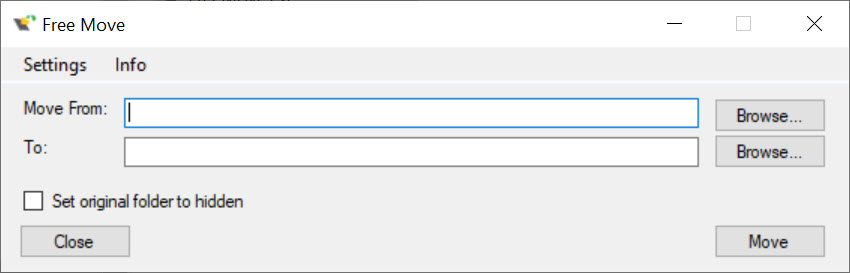
About FreeMove
FreeMove solves a specific, nagging problem. Your system drive is full, a big program is hogging space on it, and you want that program on another drive. But you cannot just cut and paste the folder, because the moment you do, shortcuts break, the uninstaller forgets where things are, and the program itself may refuse to launch. FreeMove moves the folder for you and leaves behind a redirect so nothing notices the difference.
The trick it uses is a junction, a kind of invisible signpost in the file system. After the move, anything that goes looking for the program at its old path gets silently pointed to the new one.
The application still thinks it lives where it was installed. Its shortcuts still work. Its uninstaller still finds it. From the system’s point of view, nothing changed, even though the actual files now sit on a different drive entirely.
It is a small, single-window tool with no real learning curve. You pick the folder you want to move, choose where it should go, and click. That is the entire workflow.
What a junction actually does
This is worth understanding, because it is the whole point. A junction (technically a junction point) is a link that lives at the old location and transparently forwards every file request to the new location. It is not a shortcut in the desktop-icon sense. Programs cannot tell the difference between a junction and a real folder, which is exactly why this works where a plain move does not.
So when you use FreeMove to relocate a program from your C drive to a D drive, it copies the files over, deletes the originals, and drops a junction in the empty spot they left.
The next time the program runs and looks for its files at C, the junction quietly hands it the D location instead. No reconfiguration, no reinstalling, no editing registry entries by hand.
The interface gives you exactly what you need
There is not much to describe, and that is a compliment. You get two fields. One for the directory you want to move, one for the destination. Browse to each, hit the move button, and FreeMove handles the copy, the delete, and the junction creation in one pass.
Because the operation touches protected parts of the file system, it needs administrator rights to run. That is normal for anything moving installed software around, and the tool asks for elevation up front rather than failing halfway through.
Knowing what you can move and what to leave alone
Here is where a bit of judgment matters, and where the tool trusts you to know what you are doing. You can freely move a heavy individual program folder, say a giant game or a creative suite buried inside Program Files, to another drive with no ill effects. That is the ideal use case. A 40 GB application you rarely launch but cannot uninstall is a perfect candidate.
What you should not do is move the big system directories themselves. Relocating entire folders like Program Files, Program Files (x86), or the Users directory can break core system functions like updates and built-in apps.
The tool does not hard-block you, but the guidance is clear. Move individual program folders inside those locations, not the locations themselves. If you treat that as a firm rule, you will avoid the few ways this can go wrong.
Where it fits next to other tools
If your problem is specifically Steam games, a dedicated mover like Steam Mover covers similar ground using the same junction technique, though Steam’s own library system now handles much of that natively. FreeMove is broader. It does not care what kind of program you are moving, which makes it the more general answer when the bloated folder is not a game at all.
It pairs naturally with a disk space analyzer. Before you move anything, you need to know what is actually eating your drive, and a visual scanner like WizTree or TreeSize will show you the biggest folders in seconds.
Find the offender with one, relocate it with the other. The two together turn a full system drive into a quick afternoon fix rather than a reinstall.
The limits worth knowing
It is not actively gaining new features. The work on it is maintenance, fixing issues rather than building out, so do not expect a steady stream of additions. For what it does, that is largely fine, because the core function is simple and stable. But it does mean the feature set is what it is.
FreeMove also has no batch mode to speak of. You move one folder at a time, which is reasonable for the occasional cleanup but tedious if you are trying to clear out a dozen programs in one sitting.
And because it deletes the originals after copying, you want a moment of caution with anything truly irreplaceable, though for installed programs that is rarely a concern since you could reinstall in a pinch.
Conclusion
FreeMove is for anyone wrestling with a cramped system drive who would rather relocate a bulky program than uninstall it or wipe and reinstall. FreeMove does one job, does it cleanly, and asks almost nothing of you beyond picking a source and a destination. The junction approach means the moved program behaves exactly as before, which is the entire appeal.
It will not win anyone over with features, because it is not trying to. There is no batch processing and no ongoing parade of updates. But as a focused fix for a common annoyance, it earns its place.
If you understand the one real rule, move individual programs and leave the system folders alone, it is one of the simplest ways to claw back space on a full drive.
Pros & Cons
- Moves installed programs to another drive without breaking shortcuts or uninstallers
- Uses junctions so programs keep working as if nothing moved
- Dead-simple two-field interface with essentially no learning curve
- A general solution that works for any program folder, not just games
- Pairs well with disk analyzers for a fast full-drive cleanup
- No batch mode, so you move one folder at a time
- Not under active feature development, only maintenance
- Requires administrator rights for every operation
- Deletes the original files after copying, which calls for a little care
Frequently asked questions
It creates a junction at the original location that transparently redirects to the new one. The program still finds its files where it expects, so shortcuts and uninstallers keep working.
A shortcut is a separate file you click. A junction is invisible to programs, which see it as the real folder. That is why a junction works for moving installed software when a plain shortcut would not.
You can move individual program folders freely. You should avoid relocating whole system directories like Program Files or the Users folder, since that can break core functions.
Moving installed software and creating junctions touches protected areas of the file system, which requires administrator permission. The tool requests it when it starts.
Delete the junction in the old location, which leaves the moved files untouched, then move the folder back where it started.
Yes. The uninstaller works as usual. It may leave an empty folder and the junction behind, both of which you can delete by hand afterward.


