

FolderMove
About FolderMove
FolderMove is the small utility that solves the specific problem of running out of space on your fast SSD while having abundant space on a slower HDD that’s holding nothing important. The application moves installation folders from one drive to another and creates a symbolic link at the original location, with the result being that the program continues to work as if it were still where it was installed.
The operating system, the program itself, and any registry entries pointing to the original location all keep working because the symbolic link transparently redirects file access to the new location. From the user’s perspective, the program runs identically to before. From the file system’s perspective, the actual files now live somewhere else entirely, freeing up space where it matters.
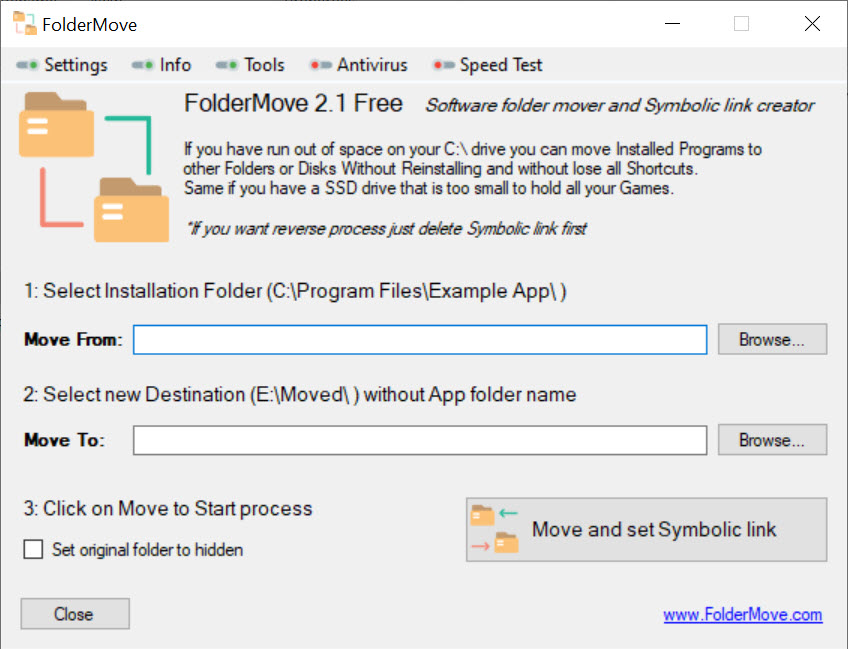
Drag the folder you want to move into the application’s interface, choose the destination drive and folder, click Move, and the application handles file copying, symbolic link creation, and cleanup of the original location. The whole process takes as long as the file copy itself, with no manual intervention beyond confirming the operation.
For users with substantial Steam libraries on overflowing SSDs, professional applications occupying drive space they don’t need to be on, or simply too many programs in Program Files for the available space, this approach handles relocation without the alternative of uninstalling, reinstalling on the new drive, and reconfiguring everything that depended on the original installation.
Symbolic links and what makes them work
Symbolic links (or NTFS junctions, which serve a similar purpose for directories on the file system used by current operating systems) are file system entries that point to other locations rather than holding actual content. When a program tries to access C:\Program Files\BigGame and that location is a symbolic link pointing to D:\Games\BigGame, the file system transparently redirects the access. The program reads and writes files as if they were at the original location, but the actual storage happens at the redirected location.
The transparency is the feature that makes this approach work for moving installed software. Programs that hardcode paths during installation (which is most programs) continue to find their files at the expected paths because the symbolic link maintains the apparent path structure.
Registry entries pointing to the original installation location work because they still resolve to valid file paths, with the redirection happening below the level the registry sees. Shortcut icons keep launching the right executables because the executable paths still exist as far as the operating system reports.
The mechanism predates this application by years, with various command-line tools (mklink in cmd, New-Item in PowerShell) handling symbolic link creation through manual commands. FolderMove wraps these capabilities in a graphical interface that handles the file copy and link creation in one operation, with appropriate verification that the move completed correctly before removing the original files. For users who prefer command-line work, the underlying mklink command produces equivalent results without the graphical workflow.
When this approach actually matters
The scenarios where this software produces real value all involve having space pressure on one drive while having abundant space on another. Modern systems often combine a relatively small fast SSD for the operating system and frequently-used programs with a larger slower HDD for bulk storage. The SSD fills up faster than expected because installed software accumulates over time. Games install to wherever the launcher decides (often the system drive). Professional applications request installation to Program Files by default. Updates expand existing installations beyond their original sizes.
Moving specific installations from the SSD to the HDD frees space on the SSD without losing the installed software. Move 50 GB of Steam games to the HDD, and your SSD has 50 GB more free space while the games still launch through Steam exactly as before.
Move a 20 GB professional application to the HDD, and the application opens normally because the symbolic link handles the redirection. The space savings accumulate quickly when you have several large installations to move, with users often recovering 100+ GB on their SSDs through systematic relocation of programs that don’t need SSD speed.
The performance impact is real but often acceptable. Programs running from HDDs load slower than the same programs running from SSDs because HDD access times are dramatically longer than SSD access times. For programs you launch frequently, this performance impact matters. For programs you launch occasionally, the slower load time happens too rarely to justify keeping them on the SSD. The decision matrix is essentially “move things you don’t use frequently, keep things you use constantly on the fast drive.”
For users wanting to identify which folders are taking up the most space before deciding what to move, disk space analyzers or TreeSize produce visual maps of drive contents that make it obvious where the space went.
Combined with this software for the actual relocation, the workflow becomes “identify big folders, decide which ones don’t need SSD speed, move them to the HDD.”
The actual workflow
The application’s interface presents two main fields. The source folder (where the installation currently lives), and the target folder (where it should be relocated to). Browse to the source through the standard folder picker, browse to the target the same way, click Move, and the application handles the rest.
Behind the scenes, several operations happen in sequence. The application copies all files from source to target while preserving directory structure, file attributes, and timestamps. It verifies that the copy completed correctly by comparing source and target.
It removes the original files from the source location once the verification confirms successful copying. It creates a symbolic link at the original source path pointing to the new target location. It verifies that the symbolic link works correctly through file access tests.
The user-visible result is that the source folder still appears at its original path with its original name, but the actual files now live at the target location. Programs accessing files at the original path get redirected to the new location through the symbolic link, with no functional difference in how the programs operate.
The whole process takes as long as copying the files. For a 50 GB Steam game moved between an SSD and an HDD, the copy might take 15-30 minutes depending on read and write speeds. For smaller installations, the move completes in minutes. For massive installations spanning hundreds of gigabytes, the copy can take an hour or more, with the application running unattended during the transfer.
Use with Steam and game libraries
Steam is the most common application users want to relocate because Steam games can grow to massive sizes and steam libraries often consume the largest portion of installed software space. Modern AAA games routinely exceed 100 GB per game, with active gaming users having dozens of installed games taking up substantial drive space. Moving the entire Steam library, or specific games within it, to a drive with more space frees up substantial capacity on whatever drive originally held them.
Steam includes its own library management feature that handles moving games between configured library locations. For users willing to set up separate Steam library locations on each drive, Steam’s built-in moving handles relocation without requiring symbolic links. The trade-off is that Steam’s approach requires configuring each drive as a separate library, which doesn’t always fit how users want their drives organized.
This software’s approach handles cases where Steam’s built-in tools don’t fit. Games installed before separate library locations were configured. Games that need to stay accessible at their current paths because of mods, configurations, or various other dependencies. Games where the symbolic link approach is simpler than reconfiguring Steam’s library structure. The flexibility means users can choose between Steam’s native approach and the symbolic link approach based on what fits their specific situation.
For users with multiple game launchers (Epic Games Store, GOG, EA app, Ubisoft Connect, Battle.net, various others), this software handles all of them through the same workflow. Each launcher manages its games differently, but the symbolic link approach works regardless of which launcher installed the games because the redirection happens at the file system level rather than depending on launcher cooperation.
Use with professional applications
Beyond games, professional applications often consume substantial drive space without users realizing how much. Adobe Creative Cloud applications can occupy 20-50 GB or more once you’ve installed the major creative applications. Microsoft Office, Visual Studio, IDEs and development tools, video editing applications, 3D software, and various other professional categories all add up to substantial installed footprints.
Moving these professional applications off the SSD onto an HDD typically produces noticeable load time differences for users who frequently launch the applications. The slower HDD access time means startup takes longer, which matters more for applications you use throughout the day than for applications you open once a week.
The decision about which professional applications to move depends on how often you actually use each one rather than which ones happen to be biggest.
For users with substantial professional application installations, the cumulative space savings from relocating less-frequently-used applications often produces 50-100 GB of freed SSD space without affecting daily workflow. The applications you use constantly stay on the fast drive. The applications you use occasionally migrate to the slower drive. The result is more available SSD space for current work without losing access to the broader application library.
Considerations and limitations
The symbolic link approach doesn’t always work perfectly. Some programs check the actual physical location of their installation files (rather than just accessing them through the apparent path) and may behave unexpectedly when they detect that their files are on a different drive than the path suggests. These programs are uncommon but they exist, with the symptoms ranging from unusual error messages through complete failure to launch.
Programs with strict copy protection or anti-tamper systems sometimes detect the symbolic link as a potential modification attempt and refuse to launch. This is rare for the symbolic link case specifically, but it’s worth being aware that the redirection isn’t always invisible to programs that actively check their installation integrity.
Update mechanisms occasionally produce issues with symbolic linked installations. When a program updates itself by creating new files in the installation directory, those new files end up on the target drive (which is correct behavior). When a program updates itself by replacing the entire installation directory, the symbolic link can be replaced with a real directory, which breaks the relocation. For programs with aggressive update behavior, periodic verification that the symbolic link is still in place catches these issues before they become problems.
Backup and synchronization tools sometimes struggle with symbolic links. Some backup tools follow the link and back up the actual files (which is usually what you want). Other backup tools back up the link itself without the contents (which produces incomplete backups). For users with backup systems, verifying that the system handles symbolic links correctly before relying on it for relocated installations prevents data loss scenarios.
The application doesn’t handle every relocation scenario. Some programs install files in multiple locations beyond just their primary installation folder, with user data, configuration, and various other files living in AppData, ProgramData, or other locations. Moving the primary installation folder doesn’t move these distributed files, with the result being incomplete relocation that doesn’t fully address the space problem if those distributed files are large.
For programs that are well-behaved (most installations) the primary folder move handles the bulk of the space issue. For programs with elaborate distributed file structures, additional manual work may be necessary.
The undo path requires copying files back to the original location and removing the symbolic link. For massive installations, the undo operation takes as long as the original move, which means reversing decisions has real time cost. Users should be reasonably confident about their move decisions before committing to them rather than treating moves as casually reversible.
Comparison with the alternatives
The category includes several tools with different positioning. SymMover handles similar symbolic link creation through a different interface, with comparable capability and comparable limitations. Steam Mover (the older tool that inspired some of these utilities) handles Steam-specific relocation with similar mechanics. The various symbolic link creation utilities all work because the underlying operating system mechanism is the same, with the differences being interface design rather than fundamental capability.
For users wanting more sophisticated file management beyond just symbolic link creation, Total Commander and similar advanced file managers include various tools that complement relocation workflows including bulk operations, directory comparison, and various other capabilities that go beyond simple folder moves.
For users wanting to free space through different approaches than relocation, uninstaller utilities like Smarty Uninstaller handle the alternative path of removing software you don’t actually need rather than relocating it. The choice between relocating and uninstalling depends on whether the software has ongoing value, with relocation fitting cases where you want to keep using the software at slower performance versus uninstallation fitting cases where the software isn’t worth keeping at all.
The native Windows file management tools include some symbolic link capabilities through command-line tools and PowerShell. For users comfortable with command-line work, these built-in tools handle symbolic link creation without requiring third-party software. The trade-off is the more accessible graphical workflow this software provides versus the more verbose command-line approach the built-in tools use.
Conclusion
For users dealing with overflowing SSDs while having abundant space on slower drives, FolderMove delivers a focused solution through symbolic link creation that maintains the apparent installation paths while moving the actual files. The portable single-purpose design fits the use case directly without the complexity that broader file management tools accumulate, with the workflow taking as long as the file copy itself and producing programs that continue working exactly as they did before relocation.
For Steam games, professional applications, and most installed software, this approach frees substantial drive space without requiring uninstallation and reinstallation that would lose configurations and force re-downloads.
The reasons to consider alternatives are mostly about specific scenarios. Users wanting to free space by removing software they don’t need find dedicated uninstaller tools handling that path more directly. Users wanting Steam-specific relocation through Steam’s own library management find the built-in tools fitting that workflow without requiring symbolic links.
Users comfortable with command-line work find the operating system’s built-in mklink command producing equivalent results without third-party software. But for users wanting a graphical workflow that handles symbolic link creation across any installed software through a single drag-and-drop operation, this software remains a focused tool that does its specific job well, with the long track record providing confidence that the approach works reliably across the variety of applications users actually want to relocate.
Pros & Cons
- Moves installation folders to different drives without breaking the programs
- Symbolic link approach maintains all original paths transparently to programs
- Portable application requires no installation
- Frees up space on smaller fast drives by relocating to larger slower drives
- Works with Steam games, professional applications, and most installed software
- Single operation handles file copy, verification, and symbolic link creation
- Compatible with various game launchers including Steam, Epic Games Store, and others
- Provides graphical alternative to manual command-line symbolic link creation
- Some programs with strict integrity checking may detect the symbolic link
- Programs running from HDDs load slower than from SSDs
- Update mechanisms occasionally replace symbolic links with real directories
- Backup tools sometimes handle symbolic links incorrectly without configuration
- Doesn't handle distributed file structures across AppData and ProgramData
- Undo operation takes as long as the original move for large installations
Frequently asked questions
This software is a portable tool that moves installation folders from one drive to another and creates a symbolic link at the original location, with the result being that programs continue working as if they were still at their original paths while their actual files live at the new location. The application handles the file copy, verification, original location cleanup, and symbolic link creation in one operation through a simple graphical interface.
The application uses NTFS symbolic links (a feature of the file system used by current operating systems) to redirect file access from one location to another. When you move a folder, the application copies all files to the new location, verifies the copy completed correctly, removes the original files, and creates a symbolic link at the original path pointing to the new location. Programs accessing the original path get transparently redirected to the new location through the symbolic link, with no functional difference in how the programs operate.
Run the application, browse to the source folder you want to move, browse to the target location where you want it relocated to, and click Move. The application handles the rest automatically including file copying, verification, cleanup, and symbolic link creation. The whole process takes as long as the file copy itself, which depends on the size of the folder being moved and the read/write speeds of the source and target drives.
The most common reason is freeing space on a smaller fast drive (typically an SSD) by relocating installations to a larger slower drive (typically an HDD). Modern systems often combine a relatively small fast SSD with a larger slower HDD, with the SSD filling up faster than expected because installed software accumulates over time. Moving specific installations frees space on the SSD without losing access to the installed software, since the symbolic link keeps the programs working from their apparent original locations.
Yes, this is one of the most common use cases. Steam games can grow to massive sizes (modern AAA titles routinely exceed 100 GB), with active gaming libraries consuming substantial drive space. Moving Steam games to a different drive through this software lets you keep the games installed and accessible while freeing space on whichever drive originally held them. Steam itself doesn't see the move because the symbolic link maintains the apparent path structure, with the games launching exactly as they did before the relocation.
A symbolic link (or NTFS junction for directories) is a file system entry that points to another location rather than holding actual content. When a program tries to access a path that's a symbolic link, the file system transparently redirects the access to wherever the link points. Programs see their files at the apparent path while the actual storage happens elsewhere. This redirection happens below the level that programs and registry entries see, which is why programs continue working normally after their files are relocated through this mechanism.
Both tools handle similar symbolic link creation through different interfaces, with comparable capability for the core relocation use case. The differences are mostly about interface design, with both tools producing equivalent results for most scenarios. Users who try one and find it doesn't fit their workflow often find the other working better for their specific preferences. The fundamental mechanism is the same because both rely on the same underlying file system feature.
Yes, but the undo operation takes as long as the original move because it requires copying files back to the original location and removing the symbolic link. For massive installations, the undo has real time cost. The application doesn't include a one-click undo button because the operation is substantial enough to warrant explicit user awareness rather than treating it as casually reversible. To reverse a move manually, copy the files back from the target location, delete the symbolic link, and verify the original installation works at its original path.
Most programs work fine after moving through symbolic links, but some programs check the actual physical location of their installation files (rather than just accessing them through the apparent path). These programs can behave unexpectedly when they detect that their files are on a different drive than the apparent path suggests. Programs with strict copy protection, anti-tamper systems, or specific drive-detection logic occasionally fall into this category. For programs that don't work after relocation, the practical recourse is moving them back to their original location and accepting that they need to stay there.
Most program updates work fine because they create or modify files at the apparent installation path, which gets redirected through the symbolic link to the actual storage location. Some update mechanisms replace the entire installation directory rather than modifying files within it, which can replace the symbolic link with a real directory and break the relocation. For programs with aggressive update behavior, periodic verification that the symbolic link is still in place catches these issues before they cause problems.


