

WinDirStat
About WinDirStat
When a drive fills up unexpectedly, the question is rarely “how much space am I using” but “which folder ate it.” A pie chart of total usage doesn’t help. Even a sortable list of largest files misses the answer when the culprit is forty thousand small files scattered across a project tree.
WinDirStat answers that question with a single colored treemap, where every file on your drive is a rectangle sized by how much space it consumes, and where the biggest offenders are immediately, visually obvious.
The application has been around since 2003, dormant for stretches and recently revived by a community fork that brought it up to current Windows and pushed it onto GitHub for active maintenance. The core experience is unchanged from the original. Three panes show you the same data three ways at once, and clicking anywhere in one updates the other two.
Most users figure it out within thirty seconds and never need to read the manual.
The treemap visualization
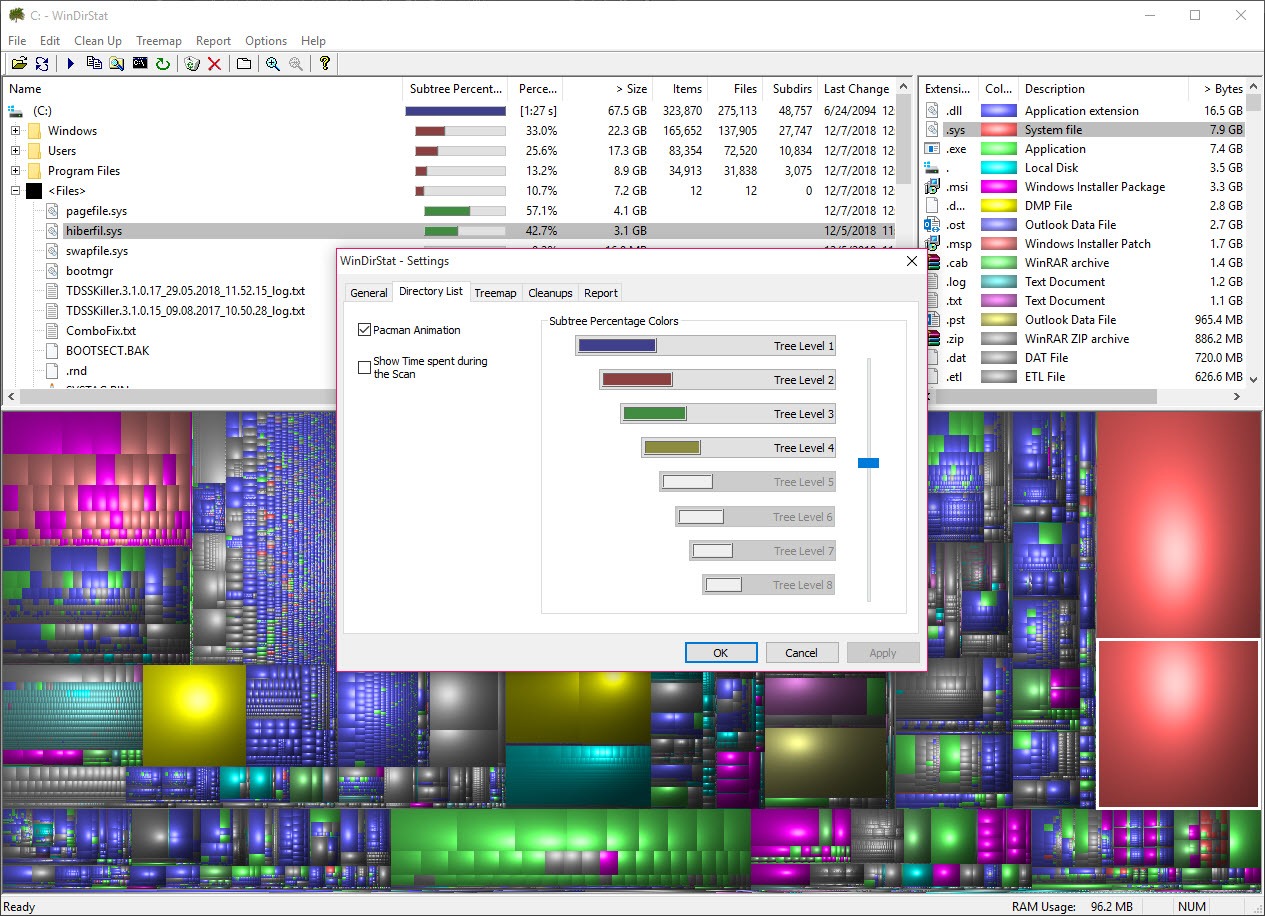
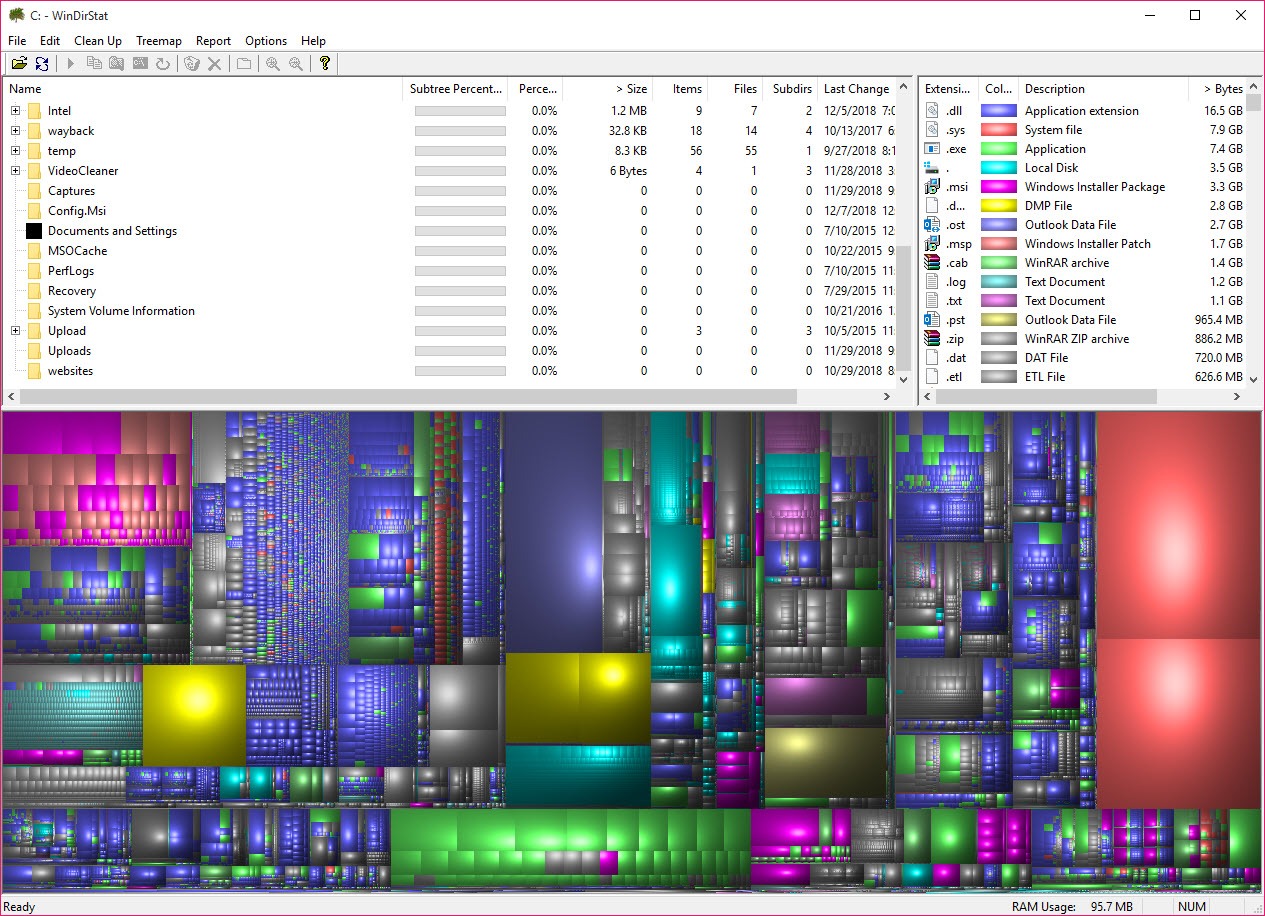
The treemap is what people remember about WinDirStat. Each file on your drive renders as a colored rectangle inside a larger rectangle representing its parent folder. The color of every rectangle corresponds to its file extension, with a legend in the third pane listing which color means what.
A 4 GB video file shows up as a huge red block (or whatever color .mp4 maps to in your configuration). A million tiny log files cluster into a recognizable speckled texture that you learn to recognize after seeing it once.
The trick is that this layout makes outliers impossible to miss. You can stare at a list of folders sorted by size and still not understand what’s happening until you see the visual. One enormous green rectangle in the corner is almost always an ISO image or a virtual machine disk you forgot about. A noisy mosaic in the user profile folder is browser cache or Steam shader caches. The pattern recognition is faster than reading numbers.
Compared to alternatives like WizTree (which reads the NTFS Master File Table directly and finishes scanning in seconds) or SpaceSniffer (similar treemap concept, slightly different layout algorithm), WinDirStat chose readability over raw speed. The treemap squarifies cells to keep aspect ratios close to 1:1, which makes individual files easier to click on than the long thin strips some other implementations produce.
Three-pane synchronized view
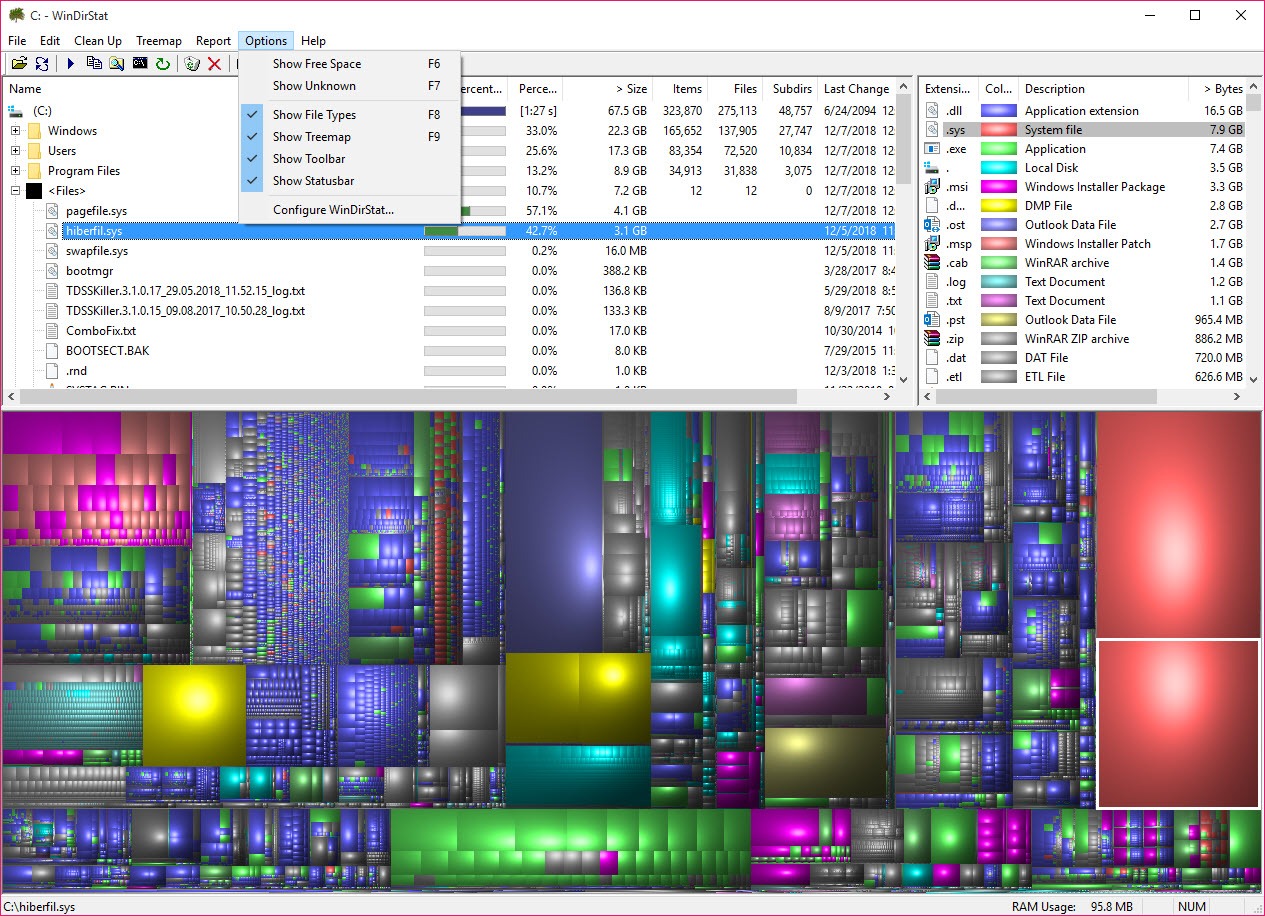
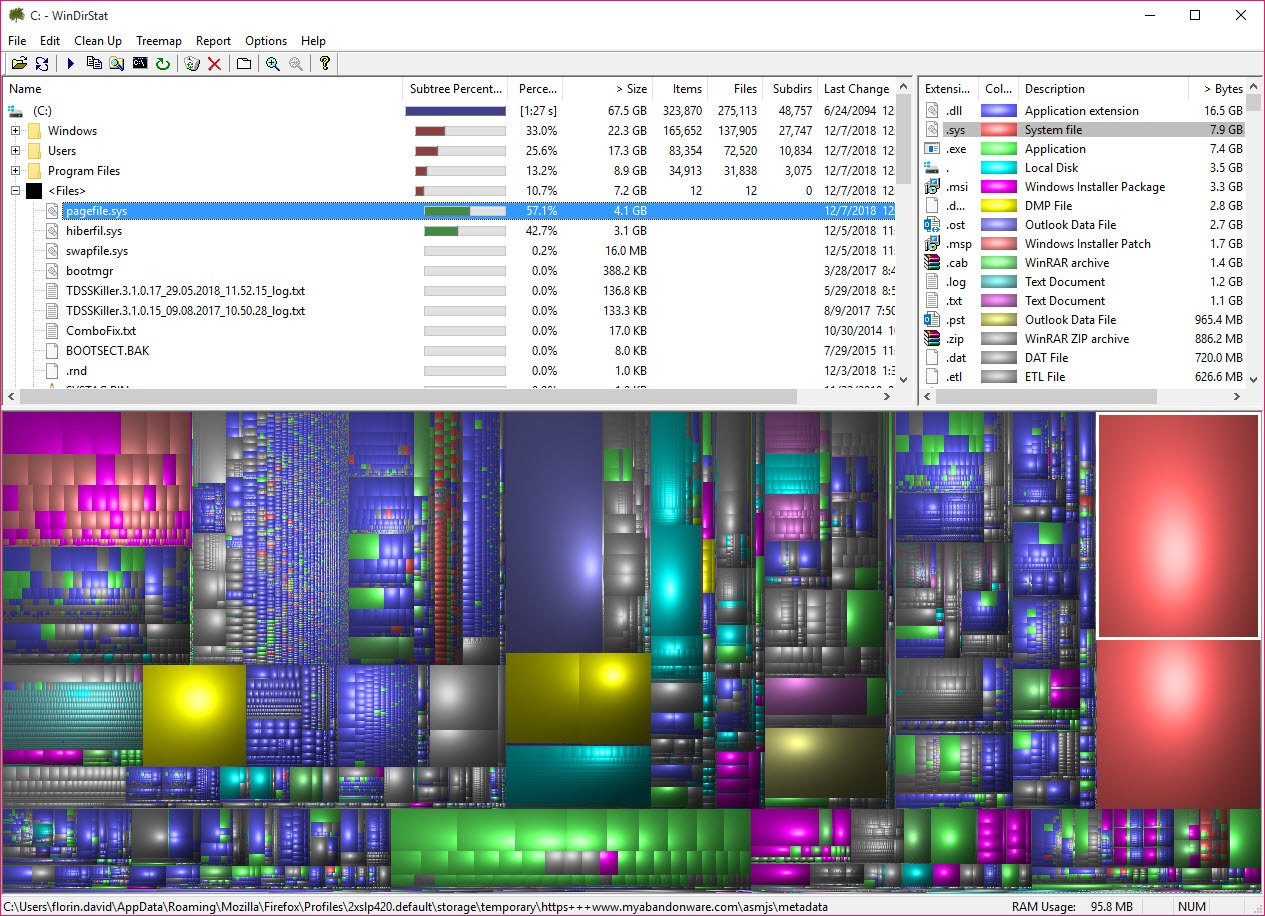
The interface splits into a folder tree at the top left, a file extension list at the top right, and the treemap filling the bottom half. Clicking a folder in the tree highlights its rectangle on the treemap.
Clicking any rectangle in the treemap navigates the tree to that exact file and highlights the matching extension in the legend. The reverse works too. Click an extension to see every file of that type lit up across the entire drive.
This bidirectional navigation is what makes WinDirStat more than just a pretty picture. Once you identify a problem area visually, you immediately have the file path in the tree pane ready for action. No copy-paste, no separate file manager window.
Built-in cleanup actions
Selected files or folders get a context menu with the usual Windows operations (open, properties, delete, send to recycle bin) plus a configurable command line action. You can define your own cleanup commands and bind them to keyboard shortcuts, so emptying a build folder or running a deletion script becomes a single keystroke after WinDirStat has shown you exactly where the bloat lives.
This is where the application differs from purely analytical tools like JDiskReport. You find the problem and fix it in the same window. The downside is that the default cleanup actions are conservative, and serious cleanup tasks (like recursively deleting node_modules folders across a workspace) still benefit from a separate script.
The shortcut system exposes that capability without forcing it on you.
File extension grouping and color customization
The third pane lists every file extension on the scanned drive, sorted by total bytes consumed. You can see at a glance that .mkv files account for 480 GB while .pdf files account for 200 MB, which immediately tells you where to focus. The color assigned to each extension is customizable, and you can save color schemes if you’re scanning the same drive types repeatedly.
For developers, this view is particularly useful for spotting forgotten artifacts. A list dominated by .o, .obj, or .pyc files means you have build output that never got cleaned. A surprise spike in .log files often points to a misconfigured application logging to disk without rotation.
Scan performance and large drives
Here’s where WinDirStat shows its age. The scan engine walks the directory tree using standard Win32 APIs, reading every file’s metadata individually. On a 4 TB drive with millions of files, this takes minutes (sometimes tens of minutes on slower mechanical disks). Tools that read the NTFS MFT directly finish the same scan in seconds because they skip the per-file overhead entirely.
The community fork has added multi-threaded scanning, which helps significantly on systems with fast storage. Initial scans still aren’t instant, but subsequent rescans of the same drive complete much faster as filesystem caches stay warm.
For users with smaller drives (say, anything under 1 TB), the speed difference rarely matters in practice.
Portable and lightweight footprint
The application installs in well under 10 MB and runs comfortably in around 100 MB of RAM during normal use, scaling up only when scanning extremely large directory structures. A portable build exists for running from a USB stick on systems where you can’t install software, which is useful for IT folks who clean up other people’s machines.
There are no telemetry calls, no licensing checks, no background services. You launch it, scan, get your answer, close it. The treemap visualization makes the difference between a productive cleanup session and an hour of clicking through folders blindly, which is enough reason for the application to stay on most enthusiasts’ utility USB sticks even when faster alternatives exist.
For tracking down duplicate files specifically (a related but separate problem), pairing WinDirStat with dupeGuru covers the cleanup workflow end to end. One shows you where the space is going, the other identifies redundant copies you can safely delete.
Conclusion
WinDirStat is the right tool when you need to understand where space went, not just measure how little is left. Visual learners get more from one treemap glance than from a sortable folder list, and the synchronized three-pane interface keeps that visual insight connected to actionable cleanup.
For modest drives, daily use on a workstation, or the occasional “why is this disk full” emergency, it does the job with no fuss and no learning curve.
The honest limitation is scan speed on large modern drives, where MFT-reading alternatives finish before this application has gotten started. If you scan multi-terabyte arrays regularly, faster tools make more sense for that specific workflow.
Everywhere else, the treemap visualization remains genuinely useful in a way that newer interfaces haven’t really improved on, which is probably why the project keeps finding new maintainers willing to keep it alive decades after its initial release.
Pros & Cons
- The treemap visualization conveys disk usage faster than any chart or list
- Three synchronized panes let you navigate between folder, file, and extension views instantly
- Open source codebase with active community maintenance on GitHub
- Configurable cleanup commands let you bind cleanup scripts to keyboard shortcuts
- Lightweight footprint and portable build make it easy to keep on a utility USB stick
- Color-coded extensions reveal patterns that flat listings hide
- Scan speed lags far behind tools that read the NTFS MFT directly
- Interface design looks visibly dated compared to modern alternatives
- Treemap can become hard to read on very high-density drives with millions of small files
- Cleanup actions are basic by default and require custom configuration for advanced workflows
- Limited filtering options when narrowing down the visualization
Frequently asked questions
The two take different approaches. TreeSize emphasizes a folder-based hierarchical view with detailed tables, while this software leads with the treemap visualization. TreeSize is faster on large drives and offers more reporting features in its paid version, but this application is free and open source.
The scan walks every file individually using standard Windows APIs, which takes time on drives with millions of files. Tools like WizTree skip this by reading the NTFS Master File Table directly, but that approach only works on NTFS volumes.
Yes, the right-click context menu in the file tree and treemap includes delete options, both to the recycle bin and permanent. You can also configure custom cleanup commands that run on selected files or folders.
Each color corresponds to a file extension. The legend in the right-hand pane shows which extension maps to which color, and the assignments can be customized to suit your preferences.
The application can scan mapped network drives, though performance depends entirely on network speed and the file server's response times. Local drives are always faster to scan.
The active fork on GitHub maintains the original open source license. Source code remains freely available, and the community has been merging contributions and adding modern Windows compatibility.


