

SpaceSniffer
About SpaceSniffer
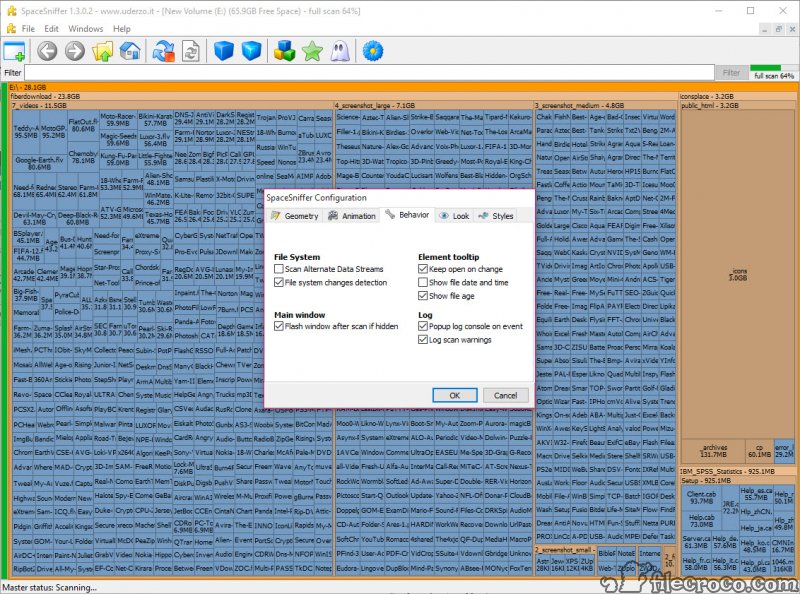
SpaceSniffer scans your drives and shows you the results as an animated treemap where every file and folder appears as a colored rectangle sized in proportion to its actual disk usage. The 50 GB game folder eating your SSD becomes the obvious giant rectangle dominating the visualization. The thousands of tiny config files that account for 2 MB combined disappear into a barely visible region.
The proportional layout makes “what’s actually using my disk space” visible at a glance, which is something traditional file browsers fundamentally can’t show because lists and tables hide proportions behind text.
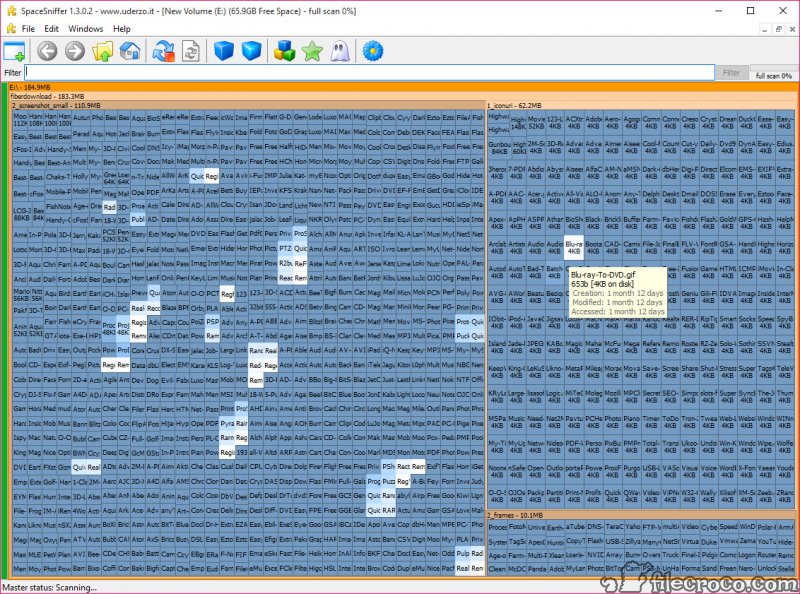
The visualization updates in real time as the scan progresses, with rectangles appearing and growing as files get measured. Click any rectangle to drill into that folder. Type a filter expression to narrow the view to files matching specific criteria. Right-click a rectangle for the standard delete-rename-open file operations that work the same as in any file browser. The whole application is one executable under 2 MB that runs without installation.
For users wanting a focused tool that does one thing through visualization rather than tables, this is what that looks like.
How the treemap actually works
The treemap algorithm divides the available area into rectangles proportional to file sizes, with the rectangles arranged to fill the area efficiently while preserving folder hierarchy through visual containment. Folders contain their files as smaller rectangles within the folder’s rectangle, with the recursive nesting handling arbitrarily deep paths.
The animated implementation matters because it reaches usefulness before scanning completes. Drives with substantial content can take minutes to fully scan, but the largest files typically appear within the first few seconds. Watching the treemap build itself often reveals what you came looking for before the scan finishes, which means you can act on the information immediately rather than waiting for completion.
The visualization also stays current as you make changes. Delete a file from within the application, and the rectangle disappears with surrounding rectangles growing to fill the freed area. The dynamic updates fit how disk cleanup actually works, where you discover problems and act on them iteratively rather than treating analysis and action as separate phases.
Color coding by file type
Colors map to file type categories so you can identify content without reading filenames. Documents get one color. Videos get another. Audio files a third. Archives a fourth. Hovering over rectangles shows specific paths and sizes for confirmation, but the color signals reach your visual system faster than text would.
The benefit is that visualizing your drive produces immediate intuition about content patterns. A drive full of mostly red rectangles signals video content dominance. A drive showing primarily blue signals different patterns. The pattern recognition happens in the seconds it takes to look at the visualization rather than the minutes it would take to navigate folders manually.
For users dealing with collections of duplicate files contributing to space issues, identifying duplicates through the treemap can highlight where they live but isn’t the right tool for actually finding the duplicates. Dedicated duplicate finders like dupeGuru handle that scenario directly through content comparison rather than just visual inspection.
The two tools complement each other, with this one identifying space hogs and duplicate finders handling the duplicate-specific scenario.
Filter syntax for narrowing the view
The filter field accepts expressions that limit which files the treemap displays. Type “>100MB” and only files larger than 100 MB appear. Type “*.mkv” and only video files matching that extension display. Type “>1GB *.mp4” and you get large video files specifically. Date filters narrow to files modified in specific ranges. Path filters limit to specific directory patterns.
The treemap rebuilds itself in real time as you adjust the filter, with proportional sizing now relative to the filtered total rather than the original full scan. The rebuild happens fast enough to support exploratory filtering where you adjust criteria iteratively to find what you’re looking for.
For users wanting to understand “what large old files do I have,” compound filters handle this in seconds. Combining size filters with date filters narrows to specific subsets that would take substantial folder navigation to identify otherwise. The expressiveness produces practical answers to actual disk-management questions.
Drilling down through hierarchy
Double-click any folder rectangle and the visualization rebuilds with that folder as the new root. The proportional sizing now reflects contents within that folder specifically, with relative sizes within that subset becoming visible at detail levels the full-drive view couldn’t show.
Navigation history tracks where you’ve drilled, with back and forward buttons working like web browser navigation. Drill deep to identify a specific space hog, use back to return to the parent context, drill into a different branch to investigate something else. The non-modal navigation matches how disk exploration actually proceeds rather than forcing strict folder-tree paths.
After identifying installed programs taking up substantial space, the practical question becomes what to do with them. Programs you actually use should stay where they are. Programs you’ve forgotten about can be removed through proper uninstallers like Smarty Uninstaller that clean up registry entries and leftover files alongside the main application.
Programs you want to keep but don’t need on your fast drive can be relocated through tools like FolderMove that shift installed programs to slower drives without breaking them. The visualization tells you what’s there, and these other tools handle the actual cleanup or relocation.
Direct file operations from the visualization
Right-click any rectangle for the standard context menu that includes delete, open, properties, and various other operations. The integration with the operating system means file operations work the same way they would in your file browser. Delete sends files to the recycle bin (or permanently deletes with shift-delete). Open launches the appropriate application for that file type. Rename, copy, move, and various other operations all work through the same context menu pattern.
The selection handles single files cleanly through clicking. Ctrl+click adds individual rectangles to selection, Shift+click selects ranges. The multi-select interface in treemap visualizations is inherently more awkward than list-based multi-select because spatial arrangement doesn’t always match selection order, but it works for cases where you want to act on several rectangles at once.
For bulk operations on many files, narrowing the view through filters first and then selecting all filtered results often works better than trying to multi-select through the visualization manually. The combination of filter expression plus select-all handles bulk scenarios that would be impractical through pure visual selection.
What affects scanning speed
Scan duration depends on storage speed and file count. SSDs scan dramatically faster than mechanical HDDs because directory traversal and metadata access happen at very different speeds. Drives with millions of small files take longer than drives with fewer larger files because file system overhead per file matters more than total size. Network drives scan at network-bandwidth-limited speeds rather than direct-storage speeds.
The asynchronous scanning means you can interact with results before the scan finishes. Larger files typically appear in the visualization first because the algorithm prioritizes them, with smaller files filling in as the scan continues. For users who need quick answers about major space consumers, the early portions of long scans often provide enough information to act on without waiting for completion.
For users wanting faster results, scanning specific folders rather than entire drives produces dramatically faster outcomes when you already know roughly where space issues exist. Running the scan against C:\Users\YourName produces results in a fraction of the time that scanning the entire C: drive would take, and the results are typically more relevant because user folders contain most of what individual users actually generate.
Conclusion
For users dealing with disk space problems where they don’t actually know what’s using the space, SpaceSniffer turns the question from “navigate folders one by one looking at file sizes” into “see proportions immediately through visualization”. The treemap shows you the answer in the seconds it takes to look at the screen rather than the minutes it would take to dig through folder hierarchies manually, and the real-time scanning means useful information appears before the scan even completes.
The application fits users who value focused single-purpose tools over feature-loaded suites, who appreciate visualization over tables, and who don’t need active development to validate their software choices.
Pros & Cons
- Treemap visualization makes disk usage proportions immediately obvious through pure geometry
- Real-time animated scanning shows results as they're discovered
- Color coding by file type provides visual identification without reading filenames
- Filter syntax handles size, type, date, and pattern criteria through a compact expression language
- Drill-down navigation focuses the visualization on specific folder hierarchies
- Single-executable portable distribution requires no installation
- Right-click integration provides standard file operations through the operating system
- Free for personal use without subscription requirements
- 32-bit architecture produces limits with very large drives containing millions of files
- Development pace has been very slow with the codebase dating to 2014
- Visualization approach doesn't fit users who prefer list or table-based interfaces
- Bulk operation workflows work better in file browsers than treemap interfaces
- Permission errors during scanning produce visualization gaps
Frequently asked questions
This software is a disk space analyzer that displays drive contents as an animated treemap visualization where every file and folder appears as a colored rectangle sized proportionally to its disk usage. Features include real-time scanning that updates the visualization as it progresses, color coding by file type, filter syntax for narrowing the view, drill-down navigation into specific folders, and right-click integration with operating system file operations. The application runs from a single portable executable without installation.
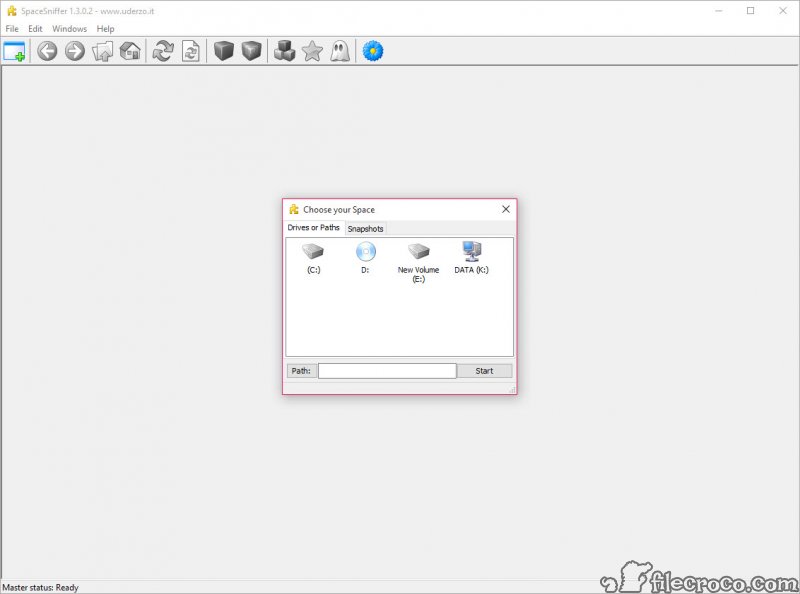
Run the executable, choose which drive or folder to scan, and watch the treemap build itself as the scan progresses. Click any rectangle to drill into that folder and see its contents. Use the filter field to narrow the visualization to specific file types or sizes through expressions like ">100MB" or "*.mp4" or combinations like ">1GB *.mkv". Right-click rectangles for standard file operations including delete, open, and rename.
Colors map to file type categories so you can identify content without reading filenames. Documents get one color, videos another, audio files a third, archives a fourth, and various other categories follow similar coding. The default color scheme works for most users, with custom schemes available through settings for users wanting different mappings. Hovering over rectangles shows specific file paths and sizes.
Right-click the executable and choose "Run as administrator" from the context menu. Administrator privileges allow scanning of system folders that require elevated access, which produces complete visualization including content that wouldn't appear in regular user-level scans. The elevation lasts only for that session.
Use Ctrl+click to add individual rectangles to selection, or Shift+click to select ranges. The multi-selection interface in treemap visualizations is more awkward than list-based selection because spatial arrangement doesn't match selection order naturally. For bulk operations on many files, narrowing the view through filters first and then selecting all filtered results often works better than visual multi-selection.
The blue color in the default scheme typically represents documents and various other file categories that the application classifies under that color group. The exact mapping depends on your color scheme configuration. Hovering over rectangles shows the specific file types in your current configuration.
"Unaccessible space" typically refers to files the application couldn't measure due to permission errors during scanning. Running with administrator privileges allows scanning of system folders that regular user permissions can't access. For genuine disk space discrepancies where the operating system reports more used space than visible files explain, system files like the recycle bin, shadow copies, hibernate files, and various other system-managed content account for the difference.
Scan duration depends on storage performance and file count. Mechanical HDDs scan substantially slower than SSDs because directory traversal involves slower operations. Drives with millions of small files take longer than drives with fewer larger files. Network drives scan at network-limited speeds. For faster results, scanning specific folders rather than entire drives produces dramatically faster outcomes when you know roughly where space issues exist.
Yes, right-click any rectangle and choose Delete from the context menu. The deletion goes through standard operating system file operations, with files going to the recycle bin by default (Shift+Delete bypasses the recycle bin for permanent deletion). The visualization updates immediately to show freed space, with surrounding rectangles growing to fill the area.


