

MiniTool Power Data Recovery
About MiniTool Power Data Recovery
Before anything else about this program, one instruction matters more than every feature it has. Stop writing to the drive you lost files from, immediately.
Deleting a file does not remove its contents. It marks the space as available, and the data sits there until something else is written over it. Every minute a machine keeps running, every program that saves a temporary file, every update that downloads, is a chance for that space to be reused. MiniTool Power Data Recovery can only find what has not yet been overwritten, which means the recovery starts the moment you stop using the drive rather than the moment you open the software.
That has two practical consequences. Install the recovery tool on a different drive, and recover the files to a different drive as well, because writing recovered files back onto the source is the single most common way people destroy the rest of what they were rescuing.
Two scans, answering different questions
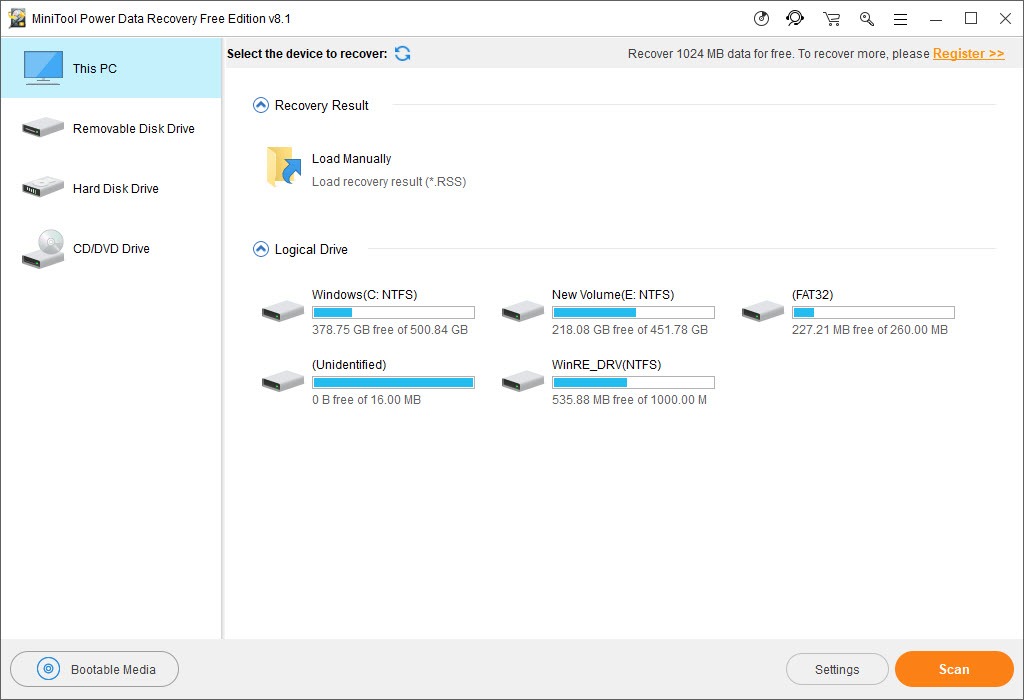
The MiniTool Power Data Recovery quick scan reads the file system’s own records, finds entries marked as deleted, and returns files with their names and folder structure intact. It takes minutes and it is the right first attempt for an ordinary accidental deletion.
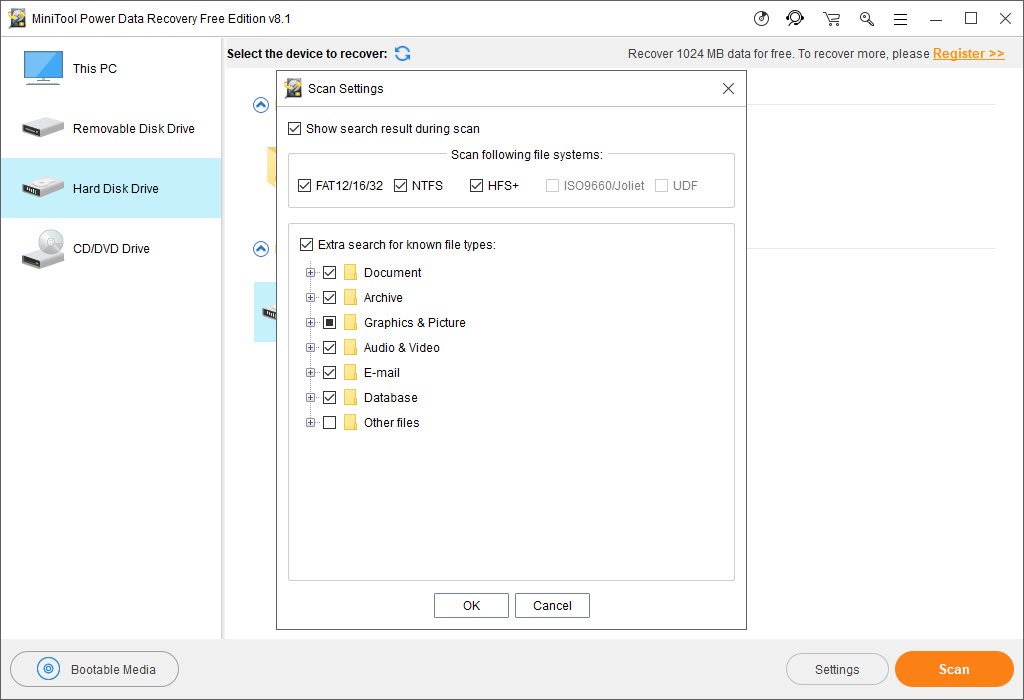
The deep scan ignores those records and searches the entire drive for the recognisable patterns that mark the beginning of known file types. It finds far more, including files whose directory entries are long gone, and it takes hours on a large drive.
The trade in the second is structure. A signature scan knows a file is a photograph and does not know what it was called or where it lived, so results arrive as thousands of generically named files sorted by type.
That is still a recovery, and it is a considerably less pleasant one to work through. For straightforward deletions where the file system is intact, Recuva covers the same ground quickly.
Preview is what makes the trial worth running
MiniTool Power Data Recovery lists files it claims to have found, as every tool in this category does. Listing is easy and meaningless, since a file whose contents were overwritten still appears in the results with its name and size looking perfectly healthy.
The preview function answers the question that listing does not. Photographs, documents, video can be viewed before recovering, and a preview that renders correctly means the data is really there, while one that fails means the entry survived and the contents did not.
That matters practically because the unpaid tier limits how much you may recover rather than what it will find. You can scan fully, preview everything, and confirm your files are actually recoverable before deciding anything.
Establishing that the recovery works before committing is the correct order, and few things in this category are as honest about it.
Partitions, formatting, unreadable drives
Beyond individual deleted files, MiniTool Power Data Recovery handles the larger structural failures. A partition that was formatted, one that has become unreadable and prompts to be formatted, and partitions that have disappeared from the drive entirely.
Those cases are structural rather than about individual files, and the recovery is finding where the partition began and reconstructing what was inside it. Removable media and optical discs get their own handling, and bootable media can be created for a machine that will not start at all, which is the situation where the drive cannot simply be moved to another computer.
Where the problem is specifically a damaged or missing partition table rather than lost files, TestDisk is built precisely for that and often repairs the structure so the partition mounts normally with everything inside it.
The solid state problem nobody mentions
Here is the limitation that changes the MiniTool Power Data Recovery answer for most modern machines, and it is rarely stated plainly.
Solid state drives manage their own storage, and when a file is deleted the system tells the drive those blocks are no longer needed. The drive then erases them on its own schedule, usually within minutes, so the data is physically gone rather than merely unreferenced.
The consequence is that recovering deleted files from a modern system drive frequently returns nothing useful, and no software changes that because there is nothing left to find. This is a property of the storage rather than a shortcoming of the tool. Recovery from mechanical drives, memory cards and external drives is where these programs still perform as expected.
When scanning is the wrong move
If a drive is clicking, disappearing and reappearing, or throwing errors, do not point MiniTool Power Data Recovery at it. A deep scan reads every sector of the drive and puts a failing mechanism under sustained load for hours, which is exactly the treatment most likely to finish it.
Check the drive’s condition first, and a health tool reporting reallocated and pending sectors tells you within seconds whether you are dealing with a deleted file or a dying disk.
Where the drive is physically failing, take a sector-level copy before anything else, then run the recovery against the copy. Raw Disk Copier reads past bad sectors rather than stopping, and working on a duplicate means a failed attempt costs you nothing.
Conclusion
MiniTool Power Data Recovery does the job competently, and the preview function combined with an unrestricted scan means you find out whether your files survived before spending anything, which is the right way round for this category.
The advice that matters most has nothing to do with MiniTool Power Data Recovery itself. Stop using the drive, install and recover elsewhere, check whether the drive is failing before scanning it, and understand that a modern solid state system drive has probably already erased what you are looking for.
Get those four right and this tool will recover what is recoverable. Get them wrong and no program in this category will help you, however good it is.
Pros & Cons
- Quick scan returns files with names and folder structure intact in minutes
- Deep scan finds files whose directory entries no longer exist at all
- Preview confirms a file is intact before you commit to recovering it
- The unpaid tier scans and previews fully, limiting only how much is recovered
- Handles formatted, unreadable, deleted partitions as well as individual files
- Bootable media covers machines that will not start
- Filtering and searching narrow thousands of results to what you were looking for
- Deep scan results lose filenames and folder structure entirely
- Recovery from a modern solid state system drive often returns nothing
- Scanning a physically failing drive can finish it off
- Hours are required for a deep scan on a large drive
- Nothing here helps if the space has already been written over
Frequently asked questions
Because installing writes files, and those writes may land exactly on the space holding what you are trying to recover. Install it elsewhere, and recover the files to a different drive as well, for the same reason.
The quick scan reads the file system records and returns names and folders intact within minutes. The deep scan searches the whole drive for file signatures, finds considerably more, takes hours, and returns files without their original names or locations.
Often not. Modern drives erase deleted blocks themselves shortly after deletion, so the data is physically gone rather than waiting to be found. Mechanical drives, memory cards and external drives remain recoverable in the usual way.
How much you can recover, not what it can find. Scanning and previewing are unrestricted, so you can confirm your files are intact and recoverable before deciding whether to go further.
No. Check its health first, and if it is failing physically, take a sector-level image and run the recovery against that image instead. Hours of scanning is the worst thing you can do to a mechanism that is already going.


