

Belarc Advisor
About Belarc Advisor
Belarc Advisor writes a single, very long report about your computer and opens it in your web browser. Run it, wait a few minutes while it looks around, and a page appears with nearly everything the machine knows about itself. The processor and memory are there, along with the drives, the motherboard and the user accounts.
So is every installed program with its version, the product keys it can find, the security updates that are missing and the ones that are installed, and the status of the antivirus. The report is built on the machine and stays there, saved as a plain HTML file you can print, keep or compare with the next one.
That one page answers questions that otherwise mean opening a dozen settings windows. What exactly is inside this second-hand laptop? Which programs were installed by the previous owner? Where is the licence key for the office suite I need to reinstall? Is this machine missing security patches? Belarc Advisor is a reporting tool rather than a fixing tool, and that is its strength and its limit.
It tells you, in detail, and leaves the doing to you. The sections below walk through the main parts of the report and say where it is weaker than a specialist tool.
The hardware and system summary
The top of the Belarc Advisor report is a summary of the machine. It lists the processor and its speed, the memory with the size and type of each module, the drives with their capacity and free space, the motherboard, the graphics card, the monitors, and the network cards. A second block shows the system’s name, the time the profile was made, and the user and system accounts on the machine.
It is a snapshot rather than a monitor. There are no temperatures or live clock speeds, only what is installed and how it is configured. That is exactly what a buyer checking a used computer or a technician documenting a machine needs.
For live sensors and a deeper look at each component, Speccy shows temperatures and readings the report does not attempt.
Installed software and the licence keys
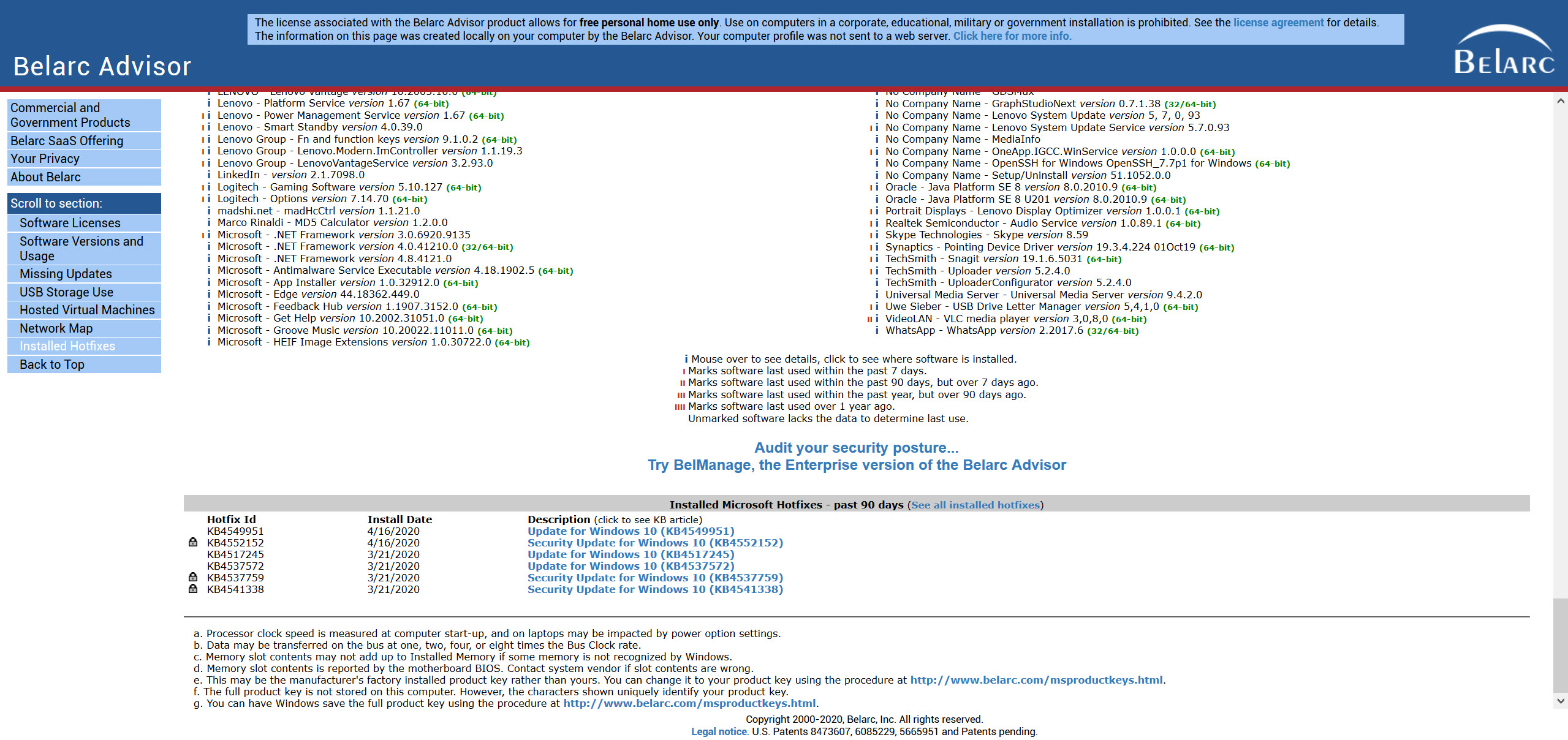
Every installed program appears in Belarc Advisor with its publisher and version, and an information link for each shows details such as how recently it was used. That list is the fastest way to spot software a previous owner left behind, or to plan a migration to a new machine. The licence section is the one people come for. It lists the product keys the program can find for the system itself, the office suite and a range of other software, which saves a hunt through old boxes and emails before a reinstall.
It has one catch to know in advance. On a machine activated with a digital licence tied to the hardware, the key shown for the system may be a generic placeholder rather than one you can reuse elsewhere. Keys for other programs depend on how each one stores its licence, so not every program appears.
For a focused look at the system’s own key, ShowKeyPlus reads the installed and the original firmware keys side by side.
Missing updates and the security picture
A Belarc Advisor security section lists the system and office updates that are missing, and another lists those already installed, with their identifiers. A red cross marks each gap. That is useful for a machine that has been switched off for months, since it shows what will download when it next connects. The report also shows whether antivirus protection is active and whether its definitions are current.
The benchmark score that used to grade a machine against security guidelines is generated only for older system releases, not for current ones. On a recent machine, expect the update lists and the antivirus status rather than a score.
For keeping third-party programs up to date, which the system’s updater does not do, an updater for common applications covers browsers and runtimes as well as media players.
The local network map
A further block in Belarc Advisor maps the local network as the machine sees it. It lists the other devices it can find, with their names and addresses, along with shared folders and printers. On a home network that is a quick list of what is connected. On a small office network it helps match names to machines.
The map is a by-product rather than a feature to rely on. Devices that do not answer the kinds of queries it uses will not appear, so a phone or a smart speaker may be missing. For a full scan of a network with ports and services, a dedicated network scanner is the better tool.
Saving and comparing reports
The Belarc Advisor report opens in the browser, with a menu of sections down the side. Each run writes a new file that stays on the disk. You can print it, save it to another location, or compare it with an older one to see what changed after an update or a software install. The profile is not sent to a server.
That local, file-based approach suits a technician who keeps a report per machine and a family member who wants a record of a parent’s computer. It does mean a report is a moment in time. Run it again after any big change, because a report from last year describes a different machine.
Where it falls short
Belarc Advisor reports and does not fix. Missing updates are listed, not installed, and the keys it cannot find are simply absent. The page is long and dense, with a lot of detail most readers will never need. The security benchmark is missing on current systems. And the program has to look at everything to build the report, so the first run takes a few minutes on a busy machine.
None of that undermines its value as a snapshot. For checking a used computer before buying, documenting a machine before handing it over, or finding a licence key before a reinstall, it remains one of the quickest single pages you can produce.
Conclusion
Belarc Advisor suits anyone who needs a full written picture of a computer in a few minutes. That covers a buyer checking a used laptop, a technician documenting machines, and someone hunting a licence key before a reinstall. The single report covers hardware and software along with licences and update status, and it stays on the machine.
It will not fix what it finds, and its benchmark is gone on current systems. Run it before buying, before reinstalling and after a big change, keep the reports, and use a specialist tool for the jobs it only touches.
Pros & Cons
- One local report covering hardware and software, with licences, updates and antivirus status
- Lists product keys for the system, the office suite and other programs
- Shows missing and installed security updates with their identifiers
- Maps devices, shared folders and printers on the local network
- Report stays on the machine as an HTML file you can print or compare with later ones
- Reports problems but does not fix them
- Keys for digitally licensed systems may show a generic placeholder
- Security benchmark score is not produced on current systems
- Long, dense report, and the network map can miss devices
Frequently asked questions
Yes, for the system, the office suite and many other programs. On a machine with a digital licence tied to its hardware, the system key shown may be a generic placeholder.
On the computer itself, as an HTML file that opens in your browser. The profile is not sent to a server.
No. It lists the missing and installed updates, and installing them is left to the system's updater.
The benchmark score is produced only for older system releases. On current systems the report shows the update lists and antivirus status instead.


