

Bill2's Process Manager
About Bill2's Process Manager
Bill2’s Process Manager sets the CPU priority and core affinity of your running programs, and then makes those settings stick. That second part is the whole point. Windows lets you change a process’s priority or pin it to specific cores through Task Manager, but the moment you close the program and reopen it, you’re back to default. This tool watches for processes by name and reapplies your rules every time they launch, so the configuration you set once survives reboots, updates, and relaunches.
If you’ve ever wanted a background encoder to stop hogging your machine, or a game to get exclusive run of certain cores while everything else stays out of its way, this is the kind of control Bill2’s Process Manager gives you without you having to babysit Task Manager. Set a rule, forget it, and the application enforces it from then on.
Rules that survive a relaunch
The core idea is the rule. You tell the application “whenever a process named handbrake.exe starts, drop it to Below Normal priority and limit it to four cores,” and that rule fires automatically on every launch. This is the difference between this tool and just poking at Task Manager. Manual changes there evaporate; rules here persist.
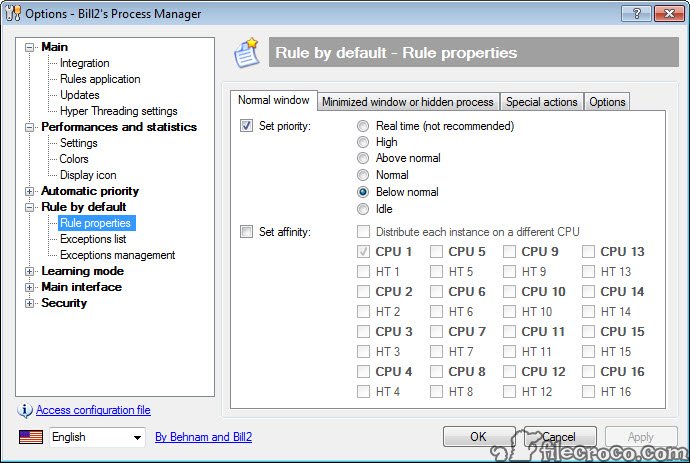
You can match processes by name, by the window title, or by the full path, which helps when two programs share an executable name or when you only want the rule to hit a specific install. Each rule can set the priority level (from Idle up through Realtime), the processor affinity (which cores the process is allowed to touch), and the I/O priority. The matching is quick, and a process that starts after you’ve defined a rule gets caught within a second or two.
One honest caveat: Realtime priority is exposed, and it’s a foot-gun. Pinning something to Realtime can starve the rest of the system, including input handling, so it’s there if you know what you’re doing and a trap if you don’t.
Affinity control, and why “permanently” matters
Core affinity is where this tool earns its keep for a lot of people. Pinning a process to specific cores can stop a heavy single task from saturating every thread, or keep a latency-sensitive program on cores that aren’t busy with background noise. The trouble is that Windows treats a manual affinity change as temporary. Close the app, it forgets.
Bill2’s Process Manager solves that by reapplying the affinity through its rule system on every launch. So “set CPU affinity permanently,” which is what people actually want when they go looking, becomes a set-and-done rule rather than a chore you repeat every session. It’s a genuinely useful trick for anything from encoders to older games that misbehave across many cores.
Watching and reacting in real time
Beyond static rules, the application can monitor processes and react to conditions. You can have it trigger an action when a process exceeds a CPU threshold, or automate priority shifts based on what’s running. It’s not a full monitoring suite, and if raw visibility into the system is what you’re after, a viewer like Process Explorer shows far more detail about handles, DLLs, and threads. But for the specific job of acting on processes rather than just inspecting them, the reactive rules cover useful ground.
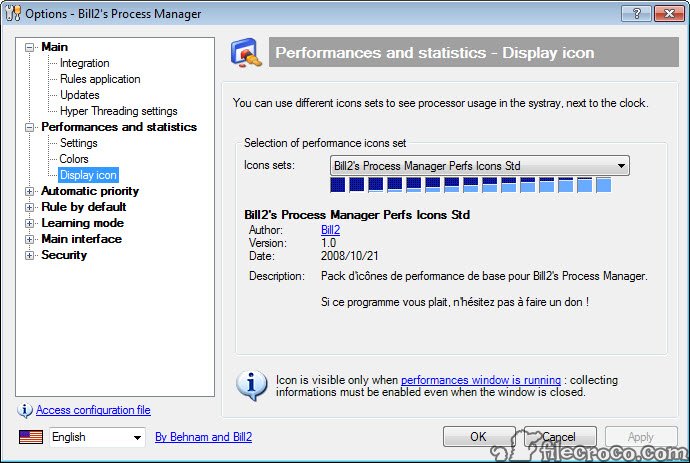
There’s also a tray presence and logging, so you can see which rules fired and when. Handy when a rule isn’t behaving and you want to confirm it actually matched.
Process Lasso does it automatically, this tool does it on your terms
The name most people will reach for in this space is Process Lasso, and the comparison is fair. Lasso is more polished, has its ProBalance algorithm that dynamically restrains background processes to keep the system responsive, and a slicker interface. Bill2’s Process Manager is leaner and free, and its rule system is more than capable for manual, deliberate control.
If you want the system tuned automatically in the background, Lasso’s dynamic approach pulls ahead. If you’d rather write precise, explicit rules yourself and have them stick, this tool does exactly that without the extra weight.
The interface
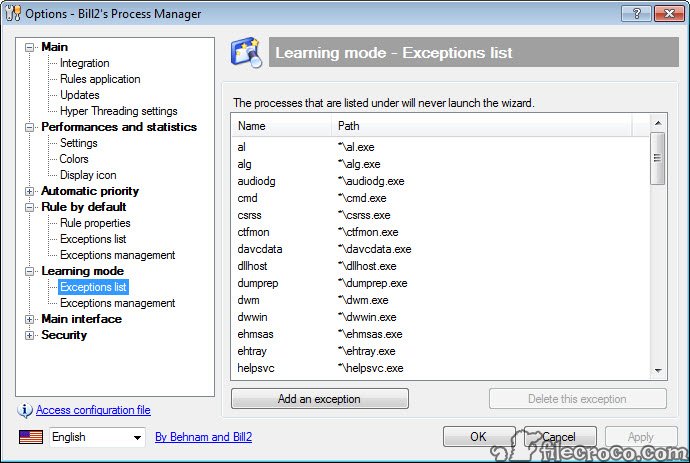
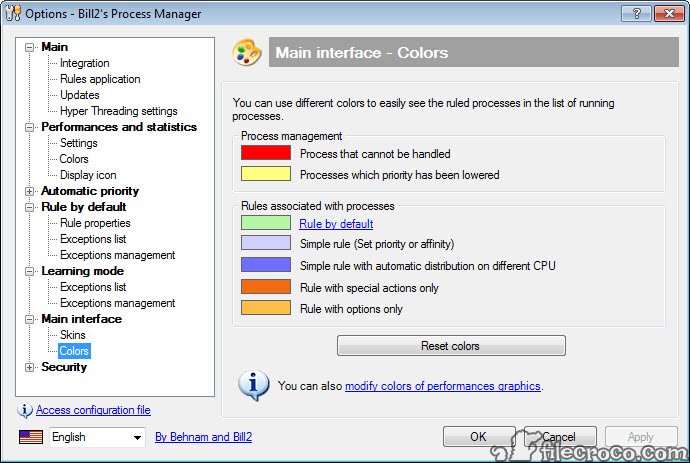
It’s utilitarian. A list of rules, a process view, configuration dialogs that get the job done without much polish. You won’t mistake it for modern software, and the layout takes a few minutes to map. But once your rules are in place, you rarely open the window again, so the dated look matters less than it would for a tool you stare at all day.
Conclusion
Bill2’s Process Manager is for the user who knows exactly how they want specific programs to behave on their CPU and is tired of Windows forgetting those choices. The persistent rule system, covering priority, affinity, and I/O priority by name, title, or path, is the feature that justifies installing it, and it does that job without costing anything.
It’s not the tool for someone who wants the system tuned automatically, where a dynamic rival does the thinking for you, nor for deep process inspection, which calls for a dedicated viewer. But for deliberate, persistent, hands-on control over how processes use your cores, it’s a capable and genuinely free option that punches above its plain appearance.
Features & benefits
Pros & Cons
- Priority and affinity rules persist across relaunches and reboots instead of resetting
- Matches processes by name, window title, or full path for precise targeting
- Sets CPU priority, core affinity, and I/O priority per rule
- Can react to conditions like CPU thresholds, not just apply static settings
- Free, with no feature tiers gating the core functionality
- The interface is dated and takes a little learning
- Exposes Realtime priority, which can destabilize a system if misused
- Lacks the dynamic, automatic balancing that some paid rivals offer
- Not a detailed monitoring tool, so deep process inspection needs something else
Frequently asked questions
It sets CPU priority, processor affinity, and I/O priority for processes, and reapplies those settings automatically whenever the process launches. Unlike manual changes in Task Manager, the rules persist, so the configuration sticks across relaunches and reboots.
Effectively, yes. Windows treats manual affinity changes as temporary, but the rule system here reapplies your affinity setting on every launch, which makes it behave as if it were permanent without you redoing it each session.
You can match by executable name, by window title, or by the full file path. The path option is useful when two programs share an executable name or when you want a rule to apply only to one specific install.
Use it carefully. Realtime is exposed, but pinning a process there can starve the rest of the system, including input and the interface itself. For most cases, High or Above Normal is the safer ceiling.
Process Lasso leans on a dynamic algorithm that automatically restrains background processes for general responsiveness, with a more refined interface. This tool focuses on explicit rules you define yourself and is free. The right pick depends on whether you want automatic balancing or precise manual control.
The application sits quietly in the background and uses very little while watching for processes to match. Its job is to apply settings and step back, not to run constant heavy analysis.


