

Paint.NET

 (21 votes, average: 4.33 out of 5)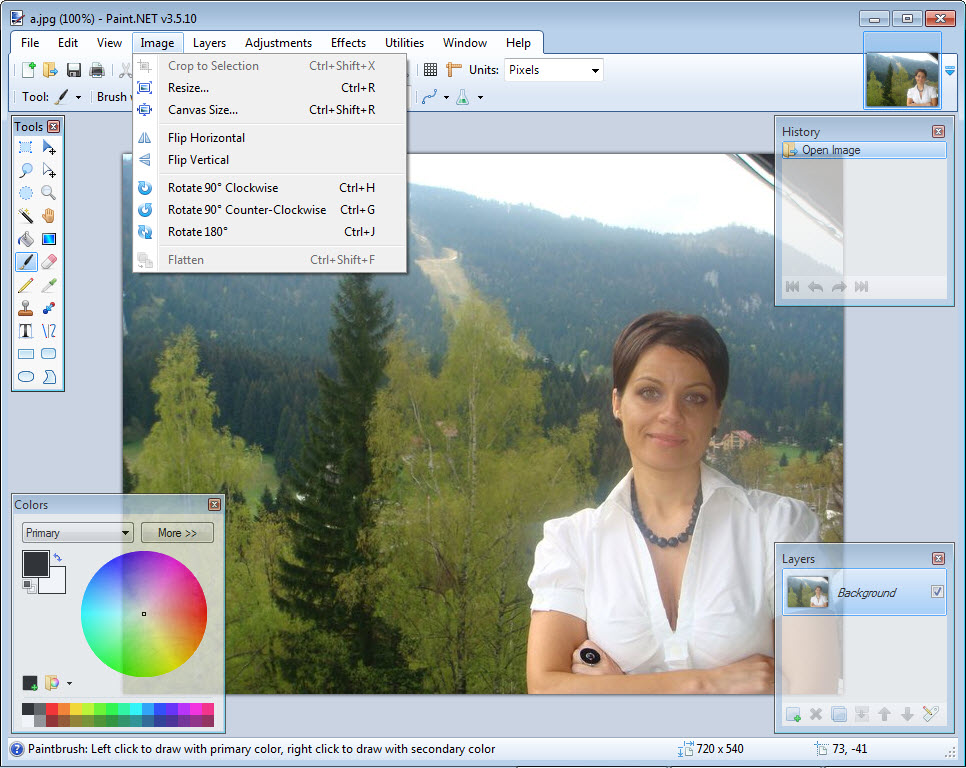
About Paint.NET
Paint.NET is a free raster graphics editor that sits in the gap between Microsoft Paint and Photoshop. Layers, unlimited undo history, dozens of built-in effects, a working selection toolset, support for hundreds of community plugins, and a native file format that preserves all the editing structure between sessions.
What makes the application interesting today, in a market dominated by GIMP on the free side and Photoshop or Affinity Photo on the paid side, is the specific position it occupies. GIMP has more raw power but a substantial learning curve and an interface many users genuinely struggle with. Photoshop is professional-grade but expensive and overkill for most casual editing needs.
Paint.NET targets the middle: substantially more capable than basic image editors, substantially more approachable than full graphics suites, and free in its standard edition with no subscription, no advertising, and no commercial restrictions.
For users whose editing needs go beyond cropping and resizing but stop short of professional design work, this software fits the use case better than the alternatives at either end of the spectrum.
Layers as the core editing model
The single feature that separates Paint.NET from basic editors is layer support. Images get built up from multiple stacked layers, each editable independently, with blending modes controlling how layers combine into the final result. Add a text layer above a photo, blur a layer to soften an effect, paint on a transparent layer above your base image to add elements without modifying the original, and the standard image-editing workflow is right there.
The layers panel handles the standard operations: create, delete, duplicate, reorder, merge, hide, lock. Layer opacity adjusts continuously from fully visible to fully transparent. Blending modes including Normal, Multiply, Screen, Overlay, and dozens of others control how each layer interacts with the layers beneath it. For users coming from Photoshop or GIMP, the layer model is essentially familiar with minor interface differences. For users coming from Microsoft Paint, the layer concept itself is the substantial mental shift, but once it clicks the rest of the workflow opens up.
The native .PDN file format saves your image with all layers intact, preserving the editing structure between sessions. Open a .PDN file three months later, all the layers are still there in their original states, ready to continue editing.
Exporting to PNG, JPEG, or other flat formats handles the case where you need a single-layer file for sharing, with the multi-layer .PDN preserved separately for future editing.
Selection, transformation, and the basic toolset
The selection toolset covers what you need for most editing work. Rectangle and ellipse selection for geometric shapes. Lasso selection for freehand outlines. Magic Wand for selecting connected areas of similar color. Selection-based operations including invert, expand, contract, feather, and various others let you refine what’s selected before applying changes. Anti-aliasing handles the edge smoothing that prevents selections from looking pixelated.
Transformations work on selections or entire layers. Move, rotate, scale, skew, distort, flip horizontal, flip vertical. The transformation handles let you manipulate selections directly through mouse interaction rather than entering numerical values, with precision input available when you need exact measurements. For straightening photos, resizing portions of images, or repositioning elements within compositions, the transformation tools cover the practical scenarios without requiring deep technical knowledge.
The painting tools include the standard brush, pencil, paint bucket, gradient, line/curve, shapes, eraser, and text. Each tool has appropriate parameters: brush size, hardness, opacity, color, blending mode.
The text tool supports system fonts with size, style, and anti-aliasing controls. Color selection happens through a color picker that accepts RGB, HSV, hex codes, or visual selection. Nothing groundbreaking, but everything works the way you’d expect.
Effects and filters that go beyond basic editing
The Effects menu organizes the built-in filters into categories: Artistic (oil painting, ink sketch, pencil sketch), Blurs (Gaussian, motion, radial, zoom), Distort (bulge, polar inversion, twist), Noise (add, reduce, median), Photo (glow, red eye removal, sharpen, soften portrait), Render (clouds, julia fractal, mandelbrot fractal), and Stylize (edge detect, emboss, outline, relief).
For typical photo editing needs (sharpening a slightly blurry image, reducing noise on high-ISO photos, applying artistic effects for stylization, removing red-eye, fixing exposure problems), the built-in effects handle the work without external tools. The quality varies across effects, with some producing genuinely impressive results and others feeling more like demonstrations of what’s possible than seriously useful filters. The collection has grown across the years through contributions from the development team and incorporated community plugins.
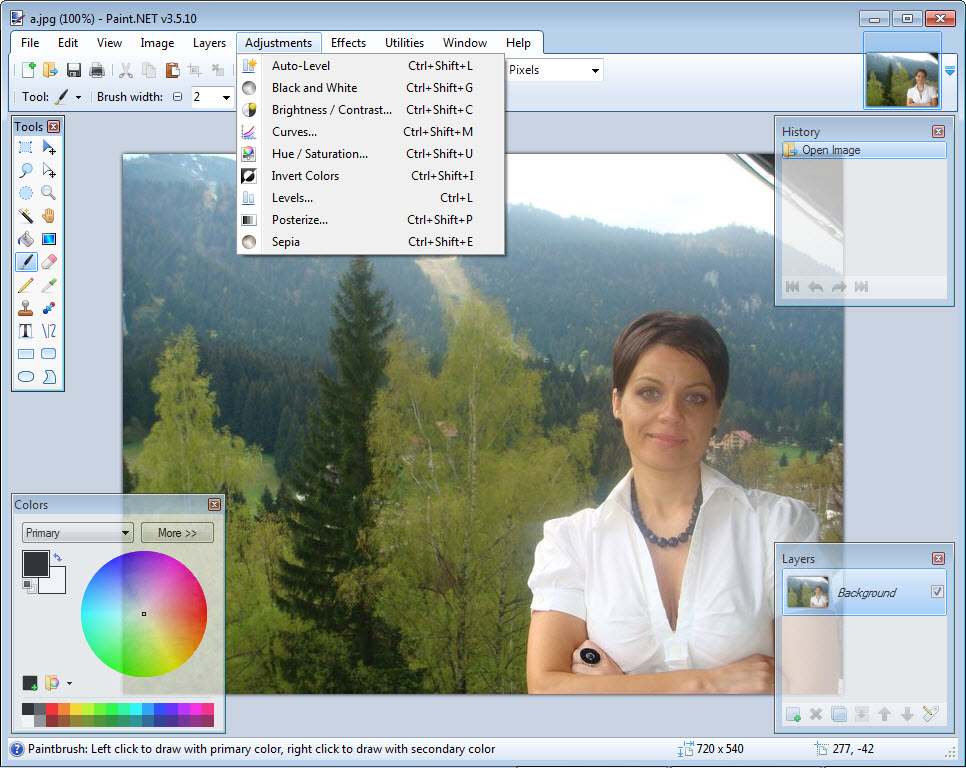
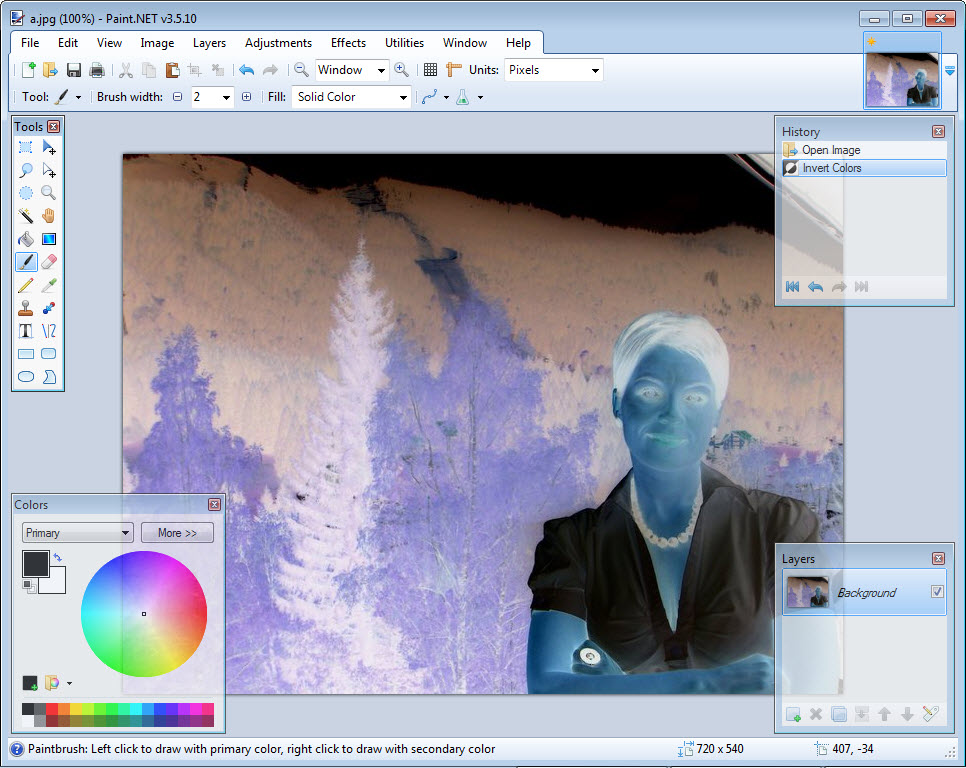
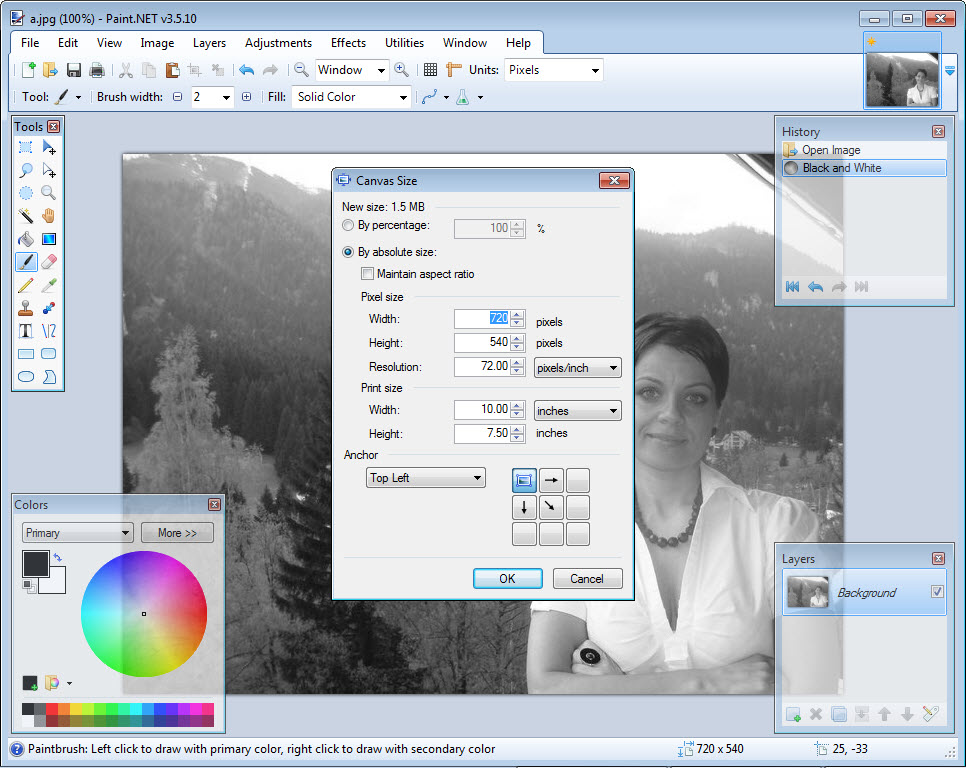
Adjustments handle color and tone correction. Auto-Level, Curves, Levels, Brightness/Contrast, Hue/Saturation, Black and White, Sepia, Invert Colors. The Curves dialog provides the same kind of precise color control that Photoshop’s Curves tool offers, with separate channel curves for red, green, blue, and luminance.
For users serious about color correction, this depth matters substantially. For users who just want to brighten a too-dark photo, the simpler Brightness/Contrast handles that scenario without overwhelming options.
Plugins and the community ecosystem
The plugin architecture is what extends Paint.NET beyond what ships out of the box. Plugins fall into two categories: file type plugins (which add support for additional file formats) and effect plugins (which add new filters and adjustments). Both types install by placing the plugin DLL in the appropriate folder within the application’s installation directory, with the application detecting and loading them automatically on startup.
The community has produced hundreds of plugins across the application’s lifetime, with the BoltBait pack and the Plugin Index on the official Paint.NET Forum being the most prominent collections. Notable plugins include Shape3D for rendering 2D drawings as 3D shapes, the PSD plugin for opening Photoshop files, the DDS plugin for DirectDraw Surface format used in game development, and various others extending the capabilities into territory the base application doesn’t cover.
Effect plugins range from simple additions (sharper sharpening, better blur, niche filters) to substantial extensions (advanced photo editing tools, specialty effects, professional-grade adjustments). Curves+ extends the built-in Curves tool with additional features. Sharpen+ provides better sharpening than the default. The Median filter handles noise reduction more effectively than what ships with the application. For users willing to install plugins, the effective capability set grows dramatically.
The plugin installation process trips up some new users, since dropping DLL files into application folders isn’t standard for most software. The official documentation walks through the steps, with most plugins including their own installation instructions.
Once you’ve installed your first few plugins, the process becomes routine, but the initial learning curve is real.
File format support and PSD compatibility
The application handles the major image formats through built-in support: PNG, JPEG, BMP, GIF, TIFF, TGA, and the native .PDN format. Each format has its own export dialog with quality settings, compression options, and metadata controls appropriate to the format. PNG export specifically supports transparency, color depth options, and various optimization settings.
PSD support requires a plugin. The community-developed PSD plugin handles opening Adobe Photoshop files with reasonable accuracy, preserving layers, blend modes, and most other Photoshop features. The compatibility isn’t perfect (very complex Photoshop files with advanced features sometimes don’t import cleanly), but for typical PSD files received from designers or downloaded from stock sites, the plugin handles the conversion adequately.
Saving to PSD format is also possible through the same plugin, though with similar caveats about advanced feature compatibility. For users who need to exchange files with Photoshop users regularly, this two-way PSD support is essential and works well enough for most practical scenarios.
The .PDN native format is the right choice for working files you’ll continue editing. The format compresses efficiently, preserves all layer information, and loads quickly compared to working file formats from heavier applications.
The trade-off is that .PDN files only open in this specific software, so they aren’t suitable for handing off to other tools or other people without first exporting to a more universal format.
Performance and resource usage
The application runs on the .NET Framework, which means it’s lighter than native applications like Photoshop but heavier than minimal C-based tools. Memory consumption stays modest during normal editing on typical-sized images, with usage scaling based on image dimensions, layer count, and history depth. Editing a 24-megapixel photo with multiple layers consumes substantial memory, but typical web-resolution editing happens with negligible system impact.
Performance on modern hardware is essentially never an issue for the editing operations themselves. Brush strokes respond instantly. Effects apply quickly. Transformations preview smoothly. The application doesn’t push hardware limits the way professional graphics applications do, partly because the feature set targets common editing rather than the most computationally demanding professional workflows.
The 79.5 MB installation size is reasonable for what’s included, with the disk footprint staying small compared to professional graphics applications that frequently run into multiple gigabytes. Update sizes are similarly modest, with point releases typically being smaller downloads that don’t require full reinstallation.
Updates and the dotPDN release pace
Active development has continued across more than two decades, with regular updates adding features, fixing bugs, and expanding capabilities. The current 5.x series represents a substantial modernization compared to earlier versions, with updated tooling, refined interfaces, and various other improvements.
The release cadence has been relatively steady, with point releases shipping every few months and major versions appearing every 1 to 2 years. This pace fits a project maintained primarily by Rick Brewster (the original developer) along with contributors, producing meaningful improvements without the breakneck release schedule of larger commercial products.
The Microsoft Store edition exists alongside the free classic edition, priced at $14.99 as a convenience purchase that supports development. The two editions are functionally identical, with the Store version providing automatic updates through Microsoft Store and direct support for users who want to contribute financially. The classic edition remains available freely without restrictions.
Comparison with GIMP and the alternatives
The honest comparison with GIMP requires acknowledging what each does well. GIMP has more raw capability, better support for advanced workflows, scripting through Script-Fu and Python, and broader file format support without plugins. Paint.NET has a substantially friendlier interface, faster startup, better default settings, and a learning curve that beginners actually push through rather than abandoning.
For users who can invest the time to learn GIMP, that application provides more capability for free than this software does. For users who want to start editing images today without committing to substantial learning, Paint.NET gets you productive faster. The choice often comes down to whether you’re willing to learn complex software for capability gains or prefer simpler software that handles 90 percent of typical needs without the friction.
Compared to Photoshop, the gap is wider in capability but narrower in everyday usefulness than Photoshop’s price suggests. Photoshop has features this software doesn’t try to match: smart objects, advanced color management, professional print preparation tools, AI-powered selection and content-aware fill, and the broader Adobe ecosystem integration. For users who don’t need those professional features, Paint.NET covers everyday image editing without the subscription cost.
Photopea (the web-based Photoshop alternative) and Krita (the open-source painting application) occupy adjacent niches. Photopea is browser-based and Photoshop-compatible. Krita focuses on digital painting more than photo editing. Each serves users whose specific needs differ from what this software targets.
Considerations and limitations
The plugin requirement for some basic features (PSD support, certain file formats, advanced effects) means users have to install plugins to reach what some competitors include by default. The plugin ecosystem is excellent, but new users sometimes find the need to track down and install separate plugins frustrating compared to applications where everything ships included.
The .NET Framework dependency, while less significant on modern systems, occasionally produces issues on older or stripped-down installations. Most users won’t encounter problems, but specific edge cases (corporate systems with restricted .NET installations, older operating systems with outdated .NET versions) can complicate setup.
Some advanced features users coming from professional applications expect simply aren’t here. Adjustment layers, smart objects, content-aware fill, advanced typography controls, vector shape editing comparable to Illustrator, professional print color management. The application targets raster image editing with reasonable depth rather than competing with full graphics suites across every category.
The interface, while approachable, doesn’t quite match the visual polish of current commercial software. The 5.x series modernized substantially compared to earlier versions, but heavy users coming from current Photoshop or Affinity Photo will notice differences in interaction smoothness and visual design that reflect smaller development resources rather than poor design choices.
Conclusion
For users who want capable image editing without the price tag of Photoshop or the steep learning curve of GIMP, Paint.NET fits the gap well. The layer support, plugin ecosystem, built-in effects, and active development across more than two decades produce a tool that handles essentially every common editing scenario without forcing users to learn professional software they don’t need.
The reasons to look at alternatives are mostly about specific advanced needs. Users who require professional features (smart objects, advanced color management, content-aware fill, AI-powered tools) need Photoshop or comparable commercial software regardless of preferences.
Users willing to learn complex software get more capability from GIMP for free. But for the practical scenarios most users encounter in everyday image editing, this software remains one of the strongest options in its category, with a track record of continuous refinement that few free graphics tools can match.
Pros & Cons
- Layer-based editing with blending modes and standard layer operations
- Native .PDN format preserves all editing structure between sessions
- Hundreds of community plugins extend functionality substantially
- Built-in effects covering blur, sharpen, distortion, artistic, and stylize categories
- Free classic edition with no subscription, advertising, or commercial restrictions
- Active development across more than two decades with regular updates
- Lighter resource usage than professional graphics applications
- Approachable interface compared to GIMP for users new to image editing
- PSD support requires a plugin rather than being built in
- Some advanced features (smart objects, adjustment layers) aren't included
- Plugin installation requires manual file placement that confuses new users
- Less raw capability than GIMP for users willing to learn either
- Interface polish lags slightly behind current commercial alternatives
Frequently asked questions
This software is a free raster graphics editor with layer support, unlimited undo, dozens of built-in effects, and an extensive community plugin ecosystem. It sits between basic image editors like MS Paint and full graphics suites like Photoshop, providing substantial editing capability with a learning curve most users push through rather than abandoning. The current 5.x series represents more than two decades of active development by Rick Brewster and the dotPDN team.
Download the plugin file (typically a .dll for effect plugins or .FileType.dll for file format plugins). Close Paint.NET completely. Navigate to the application's installation folder, then to the Effects subfolder for effect plugins or the FileTypes subfolder for file format plugins. Copy the downloaded plugin file into the appropriate subfolder. Restart the application, and the plugin appears in the relevant menu. Some plugins ship as installers that handle this automatically; others require manual placement.
Yes, with the community-developed PSD plugin installed. Without the plugin, PSD files don't open through the standard Open dialog. Once the plugin is installed (placed in the FileTypes subfolder), PSD files open with their layers, blend modes, and most other Photoshop features preserved. Compatibility isn't perfect for very complex Photoshop files with advanced features, but typical PSD files import cleanly enough for most editing scenarios.
Photoshop is professional-grade with capabilities this software doesn't try to match: smart objects, content-aware fill, advanced color management, AI-powered tools, and the broader Adobe Creative Cloud ecosystem. Paint.NET covers everyday image editing (cropping, resizing, color correction, layer-based composition, basic effects) without the subscription cost. For professional design work or advanced photo editing, Photoshop is the right tool. For casual to intermediate editing needs, this software covers the use case adequately.
GIMP has more raw capability and a more substantial feature set, with scripting support and broader native file format compatibility. The trade-off is a steeper learning curve and an interface many users genuinely struggle with. This software is more approachable, with a learning curve that beginners actually push through. For users willing to invest time learning, GIMP provides more capability for free. For users who want to be productive quickly, this application gets you there faster.
Fonts come from your operating system rather than the application itself. Install fonts through the standard system Font Settings (right-click font files and select Install, or drag fonts into the system Fonts folder). Once installed at the system level, fonts appear in the Text tool's font dropdown immediately, with no application configuration required. Restart the application if newly-installed fonts don't appear, though this usually isn't necessary.
The .PDN format is the application's native file format, preserving all layers, blend modes, opacity settings, and other editing information between sessions. It compresses efficiently and loads quickly. The trade-off is that .PDN files only open in this specific software, so working files in this format aren't directly shareable with users on other applications. For files you'll continue editing, save as .PDN. For files you'll share or use elsewhere, export to PNG, JPEG, or another universal format.
This typically happens when the application is set as the default for image files on your system. The application saves work in its native .PDN format unless you specifically use Save As and choose a different format. To save as PNG or JPEG, use File then Save As (or Ctrl+Shift+S), and select the desired format from the Save as type dropdown. To change the default save format permanently, configure it through Settings or use Save As consistently rather than the standard Save command.


