

Krita


 (36 votes, average: 3.86 out of 5)
About Krita
Krita is a digital painting application built specifically for illustrators, concept artists, and comic creators. The distinction matters because most software in the broader image-editing category started life as a photo retoucher and added brushes later. Krita went the other way. Painting, brush engine flexibility, and the workflow of building an illustration stroke by stroke are the design center, and everything else, the layer system, the color management, the animation timeline, exists in service of that.
What you notice within the first hour is that the brush engine is not a single algorithm. The application ships with around nine different engines, each with its own physics and behavior.
The Pixel engine handles classic raster strokes with pressure dynamics, the Color Smudge engine produces real wet-paint blending where the brush picks up and drops color as it moves, the Bristle engine simulates individual hairs of a physical brush, and the Particle and Spray engines do scattered effects that would normally require a separate plugin in other applications.
Each engine exposes dozens of parameters, which is why brush packs for the application can run to thousands of unique presets.
The brush engine in actual use
Painting in Krita comes down to choosing the right engine for the stroke you want, then tuning it. The Color Smudge engine is what most illustrators end up living in, because it does the equivalent of mixing colors on a canvas: paint a red stroke, then run a brush set to high smudge value across it, and the underlying color blends into whatever you painted on top. This is the behavior people pay for in commercial software, and the implementation here is competitive without compromise.
The brush settings dialog has a left panel of categories (size, opacity, flow, scatter, rotation, color, texture, mirror, smudge length) and a right panel where you wire any of them to pressure, tilt, speed, distance, fade, or a fuzzy curve you draw by hand.
A brush can have its size driven by pen pressure, its angle driven by tilt, its opacity driven by speed, and its scatter driven by random fuzz, all at once. The first time you build a custom brush that responds to your tablet exactly the way you want, the application sells itself.
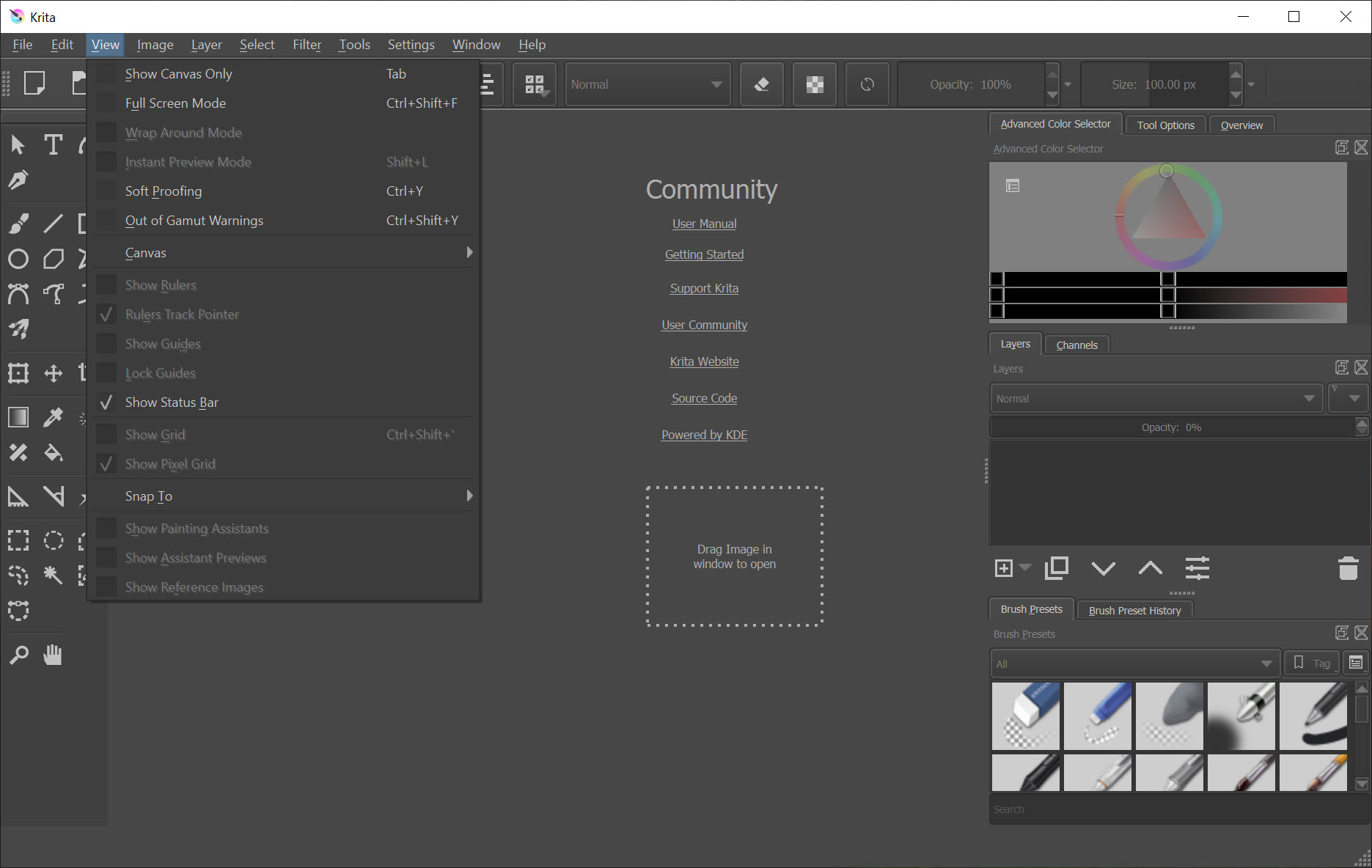
Pop-up palette is the other ergonomic feature that changes the experience. Right-click anywhere on the canvas and a circular palette appears under the cursor with your recent colors, favorite brushes, and a small color wheel. You never move the cursor to the toolbar to switch brushes. This sounds minor and is genuinely not.
Layer system and the workflow it supports
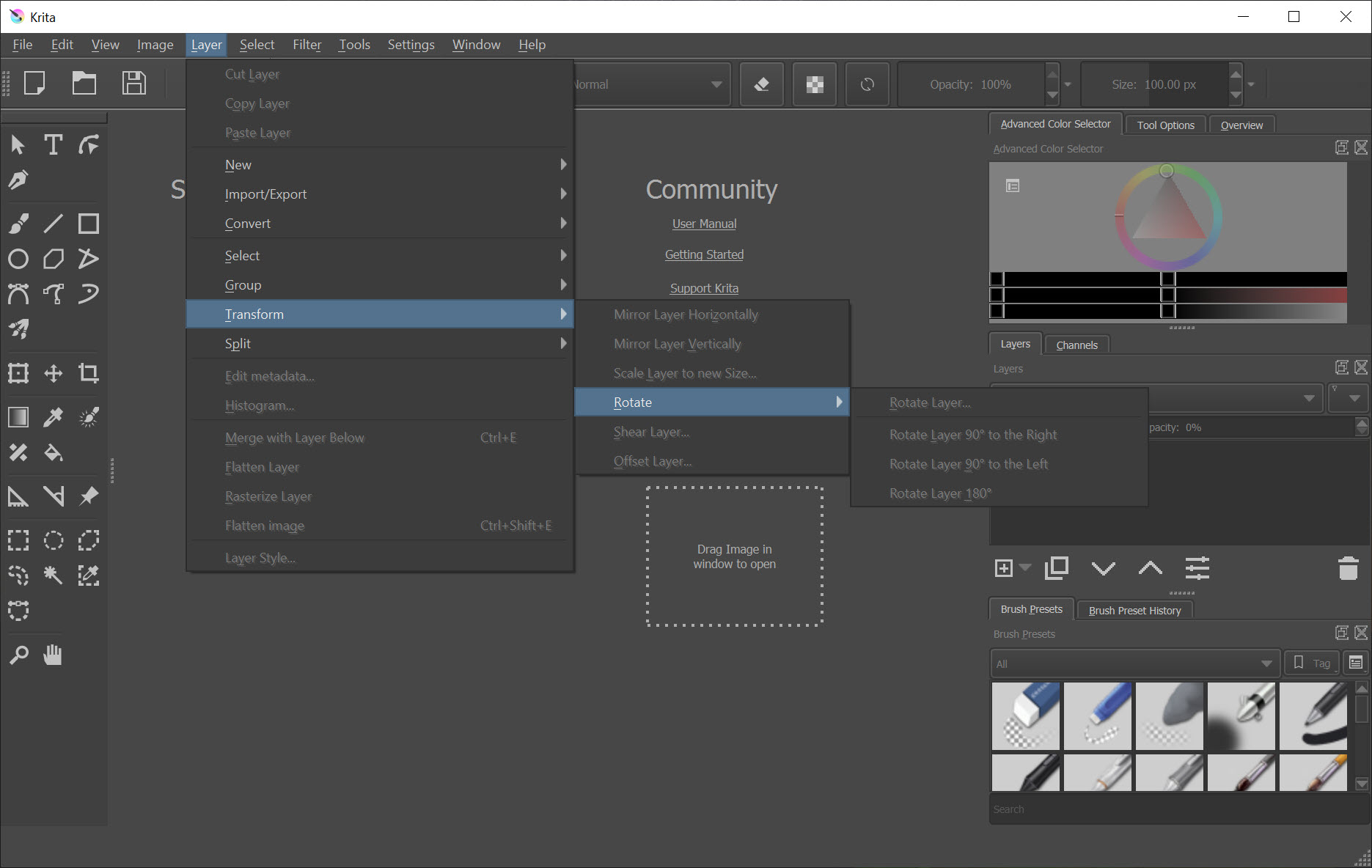
Layers in Krita come in several types: paint layers for normal brush strokes, vector layers that store SVG-style scalable shapes, group layers, clone layers that mirror another layer’s contents, filter layers that apply non-destructive effects, and various mask types including transparency, filter, transform, and colorize masks. Blending modes match what painters expect, with the usual normal, multiply, screen, overlay, plus the more painterly ones like color burn, linear light, and the various dodge variants.
The colorize mask deserves a separate mention. You scribble color hints inside a line art layer, the mask analyzes the line work, and fills the enclosed regions with the indicated colors automatically. For comic and webtoon flatting, this can save hours per page. The output is editable, so when the auto-fill gets a region wrong you paint over the hints and re-run.
Vector layers using SVG are not at the level of a dedicated vector editor. For real vector work, Inkscape is the right tool. But for adding word balloons, panel borders, or a few sharp shapes inside a primarily raster illustration, the vector layer keeps everything inside one document.
Animation timeline
The animation features are not an afterthought. The application includes a frame-by-frame animation timeline with onion skinning, configurable frame holds, audio import for syncing to a soundtrack, and per-layer animation so you can animate the character on one layer while the background stays static. Onion skinning shows the previous and next frames as ghosted overlays in adjustable colors and opacity, which is how traditional 2D animation gets reviewed for arc and consistency.
Export goes to image sequences and to common video formats through an FFmpeg integration that the application can configure for you. This is not full animation production software at the level of OpenToonz, which has its own pipeline for tweening, cutout, and effects. But for short loops, character animation tests, animated comics, and webtoon promotional GIFs, what comes with Krita is sufficient end to end.
For pixel art animation specifically, Aseprite is the more specialized choice. For traditional 2D animation flows aimed at filmmaking, Pencil2D Animation takes a different approach.
The animation in Krita sits in the middle of those, painterly rather than pixel-precise, frame-based rather than tween-driven.
Color management and the file format situation
The application supports ICC color profiles, OCIO for cinematic color workflows, and HDR painting in 16-bit and 32-bit per channel floating point. CMYK is supported as a working color space, which matters for print illustration, though the workflow is still oriented toward RGB output.
The native file format is .kra, which preserves everything: paint layers, vector layers, animation frames, brush presets used, color spaces. OpenRaster is supported as an interchange format with other open-source painting applications.
PSD compatibility is partial. The application opens most PSD files and saves to PSD with most layer types intact, but some Photoshop-specific features (smart objects, certain adjustment layers, layer styles) either flatten or convert to nearest equivalents.
For a one-way handoff into a Photoshop pipeline, this is usually fine. For round-tripping a file that lives in both applications, expect some loss.
Where it lands against the alternatives
Against GIMP, the painting experience in Krita is considerably stronger and the brush engine is in a different class. GIMP is the better choice for photo editing, raster compositing tasks, and anything that benefits from its broader plugin ecosystem.
Against PaintTool SAI, Krita is much more feature-dense and supports animation, while SAI remains the lightest and fastest experience for line art and cell shading specifically. Against MyPaint, Krita offers a more complete document model with masks and animation, while MyPaint is the more minimalist sketchpad experience.
Against FireAlpaca and MediBang Paint Pro, the brush engine depth and color management put Krita ahead, though the comic-specific layout tools in MediBang have a small advantage for sequential art.
The honest comparison with Photoshop is more nuanced. For pure illustration and painting, Krita has caught up and arguably leads on brush engine flexibility. For photo manipulation, healing, content-aware fills, and the broader ecosystem of professional retouching plugins, Photoshop is still where that work happens.
AI integration through plugins
The Krita AI Diffusion plugin connects the application to Stable Diffusion through a local ComfyUI backend, so you can generate or modify regions of an illustration using AI inside the canvas. The plugin is community-developed and lives in the Python script ecosystem the application supports. For artists who want AI in the workflow without leaving their painting environment, this is the closest integrated experience available in an open painting application.
For artists who actively do not want AI involved in the workflow, the plugin is optional and the application functions normally without it.
Tablet support and the input situation
Pressure sensitivity works through both Wintab and Windows Ink. The right driver to use depends on the tablet brand and the specific behavior you want. Wintab is the older interface that most professional Wacom drivers expose, while Windows Ink is the modern API that newer tablets and most pen-display devices support natively. Switching between them is a single setting, and the application warns you when the active stylus is not producing pressure data.
Tilt response is exposed in the brush dynamics, so brushes can be set to widen and rotate based on pen angle the way a real flat brush would. For tablets that report tilt accurately, this transforms how a brush feels under the pen.
Conclusion
Krita is built for the specific user who paints digitally as a primary activity: illustrators, concept artists, comic creators, and animators working frame by frame. Within that scope, the application is genuinely strong, the brush engine flexibility is hard to beat in any price bracket, and the color management and animation features remove the need for several additional applications a working artist would otherwise stitch together.
It is the wrong choice for someone whose primary need is photo retouching, for vector-heavy design work, or for studios with deeply Photoshop-dependent pipelines that cannot tolerate partial PSD round-tripping.
The application does painting at a high level and supports adjacent workflows where it can, and it stays focused enough on the core craft that it has become the default open option for serious digital painters.
Pros & Cons
- Nine distinct brush engines, each with deep parameter control and pressure-driven dynamics, covering everything from clean line art to wet paint simulation
- Pop-up palette and customizable shortcuts keep the toolbar out of the way during actual painting
- Layer system covers paint, vector, group, clone, filter, and several mask types including the unusual colorize mask for auto-flatting
- Frame-by-frame animation timeline with onion skinning and audio reference is genuinely usable end to end for short pieces
- HDR painting in 16-bit and 32-bit float, OCIO color management, and ICC profile support cover professional color requirements
- Python scripting and the plugin ecosystem allow custom tools, including the AI Diffusion plugin for Stable Diffusion integration
- Native .kra format preserves the full document structure, including brush presets used and animation data
- Performance can lag on very large canvases or files with many high-resolution layers, particularly when the brush engine is doing heavy real-time blending
- PSD compatibility is partial, so round-tripping with Photoshop workflows loses some fidelity on certain layer types
- Vector layer features are basic compared to dedicated vector editors, useful for incidental shapes but not for serious vector work
- Photo editing capabilities are limited compared to applications designed primarily for photography, no healing brush at parity with commercial alternatives
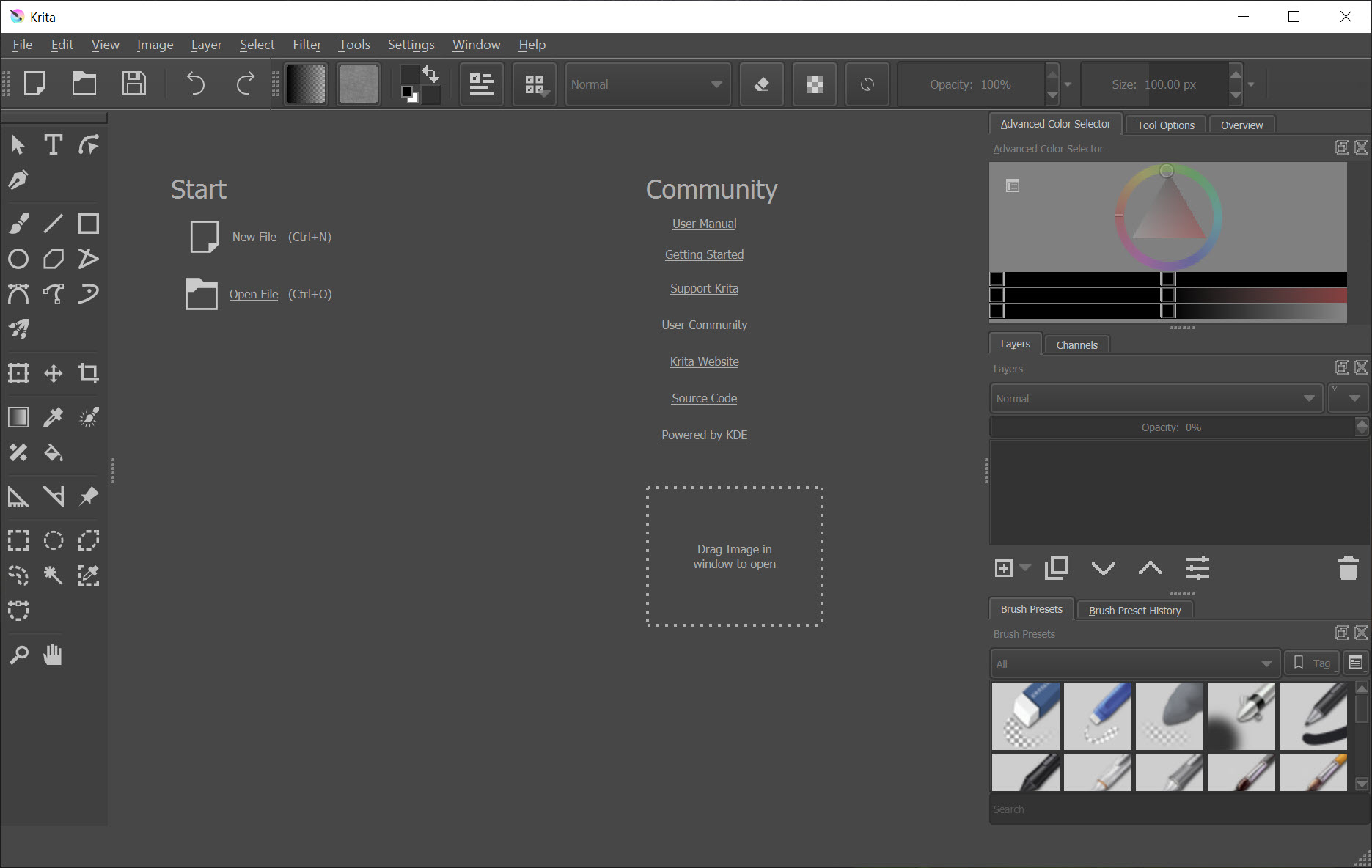
- The interface is dense, and discovering the deeper brush engine features without external tutorials takes time
Frequently asked questions
Digital painting and illustration as the primary use case, with animation and basic vector work as supporting features. The brush engine and color handling are the design center.
For pure painting and brush-driven illustration, the brush engine is competitive and in some areas more flexible. For photo retouching and the broader professional ecosystem of plugins and integrations, Photoshop still has the edge.
Yes, with partial fidelity. Most layers and paint data come through cleanly, but Photoshop-specific features like smart objects, certain adjustment layers, and complex layer styles may flatten or convert to approximations.
Yes. The application has a frame-by-frame timeline with onion skinning, audio import for reference, configurable frame holds, and export to image sequences or video formats through FFmpeg.
Yes. Pressure and tilt are supported through both Wintab and Windows Ink, and most professional tablet brands work without additional configuration. The active driver mode is selectable in settings.
Yes. Python is the scripting language, and the plugin ecosystem includes community-developed tools ranging from utility scripts to substantial extensions like the AI Diffusion integration for Stable Diffusion.
Paint layers store raster pixels and respond to the brush engine directly. Vector layers store SVG shapes that can be edited as paths and stay sharp at any zoom level. Most illustration work happens on paint layers, with vector layers used for incidental sharp shapes.
The presence of nine distinct engines with independent parameter sets, including dedicated engines for color smudging, bristle simulation, and particle effects, gives more range than most painting applications offer in a single installation.


Actually, it is a very good app.