

LightShot
About LightShot
Lightshot is a screenshot tool that turns the Print Screen key into a two-step gesture. Press it, drag a rectangle over the part of the screen you want, and a small toolbar appears beside the selection with buttons to save, copy, print, upload or scribble on the capture. There is no window to open first and nothing to configure before the first screenshot.
It sits among the small capture utilities alongside Greenshot and Gyazo, and its two distinguishing features are the one-click upload that returns a short prnt.sc link and a search that finds similar images online for whatever you have selected. The first of those is also the reason to read the middle of this article carefully before you use it.
Print Screen, drag, done
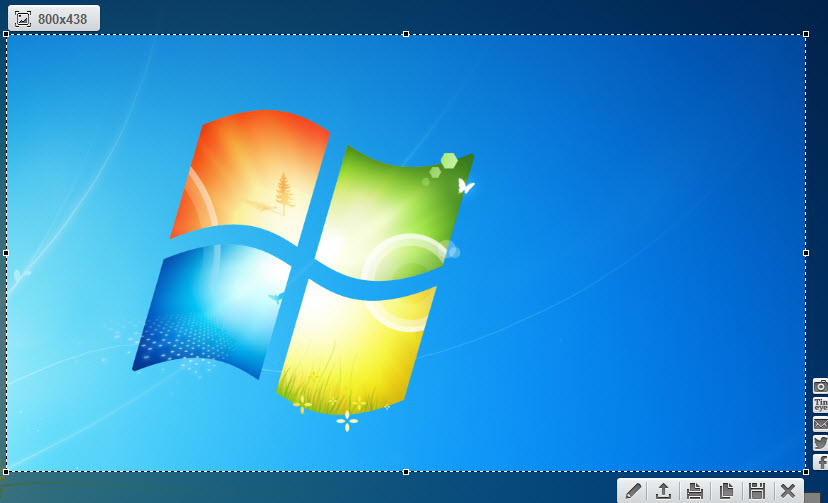
The moment you press the hotkey the screen dims and the cursor becomes a crosshair. Drag out a rectangle and the pixel dimensions appear at its corner, the edges can be dragged to adjust, and the two small toolbars (editing tools down one side, actions along the bottom) sit right next to the selection rather than in a separate window. Working across several monitors is fine, and the selection can span them.
The Options dialog, reached from the tray icon, is where the little that is configurable lives. The general hotkey can be changed from Print Screen to any combination, a second hotkey grabs the whole screen without a selection step, and the Formats tab picks PNG, JPG or BMP with a quality slider for JPG. Autostart with the system is on by default, which you will want, because Lightshot only intercepts the key while it is running in the tray.
The editing bar and its limits
Down the side of the selection sit a pencil, a straight line, an arrow, a rectangle, a marker (a translucent highlighter) and a text tool, plus a colour picker drawn as a row of coloured pencils. It is enough to circle a button and write “this one” before sending a screenshot to a colleague, and the arrow tool in particular is quick and clean.
Then the limits arrive. Line thickness changes only with the mouse wheel while a tool is selected, which nothing in the interface tells you. The text tool has no font size control beyond that same wheel and no font choice at all. There is no blur or pixelate tool, so hiding a name or an account number before sharing means covering it with a filled rectangle, and there is no undo beyond Ctrl+Z stepping back one action at a time.
For a redaction tool, a scrolling capture or a delay timer, an all-in-one capture kit with a proper editor is a different class of program, and heavier for it.
Upload, short links and the online gallery
Click the cloud button or press Ctrl+D and Lightshot sends the capture to prnt.sc and puts a short link on the clipboard, six characters after the domain. That is the fastest path from screen to a chat window that exists, and it is what most people use the program for. Sign in with an account and every upload lands in a gallery where you can add captions, open an online editor with a few more tools than the desktop one, share to social networks or delete images you no longer want on the web. The history lives only online, and only if you signed in before uploading.
Why every upload should be treated as public
Here is the part most reviews skip. A screenshot uploaded to prnt.sc is viewable by anyone who has the link, with no password, no expiry and no login required, and for years the six-character IDs were issued in sequence rather than at random.
That meant anyone could open a link, change the last character, and see a stranger’s capture, and people wrote scripts to do exactly that at scale. Passports, bank statements, private chats and internal business documents have all turned up in those scrapes. New uploads now get random IDs, but the older archive is still there and still browsable.
The practical rule is simple. If you would not paste it into a public forum, do not click upload. Save it with Ctrl+S or copy it with Ctrl+C and send the file through a channel you control. If capture-to-link is the workflow you want, a capture tool that uploads to a destination you choose can post to your own server or a private cloud folder instead, and that is the correct answer for anything work-related.
Finding similar images from a selection
The magnifying-glass button takes whatever is inside the selection and runs a reverse image search on Google, with TinEye available as an alternative. Select a product photo in a shop listing and you get the manufacturer’s page and every other store selling it. Select a profile picture and you find out whether it belongs to the person using it, which is a real fraud check when you are dealing with a stranger online.
It works on anything visible, not just files, since it is searching a capture of the pixels. It is the one feature here the built-in snipping tools lack, and quietly the most useful thing after the capture itself.
When Print Screen stops responding
The failure everyone eventually hits is pressing the key and getting the system’s own snipping overlay instead. Recent versions of the operating system claim Print Screen for their built-in capture tool by default, and once they do, Lightshot never sees the keypress. The fix has two parts. Turn off the accessibility setting that uses Print Screen to open screen capture, then open the Options dialog, untick the general hotkey, click OK, and tick it again so the program re-registers the key. Or sidestep the fight entirely and move Lightshot to Ctrl+Print Screen.
Two smaller quirks. The save dialog remembers the last folder you used, so screenshots quietly start landing wherever you last saved something. And the setup wizard offers extra software from an unrelated publisher with the boxes ticked, so read each screen and untick before clicking through.
Conclusion
Lightshot is for anyone who takes a dozen screenshots a day to explain something to someone else and wants the arrow drawn and the image in the chat before they have finished the sentence. Students, support staff and forum regulars will find nothing quicker, and the similar-image search is a bonus none of the built-in tools match.
It is not for anything confidential, unless you are disciplined about never pressing upload, and it is not for documentation work that needs blurring, scrolling pages or consistent styling. Know which of those users you are and the verdict writes itself.
Features & benefits
Pros & Cons
- Region capture and annotation from a single keypress
- Toolbars appear beside the selection, with no editor window to open
- Reverse image search on any selected area via Google or TinEye
- Upload returns a short link on the clipboard in one click
- Online gallery with captions, deletion and a second editor
- Uploaded screenshots are public to anyone with or guessing the link
- No blur or pixelate tool for redacting sensitive content
- No scrolling capture, window capture, delay timer or video
- Line and text size controlled only by an undocumented mouse-wheel gesture
- Setup offers unrelated software with the boxes pre-ticked
Frequently asked questions
The system's built-in snipping tool has claimed the key. Disable the setting that makes Print Screen open screen capture, then in the Lightshot Options untick and re-tick the general hotkey so it registers again, or assign a different combination such as Ctrl+Print Screen.
In the last folder you saved to. The default is a Lightshot folder inside Documents, but the save dialog remembers each new location and uses it next time, so check there first if files seem to have vanished.
Select the tool, then turn the mouse wheel before drawing. There is no visible slider, and the wheel is the only control for thickness and text size.
No. It captures a rectangle of what is on screen at that moment. Scrolling capture, timed capture and GIF or video recording all need a different tool.


