

IrfanView

 (10 votes, average: 4.70 out of 5)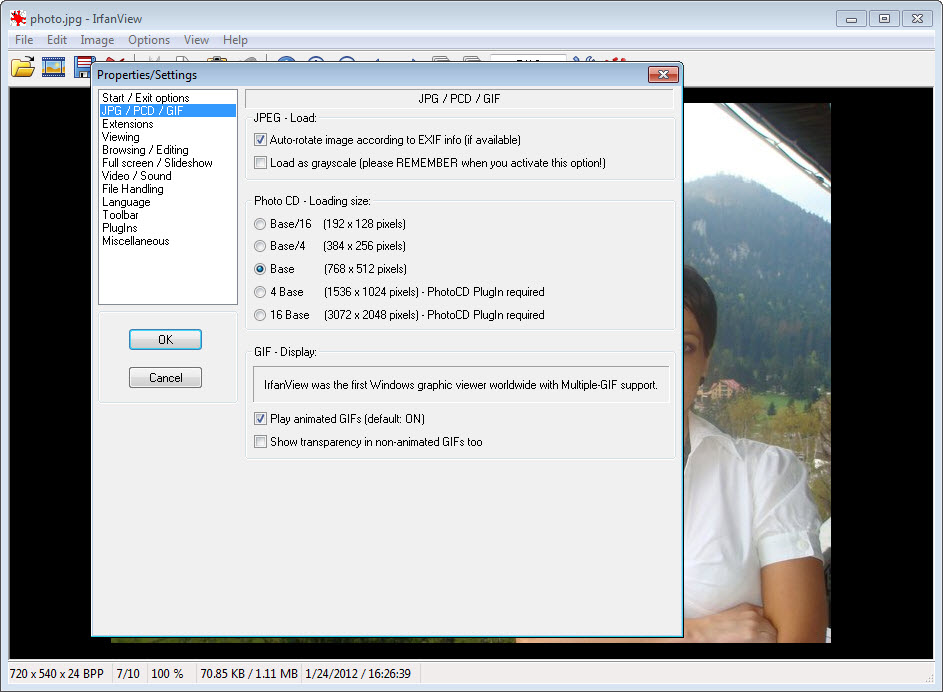
About IrfanView
IrfanView is the lightweight image viewer that has been a fixture of the Windows software scene for over twenty-five years, the kind of utility that ends up on virtually every technician’s USB stick and every long-term Windows user’s machine eventually. It opens any image format you’re likely to encounter, displays it nearly instantly even on slow hardware, and packs in batch processing, basic editing, format conversion, and dozens of small productivity features that most users never fully explore.
What separates IrfanView from the rest of the image viewer category is the breadth of what it actually does. Beyond opening and displaying images, it handles batch conversion of thousands of files in a single operation, basic but capable image editing, support for non-image formats like video and audio playback through plugins, RAW camera format support, and a long list of small utilities (slideshows, screen capture, multi-page TIFF handling) that mean a single install covers most of what casual users need from an image tool.
The launch speed that earned its reputation
The first thing anyone notices about IrfanView is how fast it opens. Double-click a JPEG and the viewer is showing the image before the cursor finishes returning to rest position. On modern hardware this is essentially instant. On older or slower hardware it’s still genuinely fast in a way that Windows Photos or browser-based viewers rarely match.
The reason is the application’s architecture. IrfanView is a native Windows executable written in close-to-the-metal Delphi, with image decoders implemented for performance rather than abstraction.
It doesn’t load a framework, doesn’t initialize a rendering engine, doesn’t query a cloud service. It opens the file, decodes the image, displays it. That’s the whole startup process.
This makes it the right tool for the daily workflow where you’re constantly double-clicking image files in Explorer to see what they are. The cumulative time savings over years of use is real. Setting IrfanView as the default image handler is one of those small Windows tweaks that quietly improves daily productivity.
Format support that genuinely covers everything
The format list is one of the longest of any image viewer. JPEG, PNG, GIF, BMP, TIFF, WebP, AVIF, HEIC, ICO, PCX, TGA, PSD (Photoshop), PCD, RAW formats from major camera manufacturers (Canon CR2 and CR3, Nikon NEF, Sony ARW, Adobe DNG, and many others), JPEG 2000, EPS, PDF, animated GIF, multi-page TIFF, and dozens of legacy and specialized formats all open natively or through the plugin system.
The HEIC support is one of the practical features that drives current installs. Apple’s iPhone takes photos in HEIC format by default, and Windows doesn’t open them natively without paid codec packs. IrfanView with the HEIC plugin reads them directly, which solves the everyday problem of receiving photos from iPhone-using friends or family.
The PDF support extends to multi-page documents with page navigation, and the multi-page TIFF support handles the kind of scanned documents that office workflows still produce regularly. For document-oriented uses, this means the application can replace dedicated viewers for many file types without losing functionality.
For users who specifically want even broader format support including obscure scientific and specialized formats, XnView ships with native support for around 500 formats out of the box.
IrfanView reaches similar breadth through its plugin pack, which is a separate download that adds dozens of additional decoders and features.
The plugin pack and what it unlocks
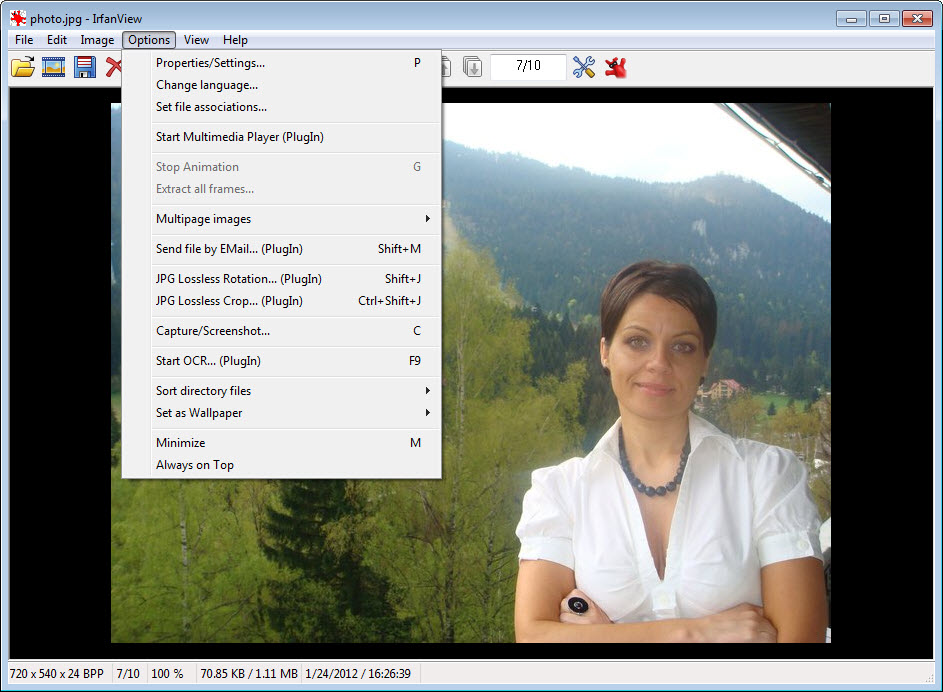
The plugin pack is a separate installer that adds substantial capability to the base application. Once installed, you get additional format support (the previously-mentioned HEIC and various RAW variants, plus older and specialized formats like SVG, FITS, MED, and others), video and audio playback through DirectShow integration, OCR for extracting text from images, additional batch processing options, advanced cropping with lossless JPEG cropping, and dozens of small format-specific tools.
Installing the plugin pack is essentially mandatory for serious use. The base installer is intentionally minimal so the application stays small, but the plugin pack turns it from a fast image viewer into a comprehensive image utility. Both downloads together are still smaller than most other image tools’ base installers.
The plugin architecture is one of the reasons IrfanView has stayed relevant for twenty-five years. New formats can be added by the developer or by third parties without disturbing the core application, which means support for new formats like AVIF and HEIC arrived through plugin updates rather than requiring major version changes.
Batch processing as a hidden power feature
The batch processing dialog is one of the most useful features the application offers, and one most users never discover. Open it (File menu, Batch Conversion/Rename, or B as the keyboard shortcut), add a list of input files, set the desired operations, and click Start. Operations include format conversion, resize, rotate, crop, color adjustments, watermark application, sharpen or blur, replace specific colors, and many others.
For users who routinely process many images (photographers reducing photo sizes before email, designers converting between formats, archivists normalizing legacy collections), this batch dialog handles thousands of files in a single operation.
The processing is fast, the option combinations are flexible, and the rename function uses pattern-based templates that handle complex renaming schemes.
The advanced batch options include conditional logic (only resize images larger than a certain size, only convert files that aren’t already in the target format, only apply operations to files matching specific criteria), which means complex multi-step workflows can be set up as a single batch job rather than scripted separately.
Built-in editing that handles common needs
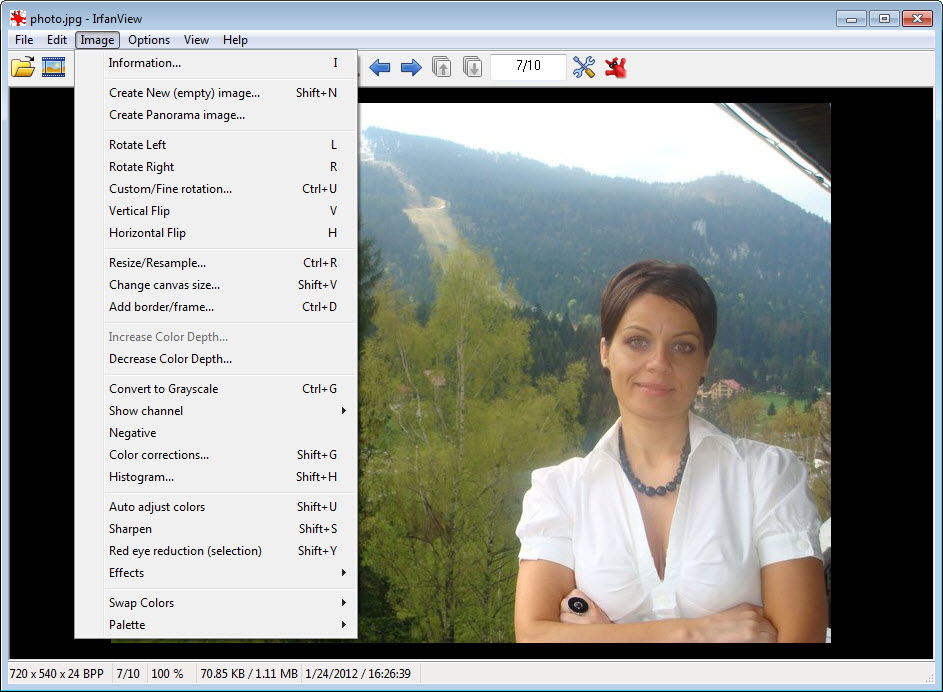
Beyond viewing, IrfanView includes editing tools that cover the operations most users actually perform on images. Crop with precise coordinate entry or freehand selection, resize with multiple algorithm choices (Lanczos being the highest-quality default), rotate in any angle with anti-aliasing, flip horizontal or vertical, adjust color, contrast, brightness, gamma, and saturation, apply sharpen or blur, convert color spaces, add text overlays, draw simple shapes, and apply effects from a substantial menu.
The lossless JPEG operations (rotate, crop, flip) are specifically useful because they don’t recompress the image. Standard editing operations decode the JPEG to a bitmap, apply the change, and re-encode it, which loses some quality each time. The lossless operations work directly on the JPEG data structure without recompression, preserving the original quality through repeated operations.
For more advanced editing involving layers, selections, and complex compositing, GIMP or Paint.NET cover that depth. IrfanView stops where casual editing stops, which is exactly where most users want it to stop.
Slideshow and screen capture utilities
The slideshow feature handles folders of images with configurable transitions, timing, music backgrounds, and full-screen presentation. For photo album viewing, event playback at gatherings, or kiosk-style display, the slideshow works without requiring any presentation software.
The screen capture utility captures the full screen, a selected window, a region, or a custom rectangle, with the captured image opened in the main window immediately for editing or saving. For technical documentation, support tickets, or quick reference captures, this is faster than opening a dedicated screenshot tool. The captures support clipboard copying as well as direct file saving.
The thumbnail browser opens any folder of images as a grid of thumbnails with file information displayed below each. From the thumbnail view, you can launch any image into the main viewer with a click, perform batch operations on selected files, or simply use the grid as a visual file browser more capable than what Windows Explorer offers for image content.
Keyboard shortcuts that reward learning
Long-term IrfanView users tend to navigate the application almost entirely by keyboard. The shortcuts cover virtually every operation, and learning even a handful makes the workflow noticeably faster.
Arrow keys move between images in the current folder. T toggles the thumbnail panel. R rotates the current image. + and – zoom in and out. F11 enters full-screen mode. Ctrl+C copies the current image to the clipboard, Ctrl+V pastes from the clipboard. B opens the batch dialog. S saves the current image. P prints with full print dialog options including layout. The Insert key applies a watermark from a saved overlay. Numeric keys 1-9 set zoom levels.
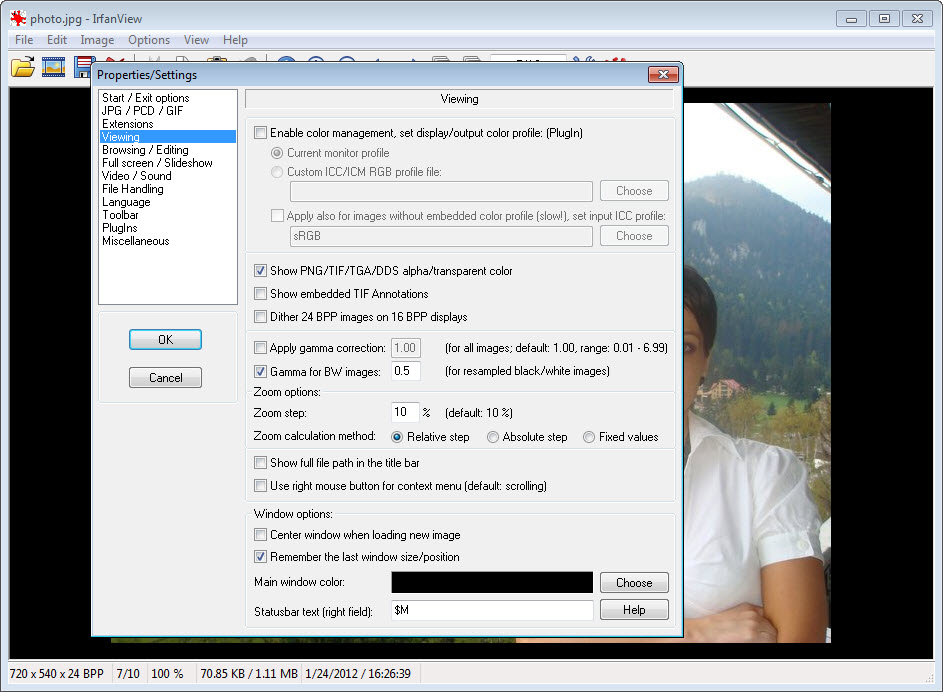
The customization is genuinely deep. Open the Properties dialog and every shortcut can be remapped, every default operation can be configured, every dialog behavior can be adjusted. For users who set up the application once with their preferred shortcuts and defaults, the daily workflow becomes nearly friction-free.
Image metadata and EXIF handling
The metadata viewer reads EXIF, IPTC, XMP, and other embedded image metadata, displaying camera information, lens used, exposure settings, GPS coordinates where present, copyright tags, and any other metadata the file contains. For photographers organizing collections or anyone investigating image provenance, this consolidated metadata view is more accessible than the operating system’s built-in properties dialog.
Metadata can also be edited directly, which is useful for adding copyright information, correcting incorrect dates, or removing sensitive information (like GPS coordinates from photos before sharing publicly). The batch processing dialog includes metadata operations, so you can strip all metadata from a folder of images in one operation, or apply consistent copyright information across many files.
Conclusion
IrfanView is the right install for anyone who works with images regularly and wants a single tool that handles viewing, basic editing, batch processing, format conversion, and the dozens of small adjacent tasks that come up around images. The combination of breadth, speed, and reliability is what has kept the application at the center of the Windows image utility category for a quarter century, and the active development means it continues to support new formats like HEIC and AVIF as they appear.
For users who specifically want a modern visual style with current Windows design language, ImageGlass offers that aesthetic while covering basic viewing well. For users who prioritize even broader format support and tagging features, XnView sits in the same category with a slightly different feature emphasis.
IrfanView wins on launch speed, batch processing depth, and the cumulative weight of features added consistently over decades. Install it once with the plugin pack, set it as the default image handler, and it becomes one of those quiet utilities you stop thinking about because it always works.
Pros & Cons
- Launches nearly instantly thanks to native code architecture
- Supports virtually every image format including HEIC, AVIF, RAW camera formats, and legacy formats
- Plugin pack adds extensive additional format support and feature depth
- Batch processing handles thousands of files with flexible operation combinations
- Lossless JPEG operations preserve quality through repeated edits
- Built-in editing covers the common operations most users actually perform
- Slideshow, screen capture, thumbnail browser, and metadata viewer all included
- Highly customizable with deep keyboard shortcut support
- Free for personal use with modest licensing for commercial use
- Active development going back over twenty-five years with regular updates
- The interface is functional rather than visually polished, with a late-1990s aesthetic that hasn't fundamentally changed
- Plugin pack is a separate download that's essentially required for full functionality
- Some less common features are buried in dense menu hierarchies
- Commercial use requires a paid license, which is honor-based rather than enforced
- For users who specifically want a modern dark-mode-first interface, the visual style won't appeal
Frequently asked questions
The application is an image viewer with extensive additional features including batch processing, format conversion, basic editing, slideshow, screen capture, thumbnail browsing, and support for video and audio through plugins. It opens virtually any image format and handles bulk operations across many files efficiently.
Install the official plugin pack from the same source as the main application. Once the plugins are installed, HEIC files open natively without any additional setup. This is one of the most common reasons users install the application today.
The basic installer includes the application and support for common formats. The plugin pack adds support for many additional formats (HEIC, AVIF, RAW formats, multi-page TIFF, and others), enables video and audio playback through DirectShow, adds OCR capability, and unlocks several advanced batch processing options. Most users install both.
Yes. The batch processing dialog handles thousands of files in a single operation with flexible options including format conversion, resize, rotate, color adjustment, watermarking, and renaming. Conditional logic lets you apply operations only to files matching specific criteria.
The application includes basic editing for crop, resize, rotate, color adjustment, brightness, contrast, sharpen, blur, text overlay, and effects. For advanced editing involving layers, selections, and complex compositing, dedicated editors like GIMP cover that depth.
Standard editing operations on JPEG files decode and re-encode the image, which loses some quality each time. The lossless JPEG operations (rotate, crop, flip) work directly on the JPEG data structure without recompression, preserving the original quality through repeated edits.
Yes. The native code architecture means the application runs comfortably on hardware going back many generations. It launches quickly and uses minimal memory even on machines with limited resources, which is one of the reasons it has stayed popular for over twenty-five years.


