

Snapseed for PC
About Snapseed for PC
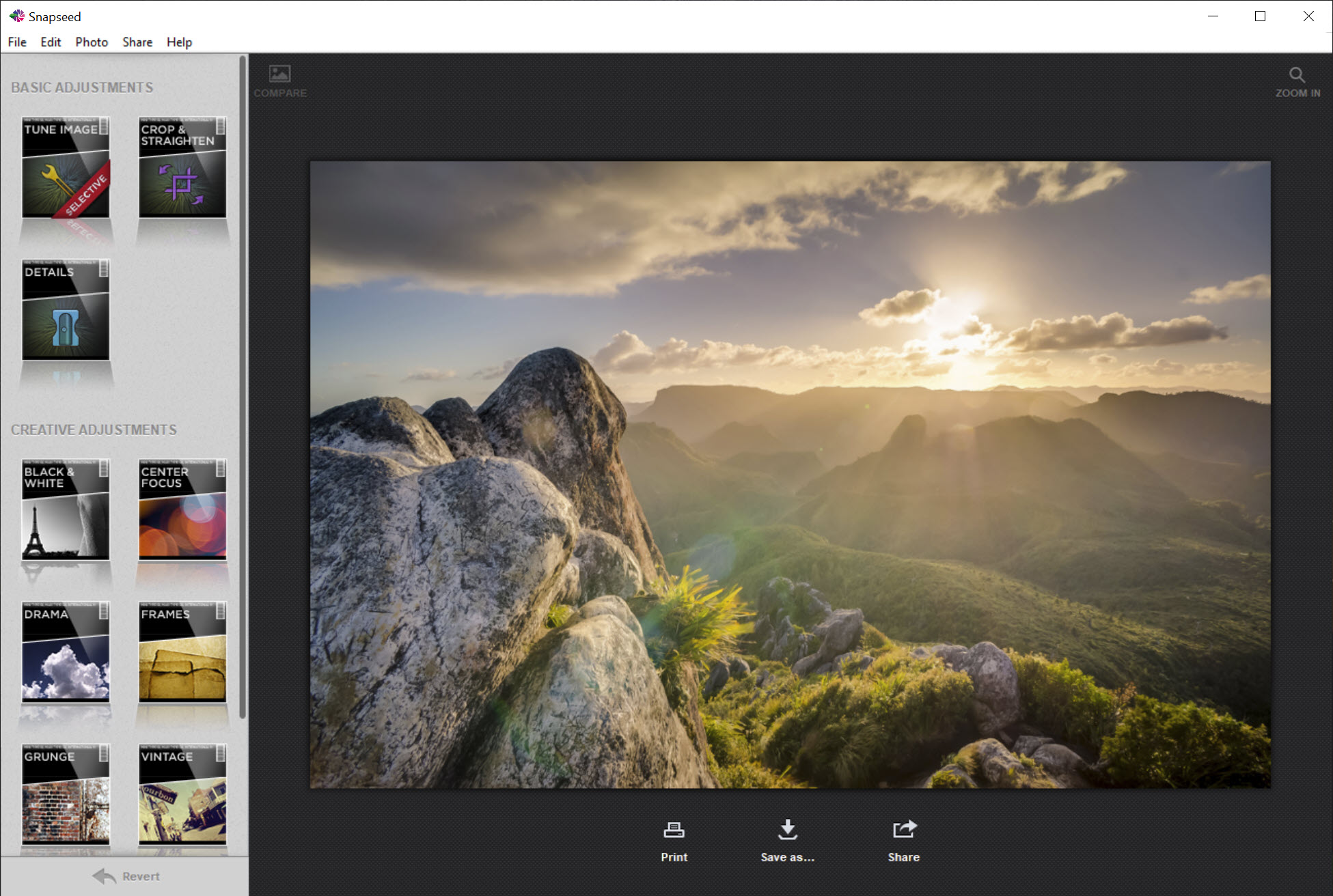
Snapseed for PC is a photo editor built around one idea that most editors still treat as advanced. Click a spot in the picture and only that part changes. Those control points, a blue dot with a red mask showing its reach, fix a sky or a face without layers or brushes, and they sit beside a few global adjustments and a set of creative filters that give a photo a look in seconds.
It is a desktop version that stopped where it stopped. No new tools arrived after its last update, RAW support was patchy even then, and the sharing buttons point at services that changed long ago. What remains is a quick JPEG editor whose selective adjustment works better than it has any right to at this size.
If you want a maintained editor with full RAW handling, RawTherapee is the serious choice, with a learning curve to match.
Control points do the selective work
In Snapseed for PC, choose Selective Adjust, add a control point, and click where the change should apply. The point picks up the colour and brightness around it and builds its own mask, so placing one on a blue sky adjusts the sky and stops at the treeline without anyone drawing a selection.
Drag up and down on the point to pick the property (size, brightness, contrast or saturation), then drag sideways to change the value, and the red overlay shows exactly what is affected.
Several points can sit on one photo, a darker sky here, a brighter face there. The approach is quicker than masking in a layered editor and less precise, since the mask follows similar colours and can leak into a matching area elsewhere in the frame. For most corrections the leak is harmless.
For a portrait against a skin-coloured wall it is not.
Tune Image and the basic tools
Tune Image pairs an automatic correction with sliders for exposure and colour, warmth and shadows included. Ambiance is the one to learn, a local contrast adjustment that opens shadows and lifts flat images without the halo of a heavy contrast push.
Crop and straighten come with the usual ratios and a grid, and the Details tool sharpens and adds structure, which brings out texture in stone and bark and destroys skin if pushed.
Every tool previews live, and a Compare button shows the original. Snapseed for PC applies one tool at a time and does not keep an editable history once a tool is applied, so working in a sensible order, global first and selective after, saves undoing.
Filters with a look
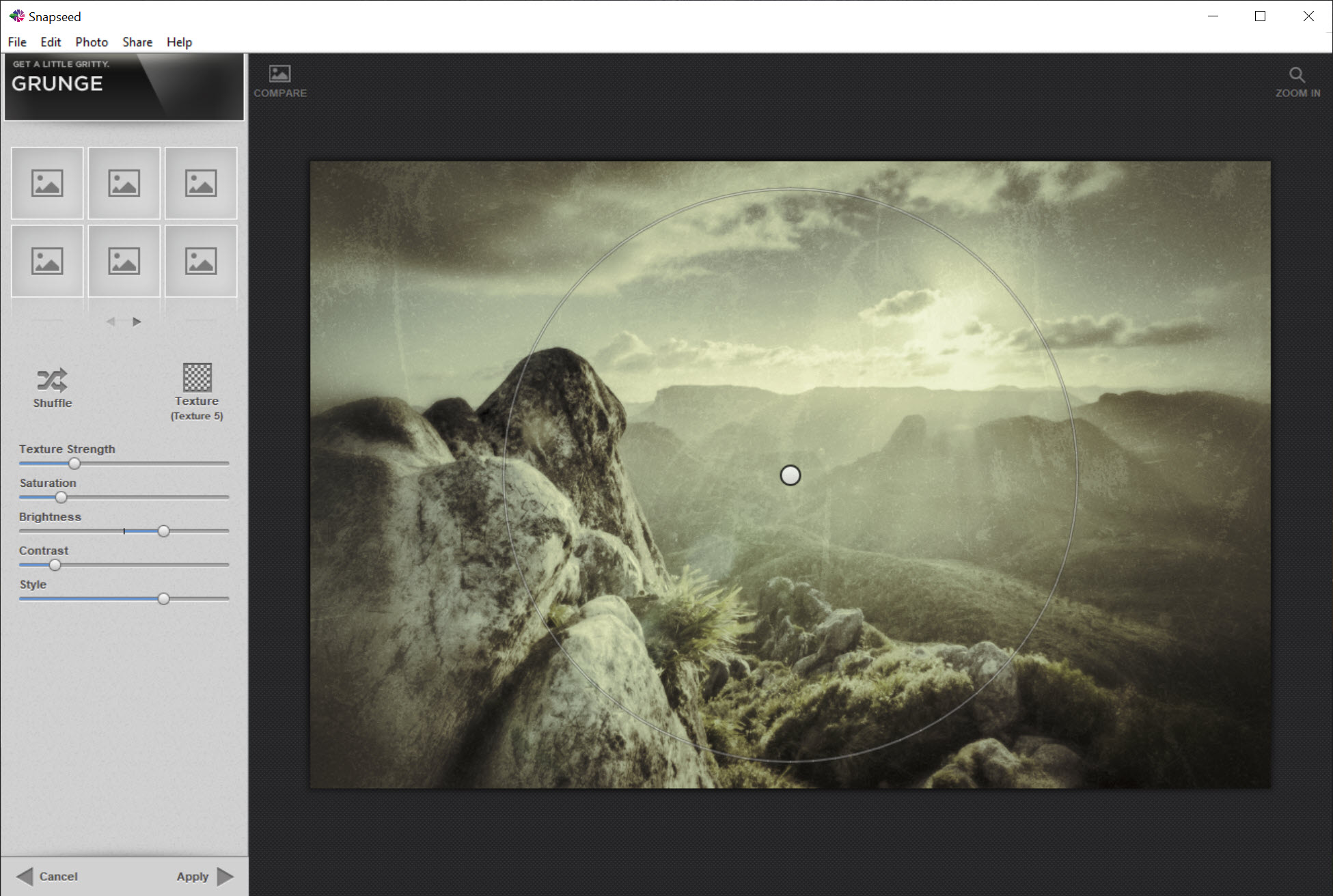
The creative side of Snapseed for PC is where it earned its following. Drama exaggerates local contrast for that hyper-real gritty look, with brighter and darker variants. Grunge adds texture and colour shifts from a set of styles. Vintage applies faded film looks with named presets and a vignette. Black and White adds grain and colour filters that darken skies the way a red filter on a film camera did. Center Focus blurs or darkens the edges to pull the eye inward, and Tilt-Shift blurs a band of the frame to make a city look like a model.
None of these are subtle by default, and all of them have strength sliders that make them subtle on request. A Drama filter at a third of its strength is a useful clarity boost. At full strength it is a style that dates a photo to the moment it was fashionable.
For quicker preset looks with templates on top, Fotor covers the same ground with more effects and less control.
What has not aged
Snapseed for PC still runs, and on a modern machine it is fast, since the graphics card does the preview work when one is present. JPEG and TIFF open normally, and exposure data survives the edit. What did not age well is everything around the edges. RAW files from some cameras open and many do not, the share buttons for social networks no longer connect, and there is no batch mode for applying the same edit to a folder.
For a batch of quick fixes, a photo editor with a batch resize and filter mode does that part without fuss.
Conclusion
Snapseed for PC suits someone who wants to fix a sky, brighten a face and add a look to a JPEG in a couple of minutes, with no layers or masks to learn. The control points remain the best reason to try it, and the filters still produce a polished result with the strength sliders turned down.
Anyone working with RAW files, editing in batches, or wanting updates should choose a current editor. This one does a short list of things quickly, and does them well.
Pros & Cons
- Control points adjust a region by clicking it, with no masks or layers
- Ambiance slider lifts flat photos without contrast halos
- Drama, Vintage, Black and White and Tilt-Shift filters with strength control
- Live preview and a one-click compare with the original
- Fast on current hardware with graphics card acceleration
- No updates since its last release, and sharing buttons no longer connect
- RAW support is limited to some cameras
- No editable history once a tool is applied
- No batch processing
Frequently asked questions
Some. Files from several older camera models open, and many others do not. Convert RAW files to TIFF first if yours is not recognised.
Place a point on the area you want to change, drag vertically to choose brightness, contrast, saturation or size, then drag horizontally to set the amount. The red overlay shows what is affected.
Cancel discards the current tool before you apply it, and Revert returns to the original. There is no step-by-step history after applying, so edit in order.


