

FastStone Image Viewer


 (9 votes, average: 3.78 out of 5)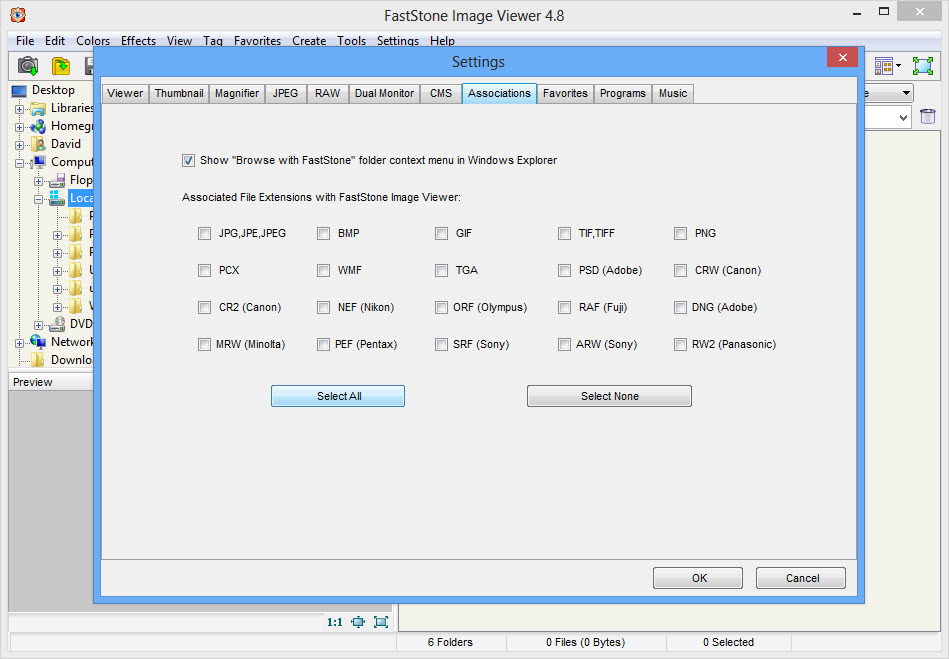
About FastStone Image Viewer
FastStone Image Viewer is a photo browser, converter, and light editor built around one interface idea that still feels clever after all these years. View an image full screen and the tools hide completely, until your mouse touches an edge.
Top edge slides in a thumbnail strip, left edge opens editing tools, right edge shows file properties and EXIF data, bottom edge brings playback controls. The photo owns the entire screen, and everything else waits invisibly one flick away.
Beyond that trick sits a broad tool. The browser handles folders of thousands of images without complaint, the format list covers everything from JPEG and PNG to WebP and the major camera RAW types, and the batch converter quietly does work people install separate programs for.
The natural comparison is IrfanView, the other legendary viewer of this class. That one is faster and more spartan, this one is more visual and more comfortable, and half the images-and-computers crowd has strong opinions about which philosophy wins.
Browsing and the full-screen edges
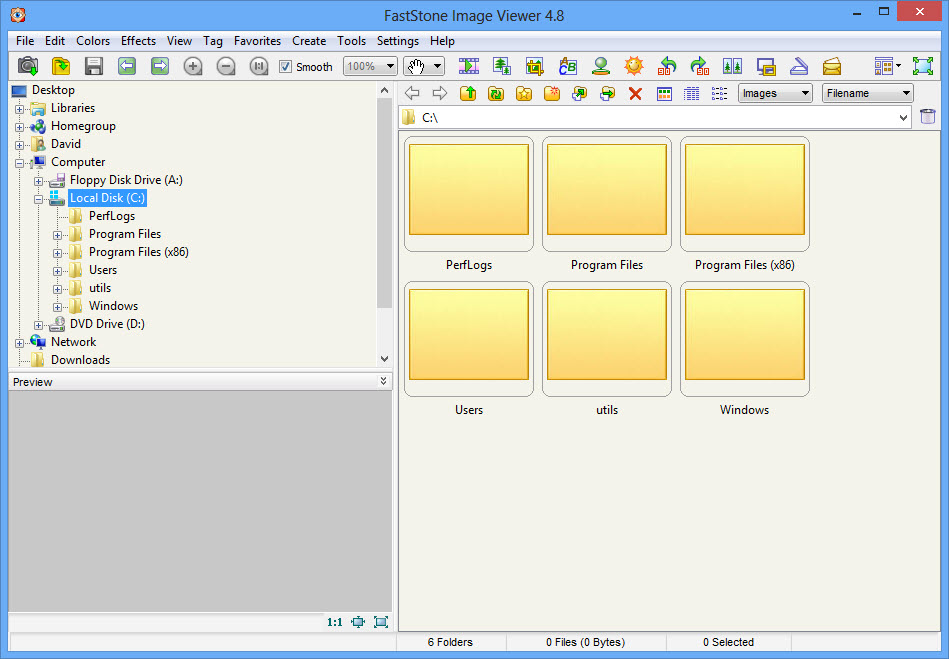
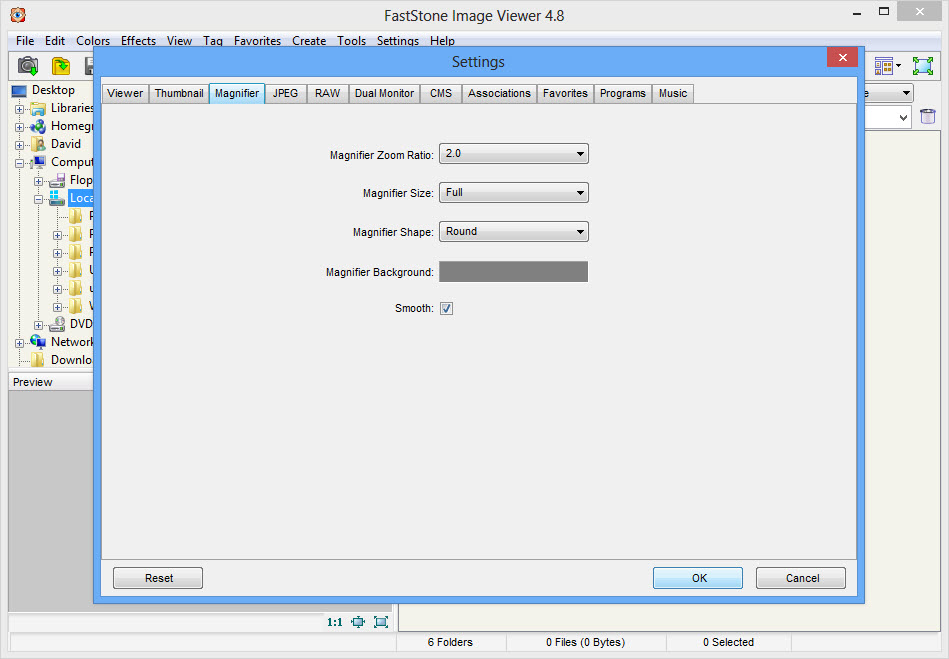
Daily use of FastStone Image Viewer revolves around the browser window, a familiar folder tree plus thumbnail grid, and the full-screen mode where the edge panels live. A left click summons a magnifier for checking focus at pixel level, which photographers use dozens of times per session for separating the sharp frame from its blurry siblings. The compare mode goes further and puts up to four images side by side with synchronized zoom and pan, turning the pick-the-best-shot ritual into a single screen instead of a memory game.
RAW files from the common camera brands open directly, with an option to preview from the fast embedded JPGs rather than full decoding, which keeps browsing a shoot of hundreds of NEF or CR2 files brisk. EXIF data sits on the right edge, a keypress away, with the histogram alongside.
For people who want only the viewing half of all this, a minimal viewer like ImageGlass draws less and launches lighter. The browsing, comparing, and organizing machinery here is the difference, and it’s aimed at people who work through images rather than merely open them.
Editing that covers the everyday cases
The left-edge tools handle the fixes most photos actually need. Crop with composition guides, straighten, resize with proper resampling choices, red-eye removal, and a clone and heal pair for dust spots and stray objects. Adjustment tools include levels, curves, and lighting controls that recover shadows and tame highlights, applied with previews and undo.
A drawing board adds arrows, boxes, highlights, and text on top of images, which makes annotating a screenshot or marking a detail for a colleague a thirty-second job. The built-in screen capture feeds that workflow directly, grabbing a region or window straight into the editor.
What the tools don’t attempt is layered, selective editing. There’s no layer stack, no masks, no plugin ecosystem, and pretending otherwise leads to disappointment. The moment the job needs compositing or serious retouching, an actual editor like PhotoDemon picks up where this one deliberately stops.
The batch tools that justify the install alone
The batch converter in FastStone Image Viewer takes a folder of images and applies format conversion, resizing, renaming with patterns, watermarking, border effects, and adjustments in one pass. Preparing four hundred photos for a website, complete with a corner watermark and a sensible naming scheme, is a five-minute configuration and one progress bar. Settings save as profiles, so recurring jobs replay instantly.
Batch renaming works on its own too, with search-and-replace and numbered patterns, and the converter’s format reach means it doubles as the house translator between image types. A dedicated optimizer such as PngOptimizer still squeezes PNG files smaller, but for the broad convert-resize-stamp workflow, everything needed is already here.
The slideshow builder deserves a mention for one unusual ability. Beyond playing folders with transitions and music, it packages a slideshow into a single standalone file that runs on any machine, no software required on the other end, which grandparents receiving family photos have appreciated for a generation.
The honest rough edges
The interface shows its age in dialogs and icons, and no dark mode exists to soften it. Format support, while broad, trails the newest arrivals, and HEIC photos from phones typically need conversion elsewhere before this viewer handles them gracefully. Updates arrive at a leisurely pace, so those gaps close slowly.
None of this dents the core loop of browsing, comparing, fixing, and batch-processing, which remains fast and dependable on any hardware. A tabbed rival like XnView reads even more formats and suits the format-collector crowd, at the cost of a busier interface than the clean full-screen philosophy here.
Conclusion
FastStone Image Viewer serves photographers culling shoots, families keeping photo archives in folders rather than clouds, and anyone who regularly needs the same image work repeated across hundreds of files. The edge-panel full-screen design remains a joy, and the batch tools quietly replace two or three single-purpose utilities.
Phone-first users hitting the HEIC wall and retouchers needing layers should plan around its limits. For folder-based photo life on a desktop, it’s still one of the most complete viewers ever made.
Features & benefits
Pros & Cons
- Full-screen viewing with tool panels hidden at each screen edge
- Compare mode examines up to four images with synchronized zoom
- Batch converter handles resizing, renaming, and watermarking in one pass
- Clone, heal, levels, and curves cover everyday photo fixes
- Slideshows export as standalone files that run anywhere
- No layers, masks, or selective editing for serious retouching
- HEIC files from phones need conversion before viewing
- The interface looks dated and offers no dark mode
- New format support arrives slowly between infrequent updates
Frequently asked questions
Yes, the common formats from the major brands open directly, including CR2, NEF, ARW, and DNG. Enable the embedded preview option to keep browsing large shoots fast.
In full-screen view, move the mouse to the right edge of the screen. The properties panel slides in with capture settings, dates, and a histogram.
Yes, the batch converter applies resizing, renaming, watermarks, and format changes to whole folders in one operation, and saves the configuration for reuse.
Select two to four images in the browser and start compare mode. The screen splits, and zooming or panning one image moves all of them together for judging sharpness.
Recent phones save HEIC files, which the viewer handles poorly. Convert them to JPG first, or set the phone camera to save in the compatible format directly.


