

PhoXoSee
About PhoXoSee
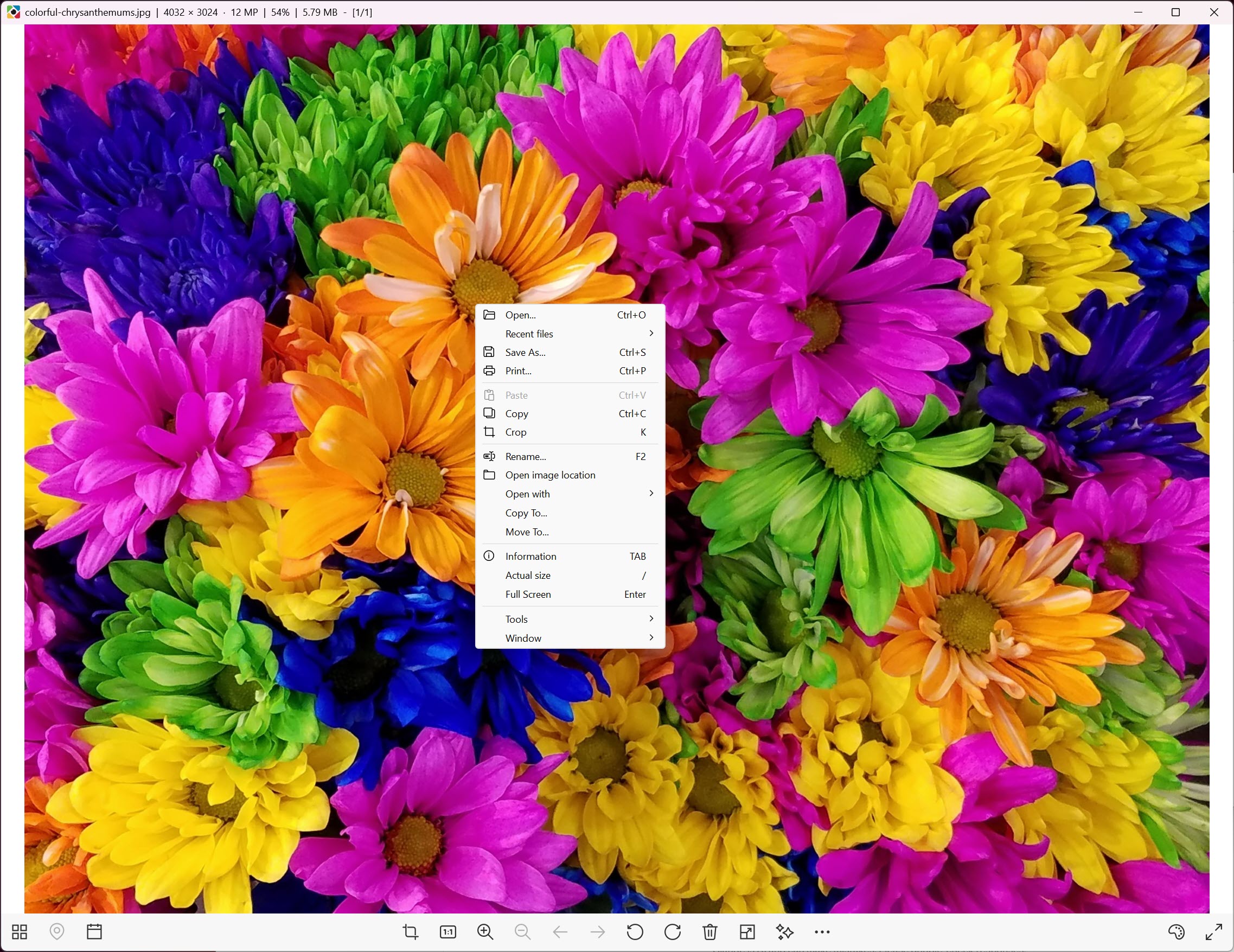
Most image viewers hit a wall the moment a phone photo lands on the disk. You double-click a .heic file and get an error, or a prompt to install a decoder, or a twenty-second wait while something unpacks in the background. PhoXoSee opens it immediately, and it does the same for AVIF, JPEG XL, camera RAW, PSD, TGA and SVG, with no codec pack and no add-on to hunt down first.
Speed is the other half of the pitch. Scrolling the mouse wheel through a folder of high-resolution shots feels closer to flipping through paper than to loading files, because neighbouring images get decoded before you reach them. Memory use stays low enough that leaving the viewer open all day does not register.
What sets this application apart is what it refuses to become. There is no cataloguing database, no plug-in architecture, and exactly one editing tool. Everything it adds beyond viewing is something you would otherwise open a second program for, and none of it turns PhoXoSee into that second program.
Formats that usually need an extension or a codec pack
The list covers HEIC and HEIF from phone cameras, AVIF and JPEG XL from the web, camera RAW including Adobe DNG, layered PSD files, TGA, JP2, SVG, WebP and the ordinary JPEG, PNG and BMP. HEIF and HEIC get a dedicated cache because they are the slowest of the group to decode, and that shows when you scroll a folder of them rather than opening one at a time.
Reading is not the same as writing, though. Save options are narrow, so a PSD opens and flattens rather than round-tripping, and RAW files are for looking at rather than developing. XnView reads a wider list if breadth is what you are after, and it will write back to more of them.
The same format gap gets fixed outside the application too. PhoXoSee installs thumbnail handlers so HEIC, SVG, PSD and TGA files stop appearing as blank icons in folder listings, and it adds itself to the right-click menu. That integration is arguably what you will notice most often, since it works whether or not the viewer is running. Navigation inside the application stays one directory at a time, with no folder tree and no dual pane.
Two small touches deserve credit. Transparent images get a checkerboard behind them instead of a flat colour that hides what is transparent and what is white. And SVG artwork whose lines are too pale or too dark for your current theme gets its background adjusted automatically, which stops white line drawings from disappearing into a white canvas.
What “fast” actually means here
The speed comes from several places rather than one trick. Startup is quick because the language module and the preloader were both trimmed for it. Browsing is quick because the next and previous images are already decoded. Large images use mipmap levels so that a 40-megapixel photo scaled to fit your screen looks smooth rather than aliased.
Hardware acceleration handles the scaling where available, and there is a zoom speed control so the wheel does not overshoot on a large canvas. PhoXoSee also keeps a fallback path for processors without AVX instructions, so an older machine gets a slower viewer rather than a refusal to start.
The honest caveat is that mipmap scaling smooths as much as it sharpens. On line art and screenshots you can see it, which is why there is a separate option to always display at the highest quality. Leave that option on and redraws slow down a little.
Adjustments that happen while you look
Brightness and sharpening apply in real time, spread across multiple processor cores, and nothing is written to the file. It is a viewing aid rather than an edit. If a batch of photos came off a camera underexposed, you can push brightness up and keep browsing at full speed instead of opening an editor to check whether a shot is salvageable.
Two controls is the whole kit, though. No curves, no levels, no white balance, no selective correction. When the pixels actually need to change, PhoXo is the editor to reach for, and the division of labour between the two is clearly deliberate.
Cropping, the one editing tool it does ship
The crop tool works to the pixel and offers rectangle, rounded rectangle and circle shapes with custom ratios, dragged into place with handles. Rounded and circular crops are the useful part, because getting a circular avatar out of most viewers means opening something heavier.
It is DPI-aware and behaves correctly across monitors of different scaling, which sounds like a low bar until you remember how many small applications get it wrong. Save the crop under a new name, though. There is no stored record of the original frame to go back to.
Resizing with the resulting file size in view
Resize the open image and PhoXoSee estimates the output file size as you change the dimensions, updating live for JPEG and WebP. Anyone who has bounced off a forum attachment limit or an upload cap will see the point immediately, because the usual routine is resize, save, check the file size, sigh, and resize again.
The scaling itself uses high-quality algorithms rather than the nearest-neighbour approach that leaves stair-stepped edges. Two limits matter here. The size estimate only covers JPEG and WebP, so a PNG resize is still guesswork, and the dialog works on the image in front of you rather than a folder. For squeezing a whole directory down, a tool built for compression does the job with less clicking.
Searching for photos by the date they were taken
Point PhoXoSee at a folder tree, give it a date range, and it returns every photo shot inside that range by reading capture metadata rather than file timestamps. That distinction matters, since copying files between drives usually destroys the file dates while leaving the EXIF intact. HEIC and Adobe DNG are both read for this, which is more than some viewers manage.
The same metadata pass pulls out GPS coordinates, so a holiday photo can tell you where it was taken without a round trip through a mapping site.
Set your expectations correctly, though. This is a search, not a collection. Nothing is stored between runs, there are no tags or ratings, and you cannot build up a set of albums. If you want the photos organised rather than found, a photo library manager is a different class of tool and this one is not competing.
Batch conversion and the small chores
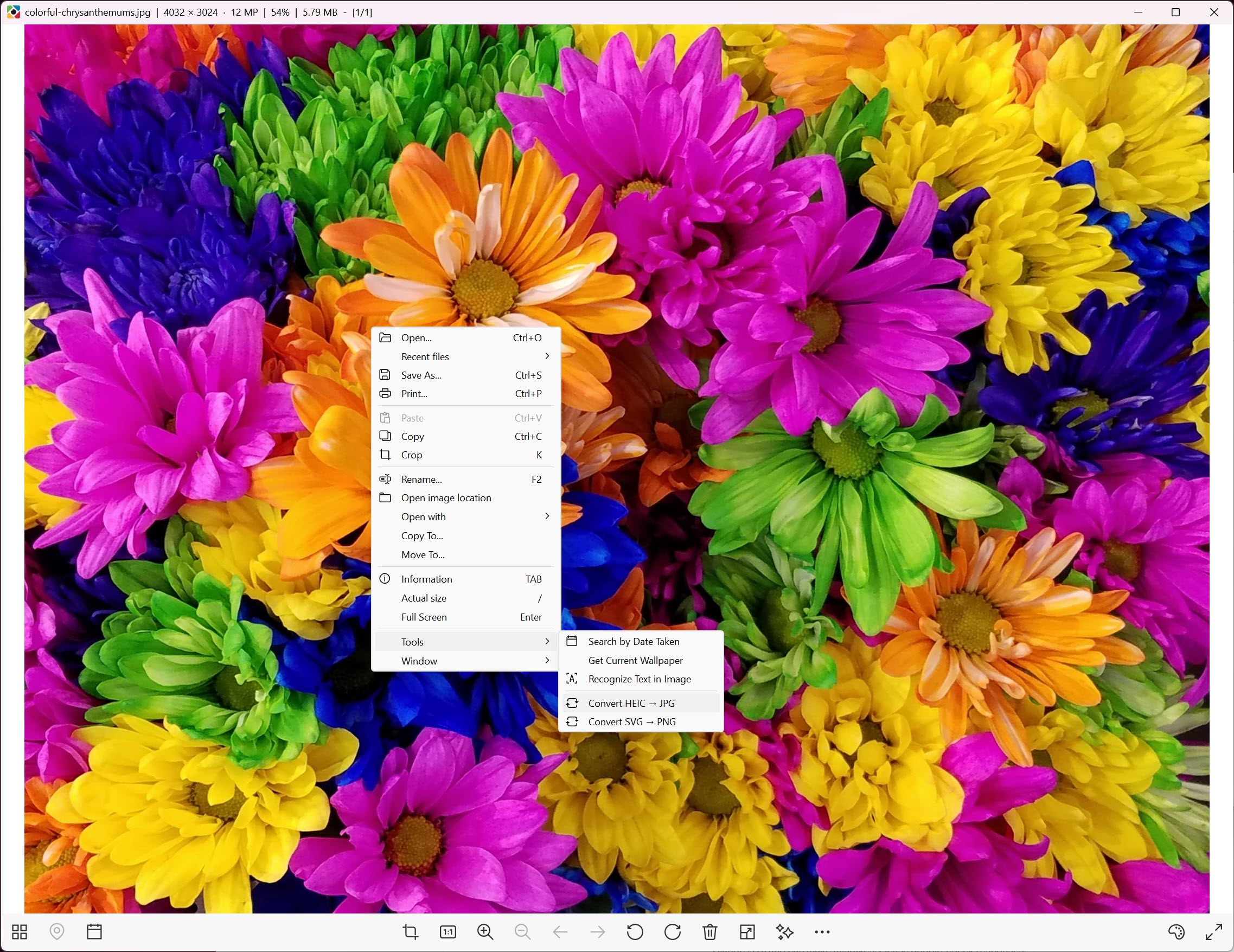
Two batch jobs ship in the viewer. HEIC to JPEG handles the common problem of a phone folder that nothing else on the machine will open, and SVG to PNG covers the reverse case of vector assets that a website or a document needs as bitmaps.
Beyond that, PhoXoSee takes on the file chores that normally send you back to a folder window. Rename, Move To and Copy To all work from inside the viewer, there is a Recent Files list, it can reopen the last image on startup, and a delete option skips the recycle bin when you are clearing out rejects. OCR pulls text off whatever is on screen, which is handy for a screenshot of a receipt or an error message.
The batch side is two fixed pairs rather than an any-to-any converter, so IrfanView remains the better answer for converting a hundred files between arbitrary formats.
Conclusion
PhoXoSee is aimed at people whose problem is friction rather than capability. If you handle a lot of images and spend more time waiting for a viewer to open them than doing anything with them, particularly HEIC files from a phone or RAW files from a camera, this replaces that wait with nothing at all. Designers who keep SVG assets around will get the thumbnail handlers and the SVG to PNG batch as a bonus.
It is not the viewer for anyone who wants a browser, a catalogue or an editor bolted onto the side. That restraint is what keeps PhoXoSee quick, and the handful of tools it does include (date search, GPS readout, crop, OCR) were clearly chosen because each one saves opening a separate application. Judged as a fast door onto a folder of images rather than as a photo manager, very little else comes close.
Pros & Cons
- Opens HEIC, AVIF, JPEG XL, RAW, PSD and SVG without a codec pack or an add-on
- Preloading and a dedicated HEIF cache make wheel-scrolling through a folder feel instant
- Real-time brightness and sharpening spread across processor cores, applied without touching the file
- Crop supports rounded rectangle and circle shapes with custom ratios
- Live file size estimate while resizing JPEG and WebP images
- Date-taken search reads capture metadata, including from HEIC and DNG files
- Thumbnail handlers fix blank icons for HEIC, SVG, PSD and TGA in folder listings
- Fallback path keeps it running on processors without AVX support
- Save options are narrow, so PSD files flatten and RAW files cannot be developed
- Mipmap scaling softens line art unless you enable the highest-quality option, which slows redraws
- Only two adjustment controls, with no curves, levels or white balance
- Batch conversion is limited to HEIC to JPEG and SVG to PNG
- Date search stores nothing between runs, so it cannot replace a photo catalogue
- No folder tree or dual-pane browsing
Frequently asked questions
Yes. HEIC and HEIF decode natively, with a dedicated cache that speeds up browsing folders full of them, and the thumbnail handler also fixes the blank icons those files usually show in folder listings.
Both are supported alongside WebP, which covers the newer web formats that older viewers reject outright.
Yes, HEIC to JPEG is one of two batch jobs it offers, the other being SVG to PNG. Anything outside those two pairs is a one-file-at-a-time affair.
It reads RAW including Adobe DNG for viewing and for date-taken searches, but there is no RAW development. Exposure recovery and colour work need a converter built for that.
The default scaling path uses mipmap levels tuned for speed, which smooths hard edges. Switch on the option to always display images at the highest quality and the softness goes away, though redraws get a little slower.
Cropping and resizing write real changes, and brightness and sharpening are view-only adjustments. There are no layers, no selection tools and no retouching.


