

ASTRO Command Center
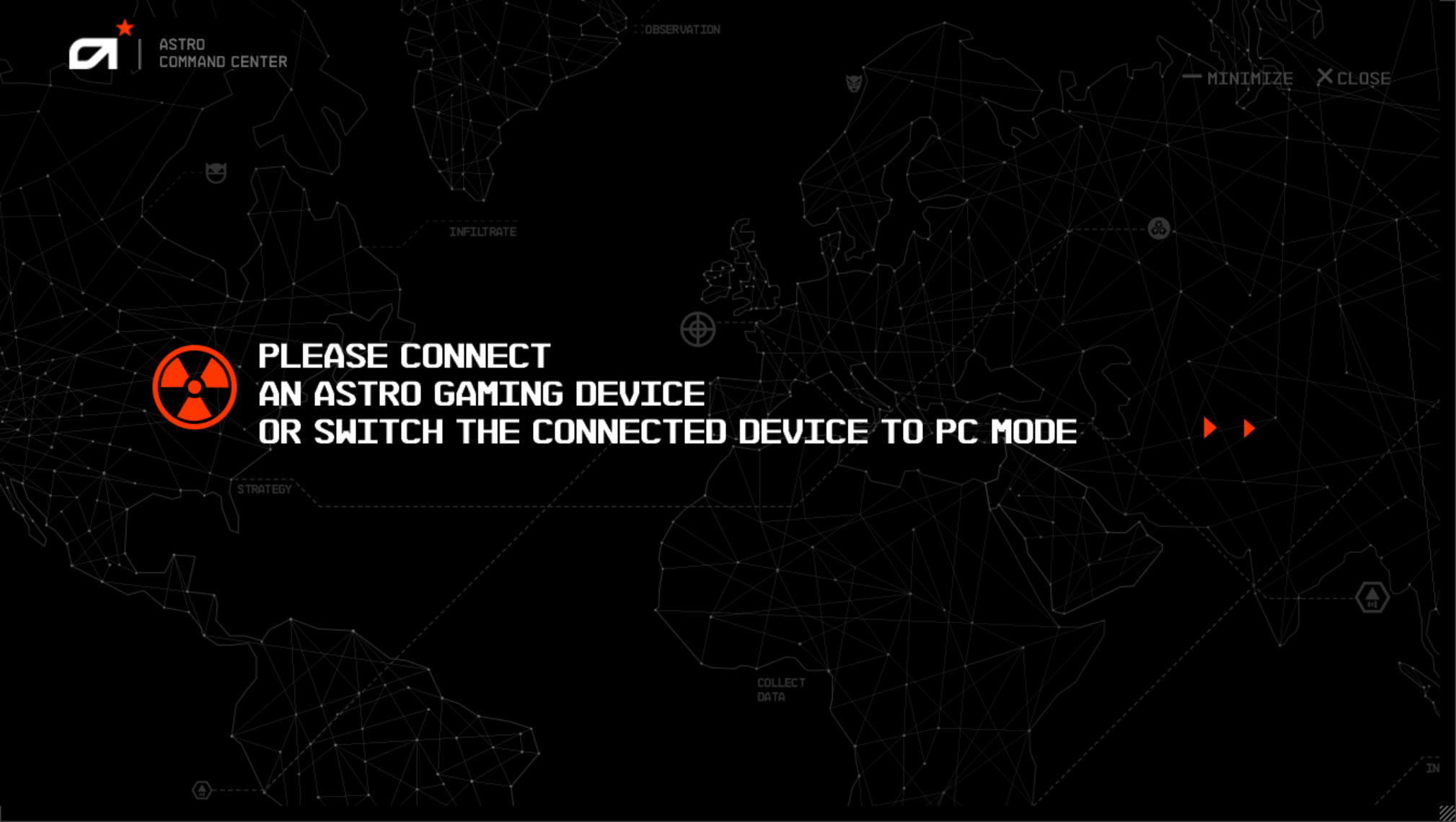
About ASTRO Command Center
A gaming headset with a base station has settings the headset itself cannot show you, so the configuration lives on a computer. ASTRO Command Center is where the equaliser curves, the microphone level, the balance between game audio and voice chat, and the firmware updates are handled for the manufacturer’s headsets.
ASTRO Command Center writes presets onto the hardware rather than keeping them on the computer, which is the detail that matters most and the one people miss.
Before any of that, there is a question about which software your particular headset actually needs.
Two programs, split by generation
Here is what sends ASTRO Command Center users in circles, and it is not obvious from anywhere.
The manufacturer’s headsets divide across two configuration programs. Older models are handled here. Newer ones are handled by the parent brand’s own peripheral software instead, since the ranges were merged.
Somebody with a recent headset who installs this will find it never detects anything, conclude the software is broken, and spend an evening on troubleshooting steps that cannot help. The device is fine and the program is fine, and they were never meant for each other.
So the first step is establishing which generation you have, because everything downstream depends on it.
Logitech G HUB is the program the newer models use, and anybody whose headset is not detected here should try that before anything else.
Set the base station to the right mode first
The single most useful ASTRO Command Center step, and it precedes all the others. A base station has a switch or a setting for which source it is serving. If it is not set to the computer, the configuration software cannot reach the headset, because the headset is not talking to the computer at that moment.
That is the first thing support guidance tells people to check and the first thing everybody skips. It takes two seconds and resolves a large share of the cases where a headset connected and charging is invisible to the program.
The reset that revives a headset
The procedure that recovers devices people assume are broken.
Taking the headset off its dock, powering it on, and holding the game button and the surround button together for between ten and twenty seconds until the lights flash resets it. The headset then restarts on its own and can be paired again.
That addresses the case where the hardware has got itself into a state rather than having a fault, which describes most headsets that suddenly stop being recognised after working for months.
Pairing again afterwards is required, since the reset clears that relationship along with everything else.
The port matters more than it should
A specific ASTRO Command Center cause somebody traced after a confusing failure.
A headset that had worked stopped being detected after an unrelated driver update, and the cause turned out to be the connection standard of the port it was using rather than anything to do with the audio hardware.
Moving it to a different port resolved it. That is worth trying early, since it takes seconds and the symptom points nowhere near the cause.
Connecting to a port on the machine itself rather than through a hub or a monitor is the related habit, since intermediate devices add their own behaviour to a connection that has to be stable.
Presets live on the headset, not the computer
The design decision that makes ASTRO Command Center worth using at all. Equaliser curves are written into the hardware rather than applied by the computer. Several can be stored, and switching between them happens on the device itself.
The consequence is that the settings travel. A headset configured on your computer behaves the same way plugged into a console, because the curve is in the headset rather than in software running on the machine it happens to be attached to.
That also means the program is not something to leave running. Configure, write the presets, close it, and the headset keeps behaving as configured.
For equalisation applied by the computer to everything it plays, rather than stored in one device, Equalizer APO works at the system level instead.
The balance control is the feature people actually use
Beyond the equaliser, one ASTRO Command Center adjustment gets used constantly.
Game audio and voice chat arrive as separate streams, and the balance between them is adjustable, which is the difference between hearing your team over an explosion and not.
Microphone level and the amount of your own voice fed back into the earcups are adjustable alongside. That second one matters more than people expect, since a closed headset with no feedback makes everybody shout without realising.
Those settings are also written to the hardware, so they persist the same way the equaliser curves do.
For sending one application’s sound to a chosen output rather than adjusting a headset’s own mix, a router that splits audio per program handles that separately.
Conclusion
ASTRO Command Center does something most headset software does not, which is write your settings into the hardware rather than applying them from the computer. That makes the configuration portable and means the program is a setup tool rather than something running permanently.
Settle the generation question before troubleshooting anything. The manufacturer’s ranges were merged and the newer headsets use different software, so a program that never detects your device is more likely the wrong program than a broken one. Where it is the right one, check the base station mode and the port before anything more involved.
Pros & Cons
- Equaliser presets written onto the headset, so they persist across machines
- Balance between game audio and voice chat, adjusted precisely rather than by feel
- Microphone level and sidetone configurable, which closed headsets need
- Firmware updates for the hardware handled in the same place
- Not required once configured, since the settings live in the device
- Serves only one manufacturer's older headset generations
- Newer models need entirely different software, which nothing tells you
- Detection failures are common, usually the base station mode or the port
- Configuration is per device, so nothing transfers between headsets
Frequently asked questions
Check the base station is set to serve the computer first, since a headset serving a console is invisible to the software. If that is correct, the headset may belong to a newer generation that uses different software entirely.
Older models use this one and newer models use the parent brand's peripheral software, because the ranges were merged. Installing the wrong one produces a program that never sees the device, which looks like a fault and is not.
Yes, and that is the point. Presets are written into the hardware, so a headset configured on your computer behaves identically plugged into a console, and the program does not need to be running.
Take it off the dock, power it on, and hold the game and surround buttons together for ten to twenty seconds until the lights flash. It restarts itself and then needs pairing again.


