

HotKey Resolution Changer
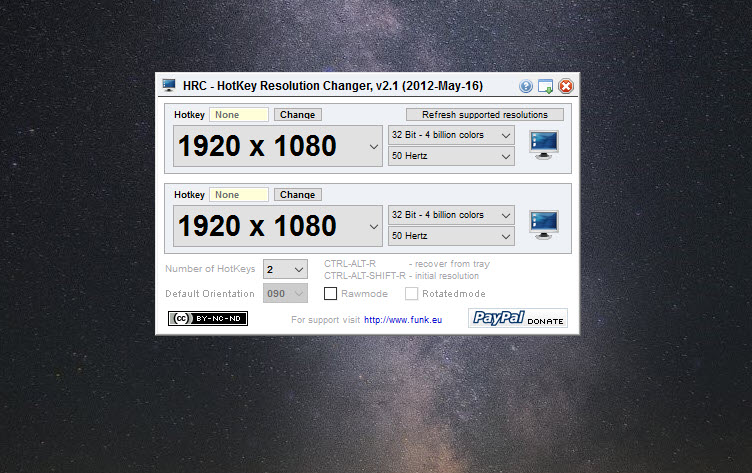
About HotKey Resolution Changer
Changing screen resolution properly means opening settings, finding the display page, picking from a dropdown, confirming, and doing it all again to change back. HotKey Resolution Changer replaces that with a key combination. Press one, the screen switches. Press another, it switches back.
The program is a small window with a row of slots and a tray icon, and it does nothing else. If your need is simply making one resolution stick every time you log in, Carroll handles that without any keyboard involvement.
This one is for switching back and forth repeatedly, which is a different problem.
Two to nine slots, each with its own combination
By default you get two slots. Right-click the tray icon and you can raise that to nine, which is more than anybody needs and pleasant anyway.
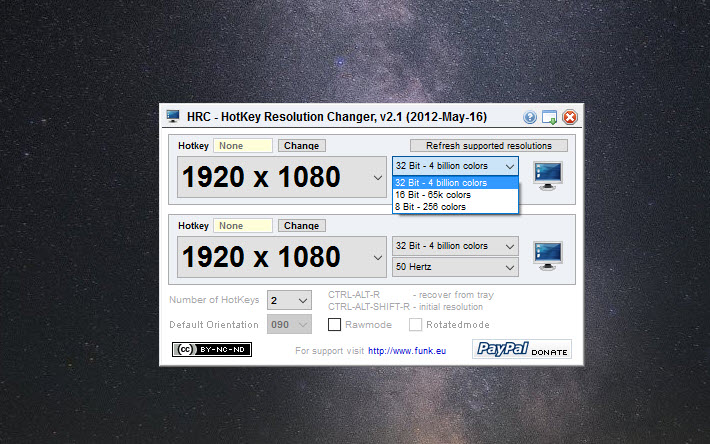
Each slot holds a width and height, a colour depth, a refresh rate, and a key combination you assign by pressing it rather than picking modifiers from a list. The resolution dropdown only offers modes your monitor reports, so you cannot accidentally select something the display cannot show, and a refresh button re-reads that list when you plug in different hardware.
If the mode you want is not in the list because the driver never reported it, that is a different problem and Custom Resolution Utility is the tool that adds it at the driver level before HotKey Resolution Changer can offer it to you.
Hotkeys that target one screen
In HotKey Resolution Changer each combination can be pointed at a specific display, which is the feature that turns this from a curiosity into something you actually keep. Dropping the second screen to a lower resolution for an old game while the main display stays where it is takes one keypress.
Raw mode, and the escape hatch you should memorise
One option in HotKey Resolution Changer removes the safety rail. Raw mode lets you select any mode the graphics card supports rather than only the ones the monitor claims, which is occasionally the only way to reach a resolution a display actually handles but does not advertise.
It is also how you end up staring at a blank screen or a corrupted mess with no obvious way back. For exactly that reason there is an emergency combination, Ctrl, Alt, Shift and R together, which restores whatever resolution you started with.
Memorise it before touching raw mode rather than afterwards.
The limits to check before installing
HotKey Resolution Changer has two built-in ceilings. Resolutions below 640 by 400 are excluded, which nobody will miss, and refresh rates above 120 Hertz are excluded too, which anyone with a modern high-refresh panel very much will. If you bought a monitor for its refresh rate, this program cannot switch you to it.
It also has to stay running. The hotkeys are hooks registered by a live process, so closing the window to the tray is required rather than optional, and surviving a reboot means putting a shortcut in the startup folder yourself. There is a small tell in the design here, since the hooks quietly re-register every few minutes because they were known to stop responding over time.
For scripted switching rather than keyboard switching, a command-line utility that changes resolution from a batch file fits that job better.
And if the underlying reason you keep switching is a game that misbehaves at your desktop resolution, a windowing tool that solves the same problem from the other end may remove the need entirely.
Conclusion
HotKey Resolution Changer does one small thing and does it without ceremony. Anyone who switches resolution several times a day, testing a layout at different sizes, running something old that wants a lower resolution, or driving a television that prefers a particular mode, will save more time than a program this small has any right to.
The refresh rate ceiling is the thing to check first, because it quietly rules out a whole category of modern hardware. If your monitor sits at or below that limit and you can live with a tray icon that has to stay put, this is a couple of minutes of setup for a keypress you will use for years.
Pros & Cons
- Up to nine resolution slots, each with its own colour depth, refresh rate and shortcut
- Hotkeys are assigned by pressing the combination rather than building it from dropdowns
- Each shortcut can target a specific display on a multi-monitor setup
- The mode list is limited to what the monitor reports, so mistakes are hard to make
- An emergency combination restores the original resolution when something goes wrong
- Refresh rates above 120 Hertz are excluded, ruling out modern high-refresh panels
- Must stay running in the tray, and starting with the system needs a manual shortcut
- Raw mode can leave the display unusable, with only the emergency key as a way back
- No per-application awareness, so nothing switches automatically when a game launches
- Screen rotation through a shortcut does not work dependably
Frequently asked questions
Usually because the program is not running. The shortcuts depend on a live process holding keyboard hooks, so it has to sit in the tray. A conflicting shortcut in another application will also override it silently.
No. Frequencies above that are filtered out of the list by design, which makes the program a poor fit for anyone running a high-refresh display.
Press Ctrl, Alt, Shift and R together. That combination restores the resolution you had when the program started, which is the reason raw mode is survivable at all.
Yes. Each shortcut can be assigned to a specific display, so a second screen can be dropped to a different resolution while the primary one stays as it is.


