

Smarty Uninstaller
About Smarty Uninstaller
Smarty Uninstaller is an uninstaller utility that takes over where the built-in application removal interface gives up. Run a standard uninstall through the application, and it watches the official uninstaller’s process, then runs an additional scan engine to find and remove the leftover files, folders, and registry entries the standard uninstall left behind. For software that won’t uninstall cleanly through normal means, the Force Uninstall mode handles the removal directly, working through whatever protection mechanisms have been resisting the standard approach.
The Snapshot Install feature goes further, tracking system changes during installation so the application knows exactly what to remove later regardless of how badly the program’s own uninstaller behaves.
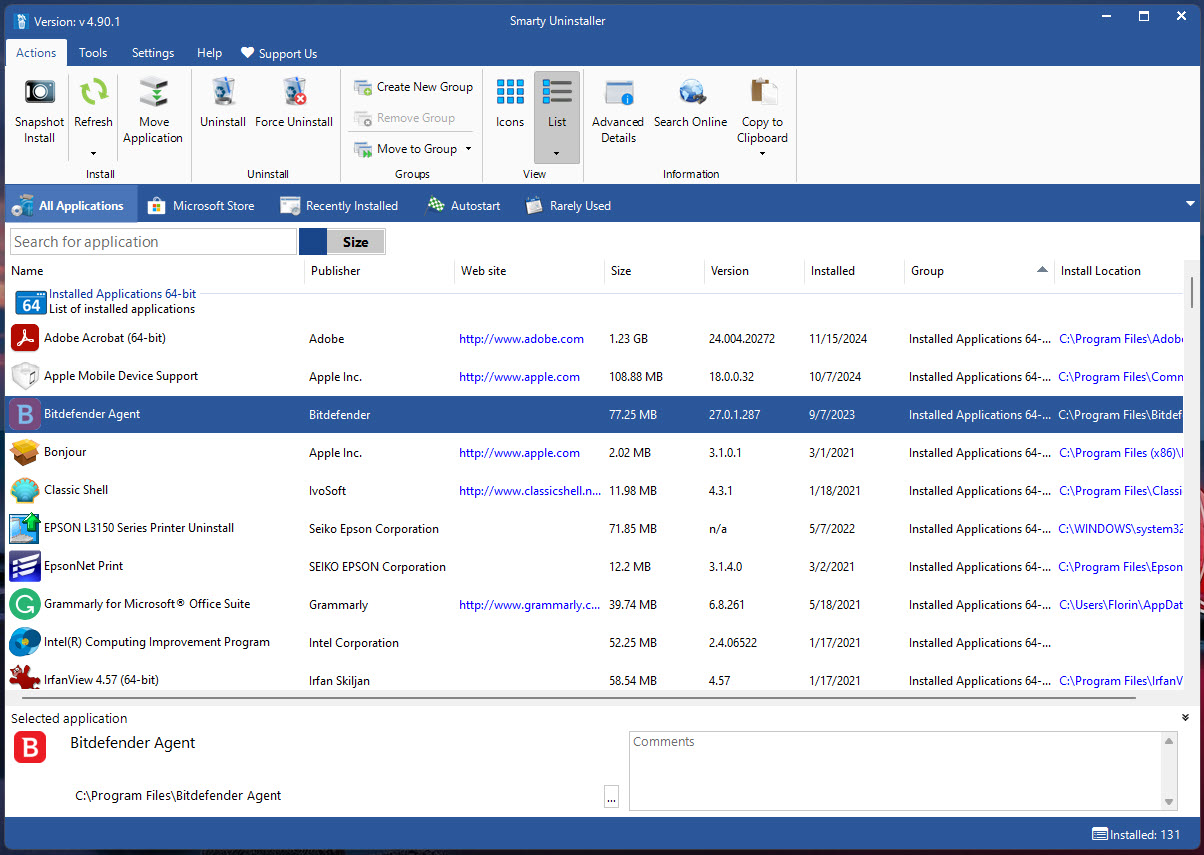
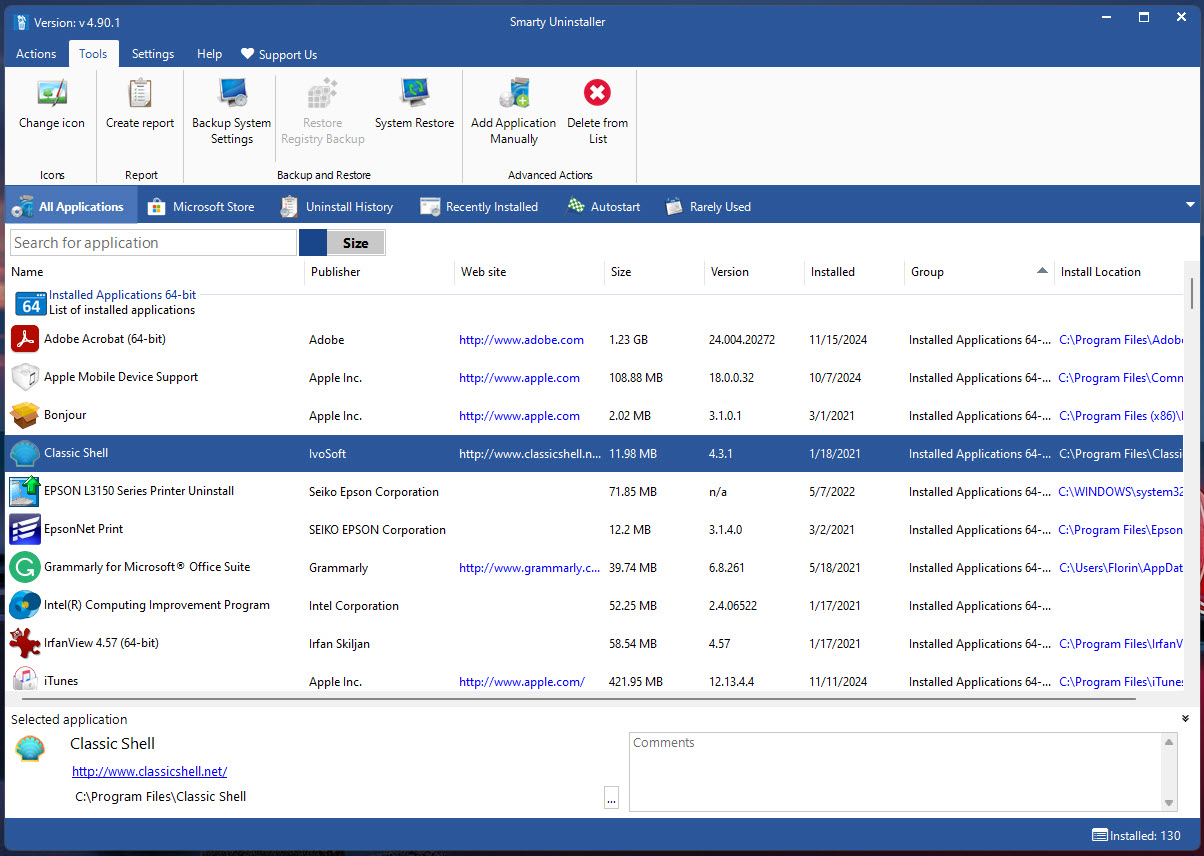
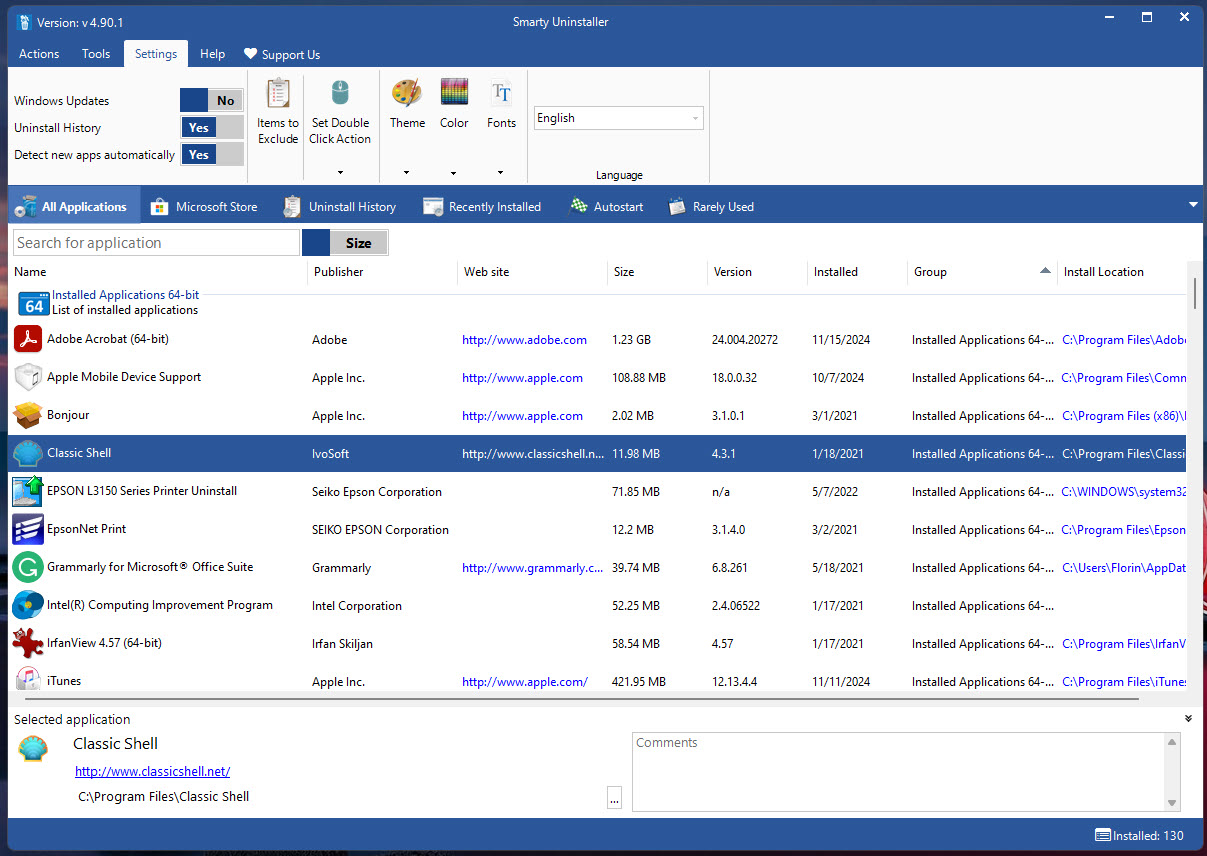
The interface presents installed applications in a list that distinguishes between 32-bit programs, 64-bit programs, and Store apps, with each entry showing publisher, install date, version, size, and other identifying details.
For users who clean their systems regularly, the combination of automated leftover detection and the optional manual review of what’s about to be removed produces a workflow more complete than what the built-in tools offer, with substantially less guesswork than running registry cleaners after the fact.
How the leftover scan engine actually works
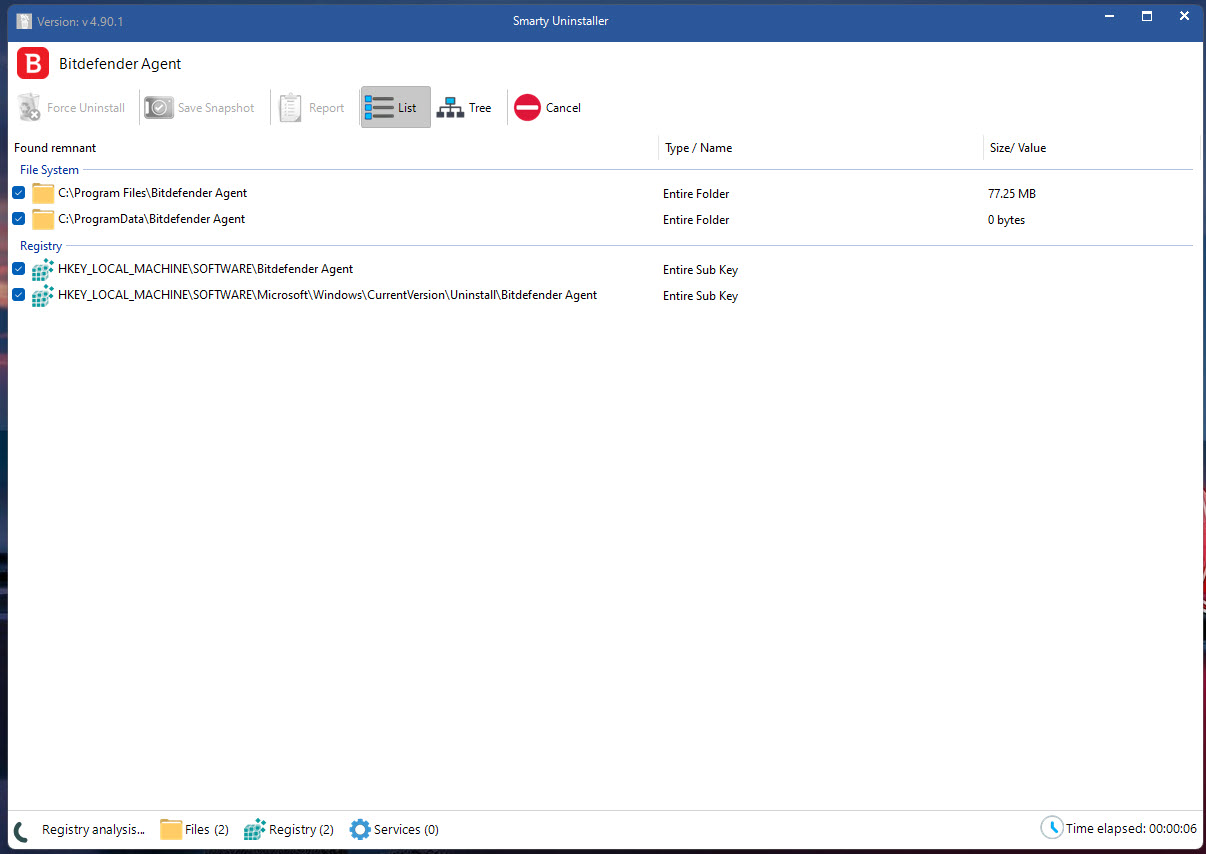
The scan engine is the central feature most users come for. After a standard uninstall completes, the application searches the system for files, folders, and registry entries that match the program’s footprint. This includes files in the original installation directory that the official uninstaller skipped, files scattered across user profile directories, registry keys under HKEY_CURRENT_USER and HKEY_LOCAL_MACHINE that reference the removed program, and various other artifacts that accumulate during typical software installation.
The detection works through pattern matching against the program name, publisher, and known installation paths, with results presented for your review before deletion. You see exactly what the application proposes to remove, with each item showing the path or registry location and a brief explanation of why it was flagged. Approve everything, approve specific items, or reject the entire suggestion list and the application acts accordingly.
For users worried about overzealous detection deleting things that shouldn’t be deleted, the manual review step matters substantially. Some leftover detection tools simply remove everything they find without asking, which produces real risk when their detection logic flags shared components or false positives.
Smarty Uninstaller keeps the human in the loop for the deletion decisions, with the trade-off being that you have to actually look at what’s proposed rather than clicking through prompts blindly.
Snapshot Install for genuinely complete removal
Snapshot Install is the feature that goes beyond what reactive scanning can achieve. Before installing new software, you launch the snapshot mode, which captures the current state of your file system and registry. After installation completes, the application takes a second snapshot and compares the two, identifying every change the installer made.
The result is a complete inventory of what the new software added to your system, including files in unexpected locations, registry modifications, scheduled tasks, services, and various other system changes. Months or years later when you decide to remove the software, this snapshot data tells the application exactly what to remove rather than relying on pattern matching against potentially incomplete information.
For software with poorly-behaved installers (programs that scatter files across half the file system, modify shared registry keys without clear ownership tracking, install services and tasks that aren’t documented in their own uninstaller), Snapshot Install produces dramatically better removal than reactive scanning alone.
The trade-off is that you have to think about installation before it happens rather than dealing with cleanup after the fact, which not every user is willing to do for every program they install.
Force Uninstall for software that refuses to leave
Force Uninstall handles the case where standard uninstallation simply doesn’t work. The program’s own uninstaller is missing or broken. The Add/Remove Programs entry exists but launching it produces errors. Files are locked by running processes that you can’t kill. The standard approaches fail, leaving the software stuck on your system with no clear path to removal.
In Force Uninstall mode, the application searches for the program’s traces directly rather than going through any official uninstaller, then removes everything it finds. The process treats the program as if its uninstaller didn’t exist, working backward from the installation directory and registry entries to identify and remove every component the application can locate.
Drag-and-drop and context menu uninstallation
For users who prefer interaction patterns beyond the main interface, the application supports drag-and-drop uninstallation through the desktop icon. Drag any program’s executable, shortcut, or installation folder onto the icon, and the uninstall workflow starts for that specific program. The right-click context menu also adds an uninstall option that appears when you select program files in File Explorer.
These alternative entry points fit the use case of users who want quick uninstall access without opening the main application interface. See a program shortcut on your desktop you no longer want, drag it onto the application icon, and the removal happens through the same workflow the main interface uses. The convenience matters substantially for users who clean up regularly rather than just dealing with cleanup as a project.
The drag-and-drop integration also works for partial installations or files left behind from previous failed installs. Point the application at orphaned program directories, and it attempts to identify what they belonged to and remove them through the appropriate mechanism.
Not every orphaned file gets cleanly identified, but the attempt is worth making before resorting to manual deletion.
Startup management and junction points
Beyond the core uninstaller features, the application includes auxiliary capabilities that fit naturally with system cleanup work. The startup manager shows every program configured to launch automatically when your system boots, with the option to disable specific entries without removing the underlying programs. For users dealing with sluggish boot times caused by too many startup applications, this management view consolidates control that’s otherwise scattered across multiple system locations.
Junction point support handles the practical scenario of moving installed programs from one drive to another without breaking the installation. Create a junction (a special filesystem link) from the original installation path to the new location, and the operating system treats the moved files as if they were still in their original location. Programs continue working normally without needing to be reinstalled.
For users with limited space on their main system drive, this capability matters substantially. Move large applications to a secondary drive without going through reinstallation, breaking saved settings, or losing user data. The junction handles the path translation transparently, with applications never noticing that their files have moved.
Repair and Modify integration
The Repair and Modify functions integrate with installer features that not every user knows exist. Many software installers include repair modes that reinstall damaged components without removing user data, and modify modes that let you add or remove optional features after the initial installation.
The application surfaces these options for programs that support them, letting you trigger repair or modify operations directly through the management interface rather than hunting through Add/Remove Programs.
For programs experiencing problems where the cause isn’t obvious, running the official repair function before resorting to full uninstall and reinstall often resolves issues faster. The application makes this option visible alongside the standard uninstall choice, which surfaces a capability that’s otherwise easy to overlook.
The Modify function similarly handles cases where you need to adjust an installation rather than remove it entirely. Add a component you didn’t initially install. Remove a feature you no longer need. Change installation options that the original installer offered.
The integration centralizes access to these capabilities across the various programs that provide them.
Backup creation and HTML reports
Before removing programs, the application can create backups of the components being deleted, providing a recovery option if something goes wrong. The backup includes the files and registry entries scheduled for removal, packaged in a format that can be restored if you discover later that you needed something the uninstall removed.
For users uncertain about whether specific removals are safe, this backup capability provides a safety net that bare uninstallation doesn’t offer. Run the uninstall, encounter problems with another program afterward, restore the backup if you suspect the connection. The recovery process isn’t always clean, but the option to recover is better than having no fallback at all.
HTML reports document what the application has done, providing detailed records of which programs were removed, when, what leftover items were detected, and what actions were taken. For users managing systems professionally or who simply want documentation of their cleanup work, these reports provide the audit trail that other uninstaller tools don’t always include.
Manual program addition for incomplete listings
The application’s main view lists programs detected through standard system inventories, but some programs don’t appear there for various reasons. Portable applications that don’t register with the system. Programs installed through unusual mechanisms that bypass normal registration. Software remnants from previous installations that left orphaned directories.
For programs not appearing in the automatic listing, the manual program addition feature lets you point the application at specific directories or files to bring them under management. Once added, the program participates in the normal uninstaller workflow as if it had been auto-detected.
This capability extends the application’s usefulness to scenarios that pure auto-detection can’t handle. Cleaning up after software that resists clean uninstallation. Managing portable applications you’ve decided to remove.
Dealing with installation remnants from years past. The manual addition isn’t necessary for most use cases, but having it available for the cases that need it matters when those cases come up.
Considerations and limitations
Aggressive leftover removal carries real risk if you’re not paying attention to what’s being deleted. Some “leftover” detection flags shared components that other programs depend on, or files in user data directories that you might actually want to keep. The manual review step protects against this, but only if you actually review rather than approving the proposed deletions reflexively.
The auto-detection accuracy varies based on how the original software was installed. Programs with clean installers that follow standard practices get detected and removed cleanly. Programs with unusual installation patterns sometimes evade detection or produce incomplete cleanup. Snapshot Install addresses this for software you install while running the application, but doesn’t help for software that was already installed before you started using the tool.
Some specific scenarios are better handled by alternative tools. For very minor cleanup needs, the built-in Add/Remove Programs is enough without adding a third-party uninstaller to your workflow.
For users who want maximum automation without manual review, tools that handle leftover detection more aggressively (with the corresponding risk) may fit better. For complete system cleanup beyond just program removal, broader optimization suites cover more ground at the cost of being less focused.
The interface design is functional rather than refined. New users figure out the basic workflow quickly, but the visual presentation reflects priorities from a previous era of software design. Compared to recently-developed alternatives with current visual aesthetics, the experience feels less polished even when the functional capability is comparable or better.
The auxiliary features (startup management, junction points, repair and modify integration) work well but don’t compete with dedicated tools for those specific tasks. Users wanting deep startup management may prefer Autoruns. Users wanting elaborate junction management may prefer Junction or other dedicated link utilities. The bundled features cover common cases without trying to be the best in their respective categories.
Conclusion
For users who clean up their systems regularly and want uninstallation that goes further than the built-in interface delivers, Smarty Uninstaller combines the core capabilities that justify reaching for a third-party tool. The leftover scan engine handles the routine cleanup that standard uninstallers skip, Force Uninstall covers the stubborn cases where standard approaches fail, and Snapshot Install produces genuinely complete removal when you’re willing to plan ahead at installation time.
The auxiliary features around startup management, junction points, and repair integration fit naturally with system maintenance work without trying to compete with specialized tools in their respective categories.
The reasons to consider alternatives are mostly about specific preferences. Users wanting the most polished interface and longest market history often prefer Revo. Users wanting an all-in-one cleanup suite covering browser plugins, Windows components, and various other categories beyond pure uninstallation find IObit’s broader scope appealing. Users wanting maximum simplicity without the depth of options find Geek Uninstaller fitting better.
For users wanting focused uninstaller capability with the specific feature combination this software provides, the application remains one of the practical choices in the category.
Pros & Cons
- Leftover scan engine detects files, folders, and registry entries that standard uninstallers leave behind
- Snapshot Install captures system state changes for genuinely complete future removal
- Force Uninstall handles programs whose own uninstallers are broken or missing
- Drag-and-drop uninstallation through the desktop icon and File Explorer context menu
- Backup creation before removal provides recovery options if cleanup causes problems
- Startup item manager consolidates control over auto-launching programs
- Junction point support enables moving installed programs between drives without reinstallation
- Repair and Modify integration surfaces installer capabilities that are otherwise easy to overlook
- Manual program addition handles software that doesn't appear in automatic listings
- HTML reports document cleanup actions for users who want audit trails
- Aggressive leftover removal carries risk if proposed deletions aren't reviewed carefully
- Auto-detection accuracy varies based on how programs were originally installed
- Interface design feels less polished than recently-developed alternatives
- Snapshot Install requires planning ahead at installation time rather than being purely reactive
- Auxiliary features cover common cases without competing with specialized tools
Frequently asked questions
This software is an uninstaller utility that combines standard program removal with leftover detection, force uninstallation for stubborn software, and Snapshot Install tracking. It monitors the built-in application uninstaller's process, then runs an additional scan engine to find files, folders, and registry entries that standard uninstallation leaves behind. Auxiliary features include startup item management, junction point support for moving applications between drives, integration with repair and modify functions for programs that support them, and HTML reporting of cleanup actions.
The application takes over from the standard uninstaller after the program's own removal process completes, running a scan engine that looks for files, folders, and registry entries matching the program's footprint. You review the proposed deletions and approve specific items or the complete list before anything gets removed. For programs without functioning uninstallers, Force Uninstall mode searches directly for the program's traces and removes them without going through any official uninstaller.
Snapshot Install captures your system state before installing new software, then takes a second snapshot after installation completes to identify exactly what changed. The comparison produces a complete inventory of every file, registry entry, scheduled task, service, and other system modification the installer made. Months or years later when you decide to remove the software, this snapshot data tells the application precisely what to remove rather than relying on pattern matching against potentially incomplete information.
Force Uninstall handles software whose standard uninstallation doesn't work, either because the program's own uninstaller is missing, broken, or producing errors. In Force Uninstall mode, the application searches for the program's traces directly and removes everything it finds without going through any official uninstaller. The trade-off compared to normal uninstallation is less guarantee of complete removal, but it's the fallback when the standard approach simply isn't available.
Both tools occupy the same uninstaller-with-leftover-detection space. Revo has a longer market presence, larger user base, more mature interface, and a free tier that handles basic uninstalling without advanced features. Smarty Uninstaller has Snapshot Install (Revo's equivalent feature is in the paid Pro version), drag-and-drop integration, and the auxiliary features around startup management and junction points. The choice often comes down to which specific features matter for your use case rather than fundamental capability differences.
IObit Uninstaller has stronger marketing presence and includes features like browser plugin removal, Windows Update component management, and various other capabilities beyond pure program uninstallation. Smarty Uninstaller focuses more narrowly on uninstallation work without expanding into adjacent system maintenance categories. For users wanting an all-in-one cleanup suite, IObit covers more ground. For users wanting focused uninstaller capability with the auxiliary features that fit naturally with uninstallation work, this software fits better.
Use the Force Uninstall mode for programs that won't remove through standard means. The mode bypasses the program's own uninstaller and searches directly for the program's files, folders, and registry entries. If the program is currently running or has files locked by active processes, close the program before attempting Force Uninstall. For especially stubborn cases, restarting your system into safe mode before running the uninstall sometimes resolves issues that normal-mode uninstallation can't handle.
The scan looks for files in the original installation directory that the standard uninstaller skipped, files scattered across user profile directories, registry keys under HKEY_CURRENT_USER and HKEY_LOCAL_MACHINE that reference the removed program, scheduled tasks, services, and various other artifacts that accumulate during typical software installation. Detection works through pattern matching against the program name, publisher, and known installation paths. Results appear for your review before any deletion happens.
The backup creation feature, when enabled before uninstallation, packages the files and registry entries scheduled for removal in a recoverable format. If you discover later that the uninstall removed something you needed, the backup provides a restoration option. The recovery process isn't always perfectly clean (some types of changes are harder to reverse than others), but having the option matters when you need it. Without backups enabled, uninstallation is permanent and recovery requires reinstalling the affected software.


