

Geek Uninstaller
About Geek Uninstaller
Geek Uninstaller does the thing the built-in uninstaller forgets to do. After a program’s own removal routine finishes, it scans for what got left behind, the folders, the settings files and the registry keys, lists them, and deletes the ones you approve.
When a program’s uninstaller is broken or the program is already half gone, Force Removal skips the routine altogether and hunts down everything belonging to it. All of that from a single executable that needs no installation and opens its list of installed software instantly.
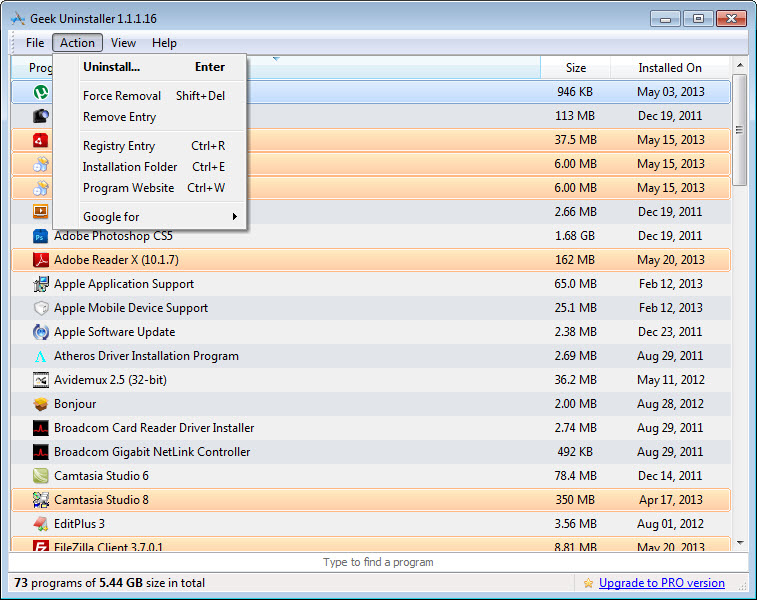
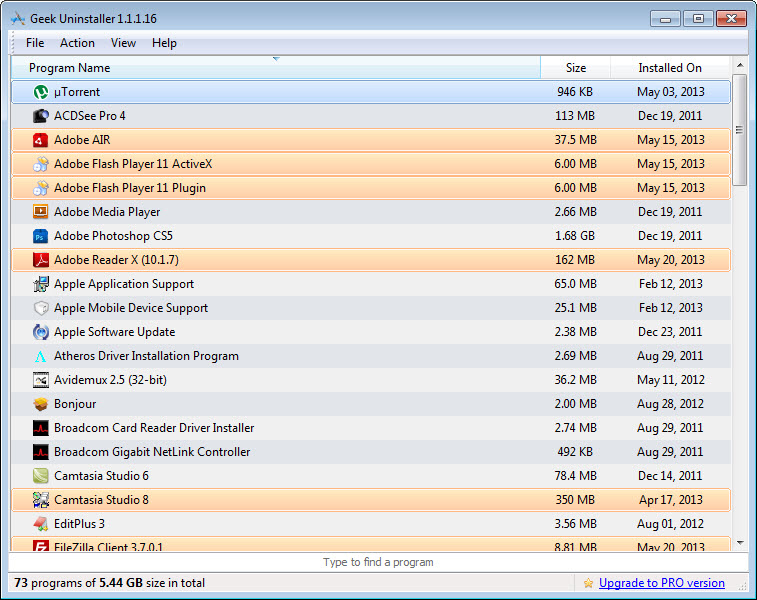
That instant start is the first thing people notice. There is no scan on launch, no splash screen and no database to load. The list appears, both conventional programs and packaged apps in separate views, with size, install date and a colour highlight for anything installed recently. Right-click any entry and the menu offers uninstall, force removal, a jump to its registry key, a jump to its folder, a web search for the name and a link to its site.
Geek Uninstaller is small enough to sit in a toolkit folder and quick enough that it becomes the default way to remove anything.
Uninstall, then the leftover scan
Choose Uninstall and the program’s own routine runs as normal. When it closes, a scan looks for traces that routine ignored and presents them as a tree, files and folders on one side, registry keys on the other, each ticked for deletion. You review before anything goes. That review matters more than it sounds, because shared folders and keys occasionally appear in the list, and a folder named after a maker rather than the program may hold another product’s settings.
The scan is fast and finds the usual suspects, application data folders, start menu remnants, autorun entries and uninstall keys. It is less thorough than Revo Uninstaller on programs that scatter files widely, and it has no installation monitor to record where a program put things in the first place. For most software the difference does not show.
Force Removal for the ones that will not leave
Force Removal is the reason many people keep Geek Uninstaller around. Pick a program whose uninstaller crashes, is missing, or reports that the program is not installed while its entry still sits in the list, and the tool bypasses the routine entirely. It scans for the program’s files and registry keys, shows the results and deletes them on confirmation. The entry disappears and a clean reinstall becomes possible.
It also handles software that ordinarily refuses to go. A browser that ships with the system and its companion apps can be removed this way, and packaged apps that the built-in tools protect are listed and removable too.
Remove Entry is the gentler cousin, deleting only the orphaned registry key for a program you already uninstalled by other means or stripped out with a startup and registry inspector, which fixes the ghost entries that clutter the list after a manual cleanup.
What the unregistered build leaves out
Batch removal is the notable gap in Geek Uninstaller. Programs go one at a time, each with its own scan and confirmation, which is fine for weekly tidying and tedious on a new laptop full of trial software. The registered edition adds batch uninstall, an installation monitor that records changes as a program installs, and a startup manager. None of that is in the build most people run.
There is also no undo and no restore point. Deleting leftovers is permanent, and Force Removal on the wrong entry can break a program you meant to keep. Make a restore point before anything drastic and read the tree before ticking.
For bulk removal of preinstalled clutter, Bulk Crap Uninstaller handles dozens at once with quiet mode, in exchange for a far busier interface.
Small conveniences
The list exports to an HTML file, a handy inventory before a reinstall or for a support ticket. A search box at the bottom filters by name as you type. Dark mode follows the system setting. The interface is translated into around thirty languages.
And the program modifies nothing until you tell it to, keeps no telemetry and installs nothing alongside itself, which is more than can be said for several rivals in this category.
Conclusion
Geek Uninstaller suits anyone who wants a program gone properly and does not want a suite to do it. Technicians carrying it on a stick, and users tired of leftover folders and ghost entries, will find the instant list, the reviewable leftover scan and Force Removal cover almost every case.
It is not the tool for stripping a new machine of twenty trial programs, and the absence of an undo demands a moment’s attention before each confirmation. For the everyday job of removing one program cleanly, it is faster than anything larger.
Pros & Cons
- Opens instantly with the full program list and no scan on launch
- Leftover scan shows files and registry keys for review before deletion
- Force Removal clears broken, half-removed and protected programs
- Single portable executable that runs from a USB stick
- Handles packaged apps as well as conventional programs
- No batch removal in the unregistered build
- No undo or automatic restore point before deletion
- Leftover scan is shallower than the heavier uninstallers
- No installation monitor
Frequently asked questions
It bypasses the program's own uninstaller, scans for its files and registry keys, and deletes them after you confirm. Use it when the normal uninstall fails or the program is already partly gone.
No. After the uninstall it lists leftover files and registry keys, and you tick what to remove.
Not in the unregistered build. Batch removal is a feature of the registered edition.
No. Deletions are permanent, so create a restore point before force removing anything you are unsure about.


