

WExplorer
About WExplorer
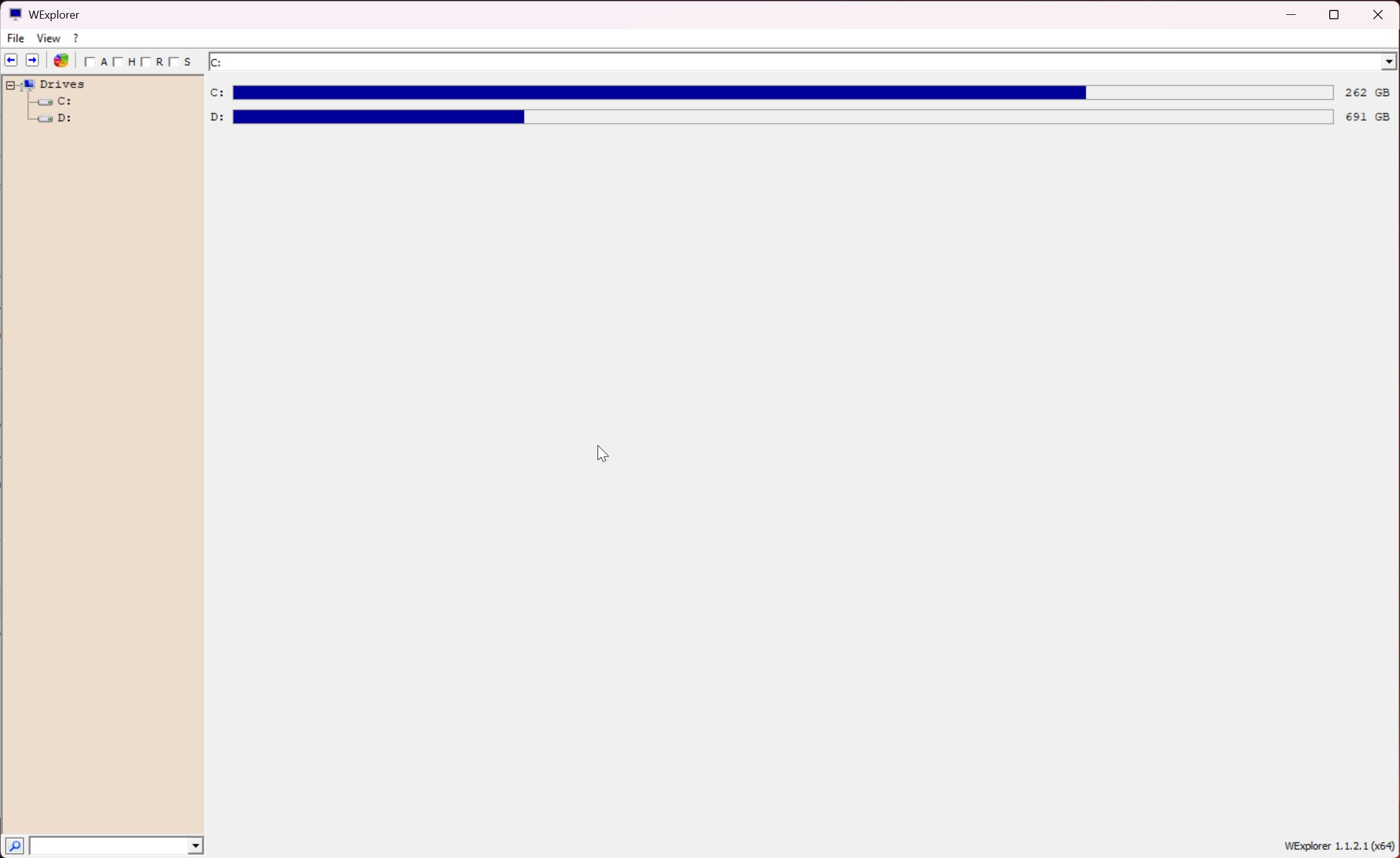
WExplorer is the portable Windows file manager that solves a specific problem for users who find the default File Explorer either too cluttered or too constrained, depending on which side they are coming from. The application weighs in at under 500 kilobytes for the download, runs without installation, and provides a familiar dual-pane layout with tree view and file browser side by side. The interface assumes you already know how a file manager works and gets out of the way, which is the entire appeal for users tired of evolving Windows Explorer behavior across each operating system update.
What sets the application apart from heavier alternatives is its size combined with one genuinely unusual feature, an integrated pie chart that visualizes disk allocation across folders. Most file managers either skip this kind of visualization entirely or offload it to dedicated disk analyzer tools. WExplorer builds it into the core interface, giving you immediate visual feedback on where space is being consumed without launching a second application.
For a file manager that takes up less space than most icon packs, the feature density is unexpected.
The dual-pane layout and what it actually does
The interface is divided into two panes. The left side shows a tree view of drives and folders for navigation. The right side shows the contents of whatever folder you have selected. This is the layout that Windows Explorer used for years before the modern File Explorer reduced the tree view’s prominence and added the ribbon-style command bar that many users actively disliked.
Navigation works the way it has always worked in this kind of interface. Click a folder in the tree to see its contents on the right. Double-click a folder in the right pane to drill into it. The address bar accepts typed paths for direct navigation. Standard keyboard shortcuts behave as expected, with Backspace going up a level, Enter opening selections, and F2 renaming the highlighted item.
This is not the dual-pane setup that Total Commander or similar power-user file managers use, where both panes show independent file lists for moving content between them. The WExplorer layout is the classic tree-plus-list arrangement, which is more familiar to users coming from default Windows Explorer than from any orthodox dual-pane application.
For users who want the orthodox two-list approach, FileVoyager and similar tools handle that paradigm specifically.
The disk allocation pie chart
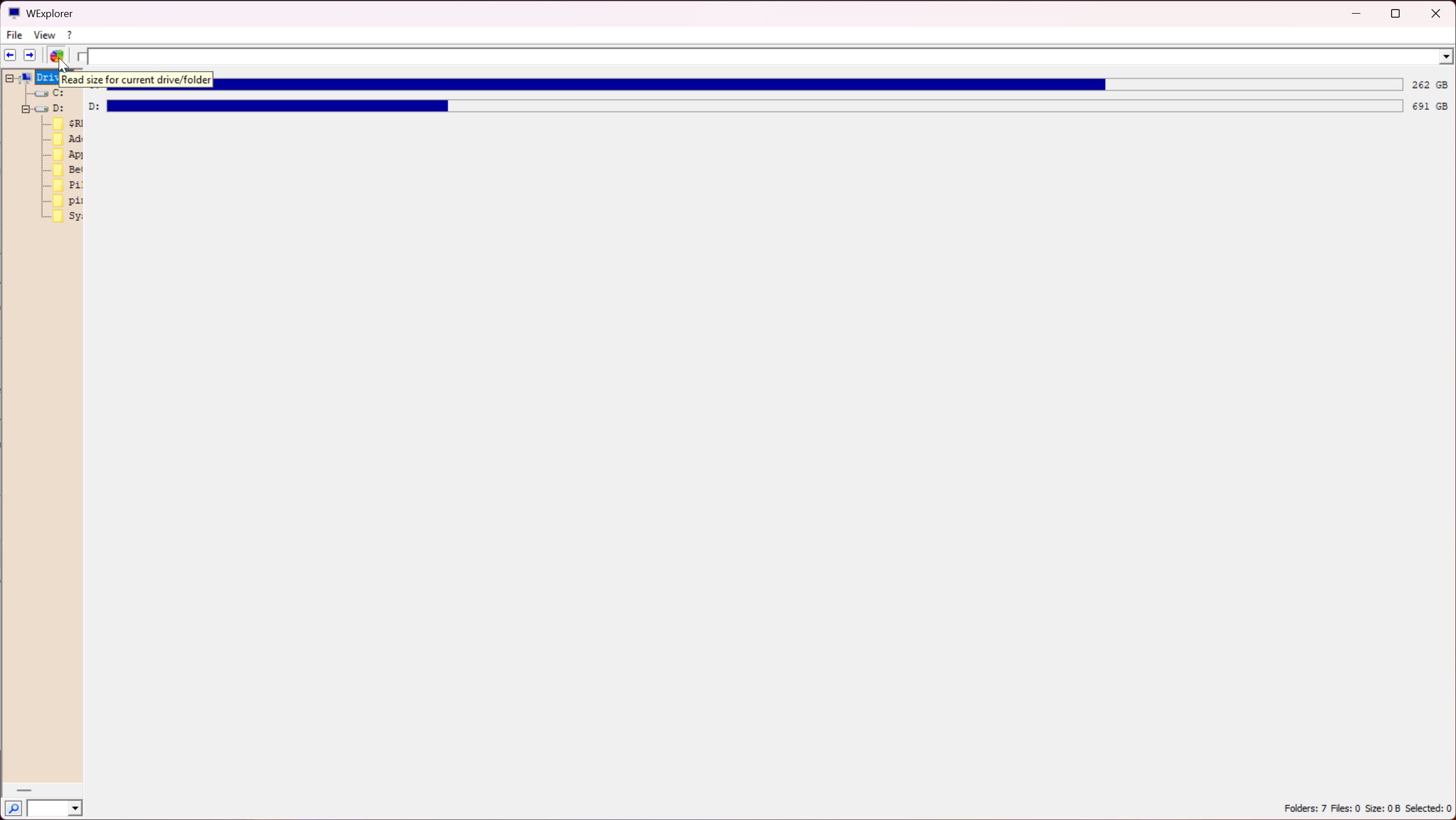
This is the feature most likely to actually surprise users coming from default Windows Explorer. The application can generate a pie chart showing how disk space is distributed across the selected folder, with each child folder or large file represented as a slice proportional to its size. Hovering over a slice shows the exact size and name. Clicking drills into that folder for a more detailed breakdown.
The chart is genuinely useful for the kind of quick “where did my space go” question that comes up every time a drive starts filling. Default Windows Explorer shows folder names and individual file sizes but does not aggregate folder contents visually. The pie chart in WExplorer condenses an entire folder hierarchy into a single image that tells you at a glance which subfolders are eating space.
This is the kind of feature that dedicated disk analyzers handle in more depth. Tools focused specifically on disk visualization show more detailed treemaps, recursive folder scanning, and filtering by file type, all of which WExplorer‘s pie chart does not attempt.
What the integrated feature does is cover the common case without needing to launch a separate application. For deeper analysis of what is consuming a drive across the entire filesystem, a dedicated Folder Size integration extends the same idea into Windows Explorer directly.
The portable architecture and its consequences
The application runs without installation, with all configuration stored alongside the executable in a single folder. This is the portable application model that many lightweight Windows utilities follow. The consequences are worth understanding.
You can run WExplorer from a USB drive on any PC without leaving traces on the host system, useful for troubleshooting other people’s machines or working on locked-down corporate environments where you cannot install software. The configuration travels with the executable, so your preferred view settings, hotkeys, and any customization stays consistent across machines. Backup is a single folder copy.
The flip side is the application does not integrate into Windows the way an installed file manager would. It does not register as a default file manager, does not appear in shell context menus, and does not get launched when you double-click a drive in This PC. To use it you launch the executable directly.
For users who specifically want context menu integration alongside their file manager, separate tools like FileMenu Tools extend the right-click menu independently of which file manager you use.
Quick search and file operations
The search function is integrated into the toolbar and operates on the currently displayed folder by default. Type a query and the file list filters in real time to matching entries. The search is name-based, not content-based, so it finds files by filename patterns rather than by what is inside them. For deeper content searching, dedicated tools serve that purpose better.
File operations cover the standard set. Copy, paste, cut, move, delete, rename, and create new folders all behave the way you would expect. Drag and drop works between panes and between WExplorer and other Windows applications. Multi-select with Ctrl and Shift behaves the same as in default Explorer. The application is genuinely trying to be a familiar tool, not to reinvent file management.
There is no built-in file preview pane, no batch rename engine, no advanced filtering by attributes or metadata, no integrated archive handling beyond what Windows provides natively. Users who need any of these features would look at heavier alternatives. The application is deliberately minimal in scope.
Comparison with the default Windows Explorer
The reason users seek out alternatives like WExplorer is almost always frustration with how Windows File Explorer has evolved. The modern version includes the ribbon-style command bar that some users find cluttered, the Quick Access section that some users find intrusive, the constantly-changing Properties dialogs across Windows versions, and the increasing integration of online services like OneDrive that some users actively want to avoid.
WExplorer sidesteps all of this by offering a simpler interface that focuses on the file management basics. The tree view is prominent, the file list is clean, and there is no cloud integration, no telemetry, no online suggestions, no surprise updates that change behavior. For users who specifically want a file manager that does what file managers always did, the application delivers.
For users who want to keep the default Windows Explorer but customize its behavior, alternatives like Clover add tabs to the existing Explorer, and OldNewExplorer restores classic features that newer versions removed.
These take a different approach, modifying the built-in tool rather than replacing it, which suits users who prefer staying with the OS-native solution.
Resource use and performance
The 489 kilobyte download size is not a misprint. The application is small in a way that modern software rarely is. The memory footprint during operation stays under 20 megabytes for typical use, the startup time is essentially instant, and the responsiveness on large folders is genuinely fast even on older hardware.
This performance profile makes the application useful in scenarios where heavier file managers struggle. Older PCs being used past their prime, virtual machines with limited resources, remote desktop sessions with limited bandwidth for redrawing complex interfaces, all benefit from the minimal overhead. The application is not faster at file operations themselves because those are bounded by disk speed, but the interface stays responsive while operations happen in the background.
The trade-off is that the application does not load thumbnail previews for images and videos the way Windows Explorer does. The icons in the file list are basic file type icons, not preview thumbnails. For users who specifically need visual file previews, this is a noticeable absence. F
or users browsing folders of documents, code, or general files where thumbnails do not help, the speed gain is worth the missing previews.
The keyboard-friendly approach
Power users of file managers know that mouse-driven file management is slower than keyboard navigation once you learn the shortcuts. WExplorer supports the standard Windows file management hotkeys (F2 rename, F5 refresh, Delete to recycle, Shift+Delete to permanently remove, Ctrl+C/V/X for copy/cut/paste) and adds a few of its own for the tree navigation and quick search.
There is no extensive macro system, no scripting interface, no recordable action sequences. The keyboard support is the basics done correctly, not a programmable automation layer. Users who want extensive scripting in their file manager need to look at applications specifically built around that, like FileCtor which adds JavaScript scripting to file management workflows.
What the basic keyboard support delivers is the ability to perform common file operations without ever touching the mouse, which over time saves meaningful effort for users who do a lot of file management.
Combined with the dual-pane layout, an experienced user can navigate large folder hierarchies and perform standard operations significantly faster than the default Windows Explorer allows.
Real limitations
The application is small for a reason. It does not include archive handling beyond what Windows natively provides for ZIP files. No RAR, 7Z, or other formats handled internally. No image preview pane. No advanced filtering. No batch rename with regex. No integrated FTP or cloud storage. No tabs for keeping multiple folders open in one window. The feature set is deliberately narrow.
For users who want any of these features, the application is not the right tool. Heavier alternatives like Total Commander, FreeCommander, or FileVoyager all provide more comprehensive feature sets at the cost of larger downloads, more complex interfaces, and steeper learning curves. WExplorer explicitly does not compete with these. It targets users who want less, not more.
The development pace is modest. The application receives occasional updates but is not on the constant release schedule of heavily-developed software. This is consistent with the design philosophy. A small focused tool that does one thing well does not need frequent updates to expand its scope. Some users see slow development as a sign of stability, others see it as stagnation, depending on what they value.
Conclusion
WExplorer is the right choice for users who want a small, portable, familiar file manager that gets out of the way and lets them work with files without the surrounding interface complexity of default Windows File Explorer or the feature density of power-user alternatives. The dual-pane layout brings back the prominent tree view that the default File Explorer has deprioritized, the integrated pie chart adds a genuinely useful disk allocation view, and the portable architecture means the application works the same way on any Windows PC without installation overhead.
The application is not aimed at users who want extensive file management features, archive handling, tabs, scripting, or any of the deeper capabilities heavier file managers provide. For those audiences, larger alternatives serve better. WExplorer stays small on purpose, and within that lane it is one of the most efficient file managers available. F0
or troubleshooting USB sticks, running on older hardware, or simply preferring a quieter file manager than what Windows ships with, the application earns the spot it occupies in the lightweight tools category.
Pros & Cons
- Portable application runs without installation and leaves no traces on the host system
- Tiny 489 KB download size with minimal memory footprint during operation
- Integrated disk allocation pie chart visualizes folder sizes within the file manager itself
- Familiar dual-pane layout with tree view that default Windows Explorer has deprioritized
- Standard keyboard shortcuts and file operations match user expectations from existing tools
- Free and freeware-licensed with no premium tier or feature paywall
- No archive handling beyond what Windows natively supports for ZIP files
- No image or video thumbnail previews in the file list
- Lacks tabs for managing multiple folders in a single window
- No advanced filtering, batch rename, or scripting capabilities
- Does not integrate into Windows shell or context menus like installed file managers do
- Development pace is slow, with infrequent updates compared to actively-developed competitors
Frequently asked questions
The application is a portable alternative file manager with a dual-pane tree-and-list layout, integrated disk allocation pie chart, and a deliberately minimal feature set. It runs without installation and avoids the ribbon-style command bar that recent Windows versions added to the default File Explorer.
No. The application is portable. Download the executable, run it from any location, and the configuration stays alongside the file. You can run it from a USB drive on any PC without affecting the host system.
The integrated disk allocation chart visualizes how disk space is distributed across the contents of the current folder. Each subfolder or large file shows as a slice proportional to its size, making it easy to identify what is consuming space without launching a separate disk analyzer.
The application does not register as a default file manager or integrate into Windows shell context menus. You launch it directly by running the executable. Users who want a replacement that integrates more deeply with Windows would need a different solution.
No. The interface is a single window with the dual-pane layout. For multiple simultaneous folder views you open multiple instances of the application or use a different file manager that includes tab support.
ZIP files use the standard Windows handling that the operating system provides. RAR, 7Z, and other archive formats are not handled natively by the application and require separate tools to extract.
The download is approximately 489 kilobytes, and the running memory footprint typically stays under 20 megabytes during normal use. The application is one of the smallest file managers available for Windows.
No. The file list shows basic file type icons rather than image or video thumbnails. This is part of why the application stays small and fast, but it means users who rely on thumbnails for visual file identification will find this missing.


